
Introduction
Keycloak allows customization of the look and feel of end-user-facing pages through CSS and theme customization. It uses Apache FreeMarker templates to generate HTML and render pages.
However, the open-source solution Keycloakify makes it much easier to customize Keycloak themes, including login, account, admin, and email themes, using modern frontend frameworks.
In this article, we look at how Keycloakify-generated themes can be used in Skycloak, the managed Keycloak-as-a-Service platform.
Implementation Steps
In this article, I will cover the typical steps followed to create a login theme using Keycloakify and finally discuss the options available to upload the generated JAR file into Skycloak.
While Keycloakify supports React, Angular, and Svelte frameworks, React is recommended in the Keycloakify documentation because it currently has the most complete integration and smoother developer experience.
In this article, we use the React framework.
Clone the Starter Project
First, clone the starter project:
git clone https://github.com/keycloakify/keycloakify-starterNavigate to the keycloakify-starter folder.
Install command:
npm install //since not using yarn make sure to delete the yarn.lockBy default, the theme name is "keycloakify-starter".
You can customize it by editing the vite.config.ts file:
export default defineConfig({
    plugins: [
        react(),
        keycloakify({
            themeName: ["sparrow"],  //For multiple themes, separate names with commas
            accountThemeImplementation: "none"
        })
    ]
});
Customizing the Login Theme
To customize the login theme, run:
npx keycloakify add-storyThen select login.ftl.
Start the development environment.
npm run storybookYou can view the login templates in the browser using the URL displayed in the console.
Changing the Background
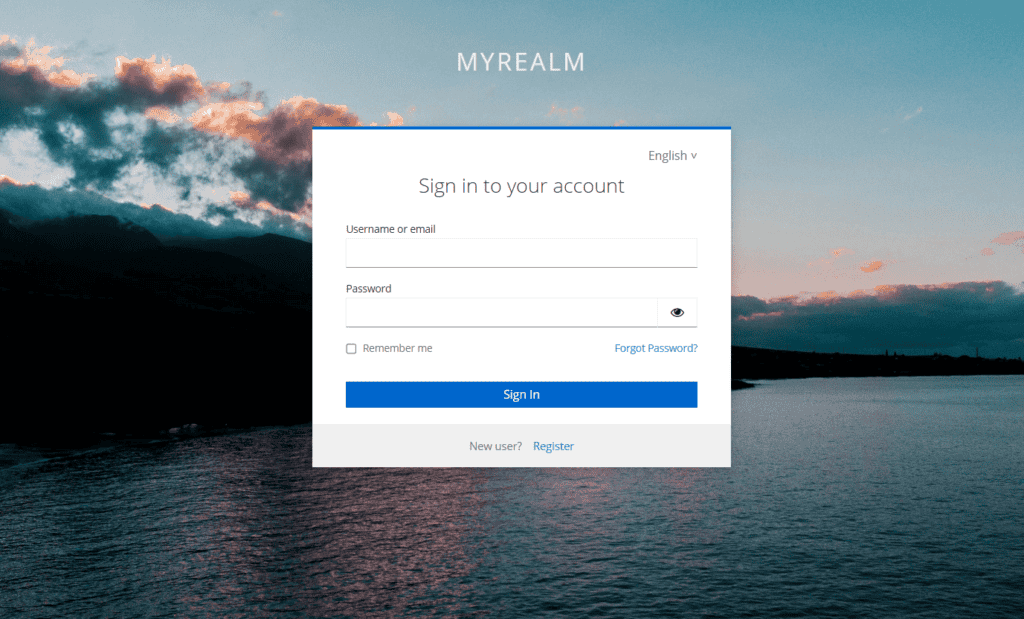
To customize the background, create a CSS file and import it in src/login/KcPage.tsx
import "./main.css" Create the file:
src/login/main.css
body.kcBodyClass {
  background: url("../assets/background.jpg") no-repeat center center fixed;
  background-size: cover;
}
The assets folder can be created under the src directory and should contain the background image.
Refreshing the browser should display the login page with the updated background.
Customizing the Template
Suppose we want to display a company logo where the realm name is normally displayed.
One way to achieve this is by ejecting Template.tsx and modifying it further.
npx keycloakify eject-page Then select Template.tsx
This blog only illustrates a few commands and demonstrates how Keycloakify themes can be loaded into Skycloak. Keycloakify offers a wide range of flexibility for customizing themes.
It also provides features to quickly test themes directly in Keycloak by choosing the desired Keycloak version.
npx keycloakify start-keycloakBuilding the Theme
To generate the production build:
npm run build-keycloak-themeTwo JAR files will be generated under:
keycloakify-starter/dist_keycloakOne JAR supports Keycloak versions 22–25, while the other supports versions 11–21 and 26+.
Talk through your identity setup with us
Book a demo and we will walk you through Skycloak with the sign-in, SSO and migration questions your team is working on.
Uploading the theme in Skycloak
For a local Keycloak installation, you can copy the generated theme JAR into the providers folder and then run:
kc.bat buildWhen using Skycloak, themes can be uploaded at the cluster level from:
Note: Custom theme feature in Skycloak is available on business plan and up
Skycloak Console -> Themes -> Add Theme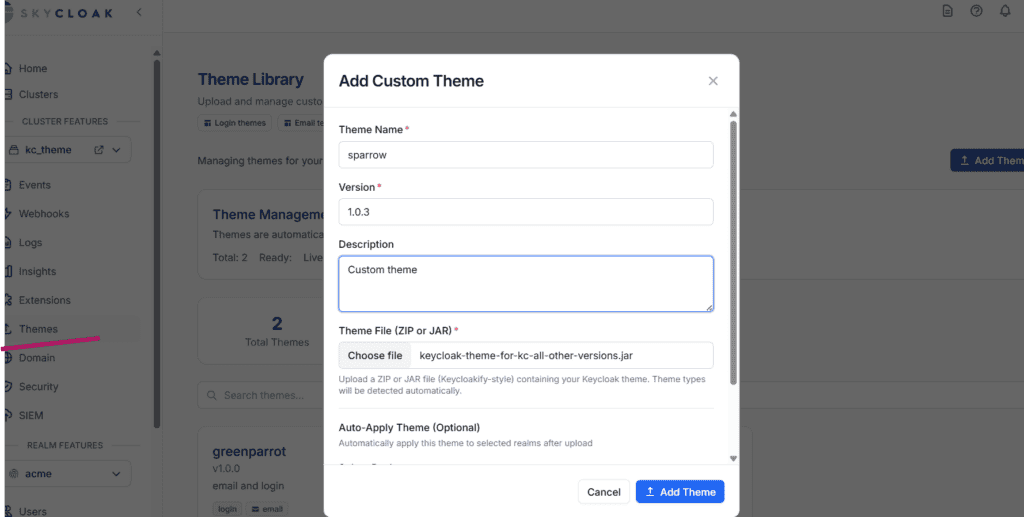
Then navigate to the desired realm:
Realm Settings -> Themes -> Login ThemeSelect the login theme configured in Keycloakify and activate it.
Summary
We briefly explored how themes generated using Keycloakify can be used in Skycloak.
Keycloakify supports customization of additional themes as well, including email themes. The generated JAR file containing all theme customizations can be applied using the same approach described above.
About Skycloak
Skycloak is a fully managed Keycloak platform hosted in the cloud. It enables organizations to leverage the power of open-source Keycloak IAM without the operational overhead of installing, maintaining, and scaling production-grade Keycloak environments, delivered securely and cost-effectively.
If you’re new to Skycloak, visit the Skycloak Getting Started Guide to learn more