
Best 2FA Tools for Apps and Teams, Compared. The best 2FA tools compared: authenticator apps for people, and identity platforms that enforce TOTP, passkeys and recovery codes for your team or your app.
The best 2FA tools fall into two groups. Authenticator apps are for individuals: 2FAS, Proton Authenticator, Google Authenticator and Microsoft Authenticator. Identity platforms enforce 2FA for an app or a team: Keycloak, Auth0, Okta and Duo. For a team or an app you build, pick a platform that can require TOTP codes or passkeys centrally, gives users a recovery path such as backup codes, and works with your single sign-on (SSO).
Most pages that rank for “2FA tools” answer only half of that question. Some are online code generators, some review the phone apps a person installs, and some describe a single vendor’s product. If you run a team or build an app, you need both halves: an app your people can use, and a system on the server side that decides who must use a second factor, which factors count, and what happens when someone loses their phone. This guide compares both groups, gives a pick for each use case, and then shows where those decisions live in Keycloak.
If you want a refresher on the basics first, our explainer on what multi-factor authentication is covers why a second factor matters, and what an OTP is covers the one-time codes most of these tools produce.
Which 2FA tool should you pick?
Start from who you are protecting. A person protecting their own accounts needs an authenticator app, and the main question is how it backs up codes. A team needs its identity provider to require a second factor for everyone and to handle recovery, so the app each person installs matters less. An app you build needs a platform that adds 2FA to your login page without you writing the cryptography.
| Use case | Tool type | Good picks | What to check |
|---|---|---|---|
| Your own accounts | Authenticator app | 2FAS, Proton Authenticator, Google Authenticator | How codes are backed up and moved to a new phone |
| A team on Microsoft 365 or Entra ID | Authenticator app plus the tenant’s MFA policy | Microsoft Authenticator | Push approval with number matching |
| A team on one SSO provider | Identity platform | Okta, Duo, Keycloak | Central enforcement, phishing-resistant factors, recovery |
| An app you build | Identity platform | Keycloak, Auth0 | TOTP, passkeys and recovery codes in your own login flow |
The sections below explain each row, starting with the apps.
What is a 2FA authenticator app?
A 2FA authenticator app is a phone or desktop app that stores a secret shared with each of your accounts and turns it into a short code that changes over time. Almost all of them implement the same open standard, TOTP (Time-Based One-Time Password), defined in RFC 6238. TOTP builds on HOTP, the counter-based version in RFC 4226, which asks for codes of at least six digits. RFC 6238 replaces the counter with the clock and recommends “a default time-step size of 30 seconds”, which is why most codes roll over twice a minute.
Because the standard is shared, any of these apps works with any site that shows you a TOTP QR code. The real differences are backup, the devices it runs on and whether you can export your codes if you switch. Those decide whether a lost phone is a small chore or a locked-out afternoon.
2FAS
2FAS is an authenticator for Android and iOS, and its maker says “2FAS source code is made public to ensure full transparency”. It offers “Cloud and manual backup”, so you choose whether codes leave your phone, and it has a browser extension that sends codes from your phone to the browser. It is a good default for people who want an open app with a backup they control.
Proton Authenticator
Proton describes its app as “an open source and end-to-end encrypted 2FA app that’s simple and free to use”, and it runs on iPhone, iPad, Apple Watch, Mac, Android, Linux and Windows according to the same page. End-to-end encrypted sync means the codes are encrypted on your device before they are backed up, so the sync service cannot read them. It also imports from Google Authenticator and 2FAS and lets you export your codes, which makes it the easiest pick if you want the same codes on a laptop and a phone.
Google Authenticator
Google Authenticator is the app many sites name in their setup instructions. Since April 2023 it supports Google Account synchronization, so your codes are tied to your Google Account rather than to one phone. That makes it a reasonable first app for someone new to 2FA, as long as the Google Account itself is well protected, because that account now holds your second factors too.
Microsoft Authenticator
Microsoft Authenticator is the natural pick when your organization signs in through Microsoft Entra ID, because it supports push approval on top of codes. Push is convenient but can be abused by attackers who send prompts until someone taps Approve, so Microsoft now shows a number on the sign-in screen that the user types into the app; its documentation says “Number matching is enabled for all Authenticator push notifications”.
Which 2FA platforms enforce it for a team or an app?
An identity platform is the server side of 2FA. It decides which users must use a second factor, which kinds it accepts, how people enroll and how they recover. If you run SSO for your staff or build a login page for customers, this is the tool you are actually choosing, and the authenticator app becomes one of the factors it accepts.
| Platform | Second factors (from vendor docs) | Phishing-resistant option | Best fit |
|---|---|---|---|
| Keycloak | TOTP or HOTP apps, WebAuthn security keys and passkeys, recovery codes | WebAuthn and passkeys | Apps you build and workforce SSO, open source, self-hosted or managed |
| Auth0 | Push, SMS, voice, one-time passwords, WebAuthn with security keys or device biometrics, email, Cisco Duo, recovery codes | WebAuthn | Apps you build, as a hosted service |
| Okta | Okta Verify, Passkey (FIDO2 WebAuthn) and other authenticators | Passkey (FIDO2 WebAuthn) and Okta FastPass | Workforce SSO |
| Duo | Duo Push, Verified Duo Push and other methods | Passkeys and FIDO2 security keys | Adding 2FA in front of existing workforce apps |
Keycloak is the open-source option in that list. The rest of this guide uses it as the worked example because every setting it needs is documented in its Server Administration Guide, and the same ideas map onto the others. For a wider rollout plan across tools, our guide on setting up MFA for enterprise applications covers the organizational side.
Why SMS and email codes are the weakest second factors
SMS and email codes are better than nothing, but standards bodies now treat them as the weakest options. The current NIST guideline, SP 800-63B-4, says the use of the phone network for out-of-band codes “is restricted”, which means an organization that offers it has to meet extra conditions and give users an alternative. It goes further for email and says “Email SHALL NOT be used for out-of-band authentication”, because an inbox is often reachable with just a password.
The same document is also clear that app codes have limits: “OTP authentication is not phishing-resistant”. A fake login page can ask for your six digits and pass them on to the real site within the 30-second window, so a TOTP app stops password reuse and credential stuffing, but not a well-built phishing page.
Open source, without the per-user bill
Most identity platforms charge per monthly active user and gate enterprise SSO behind an upgrade. Skycloak bills for infrastructure instead, so every plan carries unlimited users and unlimited applications, on real upstream Keycloak you can export at any time.
Why passkeys and WebAuthn are the strongest second factor
Passkeys and security keys are built on WebAuthn, and they resist phishing because each credential is “scoped to a given WebAuthn Relying Party”, the website that registered it, and the browser only lets that website’s origins use it. A lookalike domain cannot ask for a credential registered to yours, so there is nothing for the user to type into the wrong page. CISA’s fact sheet calls phishing-resistant MFA “the gold standard for MFA” and says “The only widely available phishing-resistant authentication is FIDO/WebAuthn authentication”.
NIST now expects this option to be on the menu. At its middle assurance level, AAL2, it says “Verifiers SHALL offer at least one phishing-resistant authentication option”, and synced passkeys count at that level. NIST says the keys of syncable authenticators are inherently exportable, that exportable keys are usable at AAL2 or below, and that syncable authenticators SHALL NOT be used at AAL3, its highest level. For a team, that points to a simple policy: offer passkeys or security keys to everyone, keep an authenticator app as the fallback, and drop SMS where you can. Our complete guide to passkeys and WebAuthn in Keycloak walks through both modes, and enterprise passkeys for B2B SaaS compares passkeys with magic links and passwords for business customers.
How do you plan recovery and backup codes at team scale?
Plan recovery before you enforce 2FA, because every lost or replaced phone becomes a support request otherwise. The usual answer is a set of single-use recovery codes that each user stores somewhere other than their phone. NIST’s rules for these saved codes are short and practical: each code “SHALL include at least 64 bits from an approved random bit generator”, and after one is used the provider “SHALL invalidate that recovery code and SHALL issue a new saved recovery code”.
At team scale, a few habits keep recovery calm. Ask everyone to register two factors, for example a passkey on their laptop and an authenticator app on their phone, so a single lost device never locks them out. Give admins a documented way to reset a user’s second factor, and make sure the reset itself is logged. Finally, decide who verifies a person’s identity before that reset, since a help desk that resets 2FA on a phone call becomes the easiest way around it.
How do you enforce 2FA in Keycloak?
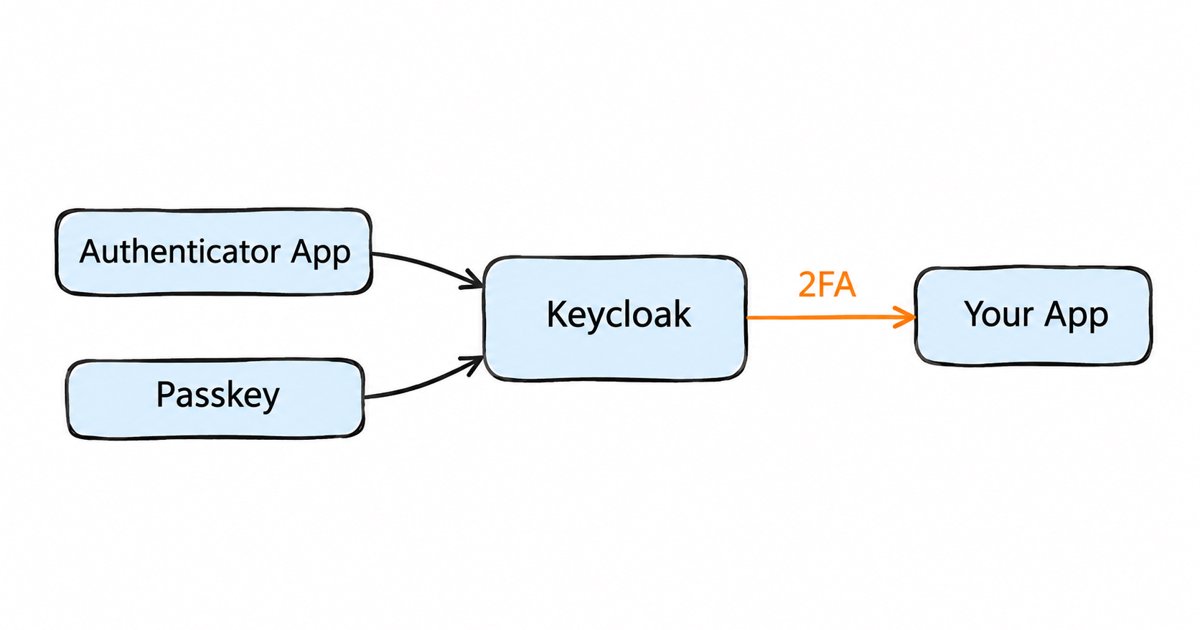
In Keycloak, 2FA is a combination of three settings: a policy that defines the factor, a required action that makes users enroll, and the browser authentication flow that asks for the factor at login.

The user enters a password, the Browser - Conditional 2FA sub-flow checks which second factors they have set up, the user proves one of them (an app code, a passkey or a recovery code), and Keycloak signs them in to the app.
- Set the OTP policy. Open Authentication, then its policies tab, then OTP Policy. Here you choose time-based or counter-based codes, the hash algorithm, the number of digits and the period. The guide notes that “The default algorithm is SHA1”, with SHA256 and SHA512 as options, and that a look-around window of 1 is adequate to absorb small clock drift. Keep the defaults unless you have a reason to change them, because many authenticator apps only handle SHA1.
- Make users enroll. The Configure OTP required action asks a user to scan a QR code into their app at their next login. Under Authentication, the Required actions tab lets you tick Set as default action so every new user gets it, and for existing users you set the required action on each user.
- Ask for the factor at login. The default browser flow contains a Browser - Conditional 2FA sub-flow, described in the guide’s built-in flows section. Its OTP Form runs for users who have an OTP credential, and the WebAuthn Authenticator and Recovery Authentication Code Form executions sit beside it, disabled by default.
- Add passkeys or security keys. Set WebAuthn Authenticator to Alternative in that sub-flow, as the WebAuthn setup section describes, and enable the Webauthn Register required action so users can add a key. Passkey login without a password is a separate setting in the WebAuthn Passwordless Policy, and the Keycloak team announced official support for passkeys in Keycloak 26.4.
- Turn on recovery codes. In Keycloak 26.3.0 the recovery codes feature was promoted from preview to a supported feature. Enable the Recovery Authentication Codes required action and set the Recovery Authentication Code Form to Alternative in the same sub-flow.
If only some parts of your app need a second factor, for example a payment page or an admin screen, you do not have to ask for it at every login. Our step-up authentication guide shows how Keycloak asks for a stronger factor only when the user reaches those pages, and authentication methods explained maps every login method Keycloak supports to its setting.
FAQ
What is the best 2FA app?
For most people, an app that backs up codes in a way you control is the best choice: 2FAS and Proton Authenticator both publish their source code, Proton’s app is free, and Proton syncs codes with end-to-end encryption across phone and desktop. If you are new to 2FA, Google Authenticator is fine as long as your Google Account is well protected, since it can hold the backup.
Is a passkey better than an authenticator app?
Yes, for phishing. A passkey only works on the website it was registered for, so a fake login page cannot collect it, while an app code can be typed into a fake page and replayed. Keep an authenticator app or recovery codes as a fallback for devices that cannot use a passkey.
Is SMS 2FA still safe to use?
SMS is better than a password alone, but NIST lists the phone network as a restricted authenticator and says email must not be used for out-of-band codes. Use SMS only as a fallback while you move users to an app or passkeys.
Do I need a separate 2FA tool if I already use SSO?
Usually not. Your SSO provider is where 2FA should be enforced, because it applies one policy to every app behind it. Our best practices for secure SSO cover how the two fit together.
What to do next
Pick the authenticator app your people will use, then make your identity platform enforce 2FA centrally: require enrollment, offer passkeys or security keys as the phishing-resistant option, keep an app code as the fallback and give everyone recovery codes before you switch enforcement on. If you are adding this to an app you build, Keycloak gives you all of those settings in one realm, and the MFA setup guide is a good next read.
If you would rather not run the Keycloak server yourself, you can enforce 2FA for your app or team on managed Keycloak: start a Skycloak managed Keycloak trial, or see how managed Keycloak hosting works.