Last updated: March 2026
Introduction
In this article, we demonstrate how to use Okta as a SAML Identity Provider (IdP) and configure Keycloak as a SAML Service Provider (SP) using Keycloak’s Identity Brokering feature.
With this setup, your applications — whether OIDC or SAML — can authenticate users stored in Okta through Keycloak, without modifying application code. This is a core capability of Keycloak’s identity provider integration, enabling organizations to centralize authentication while supporting multiple upstream IdPs.
Brief Overview of SAML
What is SAML?
Security Assertion Markup Language (SAML) is an XML-based framework that enables identity and authentication information to be securely exchanged between online business partners. SAML is one of the foundational protocols for implementing single sign-on (SSO) across enterprise applications.
For more details you may visit the official documentation available here.
In SAML:
- Identity Provider (IdP): where the user authenticates (in our case: Okta)
- Service Provider (SP): the relying party that consumes authentication assertions (in our case: Keycloak)
The IdP issues SAML Assertions, which are signed XML documents containing:
- Authentication information
- Optional user attributes
- Optional authorization data
You can use our SAML Decoder tool to inspect and debug SAML assertions and responses during your integration work.
SAML Flows
SAML supports two main flows:
- SP-Initiated Flow
- IdP-Initiated Flow
In this article, we focus on the SP-Initiated Flow.
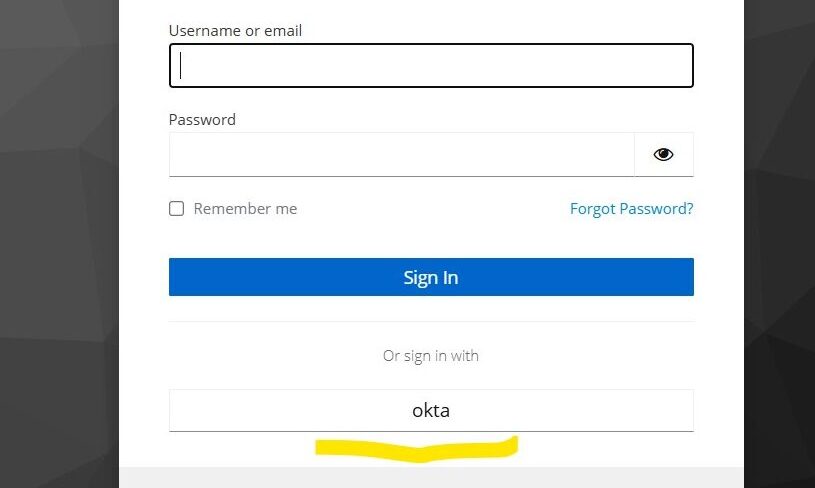
Because Keycloak is the SP, users will start authentication from the Keycloak login page by clicking “Sign in with Okta”.
How SP-Initiated Authentication Works
- User navigates to Keycloak-protected application and is redirected to the Keycloak login page.
- User clicks “Sign in with Okta”.
- Keycloak (SP) generates a SAML Authentication Request.
- The request is sent through the browser to Okta.
- Okta identifies the registered SP configuration.
- Okta prompts the user to authenticate (password, MFA, etc.).
- After successful authentication, Okta creates a session.
- Okta generates a signed SAML Assertion.
- Okta sends the assertion to Keycloak via HTTP POST binding.
- Keycloak validates the XML signature using Okta’s public certificate.
- If valid, Keycloak creates (or maps) a local user automatically.
- The user session is established, and the user is logged in to Keycloak.
- Keycloak redirects the user to the application.
Configuration Steps
The configuration involves two main parts:
- Configure Okta (as SAML IdP)
- Configure Keycloak (as SAML SP)
Part 1: Configure Okta as SAML IdP
Step 1: Log in to Okta console and choose a SAML application
- Navigate to: Applications -> Applications -> Create App Integration
- Choose: Sign-in method: SAML 2.0
- Click Next.
Step 2: Configure SAML settings
In General Settings:
- App Name: kc-client
Click Next.
Step 3: Configure SAML settings details
Fill the following fields:
Single Sign-On URL (Assertion Consumer Service – ACS URL)
Use Keycloak’s SAML broker ACS URL:
https://<skycloak-domain>/realms/<realm-name>/broker/<idp-alias>/endpointSubstitute the placeholders with your actual Skycloak hostname and realm name. For idp-alias, use okta.
Select the checkbox: Use this for Recipient URL and Destination URL
Audience URI (SP Entity ID)
Use Keycloak’s broker Entity ID:
https://<skycloak-domain>/realms/<realm-name>Substitute the placeholders with your actual Skycloak hostname and realm name.
Name ID Format
Unspecified
This ensures Okta sends the Okta username in the SAML NameID (recommended if you want username-based mapping).
Click Next -> Finish.
Step 4: Assign users and copy the metadata URL
Go to: Assignments -> Assign People -> Add users
Assign test users to the application.
Then go to: Sign-On -> Metadata details and copy the Metadata URL.
You will use this URL in Keycloak.
Part 2: Configure Keycloak as SP
Step 1: Add Okta as a SAML Identity Provider
- Log in to Keycloak Admin Console.
- Navigate to: Identity Providers -> Add provider -> SAML v2.0
- Provide: Alias as
okta
Import metadata from URL
Paste the metadata URL you copied from Okta.
Click Show metadata for Import.
This automatically fills:
- SSO URL (SingleSignOnService)
- SLO URL
- IdP public certificate
For more details on configuring SAML identity providers, see the Keycloak Identity Broker documentation.
Step 2: Verify Redirect URI
The Redirect URI displayed by Keycloak must match the ACS URL you provided in Okta:
https://<skycloak-domain>/realms/<realm-name>/broker/okta/endpointIf correct, proceed.
Step 3: Save the Identity Provider
Click Add to save.
Testing the Integration
- Open a Keycloak-protected application or visit the Keycloak account console.
- At the login page, click “Sign in with Okta”.
- Authenticate at Okta.
- Okta returns a signed SAML Assertion.
- Keycloak logs you in and creates a user entry using the NameID (Okta username).
- Attributes like email, first name, and last name were not populated in this article. Hence Keycloak will prompt you to enter them on first login. To automate this, see our follow-up guide on attribute mapping when using Keycloak as a SAML SP.
Next Steps
Once you have Keycloak configured as a SAML SP, you may want to explore:
- Attribute Mapping when using Keycloak as a SAML SP — Map email, first name, and last name from Okta into Keycloak automatically.
- SAML as an SP in Keycloak — Additional SAML SP configuration patterns and use cases.
- Bridging IdP-Initiated SAML to OIDC with Keycloak — Learn how to handle IdP-initiated flows and convert SAML to OIDC.
Summary
In this article, we configured:
- Okta as a SAML Identity Provider
- Keycloak 26.x (Skycloak) as a SAML Service Provider
- SP-initiated login flow from Keycloak
- User mapping based on NameID = Okta username
Skycloak provides production-ready managed Keycloak hosting, helping teams avoid the complexity of maintaining and scaling Keycloak themselves.
If you’re new to Skycloak, visit the Skycloak Getting Started Guide to learn more.

Ready to simplify your authentication?
Deploy production-ready Keycloak in minutes. Unlimited users, flat pricing, no SSO tax.