
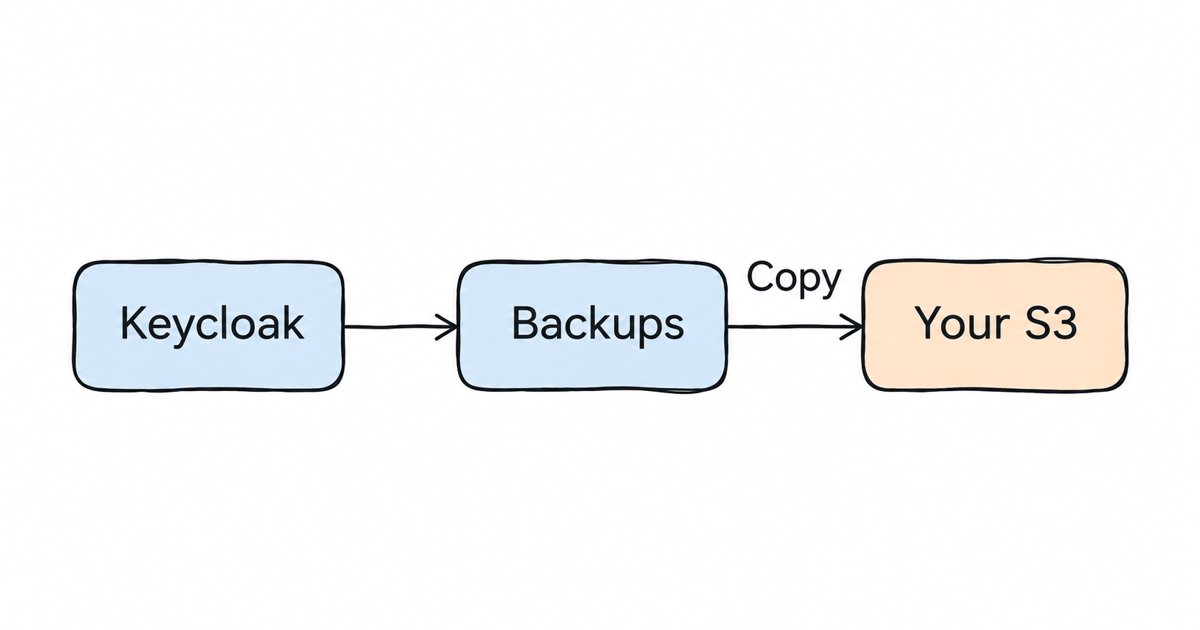
How to Keep Off-Site Keycloak Backups in Your Own S3 Bucket. Skycloak can copy each managed Keycloak backup to an AWS S3 bucket you own. Create the bucket, give Skycloak a write-only key, and add it on the Backups page.
Skycloak can copy each managed Keycloak backup to an AWS S3 bucket you own. Create the bucket, grant Skycloak write access with a narrow IAM policy, then add the bucket in your cluster’s backup settings: open the cluster, choose Backups, and use Set up under Off-site copy, as our Backups documentation describes. From then on, completed backups are copied into your bucket, where your own retention, encryption and access rules apply.
This guide walks through that setup on AWS S3: a write-only IAM policy, a choice between SSE-S3 and SSE-KMS encryption, S3 Object Lock so the copies cannot be deleted, a lifecycle rule to keep storage costs in check, and the checks that tell you copies are arriving. It covers setting up the copy. To restore from a backup, follow our Keycloak backup and restore guide and the restore steps in the docs.
Why keep a Keycloak backup in your own account?
Keycloak’s import and export guide describes the database as the place “where the information about realms, clients, users and other entities is stored”, so a complete Keycloak backup is a backup of that database. The same guide says: “Realms exported from the Admin Console are not suitable for backups or data transfer between servers.” Our post on defaults to adjust on a new Keycloak cluster covers moving Keycloak off the embedded H2 database onto an external database such as PostgreSQL, and Skycloak’s managed backups are complete copies of the cluster’s database.
Those managed backups stay in the same region as your cluster, inside Skycloak, and they are kept for your plan’s retention: 14 days on Business and 30 days on Enterprise. The same page also notes that deleting a cluster deletes all of its backups straight away, with no grace period. A copy in your own account changes all three of those facts. You choose how long it is kept, it survives anything that happens to the cluster or to your Skycloak workspace, and your auditors can see it in an account that you control.
It also completes the 3-2-1 rule, which CISA’s guide to backing up business data describes as three copies of important files, on two different types of storage media, with one copy stored off-site. For a Skycloak cluster, the live database is the primary, the managed backup in the cluster’s region is the second copy, and the copy in your S3 bucket is the third copy, held by a different company in an account with different credentials.
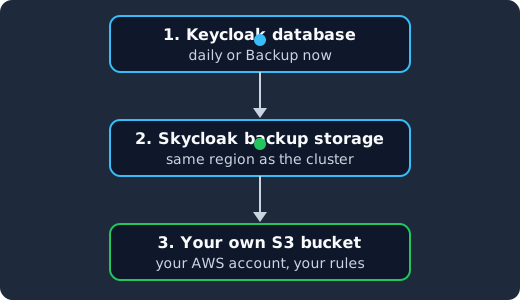
Skycloak backs up the Keycloak database every day or when you choose Backup now (1), keeps the backup in the cluster’s region (2), and copies each completed backup into the S3 bucket in your AWS account (3).
Prerequisites
- A Skycloak cluster on a plan with managed backups. Managed backups are on the Business and Enterprise plans.
- An AWS account where you can create S3 buckets, IAM users and, if you want SSE-KMS, KMS keys.
- The AWS CLI, or the AWS console if you prefer clicking through the same settings. The commands below use the CLI.
The examples use a bucket called example-keycloak-backups in eu-central-1 and a prefix of skycloak/. Replace them with your own names, and put the bucket in a region that suits your data residency rules.
Step 1: Create the bucket with versioning and Object Lock
S3 Versioning keeps every version of an object, so an overwrite creates a new version and a delete only adds a delete marker that you can remove later, as the S3 Versioning documentation explains. S3 Object Lock goes further: its documentation says it “uses a write-once-read-many (WORM) model to store objects”, so a locked version cannot be overwritten or deleted until its retention period ends, and that it “works only in buckets that have S3 Versioning enabled”, and turning it on when you create the bucket is the simplest path:
aws s3api create-bucket \
  --bucket example-keycloak-backups \
  --region eu-central-1 \
  --create-bucket-configuration LocationConstraint=eu-central-1 \
  --object-lock-enabled-for-bucket

aws s3api put-object-lock-configuration \
  --bucket example-keycloak-backups \
  --object-lock-configuration '{"ObjectLockEnabled":"Enabled","Rule":{"DefaultRetention":{"Mode":"GOVERNANCE","Days":35}}}'
The default retention means every backup copy that lands in the bucket is locked for 35 days without Skycloak having to ask for it. Choose the mode with care. In governance mode, users with the s3:BypassGovernanceRetention permission can still remove a locked version, which is useful while you test your settings. In compliance mode, the Object Lock retention modes section says a protected version “can’t be overwritten or deleted by any user, including the root user in your AWS account”, and that the only way to delete it before its retention date is to delete the associated AWS account. Compliance mode gives you the strongest protection against ransomware or a compromised administrator, so move to it once you are sure about the retention period.
Keep the bucket’s Block Public Access settings on, which is the default for new buckets. Nobody but you and the Skycloak copy job needs to reach it.
Step 2: Choose the encryption
Every S3 bucket already encrypts new objects at rest: since January 5, 2023, SSE-S3 is the base level of encryption for every bucket, using keys that Amazon S3 manages. If that meets your requirements, you have nothing to configure and the IAM policy in Step 3 needs no KMS permissions.
If your auditors want you to control the key, see who used it in CloudTrail, or be able to disable it, use SSE-KMS with a customer managed key in the same region as the bucket. Set it as the bucket’s default, which S3 uses for any upload that does not include its own encryption settings, and turn on S3 Bucket Keys, which AWS says can reduce AWS KMS request costs by up to 99 percent:
aws s3api put-bucket-encryption \
  --bucket example-keycloak-backups \
  --server-side-encryption-configuration '{"Rules":[{"ApplyServerSideEncryptionByDefault":{"SSEAlgorithm":"aws:kms","KMSMasterKeyID":"arn:aws:kms:eu-central-1:111122223333:key/your-key-id"},"BucketKeyEnabled":true}]}'
SSE-KMS changes what the writer needs. According to the SSE-KMS documentation, writing an object needs kms:GenerateDataKey on the key, and a multipart upload (how large files are sent in parts) needs both kms:GenerateDataKey and kms:Decrypt. Backups of a busy realm can be large, so grant both in Step 3.
Step 3: Create a write-only IAM user for Skycloak
The copy job writes with an access key that you give it in the destination form, and the copy failure reasons in our docs refer to it (for example destination_access_denied when “your bucket refused the access key”). Create a dedicated IAM user for that key and keep its permissions narrow. The API reference describes what the copy writes: each backup as a .dump file named after the backup ID, in a folder named after the cluster ID under your prefix, with a .json manifest beside it. It also says that Skycloak never deletes anything in your bucket, and that Test connection writes one small probe object under the prefix. The policy below therefore grants s3:PutObject under the prefix and nothing else in S3. AWS’s multipart upload permissions table shows that the same s3:PutObject permission is what creating, uploading and completing a multipart upload require, so a large backup needs no extra S3 action for that. Our docs do not list every S3 call the copy job makes, so this policy is a minimal starting point that you confirm yourself, not a tested one: run Test connection in Step 5 and watch the first real copy, and if either fails with destination_access_denied, read the error it reports and add only the action that is missing. The policy grants no s3:GetObject or s3:DeleteObject, so even a leaked key could not be used to read your users’ data or erase earlier copies.
Save this policy as skycloak-backup-writer.json:
{
  "Version": "2012-10-17",
  "Statement": [
    {
      "Sid": "WriteBackupCopies",
      "Effect": "Allow",
      "Action": ["s3:PutObject"],
      "Resource": "arn:aws:s3:::example-keycloak-backups/skycloak/*"
    },
    {
      "Sid": "UseBackupKey",
      "Effect": "Allow",
      "Action": ["kms:GenerateDataKey", "kms:Decrypt"],
      "Resource": "arn:aws:kms:eu-central-1:111122223333:key/your-key-id"
    }
  ]
}
Leave out the UseBackupKey statement if you stayed on SSE-S3. Then create the user, attach the policy and create its access key:
aws iam create-user --user-name skycloak-backup-writer
aws iam put-user-policy \
  --user-name skycloak-backup-writer \
  --policy-name skycloak-backup-writer \
  --policy-document file://skycloak-backup-writer.json
aws iam create-access-key --user-name skycloak-backup-writer
The last command prints the access key ID and secret once. Paste them into the Skycloak form in Step 5 and do not keep another copy. Because this user belongs to your own account, the objects it writes belong to your account too, and the cross-account limits on the AWS managed aws/s3 key do not apply.
The cluster, without the on-call
Skycloak runs real upstream Keycloak in the region you choose, and takes the upgrades, backups, certificate rotation and patching off your team. No fork, so you can export and self-host whenever you want.
Step 4: Add a lifecycle rule for storage costs
Every daily backup adds a full copy to the bucket, and with versioning on, each version is billed as a whole object. An S3 Lifecycle configuration keeps that under control with transition actions, which move objects to a cheaper storage class, and expiration actions, which delete them for you. Because the bucket is versioned, add a noncurrent version expiration as well, which the versioning documentation calls out as needed to keep permanent deletes working after expiration.
Save this as lifecycle.json. It moves copies to Standard-IA after 30 days, expires them after 365 days, and removes expired versions 30 days later:
{
  "Rules": [
    {
      "ID": "keycloak-backup-copies",
      "Status": "Enabled",
      "Filter": { "Prefix": "skycloak/" },
      "Transitions": [{ "Days": 30, "StorageClass": "STANDARD_IA" }],
      "Expiration": { "Days": 365 },
      "NoncurrentVersionExpiration": { "NoncurrentDays": 30 }
    }
  ]
}
aws s3api put-bucket-lifecycle-configuration \
--bucket example-keycloak-backups \
--lifecycle-configuration file://lifecycle.jsonSet the expiration longer than your Object Lock retention, so that the lifecycle rule never works against the lock, and match both numbers to the retention your compliance program actually asks for.
Step 5: Turn on the off-site copy in Skycloak
Open your cluster in the Skycloak dashboard and choose Backups in the sidebar. The summary at the top has an Off-site copy card that reads Not set up until you add a destination. Choose Set up, which opens the destination form right there, and fill it in with the bucket name, the prefix skycloak and the access key ID and secret from Step 3. The API reference lists the same destination fields: the endpoint is left empty for AWS S3, and the region is required only with a custom endpoint. Run Test connection before you save, so that a mistake in the policy shows up now rather than on the first copy. The same card later shows the bucket and prefix, the copy status (Active, Paused, Failing, or copies pending) and when the last copy landed, and Edit opens the same form if you rotate the key.
Test it
Choose Backup now on the Backups page, pick a short retention, and wait for the backup to reach Completed. Once it is copied, the Off-site copy card shows when the last copy landed, and a new object appears under the prefix in your bucket:
aws s3 ls s3://example-keycloak-backups/skycloak/ --recursive
aws s3api get-object-retention --bucket example-keycloak-backups --key skycloak/your-object-key
The second command should show the governance or compliance retention date from Step 1, which proves the lock applied. To be notified of every copy rather than checking by hand, subscribe a webhook to the backup.copy_completed and backup.copy_failed events, which the backup webhooks documentation describes with their payloads.
Arriving is not the same as restorable, so test-restore one copy as well. Download it from your bucket with an administrator account (the writer user cannot read it) and follow the restore steps in our docs, either into a new Skycloak cluster or into your own PostgreSQL with pg_restore. Our production-ready checklist treats a tested restore as part of being ready, and an untested copy will not help much on the day you need it.
Troubleshooting
When a copy still fails after its retries, the card shows Failing and the backup.copy_failed event carries a failure_reason. A failed copy does not affect the backup itself, which stays available in Skycloak for its normal retention. The documented reasons point to these fixes:
destination_access_denied: your bucket refused the access key. Check that the policy’sResourcematches the bucket and prefix exactly, including the trailing/*, and with SSE-KMS, that the policy and the key policy both allowkms:GenerateDataKeyandkms:Decryptfor this user.destination_bucket_missing: the bucket name in the form does not exist. Check the spelling, and check that nobody deleted or renamed the bucket.destination_credentials: the saved credentials could not be used, for example because the key was deactivated or deleted in IAM. Create a new key and paste it in with Edit.destination_error: the bucket returned another error. Look at the bucket’s settings in the AWS console, such as its encryption, Object Lock and policies.
Failures named source_unavailable, corrupt_backup or key_unavailable are on our side, and the docs note that we are alerted automatically.
FAQ
Can I copy Keycloak backups to S3-compatible storage instead of AWS S3?
This guide and the setup it describes cover AWS S3. If you need another destination, ask our support before you plan around it.
Does the off-site copy replace Skycloak’s managed backups?
No. The managed backups keep running and stay in the cluster’s region for your plan’s retention. The copy in your bucket is an extra copy that you control, and a failed copy never affects the managed backup.
Can Skycloak delete or read the copies in my bucket?
Not with the policy in Step 3, which grants no permission to read or delete objects. With Object Lock on, no one can delete a locked version early in compliance mode, and in governance mode only users you grant the bypass permission can.
What is in a Keycloak backup copy?
A complete copy of the cluster’s database, including every user and their credentials (password hashes, OTP secrets and client secrets), as the Backups documentation explains. Treat the bucket as carefully as the cluster itself, and keep read access to a small group of administrators.
How does this help when an identity provider is down?
It does not keep sign-ins running during an outage. It makes sure you can rebuild Keycloak’s data afterwards. For keeping sign-in available while a provider is down, read our guide to identity resilience during an IdP outage.
Next steps
Create the bucket with Object Lock, give Skycloak a write-only key, add a lifecycle rule, and then turn on the off-site copy in your cluster’s backup settings and point it at your own AWS S3 bucket. After the first copy lands, test-restore it once and subscribe to backup.copy_failed, so that you hear about a broken copy the day it happens. If you are not running on Skycloak yet, you can read more about managed Keycloak hosting, where managed backups are part of the Business and Enterprise plans.