Keep WordPress JSON-LD Intact When Moving a Blog to Headless. How to keep the JSON-LD your WordPress SEO plugin emits when you move a blog to headless: capture it, rebuild the graph, and fail the build on drift.
To keep your structured data intact when you move a WordPress blog to a headless front end, capture the JSON-LD every post and archive page emits today (usually printed by Yoast, Rank Math or All in One SEO), rebuild the same BlogPosting, archive page and BreadcrumbList nodes in your new templates, then compare old against new page by page in a test that fails the build on any drift before you cut over.
Most migration checklists stop at redirects and meta titles, and they treat structured data as something the new front end will “add back”. That is how a migration quietly changes the author entity, the dates or the breadcrumb trail that search engines had been reading for years. This guide explains how SEO plugins build their JSON-LD, which parts you have to reproduce exactly, and how to turn the comparison into a release gate.
If Astro is your new front end and you also need sign-in on it, our guide to Keycloak authentication in Astro covers that part. The approach here borrows from the way we run dual-run identity migrations without downtime: keep the old system as the reference and prove the new one matches it before switching traffic.
What does a WordPress SEO plugin put in your JSON-LD?
JSON-LD is structured data written as JSON inside a script tag in the page head, and Google says that “In general, Google recommends using JSON-LD for structured data if your site’s setup allows it”. On a WordPress blog you rarely write it yourself: the SEO plugin assembles it from the post, its author, its categories and the site settings.
The modern plugins do not print one isolated object per page. They print a graph, a list of nodes under the JSON-LD @graph keyword, which the JSON-LD 1.1 specification lists as “Used to express a graph”. Each node has an @id, which the same specification says is “Used to uniquely identify node objects that are being described in the document with IRIs or blank node identifiers”. In practice an @id is a URL with a fragment, such as https://example.com/my-post/#webpage, and other nodes point at it instead of repeating its contents.
A typical blog post graph has these nodes:
- an Organization and a WebSite for the site as a whole, with the WebSite’s publisher pointing at the Organization;
- a WebPage for the URL itself, which is part of the WebSite;
- a BlogPosting (or Article) for the post, whose
mainEntityOfPagepoints at the WebPage and whoseauthorandpublisherpoint at a Person and the Organization; - a Person for the author;
- a BreadcrumbList, an ordered list of
ListItementries withpositionvalues; schema.org’s BreadcrumbList page says “The position property is used to reconstruct the order of the items in a BreadcrumbList”.
On schema.org, BlogPosting sits under Article in the hierarchy “Thing > CreativeWork > Article > SocialMediaPosting > BlogPosting”, and Blog is the type for the blog itself, whose blogPost property is described as “A posting that is part of this blog”. Whether your plugin emits a Blog node on the blog index is a detail you can only learn by looking, which is the point of the next section.
For reference, a blog index graph that does include a Blog node looks like this in outline: the index page is a CollectionPage whose main entity is the Blog, and the Blog lists its posts through blogPost by their @id. The URLs are examples, the #webpage and #blog fragments are placeholders to replace with the ones your plugin prints, and the Organization and WebSite nodes are left out for brevity:
{
  "@context": "https://schema.org",
  "@graph": [
    {
      "@type": "CollectionPage",
      "@id": "https://example.com/blog/#webpage",
      "url": "https://example.com/blog/",
      "name": "Blog",
      "isPartOf": { "@id": "https://example.com/#website" },
      "mainEntity": { "@id": "https://example.com/blog/#blog" },
      "breadcrumb": { "@id": "https://example.com/blog/#breadcrumb" }
    },
    {
      "@type": "Blog",
      "@id": "https://example.com/blog/#blog",
      "name": "Example Blog",
      "url": "https://example.com/blog/",
      "publisher": { "@id": "https://example.com/#organization" },
      "blogPost": [
        { "@id": "https://example.com/blog/first-post/#article" },
        { "@id": "https://example.com/blog/second-post/#article" }
      ]
    },
    {
      "@type": "BreadcrumbList",
      "@id": "https://example.com/blog/#breadcrumb",
      "itemListElement": [
        { "@type": "ListItem", "position": 1, "name": "Home", "item": "https://example.com/" },
        { "@type": "ListItem", "position": 2, "name": "Blog" }
      ]
    }
  ]
}
If your plugin prints no Blog node today, reproduce what it does print first and add the Blog node later as a change of its own, so the migration itself changes nothing search engines read.
How do Yoast and Rank Math shape the graph?
Each plugin follows the same idea with different @id conventions, and the conventions matter, because those identifiers are the joins between nodes.
Yoast SEO documents its approach in its schema technology guide: it requires “that every page output all of the relevant pieces, and cross-reference these through hasPart, isPartOf, mainEntityOfPage”, and it says that the ID of a WebPage “should always be the unmodified canonical URL of the page”. The sample output in its REST API documentation shows the identifiers you will see in practice: #article, #primaryimage and #breadcrumb on the post URL, #website and #organization on the home URL, and a Person under /#/schema/person/ followed by a hash. For archives, its WebPage piece documentation says that when “the query returns a loop of posts (e.g., a category archive, a blog homepage, or other taxonomy index)” the type becomes CollectionPage, and for an author archive it says “The type property should be altered to ProfilePage”.
Rank Math lets developers change its output with the rank_math/json_ld filter, which its developer filters and hooks documentation shows in a code example, and examples on the same page change the data through an entity type key ($data['ProfilePage']) rather than an @id. This guide therefore shows Yoast’s shape in detail and does not reproduce a Rank Math graph. If your site runs Rank Math, read the pattern off your own pages before you design templates around it: fetch the getHead endpoint described in Step 1 for a post, an archive and an author page, and list every @id value in the JSON-LD it returns.
These shapes are a snapshot of what the plugins print, and plugin settings, themes and filters all change them. Treat your own live pages as the specification.
Step 1: Capture the JSON-LD your live pages emit
Before you touch a template, save what WordPress prints today, because once DNS moves the old output is gone. There are three ways to get it:
- Fetch the rendered HTML of each URL and extract every
application/ld+jsonscript. This works with any plugin and captures what search engines actually receive, including anything your theme adds. - Ask the plugin’s head endpoint. Yoast answers
GET /wp-json/yoast/v1/get_head?url=for any URL and, from version 16.7, returns the schema as raw JSON, according to its REST API documentation. Rank Math offers/wp-json/rankmath/v1/getHead?url=once you turn on Headless CMS Support, and returns the head tags as HTML. - Export the inputs from the WordPress REST API, whose posts endpoint reference lists the fields
link(“URL to the post”),date(“The date the post was published, in the site’s timezone”),date_gmt,modified,author,categoriesandtags. These are the values the graph is built from, and you need them in your new build anyway.
Doing both the first and the third is worth the effort. The saved JSON-LD becomes the test fixtures that record what WordPress printed, and the exported inputs (dates, authors, categories and tags with their WordPress term IDs, and image details) let the new build produce the same values after WordPress is switched off. Commit both to the repository and treat them as read-only from then on.
Capture more than single posts. Category, tag and author archives, the blog index and its paged URLs (/blog/page/2/) each have their own graph, and they are the pages a rebuild most often forgets.
Step 2: Map every field to a source in the new build
Go through each node in your captured graph and write down where the new build will get each value. Most fields map to frontmatter or CMS data, but a few only ever lived in WordPress, and those are where drift starts.
| Field | Where it came from in WordPress | What to keep stable |
|---|---|---|
@id values |
Canonical URL plus the plugin’s fragment | Same URLs, same fragments, same trailing slashes |
datePublished, dateModified |
The post’s dates in the site’s timezone | The same instant and the same UTC offset |
author |
A reference to the author’s Person node | The same Person @id, name and URL |
headline, name |
The post title as WordPress rendered it | The same characters, including curly quotes |
image |
The featured image attachment and its size | The same URL, width and height |
| Breadcrumb trail | The plugin’s rules for the category | The same crumbs, names and order |
Compare the captured values with your new sources character by character, because the differences are small and easy to miss. Check whether the rendered titles use curly quotes where your markdown has straight ones, which category the breadcrumb goes through when a post has several and no primary category (keep the term IDs in your export if the plugin’s choice depends on them), whether the dates carry the site’s timezone offset rather than UTC, and how paged archives name their last crumb. Reproduce whatever you find rather than decide during the migration which quirks are safe to change.
Google’s own guidance tells you which of these fields carry the most weight. Its Article structured data documentation says “There are no required properties; instead, add the properties that apply to your content”, and recommends author (with author.name and author.url), datePublished, dateModified, headline and image. It says “When specifying multiple authors, list each author in their own author field”, and it recommends “that you provide timezone information; otherwise, we will default to the timezone used by Googlebot”. Treat those fields as non-negotiable. Plugin extras such as wordCount, keywords or an author’s knowsAbout are less important to Google, and you could drop them, but the safest migration keeps everything and leaves cleanup for a separate, later change you can measure.
Step 3: Rebuild the graph in your headless templates
Write one function per node type rather than one large object per page template. A post page then assembles its graph from the same builders the archives use, and the Organization, WebSite and Person nodes come out identical everywhere they appear. In a TypeScript build such as Astro, a BlogPosting builder can look like this in outline (the helpers stand for your own URL, date and image functions, and the #blogposting and #webpage fragments are the ones All in One SEO printed on our old site, so replace them with your plugin’s, such as #article and the bare canonical URL on Yoast):
export function blogPosting({ slug, title, published, updated, author, image }) {
  const url = postUrl(slug);
  return {
    '@context': 'https://schema.org',
    '@type': 'BlogPosting',
    '@id': `${url}#blogposting`,
    name: title,
    headline: title,
    url,
    author: { '@id': personId(author) },
    publisher: { '@id': ORGANIZATION_ID },
    image: articleImage(url, image),
    datePublished: wordpressDate(published),
    dateModified: wordpressDate(updated ?? published),
    mainEntityOfPage: { '@id': `${url}#webpage` },
    isPartOf: { '@id': `${url}#webpage` },
  };
}
Each reference is a plain { "@id": ... } object, and each identifier is built by a single helper, so a post’s author always points at the exact Person node the author archive prints. Posts you publish after the move have no WordPress record, so let the builders fall back to the frontmatter dates and categories for them, while posts that existed before keep the values from the export.
Keep the old URLs as well. If your @id values are built from canonical URLs and the canonical URLs change, every identifier changes with them, so the URL structure (including trailing slashes) should move unchanged or be covered by redirects decided before you compare anything.
Identity management as a service, on open source
Skycloak does what Auth0 and Okta do, SSO, MFA, SCIM, audit logs and enterprise federation, on an open source core. Unlimited users and applications on every plan, no charge per monthly active user, and you can export and self-host whenever you want.
Step 4: Diff old against new and fail the build on drift
A visual check in a validator tells you the new markup is valid, but it cannot tell you it is the same. For that you need a test that compares the captured WordPress graph with what your build renders, and that runs on every pull request.

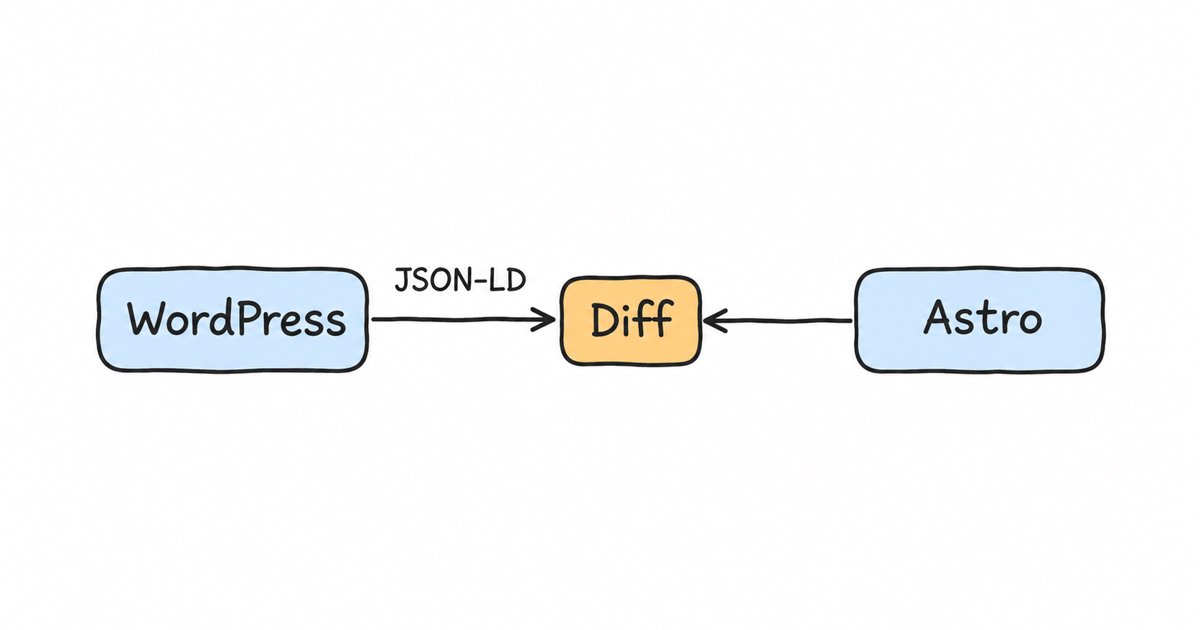
The JSON-LD the live WordPress page printed is saved as a fixture (1), the headless build renders the same page (2), and a test matches every WordPress node to a new node by its type and @id and compares every key (3). With no differences the build passes (4); with any drift it fails and names the key path (5).
A comparison that follows these rules stays useful rather than noisy:
- Flatten both sides into nodes. Every script block, every array entry and every
@graphmember becomes a node, and the properties next to@graph(such as@context) are copied onto each member. That way it does not matter whether one side prints a single graph and the other prints two script tags. - Pair nodes by type and identifier. For each node in the WordPress fixture, look for a node on the new side with the same
@typeand@id. If there is none, that is a failure, and so is a type that appears on one side only. - Compare every key WordPress gave the node, recursively. Arrays must keep their order and length, so a breadcrumb that loses a crumb fails. Keys that only the new side has are allowed, which lets you add fields later without rewriting the fixtures.
- Ignore what does not change meaning. Key order, whitespace and HTML entities are normalised before comparing, because WordPress output can contain HTML entities such as
–inside JSON-LD strings where a modern build writes the character itself.
A failure reads as a path and two values, for example a BlogPosting’s .dateModified where live had one offset and the new build had another, which makes the fix obvious. Run it for a post, the blog index and one of its later pages, a category archive and an author archive. Alongside it, add a site-wide check that reads every built page and fails when a JSON-LD block does not parse or a page lacks one absolute, self-referencing canonical URL.
Keep the fixtures after cutover. The old site is gone once DNS moves, so the fixtures become the only record of what search engines used to see, and the same test protects you from a later template change that drifts away from it by accident.
Step 5: Validate after cutover
Once the new site serves your domain, check it from Google’s side. Google calls the Rich Results Test “an easy and useful tool for validating your structured data”, so run it on a post, a category archive, an author archive and the blog index. Then use the URL Inspection tool in Search Console, which the Article documentation recommends “to test how Google sees the page”, and watch the rich result status reports over the following weeks.
Look for problems the parity test cannot catch on its own: a page blocked by robots.txt or carrying a stray noindex from a staging configuration, or an image URL that answers on staging but not on the live domain. The Article documentation says “Image URLs must be crawlable and indexable”, and a migration that moves uploads to a new path breaks that rule even when the JSON-LD is identical.
Worked example: our own move to Astro
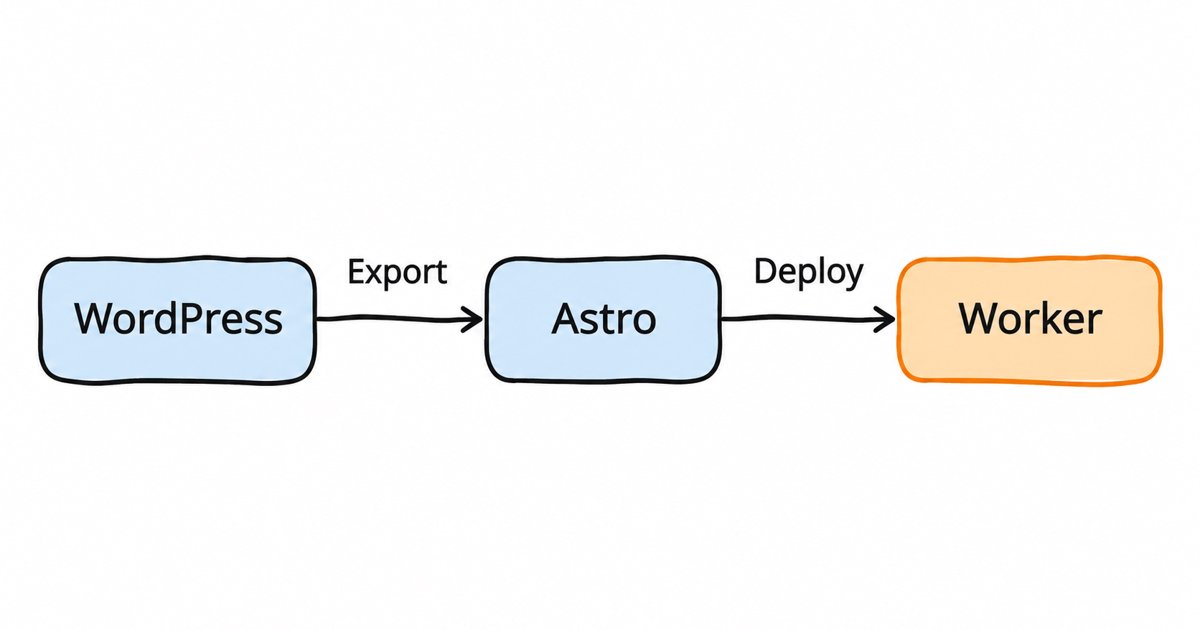
We ran this process when we moved skycloak.io from WordPress to Astro on Cloudflare Workers, and the parity gate for blog post and archive JSON-LD shipped on 2026-10-23. Our WordPress site ran All in One SEO, which printed a BlogPosting under #blogposting, a BreadcrumbList under #breadcrumblist and the author as a Person under the author archive URL plus #author.
The captured graphs live in the repository as fixtures: site/tests/fixtures/live-blog-post-jsonld.json holds a post’s JSON-LD as WordPress printed it on 2026-10-20, and site/tests/fixtures/live-blog-archive-jsonld.json holds the blog index, author, category and tag archives, including second pages. The comparison is site/tests/jsonld.ts, which matches every node WordPress printed by @type and @id and reports each difference by key path, and site/tests/blog-schema.test.ts runs it against the post and archive heads the build renders. The exported inputs sit in content/wordpress-export/: posts.json with every published post’s dates, author, categories and tags, taxonomy.json with every category and tag and its WordPress term ID, and media.json with featured image alt text and author avatars. That export is generated, never edited by hand, and the build still reads it.
The tests also record the quirks we chose to reproduce rather than fix during the move: the breadcrumb goes through the post’s category with the lowest WordPress term ID, as All in One SEO did, titles are curled the way WordPress rendered them, and later archive pages get a crumb named “Page “.
FAQ
Do I need to keep the exact same @id values after migrating?
Yes, if you can. The @id values are how the nodes in a graph refer to each other and how the same author or organization is recognised across pages, so keeping them stable keeps the entities stable. If the URLs have to change, redirect the old ones and expect the identifiers to change with the canonical URLs.
Can I drop Yoast or Rank Math fields that Google does not use?
You can, because Google’s Article documentation lists no required properties and names a short set of recommended ones. We still advise keeping every field through the cutover and dropping extras afterwards in a separate change, so that if rankings move you know which change caused it.
Does a headless WordPress setup still need the SEO plugin?
If WordPress stays as the content backend and only the front end changes, the plugin can keep building the graph and your front end can fetch it, through Yoast’s yoast_head_json field or get_head endpoint or Rank Math’s getHead endpoint. If WordPress goes away entirely, your build has to produce the graph itself from exported data.
How do I check archive and author pages, not just posts?
Capture their JSON-LD the same way you capture posts, including the second page of each paged archive, and include them in the parity test. Plugins usually type these pages differently (Yoast documents CollectionPage for category archives and ProfilePage for author archives), so they need their own templates and their own fixtures.
What to do next
Snapshot your current WordPress JSON-LD today, while the old site still answers: save the scripts from a post, a category archive, an author archive and the blog index, and export the post dates, authors and term IDs through the REST API. Then add a parity test to your headless build that matches nodes by type and @id and fails on any missing key or changed value, and do not switch DNS until it passes on every page type. After cutover, run the Rich Results Test on each page type and keep the fixtures in your repository as the record of what search engines saw before the move.
If you would rather spend that time on your product than on running identity infrastructure, see how Skycloak hosts Keycloak for you.