Last updated: March 2026
Keycloak sits at the front door of your application stack. Every login attempt, token exchange, and admin console request passes through it, making it one of the most security-critical components in your infrastructure. Without proper protection at the network edge, your identity provider becomes a prime target for attackers.
Skycloak includes a fully configurable Web Application Firewall (WAF) as part of its managed hosting platform, giving you granular control over the traffic that reaches your Keycloak instances. In this guide, we will walk through how to configure and optimize the WAF to protect your deployment.
Why Keycloak Needs WAF Protection
Keycloak exposes several endpoints that are inherently attractive to attackers:
- Login endpoints are targets for brute force and credential stuffing attacks. Automated tools can attempt thousands of username and password combinations per minute against your authentication forms.
- Token endpoints handle OAuth2 and OIDC flows. Without rate limiting, attackers can flood these endpoints to exhaust server resources or attempt token enumeration.
- Admin console and REST API provide powerful management capabilities. Unauthorized access here can compromise your entire identity infrastructure.
- User registration endpoints, if enabled, can be abused to create spam accounts or launch resource exhaustion attacks.
A WAF acts as a shield between the internet and your Keycloak instance, inspecting and filtering HTTP traffic before it reaches the application layer. This is fundamentally different from Keycloak’s built-in brute force detection, which only kicks in after requests have already consumed application resources.
Skycloak’s WAF Capabilities
Skycloak’s WAF is built on industry-standard technology and provides several layers of protection that work together:
Rate limiting controls how many requests a client can make within a given time window. You can set different limits for different endpoints, allowing generous limits for normal API usage while tightly restricting authentication endpoints.
IP blocking lets you maintain allowlists and blocklists to explicitly permit or deny traffic from specific IP addresses or CIDR ranges. This is essential for restricting admin console access.
Geo-blocking filters traffic based on geographic origin. If your users are only in specific regions, you can block traffic from everywhere else. For a deeper dive into this capability, see our guide on geo-blocking your Keycloak cluster using Skycloak.
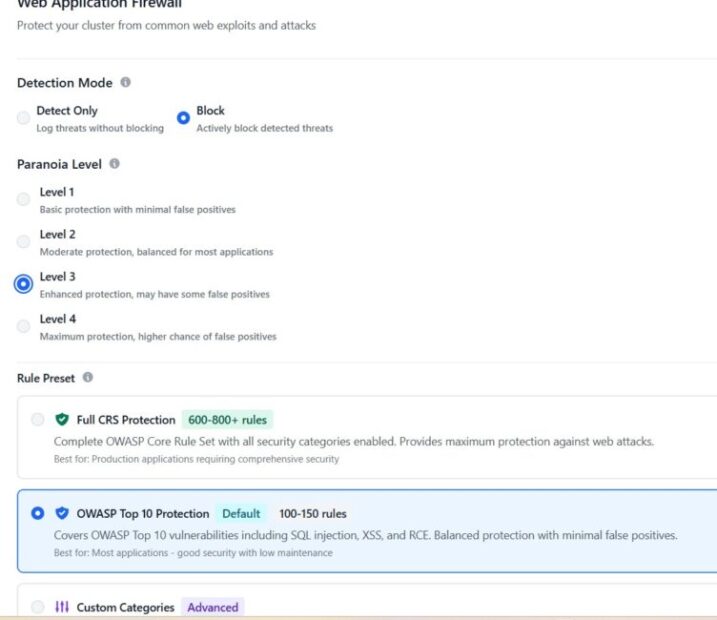
OWASP Core Rule Set (CRS) provides protection against common web attacks including SQL injection, cross-site scripting (XSS), and request smuggling.
Custom rules allow you to define your own matching conditions and actions based on request headers, paths, query parameters, and body content.
All WAF events are logged and available through Skycloak’s audit logging system, giving you full visibility into what the WAF is blocking and why.
Configuring Rate Limiting for Login Endpoints
Rate limiting is your first line of defense against brute force attacks. Skycloak lets you configure rate limits per endpoint pattern, so you can apply strict limits to authentication paths without affecting other traffic.
A sensible starting configuration for login endpoints might look like this:
- Login form submissions: 10 requests per minute per IP
- Token endpoint: 30 requests per minute per IP
- Admin REST API: 60 requests per minute per IP
- General traffic: 200 requests per minute per IP
In the Skycloak dashboard, navigate to Security > WAF > Rate Limiting to configure these rules. Each rule requires a path pattern, a request limit, a time window, and an action to take when the limit is exceeded.
For the login endpoint specifically, the path pattern to match is:
/realms/*/protocol/openid-connect/authThe wildcard matches any realm name, so this single rule protects all realms on your instance. When the limit is exceeded, the WAF returns a 429 Too Many Requests response, and the offending IP is temporarily blocked for a configurable cooldown period.
For token endpoints, use:
/realms/*/protocol/openid-connect/tokenBe careful with token endpoint limits if you have machine-to-machine (M2M) clients that make frequent token requests. You may need to allowlist specific service IPs or set higher limits for those paths.
Setting Up IP Allowlists and Blocklists
IP-based access control is straightforward but powerful, especially for protecting administrative interfaces.
Restricting admin console access is one of the highest-impact security measures you can take. The Keycloak admin console should only be accessible from known IP addresses, such as your office network, VPN exit nodes, or specific developer machines.
In Skycloak, navigate to Security > WAF > IP Rules and create an allowlist rule:
- Path pattern:
/admin/*and/realms/master/protocol/* - Allowed IPs: Your office CIDR range (e.g.,
203.0.113.0/24) - Action for non-matching IPs: Block with
403 Forbidden
Blocklisting known bad actors is also useful when you identify specific IPs conducting attacks. Skycloak integrates with threat intelligence feeds that automatically update blocklists, but you can also add entries manually.
For environments with strict compliance requirements, you can combine IP allowlisting with Skycloak’s security features to create a defense-in-depth approach where multiple layers must be passed before reaching the application.
OWASP Rule Sets and Keycloak
The OWASP Core Rule Set (CRS) is a set of generic attack detection rules that protect against a wide range of web application vulnerabilities. Skycloak includes the CRS with Keycloak-specific tuning applied out of the box.
The key rule categories relevant to Keycloak are:
SQL Injection (SQLi) rules inspect request parameters for SQL syntax patterns. While Keycloak uses parameterized queries internally, SQLi rules catch injection attempts before they reach the application, reducing noise in your application logs.
Cross-Site Scripting (XSS) rules detect script injection in form fields and URL parameters. These are particularly relevant for Keycloak’s login and registration forms where user input is rendered in HTML.
Request smuggling and protocol attack rules catch malformed HTTP requests that attempt to bypass security controls or exploit differences in how proxies and backend servers parse requests.
Scanner detection rules identify traffic from automated vulnerability scanners and web crawlers that probe for known weaknesses.
Skycloak pre-tunes these rules for Keycloak compatibility. For example, certain SAML and OIDC request patterns can trigger false positives in default CRS configurations because they contain XML or base64-encoded data that resembles attack payloads. Skycloak’s tuning includes exclusions for these known patterns so you get protection without false blocks on legitimate authentication traffic.
If you do encounter false positives, you can create rule exceptions in Security > WAF > Rule Exceptions by specifying the rule ID and the path or parameter to exclude.
Monitoring WAF Events and Tuning Rules
A WAF is only as good as its tuning. Deploying rules without monitoring leads to either undetected attacks (rules too loose) or blocked legitimate users (rules too strict).
Skycloak provides WAF event dashboards that show:
- Request volume over time, broken down by allowed and blocked
- Top blocked IPs and the rules they triggered
- Top triggered rules so you can identify which rules are most active
- Geographic distribution of blocked traffic
You can access these dashboards through Skycloak’s audit logs, which provide searchable, filterable records of every WAF decision.
Tuning workflow:
- Deploy new rules in log-only mode first. This records what would be blocked without actually blocking it.
- Review the logs for several days to identify false positives.
- Create exceptions for legitimate traffic patterns that trigger rules.
- Switch the rules to block mode once you are confident in the tuning.
- Continue monitoring and adjust as your traffic patterns change.
This iterative approach is critical. Rushing to block mode without a tuning period will almost certainly block legitimate users, especially if you have SAML integrations or custom authentication flows that produce unusual request patterns.
Testing Your WAF Configuration
After configuring your WAF rules, you should verify they work as expected. Here are practical tests you can run against your Skycloak-hosted Keycloak instance.
Testing rate limits:
Send rapid requests to your login endpoint to confirm rate limiting kicks in:
for i in $(seq 1 15); do
  curl -s -o /dev/null -w "%{http_code}n"
    "https://your-instance.skycloak.io/realms/your-realm/protocol/openid-connect/auth?client_id=test&response_type=code&redirect_uri=http://localhost"
done
If your rate limit is set to 10 requests per minute, you should see 200 responses for the first 10 requests and 429 responses for the remaining five.
Testing IP blocklist:
From a non-allowlisted IP, attempt to access the admin console:
curl -s -o /dev/null -w "%{http_code}n"
  "https://your-instance.skycloak.io/admin/master/console/"
This should return 403 if your IP allowlist for admin paths is configured correctly.
Testing OWASP rules:
Send a request with a classic SQL injection pattern:
curl -s -o /dev/null -w "%{http_code}n"
  "https://your-instance.skycloak.io/realms/your-realm/protocol/openid-connect/auth?client_id=test' OR '1'='1&response_type=code"
The WAF should block this with a 403 response.
Testing XSS detection:
curl -s -o /dev/null -w "%{http_code}n"
  "https://your-instance.skycloak.io/realms/your-realm/login-actions/authenticate?execution=test&client_id=<script>alert(1)</script>"
Again, expect a 403 from the WAF.
Always run these tests in a staging or development environment first. For production testing, coordinate with your team and use Skycloak’s log-only mode to avoid disrupting real users.
Best Practices
Drawing from real-world deployments, here are the practices that make the biggest difference:
Start with rate limiting. It has the highest impact-to-effort ratio. Even basic rate limits on login and token endpoints block the majority of automated attacks.
Always allowlist before blocklisting. For sensitive endpoints like the admin console, default-deny with explicit allowlists is far more secure than trying to enumerate and block every bad actor.
Use log-only mode for new rules. Every environment has unique traffic patterns. What works for one deployment may cause false positives in another. Always validate before enforcing.
Layer your defenses. WAF rules work best alongside Keycloak’s built-in security features. Use the WAF for network-level protection and Keycloak’s brute force detection for application-level protection. The two approaches complement each other.
Review WAF logs regularly. Attackers adapt their techniques. A monthly review of your WAF events helps you spot new attack patterns and adjust your rules. Skycloak’s security features make this straightforward with built-in dashboards and alerting.
Document your rules. As your WAF configuration grows, maintain documentation of why each rule exists, who requested it, and what traffic pattern it addresses. This prevents accidental removal of important rules during future changes.
Keep your OWASP rules updated. Skycloak automatically updates the Core Rule Set, but review the changelogs when updates are applied to understand what new protections are included and whether new tuning may be needed.
Conclusion
A well-configured WAF transforms Keycloak from an exposed application endpoint into a hardened, monitored, and secure authentication service. Skycloak’s built-in WAF gives you the tools to implement rate limiting, IP controls, geo-blocking, and OWASP protection without managing separate infrastructure.
Start with the basics, rate limiting and admin access controls, then gradually add OWASP rules and custom policies as you understand your traffic patterns. Use log-only mode to tune before enforcing, and review your WAF events regularly to stay ahead of evolving threats.
Ready to protect and secure your Keycloak deployment? Explore Skycloak’s security features, browse the documentation, or check out our managed hosting to get started with built-in WAF protection today.

Ready to simplify your authentication?
Deploy production-ready Keycloak in minutes. Unlimited users, flat pricing, no SSO tax.