Last updated: March 2026
Introduction
In this article, we demonstrate how to use GitHub as an external Identity Provider (IdP) and authenticate users in your application through Skycloak, a managed Keycloak service hosted in the cloud.
Using Skycloak allows organizations to harness the powerful features of the open-source Keycloak IAM product while avoiding the challenges of installing, maintaining, and scaling Keycloak for production-grade environments — all in a cost-effective way.
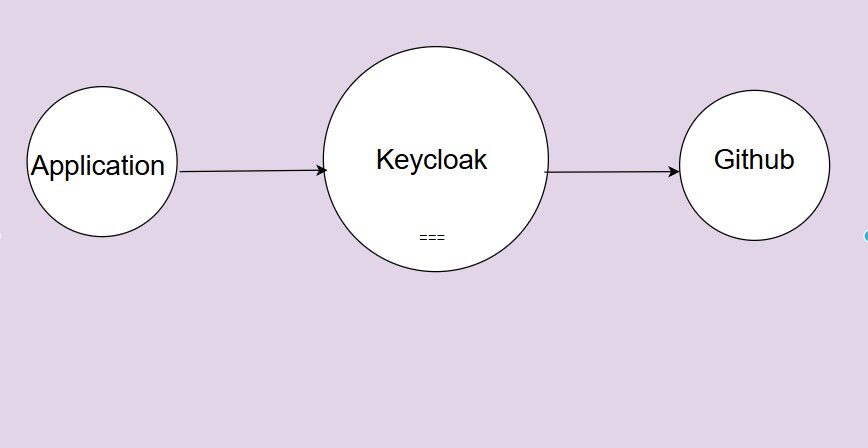
Using Identity Brokering allows you to delegate authentication to external providers such as GitHub without adding OAuth logic into your application code. Keycloak acts as the broker, your application remains the relying party, and GitHub becomes the authentication source. For a broader overview of social login strategies, see our guide on social login implementation.
This article focuses on using GitHub as a social identity provider using the OpenID Connect protocol. To learn more about how Skycloak handles identity providers, visit our feature page.
Overview
Authentication flow:
Below is the high-level sequence when a user logs in through GitHub via Skycloak:
- The user accesses your application.
- Your application redirects the user to Keycloak (Skycloak) for authentication.
- On the Keycloak login screen, the user selects “GitHub”.
- Keycloak (acting as an OIDC client) redirects the user to GitHub for login.
- The user authenticates at GitHub.
- GitHub redirects back to Keycloak with an authorization code.
- Keycloak exchanges the code for an access token from GitHub.
- Keycloak fetches the user’s GitHub profile.
- Keycloak creates (or updates) a local user identity.
- Keycloak completes login and redirects the user back to your application with an ID token and/or access token for OIDC client.
This process allows your application to rely only on Keycloak, while GitHub handles password authentication. The result is a streamlined single sign-on experience for your users.
For more details on Identity Providers, please refer to the Social Identity Providers section in the Keycloak server admin guide.
Configuration Steps
Summary of Steps
- Create or identify your Keycloak client application. (OIDC or SAML applications are supported.)
- Register a new OAuth App in GitHub.
- Configure GitHub as an Identity Provider in Keycloak.
- Test the authentication flow.
Note:
This article assumes your client application is already configured in Keycloak.
For quick testing, you can use the Keycloak Account Console URL.
Step 1. Register an OAuth App in GitHub
- Log in to your GitHub account and go to Settings -> Developer Settings -> OAuth Apps.
-
Click New OAuth App and fill in the details:
- Application Name: skycloak-github-idp (or any suitable name)
- Homepage URL: https://your-skycloak-domain
- Authorization callback URL: https://your-skycloak-domain/realms/<your_realm>/broker/github/endpoint
- Click Register Application, then copy the following since they have to be specified at Keycloak:
- Client ID
- Client Secret
Step 2. Configure GitHub as an Identity Provider in Keycloak
- Log in to the Keycloak Admin Console.
- Select your realm (e.g., acme).
- Navigate to: Identity Providers -> Add provider -> GitHub.
- Enter the following details:
- Client ID: (from GitHub)
- Client Secret: (from GitHub)
- Click Save.
Keycloak will automatically fetch GitHub’s OIDC endpoints from GitHub’s discovery document. You can also use the Keycloak Config Generator to help scaffold your configuration.
Step 3. Configure OIDC client at Keycloak
(If you already have a Keycloak client configured, you can skip this step.)
You can test GitHub identity brokering using the built-in Account Console:
https://<skycloak_hostname>/realms/<realm_name>/accountOtherwise, configure your own OIDC or SAML application in Keycloak as the final relying party. If you need to inspect tokens issued during this flow, try the JWT Token Analyzer.
Step 4. Test the integration
- Access your application or the Keycloak Account Console.
- You will be redirected to the Skycloak login page.
- You should now see a “GitHub” login option.
- Click GitHub.
- You will be redirected to GitHub’s login page (if not already logged in).
- Enter your GitHub username/password
- Or authorize the application if GitHub prompts for consent
- After authentication, GitHub redirects back to Keycloak with an authorization code.
- Keycloak exchanges the code for user profile information and creates a local user (if first login).
- Authentication completes, and you are redirected back to your application.
- Keycloak completes login and redirects you back to your application (or the account console).
This verifies that GitHub identity brokering has been successfully set up.
Summary
In this article, we implemented Identity Brokering using Skycloak, the managed Keycloak IAM platform.
By integrating GitHub as an external Identity Provider, you can deliver seamless social login without embedding GitHub’s OAuth logic directly into your application’s codebase.
If you’re new to Skycloak, visit the Skycloak Getting Started Guide to learn more. You can also explore our documentation for detailed setup instructions, or check out Skycloak pricing to find the right plan for your team.

Ready to simplify your authentication?
Deploy production-ready Keycloak in minutes. Unlimited users, flat pricing, no SSO tax.