Last updated: March 2026
Microsoft Entra ID (formerly Azure Active Directory) is the identity platform behind Microsoft 365, Azure, and thousands of enterprise applications. Connecting it to Keycloak as an identity provider lets your users sign in with their existing Microsoft credentials, eliminating yet another password and streamlining access across your organization.
When integrating Microsoft Entra ID with Keycloak, you have two protocol options: SAML 2.0 and OpenID Connect (OIDC). Both work, but OIDC is generally the better choice for most deployments. It uses lightweight JSON tokens instead of XML, has simpler configuration, and aligns with how modern applications handle authentication. SAML still has its place in legacy enterprise environments, but if you are starting fresh, OIDC gives you a faster setup with less room for misconfiguration.
This guide walks through the complete process of configuring Microsoft Entra ID as an OIDC identity provider in Keycloak. By the end, your users will be able to click a “Sign in with Microsoft” button on your Keycloak login page and authenticate through their Entra ID tenant.
If you are looking for a managed Keycloak solution that handles this configuration for you, Skycloak’s identity provider support makes connecting enterprise IdPs straightforward.
Prerequisites
Before you start, make sure you have the following in place:
- A running Keycloak instance (version 20 or later recommended). If you need help getting started, check out our Keycloak quickstart guide.
- A Microsoft Entra ID tenant with admin access. Any Azure subscription includes one, or you can create a free tenant at entra.microsoft.com.
- Admin access to your Keycloak realm. You will need to create an identity provider and configure mappers.
- Your Keycloak base URL and realm name. You will use these to construct the redirect URI that Entra ID needs.
Note your Keycloak hostname and realm name now. You will need them in the next step to build the redirect URI in this format:
https://{keycloak-host}/realms/{realm}/broker/{alias}/endpointThe {alias} is the identifier you will assign to the Microsoft identity provider in Keycloak. Something like microsoft or entra-id works well.
Step 1: Register an Application in Entra ID
The first step happens in the Azure Portal. You need to register an application that represents your Keycloak instance in Entra ID.
- Sign in to the Azure Portal.
- Navigate to Microsoft Entra ID > App registrations.
- Click New registration.
- Fill in the registration form:
- Name: Enter a descriptive name like “Keycloak SSO” or “Skycloak Production”.
- Supported account types: Choose based on your needs:
- Single tenant if only users from your Entra ID directory should sign in.
- Multitenant if users from any Entra ID directory should be able to sign in.
- Multitenant + personal Microsoft accounts if you also want to allow personal Outlook/Hotmail accounts.
- Redirect URI: Select Web as the platform and enter your Keycloak callback URL:
https://{keycloak-host}/realms/{realm}/broker/{alias}/endpointFor example:
https://auth.example.com/realms/myrealm/broker/microsoft/endpoint
- Click Register.
After registration, you will land on the application’s overview page. Keep this tab open because you will need values from it shortly.
Step 2: Configure Authentication Settings
With the app registered, verify that the authentication settings are correct.
- In your app registration, go to Authentication in the left sidebar.
- Under Platform configurations, confirm your redirect URI is listed under Web.
- If you need to add or change the redirect URI, click Add URI and enter:
https://{keycloak-host}/realms/{realm}/broker/{alias}/endpoint - Under Implicit grant and hybrid flows, you generally do not need to enable any checkboxes. Keycloak uses the standard authorization code flow, which is more secure than implicit grants.
- Under Advanced settings, set Allow public client flows to No (this should be the default).
- Click Save if you made any changes.
The redirect URI must match exactly what Keycloak expects. A common mistake is trailing slashes or mismatched protocols. Double-check that you are using https:// and that the realm name and alias are correct.
Step 3: Create a Client Secret
Keycloak needs a client secret to authenticate with Entra ID during the token exchange.
- In your app registration, go to Certificates & secrets in the left sidebar.
- Click New client secret.
- Enter a description like “Keycloak OIDC” and choose an expiry period:
- 6 months, 12 months, 24 months, or a custom end date.
- Shorter expiry periods are more secure but require more frequent rotation.
- Click Add.
- Copy the secret value immediately. It is only displayed once. If you navigate away without copying it, you will need to create a new secret.
Store the secret value securely. You will enter it into Keycloak in a later step.
A note on secret expiry: set a calendar reminder to rotate the secret before it expires. When a client secret expires, Microsoft sign-in will break silently. If you are using Skycloak’s managed platform, secret rotation reminders are handled automatically.
Step 4: Note the Required Values
Before switching to Keycloak, gather three values from the Azure Portal. You will find the first two on your app registration’s Overview page:
| Value | Where to find it | Example |
|---|---|---|
| Application (client) ID | Overview page, top section | a1b2c3d4-e5f6-7890-abcd-ef1234567890 |
| Directory (tenant) ID | Overview page, top section | f0e1d2c3-b4a5-6789-0fed-cba987654321 |
| Client secret value | Certificates & secrets (copied in Step 3) | abc~DEFghiJKLmnoPQRstuVWXyz0123456789 |
You will also need the OpenID Connect discovery URL, which follows this pattern:
https://login.microsoftonline.com/{tenant-id}/v2.0/.well-known/openid-configurationReplace {tenant-id} with your actual Directory (tenant) ID. This URL tells Keycloak where to find all the Entra ID endpoints it needs (authorization, token, userinfo, JWKS, and so on).
Step 5: Add Microsoft as an Identity Provider in Keycloak
Now switch to the Keycloak Admin Console to configure the other side of the connection.
- Log in to your Keycloak Admin Console.
- Select the realm where you want to enable Microsoft sign-in.
- In the left sidebar, go to Identity Providers.
- Click Add provider.
Keycloak offers two relevant options here:
- Microsoft: A preconfigured provider specifically for Microsoft accounts. This is the simplest option if you are connecting to a single Entra ID tenant.
- OpenID Connect v1.0: A generic OIDC provider that gives you full control over every setting. Use this if you need custom configuration or if the Microsoft-specific provider does not meet your requirements.
For most enterprise setups, the Microsoft provider option works well and requires less manual configuration. Select it and proceed to the next step.
If you choose OpenID Connect v1.0 instead, you will need to manually enter the discovery URL and other settings described in Step 6.
Step 6: Configure the Identity Provider Settings
With the provider type selected, fill in the configuration form:
Using the Microsoft Provider
- Alias: Enter an identifier like
microsoft. This becomes part of the redirect URI, so keep it simple and lowercase. - Display name: Enter “Microsoft” or “Sign in with Microsoft”. This is what users see on the login page.
- Client ID: Paste the Application (client) ID from Step 4.
- Client Secret: Paste the client secret value from Step 3.
- Tenant: Enter your Directory (tenant) ID. For single-tenant apps, this restricts sign-in to your Entra ID directory only.
Using the Generic OIDC Provider
If you chose OpenID Connect v1.0, configure these additional fields:
- Alias:
microsoft(or your preferred identifier). - Display name: “Sign in with Microsoft”.
- Discovery endpoint (or Use discovery endpoint toggle): Enter the discovery URL:
https://login.microsoftonline.com/{tenant-id}/v2.0/.well-known/openid-configuration - Client ID: Paste the Application (client) ID.
- Client Secret: Paste the client secret value.
- Client Authentication: Set to Client secret sent as post (this is the default and works with Entra ID).
- Default Scopes: Enter
openid email profile. You can add additional scopes if needed, but these three cover standard user attributes.
After filling in the fields, click Save (or Add) to create the identity provider.
Once saved, verify the Redirect URI shown at the top of the provider configuration matches what you entered in the Azure Portal in Step 2. If they do not match, update the Azure Portal accordingly.
Step 7: Configure Attribute Mappers
By default, Keycloak may not correctly map all user attributes from Entra ID tokens. Mappers ensure that the email, name, and username from Microsoft are stored in the right Keycloak user attributes.
- In the identity provider configuration, go to the Mappers tab.
- Click Add mapper and create the following mappers:
Email Mapper
| Field | Value |
|---|---|
| Name | email |
| Sync mode override | inherit |
| Mapper type | Attribute Importer |
| Claim | email |
| User attribute name | email |
First Name Mapper
| Field | Value |
|---|---|
| Name | first-name |
| Sync mode override | inherit |
| Mapper type | Attribute Importer |
| Claim | given_name |
| User attribute name | firstName |
Last Name Mapper
| Field | Value |
|---|---|
| Name | last-name |
| Sync mode override | inherit |
| Mapper type | Attribute Importer |
| Claim | family_name |
| User attribute name | lastName |
Preferred Username Mapper
| Field | Value |
|---|---|
| Name | preferred-username |
| Sync mode override | inherit |
| Mapper type | Username Template Importer |
| Template | ${CLAIM.preferred_username} |
The username template importer is particularly important. Without it, Keycloak may generate usernames based on the Microsoft subject ID, which produces unreadable strings. Using preferred_username gives you the user’s email address or UPN as their Keycloak username.
For more details on attribute mapping strategies, see our attribute mapping guide.
Step 8: Test the Login Flow
With everything configured, it is time to verify the integration works.
- Open a new browser window (or an incognito/private window to avoid cached sessions).
- Navigate to your Keycloak realm’s account console:
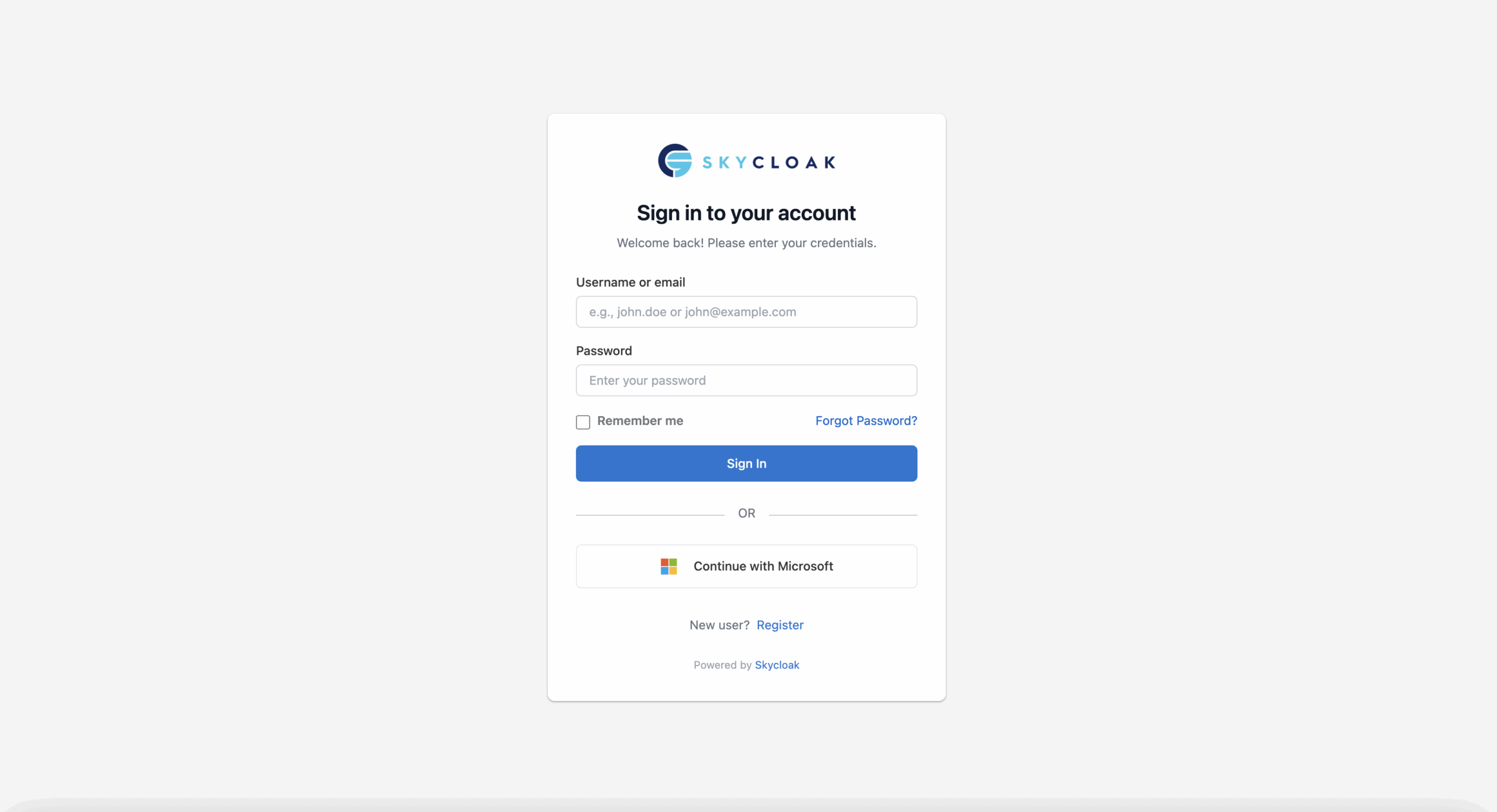
https://{keycloak-host}/realms/{realm}/account - On the login page, you should see a Sign in with Microsoft button (or whatever display name you configured).
- Click the button. You should be redirected to the Microsoft sign-in page.
- Enter your Microsoft credentials and complete any MFA prompts.
- After successful authentication, you should be redirected back to Keycloak.
- If this is the first time signing in, Keycloak may prompt you to review and confirm your profile information.
If everything works correctly, you should now be logged in to the Keycloak account console with your Microsoft identity.
To verify the user was created properly in Keycloak:
- Go to the Keycloak Admin Console.
- Navigate to Users and search for the email address you signed in with.
- Check that the user’s email, first name, last name, and username are populated correctly.
- Under the Identity Provider Links tab, confirm there is a link to the Microsoft provider.
Optional: Restrict Sign-In to a Specific Tenant
If you selected “Multitenant” during app registration but want to restrict which tenants can sign in, you have a few options.
Option 1: Change the App Registration
The simplest approach is to change the app registration to single-tenant:
- In the Azure Portal, go to your app registration.
- Under Authentication, change Supported account types to Accounts in this organizational directory only.
- Save the change.
Option 2: Use the Tenant-Specific Discovery URL
If you are using the generic OIDC provider in Keycloak, make sure the discovery URL uses your specific tenant ID rather than common or organizations:
# Tenant-specific (recommended for enterprise)
https://login.microsoftonline.com/{your-tenant-id}/v2.0/.well-known/openid-configuration

# Multi-tenant (allows any Entra ID tenant)
https://login.microsoftonline.com/organizations/v2.0/.well-known/openid-configuration

# Common (allows any Microsoft account including personal)
https://login.microsoftonline.com/common/v2.0/.well-known/openid-configuration
Option 3: Validate the Tenant in Keycloak
For advanced scenarios, you can use a Keycloak authenticator flow or custom script to validate the tid (tenant ID) claim in the token and reject users from unauthorized tenants. This is useful when you need multi-tenant app registration but want to allowlist specific tenants.
Troubleshooting
“Redirect URI mismatch” Error
This is the most common issue. Verify the following:
- The redirect URI in the Azure Portal exactly matches the one shown in your Keycloak identity provider configuration.
- There are no trailing slashes or extra path segments.
- The protocol is
https://, nothttp://. - The realm name in the URI is correct and case-sensitive.
- The alias in the URI matches the alias you set in the Keycloak identity provider.
“Invalid client secret” or “Unauthorized client” Error
- Confirm you copied the secret value, not the secret ID. These are two different fields in the Azure Portal.
- Check whether the secret has expired. Go to Certificates & secrets in the Azure Portal and verify the expiry date.
- If you rotated the secret, make sure you updated it in Keycloak as well.
User Attributes Not Mapped Correctly
- Verify that the scopes include
openid email profile. Without theprofilescope, thegiven_nameandfamily_nameclaims will not be present in the token. - Check the mapper claim names. Entra ID v2.0 tokens use
given_nameandfamily_name, notgivenNameandsurname. - Look at the raw token in the Keycloak events log (Events > Login Events) to see what claims are actually being returned.
“User already exists” Error on First Login
This happens when a Keycloak user already exists with the same email or username. You can handle this by:
- Configuring the First Login Flow on the identity provider to automatically link accounts when the email matches.
- See the Keycloak documentation on first login flows for details on configuring this behavior.
Users Cannot Access Specific Applications
After SSO login, users are authenticated in Keycloak but may not have the required roles for your application. Make sure to:
- Assign default roles or groups to users who sign in via Microsoft.
- Configure role mappers if Entra ID group memberships should translate to Keycloak roles.
- Review your application configuration to ensure the correct client roles are set.
Conclusion
You now have Microsoft Entra ID configured as an OIDC identity provider in Keycloak. Your users can sign in with their existing Microsoft credentials, and their profile information is automatically mapped to Keycloak user attributes. This setup works for both workforce scenarios (employees signing in with corporate accounts) and customer-facing applications where you want to offer Microsoft as a social login option.
A few things to keep in mind going forward:
- Rotate client secrets before they expire. Set a reminder based on the expiry period you chose.
- Monitor sign-in events in both Keycloak and the Entra ID sign-in logs to catch issues early. Keycloak’s audit logging helps track authentication events.
- Consider adding SAML as a fallback if you are working with enterprise customers who require it.
If managing Keycloak infrastructure, secret rotation, and identity provider configuration feels like more than you want to handle, Skycloak takes care of all of this on a fully managed platform. You get enterprise SSO out of the box, with built-in support for Microsoft Entra ID and dozens of other identity providers, so you can focus on building your application instead of maintaining authentication infrastructure.