Last updated: March 2026
Many organizations find themselves running multiple identity systems. You might have Auth0 handling authentication for customer-facing applications while Keycloak manages internal services, or you may be migrating from Auth0 to Keycloak and need both systems to coexist during the transition. Whatever the reason, connecting these two platforms through OIDC identity brokering is a practical and well-supported pattern.
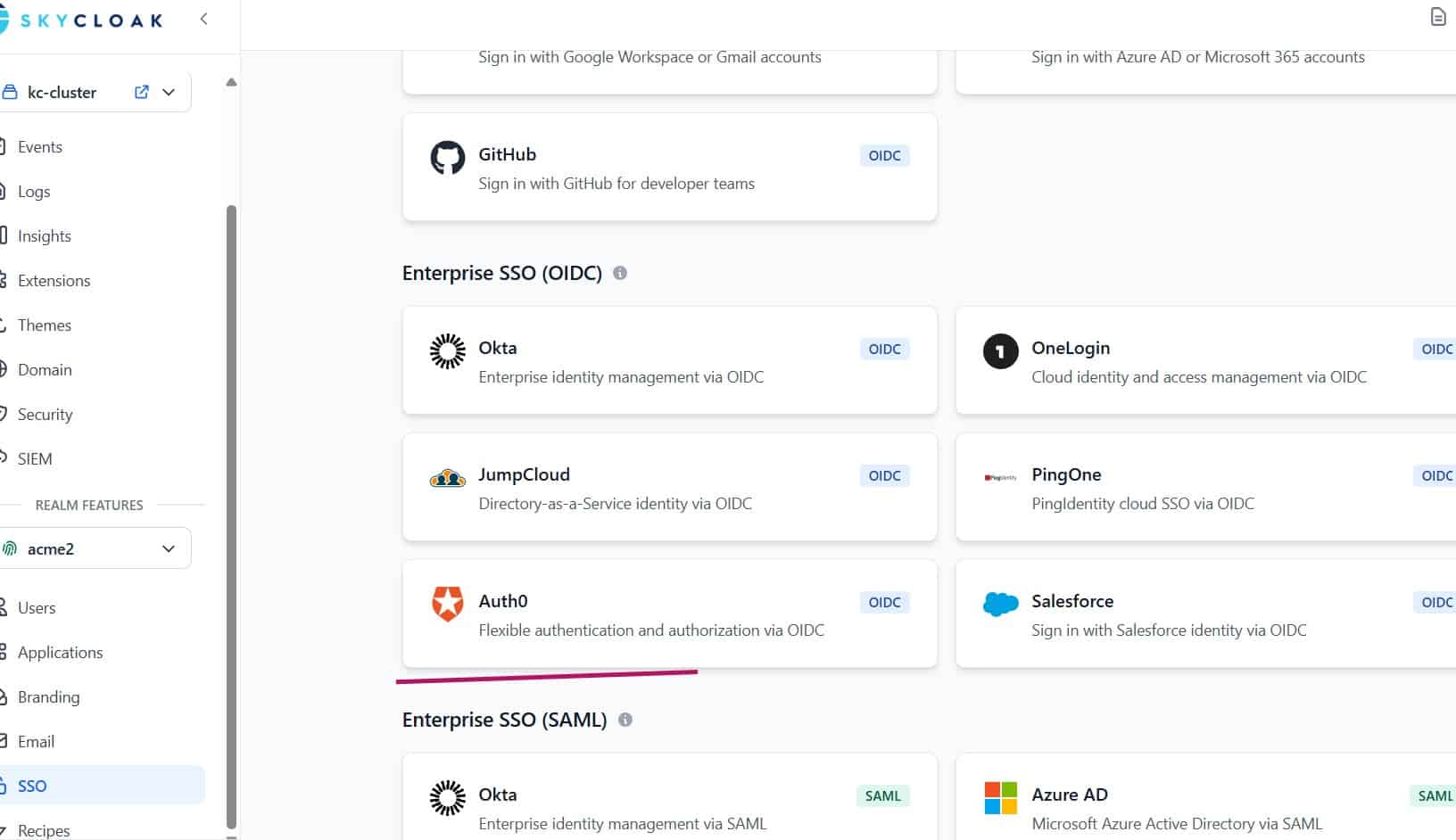
In this tutorial, we walk through how to use Skycloak’s platform to set up single sign-on between Keycloak and Auth0. By the end, your users will be able to authenticate through Auth0 and have their sessions seamlessly established in Keycloak, all without needing to maintain separate credentials.
Why Broker Auth0 as an External Identity Provider?
Identity brokering allows Keycloak to delegate authentication to an external identity provider. Instead of managing usernames and passwords directly, Keycloak redirects users to Auth0 for authentication and then consumes the resulting OIDC tokens.
This approach is useful in several scenarios:
- Migration projects: You are moving from Auth0 to Keycloak and want users to continue logging in through Auth0 while you transition applications one at a time.
- Multi-IdP environments: Your organization uses Auth0 for some user populations and Keycloak for others, and you need a unified login experience.
- Federation requirements: Partners or customers authenticate through Auth0, and you need to accept those identities in your Keycloak-protected applications.
Skycloak simplifies this process with preconfigured identity provider templates and a managed Keycloak environment that handles the infrastructure complexity for you.
Prerequisites
Before you begin, make sure you have the following:
- A Skycloak account with an active Keycloak instance. If you do not have one yet, follow the getting started guide to provision your environment.
- An Auth0 account with at least one application configured.
- Admin access to both your Skycloak Keycloak console and the Auth0 dashboard.
- Basic familiarity with OIDC concepts such as client IDs, client secrets, and redirect URIs.
Step 1: Create an Application in Auth0
The first step is to register a new application in Auth0 that Keycloak will use to initiate the OIDC flow.
- Log in to your Auth0 dashboard and navigate to Applications > Applications.
- Click Create Application and select Regular Web Application.
- Give it a descriptive name like “Keycloak SSO Broker” so you can identify it later.
- Once created, go to the Settings tab and note the following values:
- Domain (e.g.,
your-tenant.auth0.com) - Client ID
- Client Secret
- Domain (e.g.,
- Under Allowed Callback URLs, add the redirect URI from your Keycloak instance. The format is:
https://<your-skycloak-domain>/realms/<realm-name>/broker/auth0/endpointReplace <your-skycloak-domain> with your Skycloak instance URL and <realm-name> with your Keycloak realm name.
- Save the changes.
Auth0 also exposes an OIDC discovery endpoint that Keycloak will use to automatically configure the connection. The URL follows this pattern:
https://your-tenant.auth0.com/.well-known/openid-configurationKeep this URL handy for the next step.
Step 2: Configure Auth0 as an Identity Provider in Keycloak
Now switch to your Skycloak Keycloak admin console to set up the identity brokering connection.
- Log in to your Keycloak admin console and select the realm where you want to enable Auth0 login.
- Navigate to Identity Providers in the left sidebar.
- Click Add provider and select OpenID Connect v1.0 from the list.
Basic Configuration
Fill in the following fields:
| Field | Value |
|---|---|
| Alias | auth0 (this becomes part of the redirect URI) |
| Display Name | Sign in with Auth0 |
| Discovery Endpoint | https://your-tenant.auth0.com/.well-known/openid-configuration |
| Client ID | The Client ID from your Auth0 application |
| Client Secret | The Client Secret from your Auth0 application |
| Client Authentication | Client secret sent as post |
After entering the discovery endpoint, Keycloak automatically populates the authorization, token, and userinfo endpoints. Verify that these have been filled in correctly.
Advanced Settings
Expand the Advanced section and configure these options:
- Scopes: Set to
openid email profile. This ensures Keycloak receives the user’s email and profile information from Auth0. - Store Tokens: Enable this if you need to access Auth0 tokens from within your applications later.
- Trust Email: Enable this if you trust Auth0’s email verification. This prevents Keycloak from requiring users to re-verify their email address.
- Sync Mode: Set to Force if you want user profile updates from Auth0 to overwrite local Keycloak data on each login, or Legacy for the default behavior.
Save the identity provider configuration.
Step 3: Set Up Attribute Mappers
Attribute mappers control how claims from Auth0’s OIDC tokens are translated into Keycloak user attributes. Without proper mappers, user profiles may be incomplete or attributes may land in unexpected places.
Navigate to your newly created Auth0 identity provider and open the Mappers tab.
Essential Mappers
Create the following mappers:
Email Mapper
| Field | Value |
|---|---|
| Name | email |
| Mapper Type | Attribute Importer |
| Claim | email |
| User Attribute Name | email |
First Name Mapper
| Field | Value |
|---|---|
| Name | first-name |
| Mapper Type | Attribute Importer |
| Claim | given_name |
| User Attribute Name | firstName |
Last Name Mapper
| Field | Value |
|---|---|
| Name | last-name |
| Mapper Type | Attribute Importer |
| Claim | family_name |
| User Attribute Name | lastName |
Username Mapper
Auth0 uses sub as the unique user identifier. You may want to map this or use the email as the username:
| Field | Value |
|---|---|
| Name | username |
| Mapper Type | Username Template Importer |
| Template | ${CLAIM.email} |
Using the email as the username provides a friendlier experience and makes it easier to correlate users across systems.
Optional: Custom Attribute Mappers
If your Auth0 tenant includes custom claims in the ID token (for example, roles or organization membership), you can create additional mappers to import those as Keycloak user attributes. The claim name must match exactly what Auth0 includes in the token payload. You can verify the token structure using the JWT Token Analyzer to inspect the claims Auth0 returns.
Step 4: Configure First Login Flow
When a user authenticates through Auth0 for the first time, Keycloak needs to decide how to handle the new identity. The First Login Flow controls this behavior.
By default, Keycloak uses a flow that prompts users to review their profile information. For a smoother experience, you can configure it to automatically create accounts:
- Go to Authentication in the left sidebar.
- Find the first login flow associated with your Auth0 identity provider (the default is usually named “first broker login”).
- Review the execution steps:
- Review Profile: Set to Disabled if you want automatic account creation without user interaction.
- Create User If Unique: Ensure this is Required so that users are automatically provisioned in Keycloak.
- Automatically Set Existing User: Enable this if you want to link Auth0 identities with existing Keycloak accounts that share the same email address.
This configuration is particularly important during migration scenarios where users may already exist in Keycloak from a previous import.
Step 5: Test the Integration
With everything configured, it is time to test the flow end to end.
- Open a browser in incognito or private mode to avoid cached sessions.
- Navigate to an application that is protected by your Keycloak realm.
- On the Keycloak login page, you should see a button labeled “Sign in with Auth0” (or whatever display name you configured).
- Click the button. You should be redirected to Auth0’s Universal Login page.
- Authenticate with a valid Auth0 user.
- After successful authentication, Auth0 redirects back to Keycloak, which processes the OIDC tokens and establishes a local session.
- You should be redirected to your application, fully authenticated.
Troubleshooting Common Issues
Redirect URI mismatch: If Auth0 returns an error about an invalid callback URL, double-check that the redirect URI in your Auth0 application settings matches exactly what Keycloak generates. The URI is case-sensitive and must include the correct realm name and identity provider alias.
Missing user attributes: If the user’s name or email is not populated in Keycloak, revisit your attribute mappers. Use the JWT Token Analyzer to inspect the ID token from Auth0 and confirm which claims are present.
Email not verified: If Keycloak prompts the user to verify their email even though it is verified in Auth0, enable the “Trust Email” option in the identity provider’s advanced settings.
User already exists error: This occurs when a user with the same email already exists in Keycloak but is not linked to the Auth0 identity. Configure the “Automatically Set Existing User” step in your first login flow to handle this case.
Step 6: Production Considerations
Before rolling this out to production users, consider the following:
Session Timeouts
Align session timeout settings between Auth0 and Keycloak to prevent confusing behavior where a user’s session expires in one system but not the other. Skycloak’s managed Keycloak instances allow you to configure session lifespans from the admin console.
Token Validation
For applications that validate tokens directly, ensure they are configured to trust tokens issued by your Keycloak realm, not Auth0. Keycloak issues its own tokens after the brokered authentication completes. Refer to the Skycloak documentation for details on token configuration and validation best practices.
Logout Propagation
OIDC backchannel logout between Keycloak and Auth0 requires additional configuration. In the identity provider settings, you can configure the logout URL to point to Auth0’s logout endpoint:
https://your-tenant.auth0.com/v2/logout?client_id=<client-id>&returnTo=<post-logout-url>This ensures that when a user logs out of Keycloak, their Auth0 session is also terminated.
Monitoring and Audit
Skycloak provides built-in monitoring for your Keycloak instances. Track brokered login events to identify issues early and monitor adoption rates if you are using this integration as part of a migration strategy.
Wrapping Up
Connecting Auth0 to Keycloak through OIDC identity brokering is a straightforward process when you have the right infrastructure in place. Skycloak’s managed platform handles the operational complexity of running Keycloak, letting you focus on configuring the integration itself rather than worrying about infrastructure, certificates, or high availability.
The combination of Auth0 as an external identity provider and Keycloak as your central authentication hub gives you flexibility to support multiple user populations, execute phased migrations, and maintain a unified single sign-on experience across all your applications.
Ready to set up identity brokering for your organization? Check out the Skycloak getting started guide to provision your managed Keycloak instance and secure your Keycloak deployments.