Last updated: March 2026
Introduction
Earlier, in our article on configuring Keycloak as a SAML Service Provider, we discussed how to configure Keycloak as a SAML Service Provider (SP) and Okta as a SAML Identity Provider (IdP). This article extends that configuration and demonstrates how to map user attributes sent from Okta into Keycloak.
Attribute mapping ensures Keycloak correctly identifies and provisions authenticated users by capturing key fields such as email, first name, and last name. This is a critical step when setting up identity provider integrations with external SAML IdPs.
Configuration Steps
To map attributes, you must configure:
- Attribute settings in the Okta SAML application
- Attribute mapping in Keycloak
For more details on Keycloak as an Identity Broker, you may refer to the Keycloak Identity Broker documentation.
Step 1: Configure Attributes for Keycloak in Okta
- Navigate to Okta Developer Console.
- Go to Applications -> Your Keycloak SAML App (created in the previous article, named
kc-client). - Open the General tab and click Edit under SAML Setting.
- Proceed to the Configure SAML Settings page.
- Add the attribute statements for:
- firstName
- lastName
Note on Email Attribute
Here, we map the Okta username as the email value. By default, Okta usernames are email-formatted and unique, while Okta’s primary email field may not always be unique across all user records. Since Keycloak requires emails to be unique across users, mapping the username is safer and consistent.
Step 2: Add Attribute Mappings in Keycloak
Now configure Keycloak:
- Open Keycloak Admin Console -> Identity Providers -> Okta
- Locate the SAML dialog
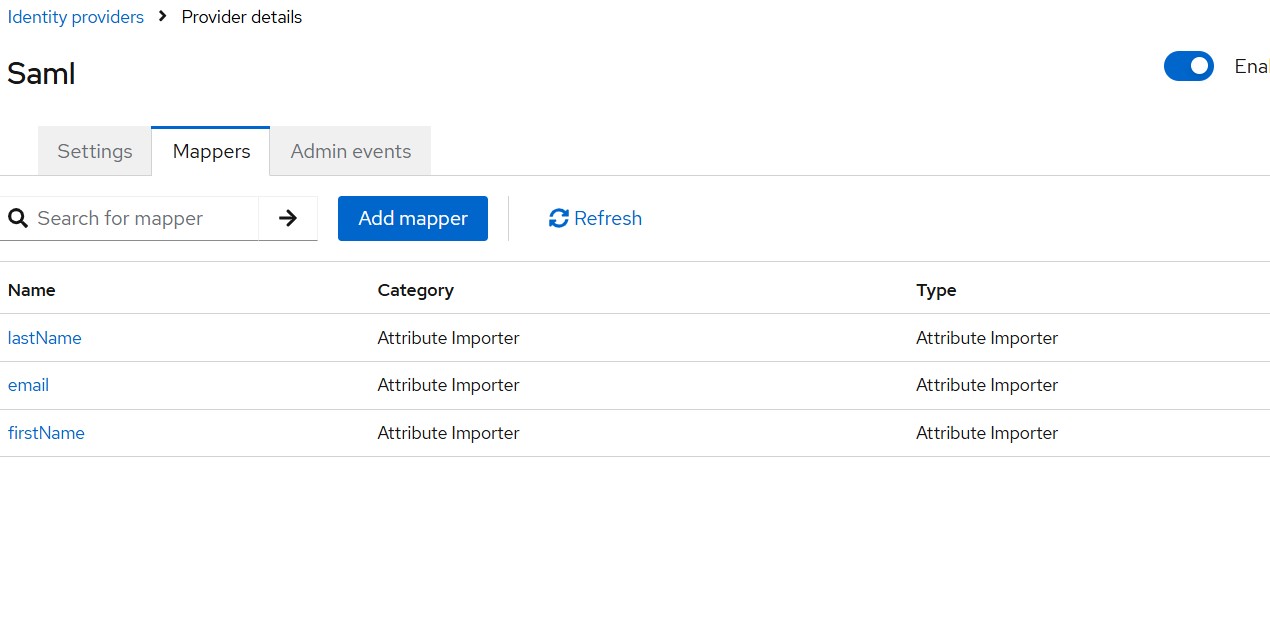
- Open Mappers -> Add Mapper
- Create individual mappers for:
- firstName
- lastName
You may refer to the Keycloak documentation on SAML Identity Provider mappers for all available mapper types.
Testing the Integration
- Access your Keycloak Account Console:
https://<skycloak_hostname>/realms/<your_realm_name>/accountor launch a protected application. - Click Sign in with Okta
- Authenticate in Okta
- Keycloak will automatically create (or update) a local user record with mapped attributes
Validating Using SAML Debugger
Using Firefox with the SAML Tracer extension:
- Inspect the SAML Response
- You will see attribute statements matching:
- firstName
- lastName
- The SAML NameID field will also be visible for reference
You can also use our SAML Decoder tool to paste and inspect SAML assertions and responses directly in your browser. This is particularly useful for debugging attribute mapping issues without needing a browser extension.
Next Steps
Once attribute mapping is configured, you may want to explore related SAML topics:
- SAML as an SP in Keycloak — Additional SAML SP configuration patterns and advanced use cases.
- Bridging IdP-Initiated SAML to OIDC with Keycloak — Convert SAML assertions to OIDC tokens for downstream applications.
- Single Sign-On features — Learn about Skycloak’s comprehensive SSO capabilities across SAML and OIDC.
Summary
In this article, we covered:
- How to configure attribute statements for Keycloak within Okta
- How to map those attributes inside Keycloak
We used Skycloak, a fully managed Keycloak hosting solution, for demonstration.
Skycloak provides production-ready managed Keycloak hosting, helping teams avoid the complexity of maintaining and scaling Keycloak themselves.
If you’re new to Skycloak, visit the Skycloak Getting Started Guide to learn more.

Ready to simplify your authentication?
Deploy production-ready Keycloak in minutes. Unlimited users, flat pricing, no SSO tax.