Last updated: March 2026
Enterprise identity infrastructure rarely moves in lockstep. Your new application speaks OpenID Connect, but the partner organization pushing authentication requests still runs a SAML 2.0 Identity Provider that only supports IdP-initiated flows. Ripping out either side is not an option. What you need is a protocol bridge, and Keycloak is built for exactly this job.
This guide walks through configuring Keycloak to accept IdP-initiated SAML assertions from a legacy Identity Provider, broker the authentication session, and issue OIDC tokens to your downstream application. By the end, you will have a working flow where a user clicks a tile in their corporate portal and lands in your OIDC app, fully authenticated.
The Problem: Protocol Mismatch and IdP-Initiated Flows
Most modern applications are built around OpenID Connect, which relies on an SP-initiated flow: the application redirects the user to the authorization server, the server authenticates the user, and then redirects back with an authorization code. It is a well-understood request-response cycle.
IdP-initiated SAML breaks that model. In an IdP-initiated flow, the Identity Provider sends an unsolicited SAML assertion to the Service Provider without the SP ever making a request. There is no AuthnRequest, no RelayState tied to an application session, and no OIDC authorization request to anchor the flow to.
This creates a fundamental mismatch:
- SAML IdP-initiated flow: The IdP sends an assertion out of the blue, expecting a SAML SP endpoint to consume it.
- OIDC application: The app expects to start the flow itself and receive an authorization code or tokens after a redirect.
You cannot point a SAML IdP directly at an OIDC application. You need something in the middle that speaks both protocols.
How Keycloak Bridges Protocols
Keycloak’s identity brokering capability lets it act as both a SAML Service Provider and an OIDC Authorization Server simultaneously. The architecture looks like this:
SAML IdP (Corporate Portal)
    │
    │  IdP-Initiated SAML Assertion
    ▼
Keycloak (Broker)
    │  - Validates SAML assertion
    │  - Creates/maps user session
    │  - Issues OIDC tokens
    ▼
OIDC Application (Your App)
When Keycloak receives an unsolicited SAML assertion, it validates the signature, extracts the subject and attributes, establishes an internal session, and then redirects the user to the configured OIDC client with proper authorization. Keycloak handles the protocol translation so neither side needs to change.
Step 1: Configure the SAML Identity Provider in Keycloak
Start by adding the external SAML IdP as an identity provider in your Keycloak realm.
Basic Configuration
- Navigate to Identity Providers in the Keycloak admin console.
- Select SAML v2.0 from the provider list.
- Set the Alias to something descriptive, such as
corporate-saml-idp. This alias becomes part of the endpoint URL. - Import the IdP metadata XML or manually configure:
- Single Sign-On Service URL: The IdP’s SSO endpoint (used for SP-initiated flows, but still required).
- Single Logout Service URL: Optional, for logout propagation.
- NameID Policy Format: Match what the IdP sends (typically
urn:oasis:names:tc:SAML:1.1:nameid-format:emailAddress).
Enabling IdP-Initiated SSO
This is the critical setting. Under the SAML identity provider configuration:
- Set Allowed Clock Skew to a reasonable value (e.g., 30 seconds) to account for time drift.
- Enable Want Assertions Signed to ensure assertion integrity.
- Set the Principal Type to match how the IdP identifies users (Subject NameID or Attribute).
- Under the advanced settings, locate IdP-Initiated SSO URL Name and set it to a recognizable value, such as
corporate-sso.
This generates an endpoint at:
https://your-keycloak.example.com/realms/{realm}/broker/{alias}/endpointThe SAML IdP should be configured to post assertions to this URL.
Upload the IdP Signing Certificate
Download the IdP’s signing certificate and add it to the identity provider configuration. Keycloak will reject any assertion whose signature cannot be verified against this certificate. Never skip signature validation in production, even during testing.
Step 2: Configure the OIDC Client
Now configure the application that will receive OIDC tokens after the brokered authentication.
- In the Keycloak admin console, go to Clients and create a new client.
- Set the Client Protocol to
openid-connect. - Set the Access Type to
confidential(for server-side apps) orpublic(for SPAs using PKCE). - Configure Valid Redirect URIs to your application’s callback URL. Be specific here; do not use wildcards in production.
- Set the Web Origins appropriately for CORS.
Handling the IdP-Initiated Redirect
When Keycloak processes an IdP-initiated SAML assertion, it needs to know which OIDC client to redirect to. Configure this by setting the Default Client in the identity provider’s IdP-initiated SSO settings, or by using the RelayState parameter if the SAML IdP supports passing it.
If the IdP does not send a RelayState, Keycloak will use the default application configured for that identity provider. Set this under the SAML identity provider’s advanced settings:
- Default Identity Provider: If you want to auto-redirect users to this IdP during SP-initiated flows.
- Client Redirect URI / Default Application: The OIDC client that receives the brokered session.
Step 3: Attribute and Claim Mapping
The SAML assertion from the IdP carries attributes (email, name, groups) that need to land in the OIDC tokens as claims. This mapping happens in two stages.
Stage 1: SAML Attribute to Keycloak User
Under the SAML identity provider, go to Mappers and create mappers for each attribute you need:
| Mapper Type | SAML Attribute | Keycloak Attribute |
|---|---|---|
| Attribute Importer | http://schemas.xmlsoap.org/ws/2005/05/identity/claims/emailaddress |
email |
| Attribute Importer | http://schemas.xmlsoap.org/ws/2005/05/identity/claims/givenname |
firstName |
| Attribute Importer | http://schemas.xmlsoap.org/ws/2005/05/identity/claims/surname |
lastName |
| Attribute Importer | memberOf |
groups (or a custom attribute) |
Stage 2: Keycloak User to OIDC Token
Under the OIDC client, go to Client Scopes or Mappers and add protocol mappers to include these attributes in the ID token and access token:
- User Attribute mapper: Maps a Keycloak user attribute to a JWT claim.
- Group Membership mapper: Includes group information in the token.
- Hardcoded Claim: Adds static values if needed.
You can verify the resulting tokens using the JWT Token Analyzer to confirm that all expected claims are present and correctly formatted.
For debugging the incoming SAML assertions from the IdP, the SAML Decoder is invaluable for inspecting assertion content, verifying attribute names, and checking signature validity.
Step 4: Security Considerations
IdP-initiated SAML flows carry inherent risks that you must mitigate.
Assertion Replay Protection
Because there is no AuthnRequest to correlate with the response, IdP-initiated assertions are more vulnerable to replay attacks. Mitigate this by:
- Enforcing short assertion validity: Set
NotOnOrAfterconditions to a tight window (2-5 minutes). - Tracking assertion IDs: Keycloak can be configured to reject duplicate assertion IDs within the validity window.
- Requiring signed assertions: Always validate the XML signature. An unsigned assertion should be rejected outright.
Redirect Validation
After Keycloak processes the assertion and creates a session, it redirects the user to the OIDC client’s redirect URI. Ensure:
- Strict redirect URI matching: Do not use wildcard redirect URIs. Specify exact URLs.
- HTTPS only: Never allow HTTP redirect URIs in production.
- PKCE for public clients: If your OIDC client is a SPA, use PKCE to prevent authorization code interception. See our documentation for detailed PKCE configuration guides.
Session Fixation
Keycloak should generate a new session ID after processing the SAML assertion. This is the default behavior, but verify that session fixation protections are enabled in your realm settings.
Certificate Rotation
Plan for IdP certificate rotation. When the SAML IdP rotates its signing certificate, you must update the certificate in Keycloak’s identity provider configuration. Some IdPs publish metadata with multiple certificates during rollover periods; Keycloak can handle this if you import the updated metadata.
Step 5: Testing the Flow
Testing IdP-initiated flows requires a methodical approach since you cannot simply click a login button.
Simulating the IdP-Initiated Flow
- Generate a test SAML assertion: Use a SAML testing tool or your IdP’s test functionality to send an assertion to Keycloak’s broker endpoint.
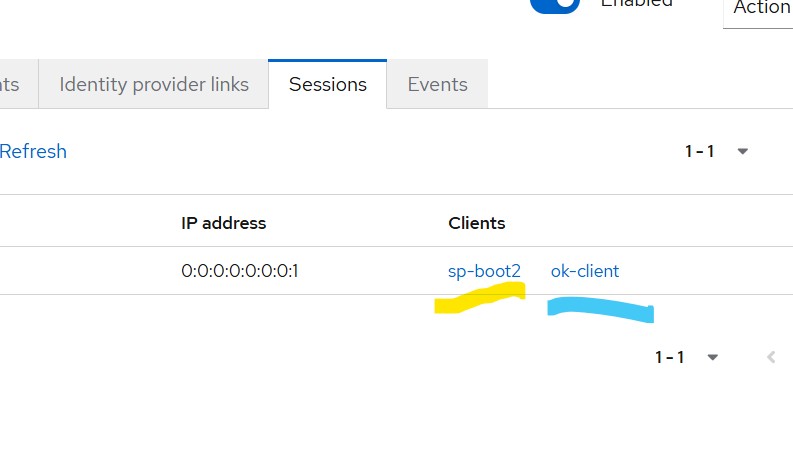
- Check the Keycloak session: After the assertion is processed, verify that a user session was created in the Keycloak admin console under Sessions.
- Verify the OIDC redirect: Confirm that Keycloak redirected to the OIDC client’s redirect URI with an authorization code.
- Inspect the tokens: Exchange the authorization code for tokens and use the JWT Token Analyzer to verify the claims.
Common Issues and Fixes
Assertion signature validation fails: Verify that the correct IdP certificate is configured. Check for certificate encoding issues (PEM vs. DER).
User not created in Keycloak: Check that First Login Flow on the identity provider is set to a flow that creates users (the default first broker login flow handles this).
Missing claims in OIDC tokens: Walk through both mapping stages. Use the SAML Decoder to verify attributes are present in the assertion, then check that Keycloak user attributes are populated, and finally confirm that OIDC client mappers are configured.
Redirect loop after assertion processing: Verify that the OIDC client’s redirect URI is correctly configured and accessible. Check that the client is not trying to initiate its own login flow after receiving the redirect.
End-to-End Validation Checklist
- [ ] SAML assertion arrives at Keycloak broker endpoint
- [ ] Assertion signature validates against configured certificate
- [ ] User is created or matched in Keycloak
- [ ] Attributes map correctly to Keycloak user profile
- [ ] Keycloak redirects to OIDC client with authorization code
- [ ] Tokens contain expected claims
- [ ] Application accepts tokens and creates session
- [ ] Logout propagates correctly (if configured)
Production Readiness
Before going live with the bridge, address these operational concerns:
- Monitoring: Set up alerts for failed SAML assertion validations and brokered authentication errors. Keycloak’s event system can forward these to your logging infrastructure.
- High availability: If Keycloak is clustered, ensure that session replication is configured so that the IdP-initiated assertion and the subsequent OIDC redirect can be handled by different nodes.
- Rate limiting: Protect the SAML broker endpoint from abuse. Even though the IdP should be the only caller, defense in depth matters.
- Documentation: Document the attribute mapping contract between your organization and the IdP operator. When either side changes their schema, the mapping breaks silently.
Conclusion
Keycloak’s identity brokering turns a painful protocol mismatch into a configuration exercise. By placing Keycloak between a legacy SAML IdP and your OIDC application, you get a clean separation of concerns: the IdP continues sending IdP-initiated assertions as it always has, and your application continues consuming standard OIDC tokens.
The key is getting the details right: assertion signature validation, tight validity windows, strict redirect URIs, and careful attribute mapping. Take the time to test each stage independently, verify claims with the JWT Token Analyzer, and inspect assertions with the SAML Decoder before connecting the full flow.
With this bridge in place, you can modernize your application’s authentication without waiting for every partner IdP to catch up. The protocol translation is handled, the security posture is maintained, and your team can focus on building features instead of wrestling with protocol incompatibilities. That is the real value of keeping your identity layer flexible and secure.

Ready to simplify your authentication?
Deploy production-ready Keycloak in minutes. Unlimited users, flat pricing, no SSO tax.