Last updated: March 2026
If your organization runs FusionAuth as its primary identity provider but you are planning a migration to Keycloak, or you simply need to federate identities across both platforms, identity brokering is the mechanism that makes it possible. Rather than forcing users to create new accounts, Keycloak can delegate authentication to FusionAuth and transparently provision user sessions on the Keycloak side.
This guide walks through the full configuration: setting up FusionAuth as an OIDC provider, registering it as an identity provider in Keycloak, mapping attributes, and handling first-login flows. By the end you will have a working integration that lets users authenticate against FusionAuth while your applications only talk to Keycloak.
What Is Identity Brokering?
Identity brokering is a pattern where an intermediary service, the broker, delegates authentication to an external identity provider (IdP) on behalf of downstream applications. The broker sits between your apps and one or more IdPs, presenting a single OIDC or SAML interface to your services while federating login requests to whichever upstream provider holds the user’s credentials.
In this setup Keycloak acts as the broker. Your applications are registered as clients in Keycloak and never interact with FusionAuth directly. When a user clicks “Log in with FusionAuth,” Keycloak redirects to FusionAuth, validates the response, creates or links a local user, and issues its own tokens back to the application. This gives you a unified token format, centralized session management, and a single place to enforce authorization policies.
Keycloak’s identity provider subsystem supports OIDC, SAML 2.0, and social providers out of the box. Because FusionAuth exposes standard OpenID Connect endpoints, the integration is straightforward.
When You Would Use This
There are several scenarios where brokering FusionAuth through Keycloak makes sense:
Migrating away from FusionAuth. You can stand up Keycloak alongside FusionAuth, broker authentication during the transition period, and gradually move users over without any downtime or forced password resets.
Federated identity across business units. If one division uses FusionAuth and another uses Keycloak, brokering lets both user populations access shared applications through a single Keycloak realm.
Multi-IdP environments. Organizations that support multiple identity providers, such as FusionAuth for internal users, Azure AD for enterprise SSO, and social login for consumers, can funnel all of them through Keycloak as the central broker. Keycloak’s single sign-on capabilities ensure users get a consistent login experience regardless of which upstream provider they authenticate against.
Compliance and audit consolidation. By routing all authentication through Keycloak you get a single source of truth for login events, session activity, and token issuance, which simplifies audit reporting.
Step 1: Configure FusionAuth as an OIDC Provider
Before touching Keycloak, you need to set up an application in FusionAuth that Keycloak can use as an OIDC client.
Create an Application in FusionAuth
- Log in to your FusionAuth admin console.
- Navigate to Applications and click Add.
- Give the application a descriptive name such as “Keycloak Broker.”
- Under the OAuth tab, configure the following:
- Authorized redirect URLs: Add your Keycloak redirect URI. The format is
https://<keycloak-host>/realms/<realm>/broker/fusionauth/endpoint. Replace<keycloak-host>and<realm>with your actual values. - Authorized request origin URLs: Add your Keycloak host origin.
- Logout URL: Optionally set this to
https://<keycloak-host>/realms/<realm>/broker/fusionauth/endpoint/logout_response.
- Authorized redirect URLs: Add your Keycloak redirect URI. The format is
- Save the application.
Note the OIDC Details
After saving, record these values:
- Client ID: Found on the application detail page.
- Client Secret: Click the lock icon or navigate to the OAuth configuration section to reveal it.
- OpenID Connect Discovery URL: Typically
https://<fusionauth-host>/.well-known/openid-configuration.
FusionAuth also supports tenant-specific discovery URLs if you run multiple tenants. Make sure the discovery URL matches the tenant that contains the application you just created.
Verify the Discovery Endpoint
Open the discovery URL in a browser or with curl to confirm it returns a valid JSON document. You should see keys like authorization_endpoint, token_endpoint, userinfo_endpoint, and jwks_uri. If any of these are missing or return errors, fix the FusionAuth configuration before proceeding.
Step 2: Add FusionAuth as an Identity Provider in Keycloak
Now switch to the Keycloak admin console.
- Select the realm where you want to add FusionAuth brokering.
- Navigate to Identity Providers in the left menu.
- Click Add provider and select OpenID Connect v1.0.
Fill In the Provider Settings
| Field | Value |
|---|---|
| Alias | fusionauth (this becomes part of the redirect URI) |
| Display Name | FusionAuth |
| Discovery endpoint | https://<fusionauth-host>/.well-known/openid-configuration |
| Client Authentication | Client secret sent as post |
| Client ID | The client ID from FusionAuth |
| Client Secret | The client secret from FusionAuth |
After entering the discovery endpoint, Keycloak auto-populates the authorization URL, token URL, and other endpoints. Verify they match what FusionAuth reports.
Scopes
Set the Default Scopes field to openid email profile. If you need additional claims from FusionAuth, such as groups or custom data, add the corresponding scopes here and make sure FusionAuth is configured to include them in the ID token.
Save and Note the Redirect URI
After saving, Keycloak displays the generated Redirect URI at the top of the provider configuration page. Confirm it matches the redirect URL you configured in FusionAuth. If there is a mismatch, update the FusionAuth application.
Step 3: Configure Attribute Mappers
By default Keycloak imports minimal attributes from the brokered IdP. You will almost certainly want to map email, first name, last name, and possibly roles or groups.
Navigate to the FusionAuth identity provider in Keycloak, then open the Mappers tab. Click Add mapper for each attribute:
Email Mapper
- Mapper type: Attribute Importer
- Claim:
email - User Attribute Name:
email
First Name Mapper
- Mapper type: Attribute Importer
- Claim:
given_name - User Attribute Name:
firstName
Last Name Mapper
- Mapper type: Attribute Importer
- Claim:
family_name - User Attribute Name:
lastName
Role Mapper (Optional)
If FusionAuth includes roles in the ID token (commonly under a roles claim), you can map them to Keycloak realm roles:
- Mapper type: Claim to Role
- Claim:
roles - Claim Value: The specific role name in FusionAuth
- Role: The corresponding Keycloak realm role
Repeat for each role you want to map. For complex role hierarchies, consider using a custom mapper or a post-login authentication flow script.
Step 4: Configure the First Login Flow
When a user authenticates through FusionAuth for the first time, Keycloak needs to decide how to handle the new identity. The First Login Flow controls this behavior.
Keycloak ships with a default first-login flow called “first broker login” that includes these steps:
- Review Profile: Prompts the user to confirm or update their profile information.
- Create User If Unique: Automatically creates a Keycloak user if no existing user matches the brokered identity’s email.
- Link Existing Account: If a user with the same email already exists in Keycloak, prompts the user to link the accounts by verifying ownership.
For a migration scenario you will typically want to:
- Disable “Review Profile” if you trust the data coming from FusionAuth and want a frictionless experience.
- Enable “Automatically Link Brokered Account” if you have pre-provisioned users in Keycloak and want to link them without user interaction. Be cautious with this option since it trusts the email claim from FusionAuth without verification.
To customize the flow, go to Authentication in the left menu, find the “first broker login” flow, and adjust the steps. You can also create a completely new flow and assign it to the FusionAuth identity provider under First Login Flow in the provider settings.
Step 5: Test the Integration
With everything configured, test the end-to-end flow:
- Open your application’s login page, which should redirect to Keycloak.
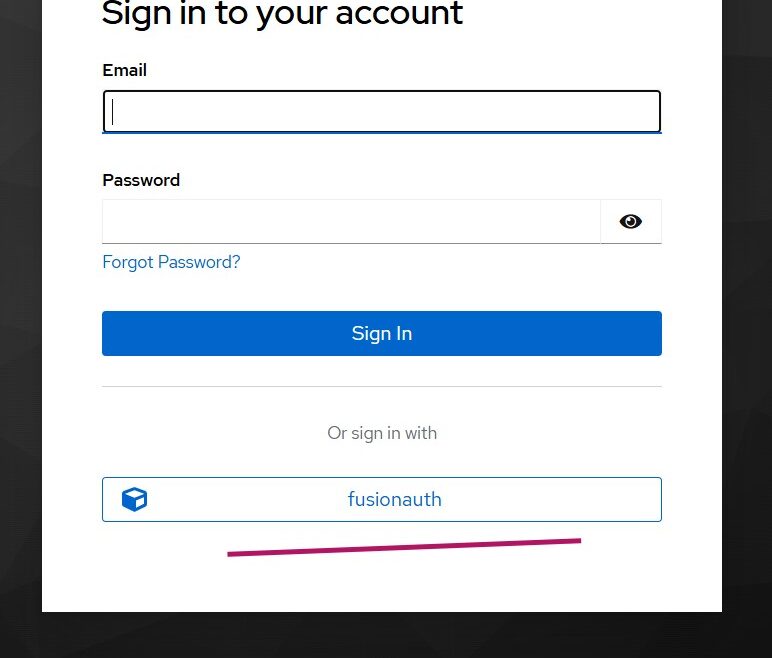
- On the Keycloak login screen, you should see a “FusionAuth” button (or whatever display name you set).
- Click it. Keycloak redirects to FusionAuth.
- Authenticate with a valid FusionAuth user.
- FusionAuth redirects back to Keycloak with an authorization code.
- Keycloak exchanges the code for tokens, extracts claims, and runs the first-login flow.
- You are redirected back to your application with a valid Keycloak session.
Debugging Common Issues
Redirect URI mismatch: The most common error. Double-check that the redirect URI shown in Keycloak’s IdP configuration exactly matches what is registered in FusionAuth.
Invalid client credentials: Verify the client ID and secret. FusionAuth’s client secret can be regenerated, which invalidates the old one.
Missing claims: If attributes are not being mapped, check the scopes requested by Keycloak and the claims included in FusionAuth’s ID token. Use a tool like our JWT Token Analyzer to decode the token and inspect its contents.
SSL certificate errors: If either system uses self-signed certificates in a development environment, Keycloak will reject the connection by default. You can import the FusionAuth CA certificate into Keycloak’s truststore or, for local testing only, disable certificate validation.
Step 6: Migration Considerations
If your goal is to eventually migrate all users from FusionAuth to Keycloak, identity brokering gives you a gradual, low-risk path.
Phase 1: Parallel Operation
Run both systems simultaneously. Users continue to authenticate through FusionAuth via the broker. Each successful login automatically provisions or updates their Keycloak profile. Over time, Keycloak accumulates user records without any bulk import.
Phase 2: Credential Migration
Users brokered through FusionAuth do not have passwords stored in Keycloak. To complete the migration you need to establish Keycloak-native credentials. Options include:
- Password reset flow: Trigger a “forgot password” email through Keycloak to let users set a new password.
- Credential import: If you can export password hashes from FusionAuth in a compatible format (bcrypt), you can import them into Keycloak using its User Storage SPI or a migration provider.
- Just-in-time migration: Use a custom authentication flow in Keycloak that intercepts login attempts, validates the password against FusionAuth’s API, and stores the credential locally if successful. This is the most seamless approach since users never notice the migration.
Phase 3: Decommission FusionAuth
Once all users have Keycloak-native credentials, remove the FusionAuth identity provider from Keycloak. Applications continue to work without any changes because they only interact with Keycloak.
Monitoring the Migration
Track progress by querying Keycloak’s user database for accounts that still have a FusionAuth identity link but no local credential. The Keycloak Admin API exposes federated identity links per user, making it straightforward to build a migration dashboard.
For production migrations, a managed Keycloak hosting service can significantly reduce operational overhead. Skycloak handles cluster management, upgrades, and backups so your team can focus on the migration logic rather than infrastructure.
Best Practices
Use HTTPS everywhere. Both Keycloak and FusionAuth must use TLS in production. Token exchanges happen over back-channel HTTP calls, and any unencrypted link in the chain exposes tokens to interception.
Limit scopes to what you need. Only request the OIDC scopes that your attribute mappers actually consume. Requesting unnecessary scopes increases token size and broadens the blast radius if a token is compromised.
Set token lifetimes appropriately. FusionAuth and Keycloak each have their own token lifetime settings. For brokered authentication, the FusionAuth tokens are consumed by Keycloak during the exchange and are not exposed to end users. What matters for your applications is the Keycloak token lifetime.
Test with multiple user profiles. Verify the integration with users who have different roles, missing optional fields, and special characters in names or email addresses. Edge cases in attribute mapping tend to surface only with diverse test data.
Review the Keycloak documentation. The official Skycloak documentation covers identity provider configuration in detail, including advanced topics like token exchange and account linking APIs.
Wrapping Up
Identity brokering turns what could be a disruptive migration into a transparent, incremental process. By configuring FusionAuth as an OIDC identity provider in Keycloak, you get immediate federation with minimal changes to your existing applications. Users keep logging in the way they always have while Keycloak takes over session management, token issuance, and policy enforcement behind the scenes.
Whether you are consolidating identity providers, running a phased migration, or building a multi-IdP architecture, Keycloak’s brokering capabilities give you the flexibility to move at your own pace without locking users out or degrading their experience.

Ready to simplify your authentication?
Deploy production-ready Keycloak in minutes. Unlimited users, flat pricing, no SSO tax.