
Session timeout configuration in Keycloak directly impacts user experience and security posture. Set timeouts too short and users face constant re-authentication. Set them too long and you create unnecessary security exposure. The challenge is that Keycloak has multiple interacting timeout values spread across realm settings, client settings, and token configuration, and understanding how they interact is essential to getting the behavior you want.
This guide covers every session timeout setting in Keycloak, explains how they interact, and provides recommended values for common use cases.
Session Types in Keycloak
Keycloak manages three distinct session types:
SSO Session
The SSO session is the top-level session created when a user authenticates. It spans all clients (applications) the user accesses within the realm. As long as the SSO session is active, the user can access any configured client without re-entering credentials, which is what makes Single Sign-On work.
Client Session
Within the SSO session, each client the user accesses gets its own client session. Client sessions track the user’s authentication state for a specific application. They inherit timeout values from the SSO session by default, but can be configured independently with shorter values.
Offline Session
Offline sessions support offline tokens, which are long-lived refresh tokens that survive Keycloak restarts and session cleanup. They are used for mobile apps, IoT devices, and any scenario where the user should remain authenticated for extended periods without interactive login.
For a broader view of how Keycloak manages sessions, see the Session Management feature page.
SSO Session Timeout Settings
Navigate to Realm Settings > Sessions to configure these values.
SSO Session Idle
What it does: The maximum time the SSO session can remain idle (no token refresh, no new client login) before Keycloak invalidates it.
Default: 30 minutes
How it works: Every time a client refreshes a token or the user logs into a new client, the idle timer resets. If no activity occurs within this window, the SSO session expires and all associated client sessions and refresh tokens become invalid. Our overview of Keycloak session management, from refresh to idle timeouts shows how that reset interacts with refresh token lifetimes.

SSO Session Max
What it does: The absolute maximum lifetime of the SSO session, regardless of activity.
Default: 10 hours
How it works: Even if the user is continuously active (refreshing tokens, accessing new clients), the SSO session will end after this period. The user must re-authenticate.

SSO Session Idle Remember Me
What it does: Overrides the SSO Session Idle timeout when the user checked “Remember Me” during login.
Default: 0 (uses SSO Session Idle value)
When to use: Set this to a longer value (e.g., 30 days) for users who explicitly opt into staying logged in. This is common for consumer-facing applications where convenience is prioritized.
SSO Session Max Remember Me
What it does: Overrides the SSO Session Max timeout for “Remember Me” sessions.
Default: 0 (uses SSO Session Max value)
When to use: Pair with SSO Session Idle Remember Me. For example, set this to 90 days to allow “Remember Me” sessions to last up to 3 months.
To enable the “Remember Me” checkbox on the Keycloak login page:
- Go to Realm Settings > Login.
- Enable Remember Me.
Client Session Timeout Settings
Navigate to Realm Settings > Tokens to configure these values.
Client Session Idle
What it does: The maximum idle time for a specific client’s session within the SSO session. If the user stops interacting with a particular application, its client session expires even if the SSO session is still active.
Default: 0 (inherits SSO Session Idle)
When to use: Set this when different applications need different idle timeouts. For example, your banking app might need a 5-minute idle timeout while your marketing dashboard can tolerate 30 minutes.
Client Session Max
What it does: The maximum lifetime of a client session, regardless of activity.
Default: 0 (inherits SSO Session Max)
When to use: Set this when specific applications should force re-authentication more frequently than the realm default. A financial trading platform might set Client Session Max to 2 hours while the SSO Session Max is 10 hours.
Per-Client Overrides
Individual clients can also override these values:
- Go to Clients > your-client > Advanced Settings.
- Set Client Session Idle and Client Session Max.
Per-client values take precedence over realm-level client session values. The effective timeout is always the minimum of the applicable values.
Token Lifespan Settings
Navigate to Realm Settings > Tokens to configure these values.
Access Token Lifespan
What it does: How long the access token (JWT) is valid.
Default: 5 minutes
Key point: This is not a session timeout. The access token is a short-lived credential. When it expires, the application uses the refresh token to obtain a new one. The access token lifespan should be short (1-5 minutes) to limit the exposure window if a token is compromised.
Refresh Token Settings
The refresh token’s effective lifespan is determined by the client session timeouts. A refresh token becomes invalid when:
- The client session idle timeout is exceeded
- The client session max lifespan is exceeded
- The SSO session idle timeout is exceeded
- The SSO session max lifespan is exceeded
Keycloak also supports Refresh Token Rotation: when enabled, each token refresh returns a new refresh token, invalidating the old one. This limits the damage of a leaked refresh token.
To enable refresh token rotation:
- Go to Realm Settings > Tokens.
- Set Revoke Refresh Token to ON.
- Optionally set Refresh Token Max Reuse to allow a small number of reuses (useful for handling race conditions in clustered applications).
For deep troubleshooting of token-related issues, see the companion post on Keycloak token expired troubleshooting. You can also decode your tokens with the JWT Token Analyzer.
Offline Session Timeout Settings
Navigate to Realm Settings > Tokens to configure offline session values.
Offline Session Idle
What it does: How long an offline session can remain idle before expiring.
Default: 30 days
How it works: Offline tokens must be used (for token refresh) at least once within this window to stay valid.
Offline Session Max Limited
What it does: When enabled, sets an absolute maximum lifetime for offline sessions.
Default: OFF (offline sessions can last indefinitely with activity)
Offline Session Max
What it does: The absolute maximum lifetime of an offline session when Offline Session Max Limited is enabled.
Default: 60 days
When to use: Enable this for compliance requirements that mandate a maximum session duration regardless of activity. For example, requiring mobile app users to re-authenticate at least every 90 days.
Session Limits per User
Keycloak allows you to limit how many concurrent sessions a user can have. This is useful for:
- Preventing account sharing
- Security (limiting attack surface from compromised credentials)
- Licensing (enforcing seat limits)
Configure session limits through an authentication flow:
- Go to Authentication > Flows.
- Edit your browser flow.
- Add a User Session Count Limiter execution.
- Configure:
- Max Sessions: Maximum concurrent SSO sessions per user.
- Behavior: What to do when the limit is reached (
Deny new sessionorTerminate oldest session).
How Timeouts Interact: A Visual Guide
Here is how the timeout hierarchy works for a user who logs into two applications:
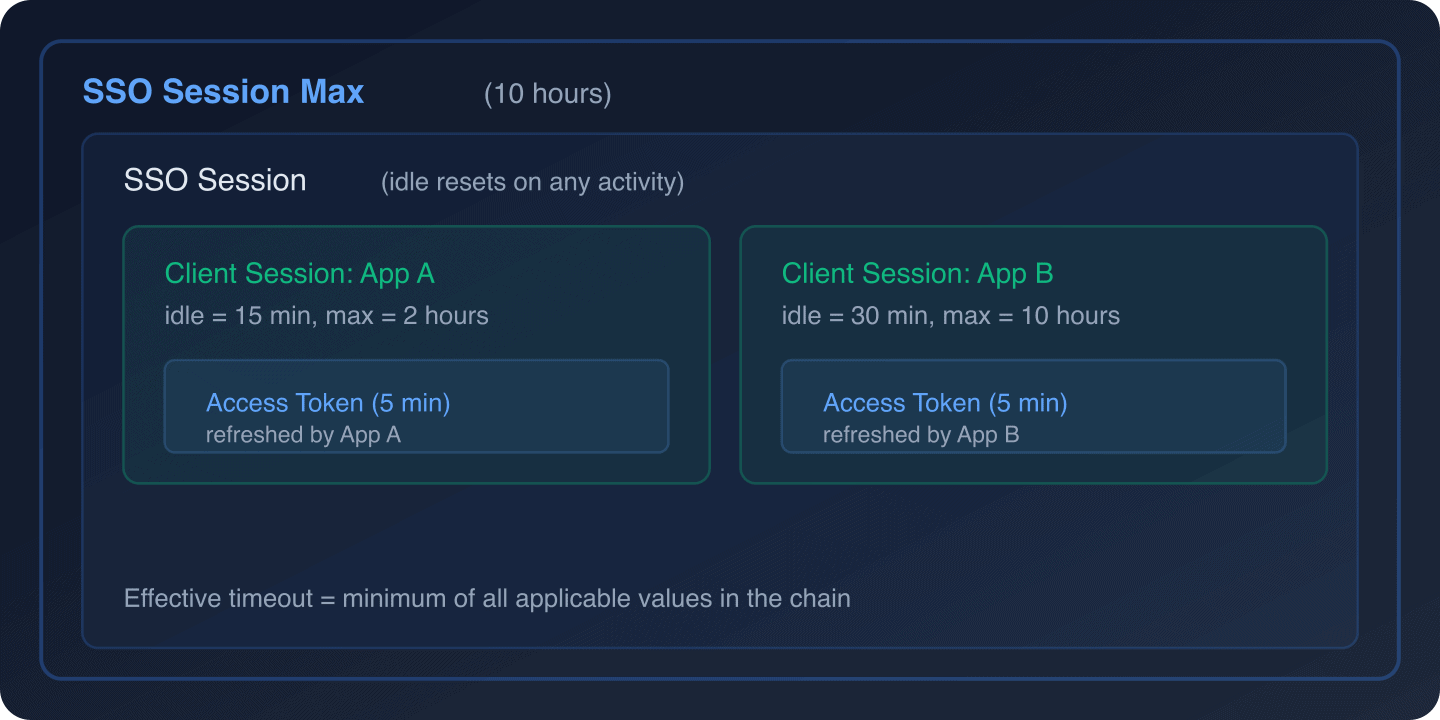
Scenario walkthrough:
- T+0: User logs in and accesses App A. SSO session created. Client session for App A created.
- T+5min: App A refreshes the access token. SSO idle timer and App A idle timer reset.
- T+10min: User accesses App B. Client session for App B created. SSO idle timer resets.
- T+25min: App B refreshes its token. SSO idle timer resets. App A idle timer has been at 20 minutes.
- T+30min: App A’s client session expires (15-minute idle exceeded). App A must re-authenticate or get a new client session if the SSO session is still active.
- T+2h: Even if App A was continuously active, its client session max of 2 hours ends.
- T+10h: SSO session max reached. All remaining sessions expire. User must fully re-authenticate.
Recommended Values by Use Case
Banking and Financial Services
SSO Session Idle: 5 minutes
SSO Session Max: 30 minutes
Client Session Idle: 5 minutes
Client Session Max: 30 minutes
Access Token Lifespan: 2 minutes
Remember Me: Disabled
Rationale: Financial regulators (PCI DSS, SOX) require short session timeouts to minimize exposure from unattended terminals. Five minutes idle is standard for banking applications.
SaaS Application
SSO Session Idle: 30 minutes
SSO Session Max: 12 hours
Client Session Idle: 30 minutes
Client Session Max: 12 hours
Access Token Lifespan: 5 minutes
Remember Me: Enabled
  Remember Me Idle: 7 days
  Remember Me Max: 30 days
Rationale: SaaS users expect to stay logged in during a work day. The 30-minute idle timeout balances security with usability. “Remember Me” allows trusted device persistence.
E-Commerce
SSO Session Idle: 1 hour
SSO Session Max: 24 hours
Client Session Idle: 1 hour
Client Session Max: 24 hours
Access Token Lifespan: 5 minutes
Remember Me: Enabled
  Remember Me Idle: 30 days
  Remember Me Max: 90 days
Rationale: Longer sessions reduce cart abandonment. Users expect to remain logged in when browsing products. The 1-hour idle timeout is a reasonable compromise.
Internal Enterprise Tools
SSO Session Idle: 4 hours
SSO Session Max: 12 hours
Client Session Idle: 4 hours
Client Session Max: 12 hours
Access Token Lifespan: 10 minutes
Remember Me: Disabled
Rationale: Employees use internal tools throughout the work day. The 4-hour idle timeout accommodates lunch breaks without forcing re-authentication.
Mobile Application
SSO Session Idle: 30 minutes (for web sessions)
SSO Session Max: 12 hours (for web sessions)
Offline Session Idle: 30 days
Offline Session Max Limited: Enabled
Offline Session Max: 90 days
Access Token Lifespan: 5 minutes
Rationale: Mobile apps use offline tokens for persistent authentication. The 30-day idle timeout means users who open the app at least monthly stay authenticated. The 90-day max forces periodic re-authentication.
Configuring Timeouts via the Admin API
You can configure all session timeout values programmatically using the Keycloak Admin REST API:
# Get current realm settings
curl -s "https://keycloak.example.com/admin/realms/my-realm"
  -H "Authorization: Bearer $ADMIN_TOKEN" | jq '{
    ssoSessionIdleTimeout,
    ssoSessionMaxLifespan,
    ssoSessionIdleTimeoutRememberMe,
    ssoSessionMaxLifespanRememberMe,
    clientSessionIdleTimeout,
    clientSessionMaxLifespan,
    accessTokenLifespan,
    offlineSessionIdleTimeout,
    offlineSessionMaxLifespan,
    offlineSessionMaxLifespanEnabled
  }'

# Update session timeouts
curl -X PUT "https://keycloak.example.com/admin/realms/my-realm"
  -H "Authorization: Bearer $ADMIN_TOKEN"
  -H "Content-Type: application/json"
  -d '{
    "ssoSessionIdleTimeout": 1800,
    "ssoSessionMaxLifespan": 43200,
    "clientSessionIdleTimeout": 1800,
    "clientSessionMaxLifespan": 43200,
    "accessTokenLifespan": 300,
    "offlineSessionIdleTimeout": 2592000,
    "offlineSessionMaxLifespan": 7776000,
    "offlineSessionMaxLifespanEnabled": true
  }'
For infrastructure-as-code approaches, the Keycloak Terraform provider supports all session timeout settings. See our guide on using Terraform to set up and configure Keycloak.
Monitoring Session Activity
Track session-related events to ensure your timeout configuration works as expected:
- Enable events: Go to Events > Event Listeners and ensure
jboss-loggingis enabled. - Key events to monitor:
LOGIN/LOGIN_ERROR: User authentication attemptsLOGOUT/LOGOUT_ERROR: User logoutsREFRESH_TOKEN/REFRESH_TOKEN_ERROR: Token refresh activityCODE_TO_TOKEN/CODE_TO_TOKEN_ERROR: Authorization code exchange
Use the audit log capabilities to centralize these events. For SIEM integration, see our guide on forwarding Keycloak events to SIEM.
Common Mistakes
-
Setting Client Session Idle longer than SSO Session Idle: The SSO Session Idle always takes precedence. If SSO Session Idle is 30 minutes and Client Session Idle is 1 hour, the effective idle timeout is still 30 minutes because the SSO session expires first.
-
Forgetting about Remember Me: If “Remember Me” is enabled but the Remember Me timeout values are not configured, they default to the regular SSO session values, making “Remember Me” functionally useless.
-
Not testing with real client behavior: Some client libraries (like
keycloak-js) have their own token refresh intervals. If the library’s refresh interval is longer than the Client Session Idle, the session will expire between refreshes. -
Ignoring offline session configuration: If clients request
offline_accessscope and you have not configured offline session timeouts, users could maintain indefinite sessions. -
Per-client overrides shadowing realm values: Check Clients > Advanced Settings when sessions expire faster than expected. A client-level override might be setting a shorter timeout.
Wrapping Up
Session timeout configuration in Keycloak requires understanding the hierarchy: SSO sessions contain client sessions, and offline sessions operate independently. The effective timeout is always the minimum of all applicable values in the chain.
Start with the recommended values for your use case, monitor session events to validate the configuration, and adjust based on user feedback and security requirements. Remember that security and usability are always in tension; the right configuration depends on your specific risk tolerance.
If you want session management handled by experts, Skycloak provides managed Keycloak hosting with pre-configured session policies, monitoring through Insights, and enterprise SLAs, letting your team focus on building features rather than tuning identity infrastructure.