
Introduction
This article explains how to map user attributes and group claims from Microsoft Entra ID to Keycloak when using OpenID Connect (OIDC) Identity Brokering.
During Entra ID and Keycloak integration, several standard user attributes are mapped automatically. However, there are scenarios where additional attributes or group memberships must be explicitly mapped into Keycloak. In this article, we will demonstrate:
- Mapping an optional user attribute (
ctry) from Entra ID to Keycloak. - Mapping Entra ID group claims to Keycloak realm roles.
- Testing the integration using the built-in Keycloak Account Console.
Prerequisites
Before proceeding, ensure the following components are available:
- Microsoft Entra ID configured as an OIDC Provider.
- Keycloak configured as an OIDC Relying Party (Identity Broker).
- An application that uses Keycloak for authentication.
For simplicity, instead of creating a separate client application, we will use the built-in Keycloak Account Console to validate the integration.
Configure Entra ID as an OIDC Provider
Register an Application in Entra ID
- Log in to the Microsoft Entra Admin Center.
- Navigate to:
Identity → Applications → App Registrations → New Registration - Configure the application:
- Name:
kc-client - Supported account types: Accounts in this organizational directory only (Single Tenant)
- Redirect URI: Leave blank for now. This will be obtained from Keycloak later.
- Name:
- Click Register.
Generate a Client Secret
- Navigate to:
Certificates & Secrets → Client Secrets → New Client Secret - Provide:
- Description
- Expiration period
- Click Add.
- Copy the generated secret value immediately, as it will not be displayed again.
Obtain OpenID Connect Metadata
- Open the application’s Overview page.
- Copy the:
- Application (Client) ID
- Directory (Tenant) ID
- Click Endpoints.
- Copy the OpenID Connect metadata document URL.
Example:
https://login.microsoftonline.com/<tenant-id>/v2.0/.well-known/openid-configuration
Create an Identity Broker in Keycloak
- Log in to the Keycloak Admin Console.
- Select the target realm.
- Navigate to:
Identity Providers - Click Add Provider and select:
OpenID Connect v1.0 - Configure the provider:
| Setting | Value |
|---|---|
| Alias | entra-id |
| Display Name | Microsoft Entra ID |
| Use Discovery Endpoint | ON |
| Discovery Endpoint | Entra metadata URL |
| Client ID | Entra Application ID |
| Client Secret | Entra Client Secret |
- Under Advanced Settings, configure the scope:
openid profile email
- Click Save.
Obtain the Keycloak Redirect URI
After saving the provider configuration:
- Open the Identity Broker configuration
- Copy the Redirect URI.
Example:
https://<keycloak-host>/realms/<realm-name>/broker/entra-id/endpoint
Configure Redirect URI in Entra ID
- Return to the Entra App Registration.
- Navigate to:
Authentication - Under Redirect URIs, click Add URI.
- Paste the Redirect URI copied from Keycloak.
- Click Save.
Test the Integration
The Entra ID and Keycloak integration is now complete.
To test:
- Open the Keycloak Account Console.
- Click Sign In.
- Select Microsoft Entra ID.
The authentication flow should:
Keycloak
    ↓
Entra ID
    ↓
Successful Authentication
    ↓
Keycloak
After successful authentication:
- A user account is created in Keycloak.
- The user is linked to the Entra ID identity provider.
Configure Optional Claims in Entra ID
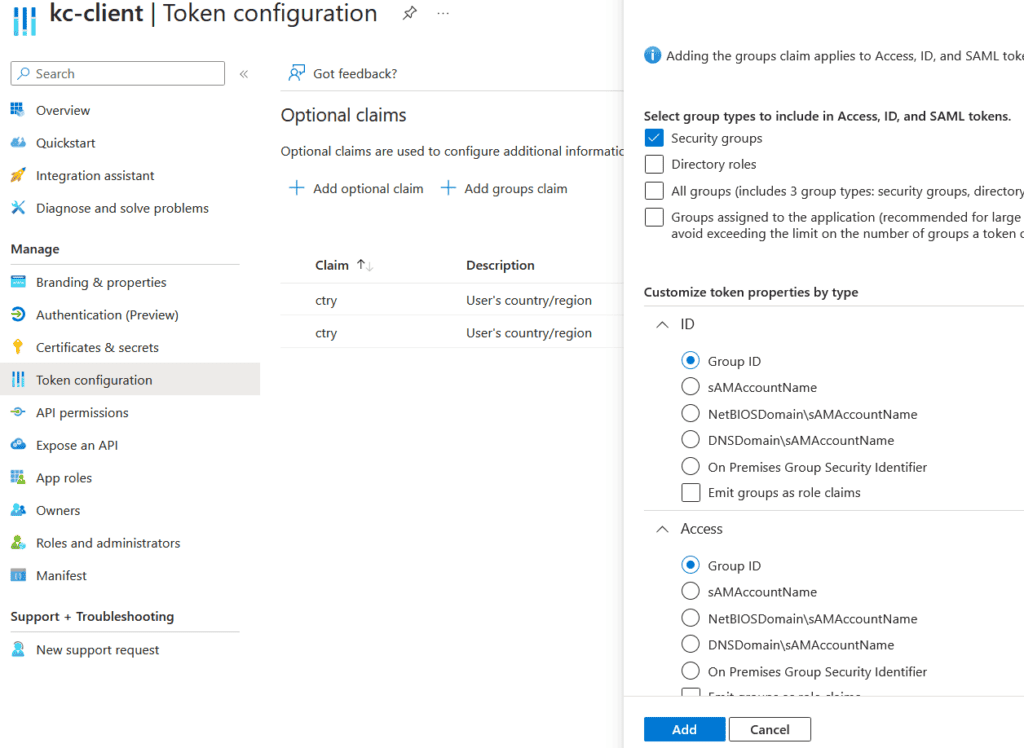
Emit Country Attribute
- Navigate to:
Token Configuration → Add Optional Claim - Select:
ID Token - Select:
ctry (Country) - Click Add.
- Repeat the same steps for:
Access Token
Emit Group Claims
- Navigate to:
Token Configuration → Add Groups Claim - Select:
Security Groups - Enable group claims for:
- ID Token
- Access Token
- Select:
Group ID - Click Add.
The authenticated user’s group identifiers will now be emitted in the token.
Keycloak Configuration
Prerequisites in Entra ID
Ensure the user profile contains a valid ISO 3166-1 alpha-2 country code.
Example:
India = IN
United States = US
United Kingdom = GB
For this article, two Entra ID Security Groups were created:
- finance
- manager
The test user was assigned to both groups.
Create a User Attribute in Keycloak
- Navigate to:
Realm Settings → User Profile → Attributes - Create a new attribute:
country - Grant permissions to:
- View
- Edit
- Save the configuration.
Create a Realm Role
Create a realm role:
finance-manager
This role will later be assigned based on Entra ID group membership.
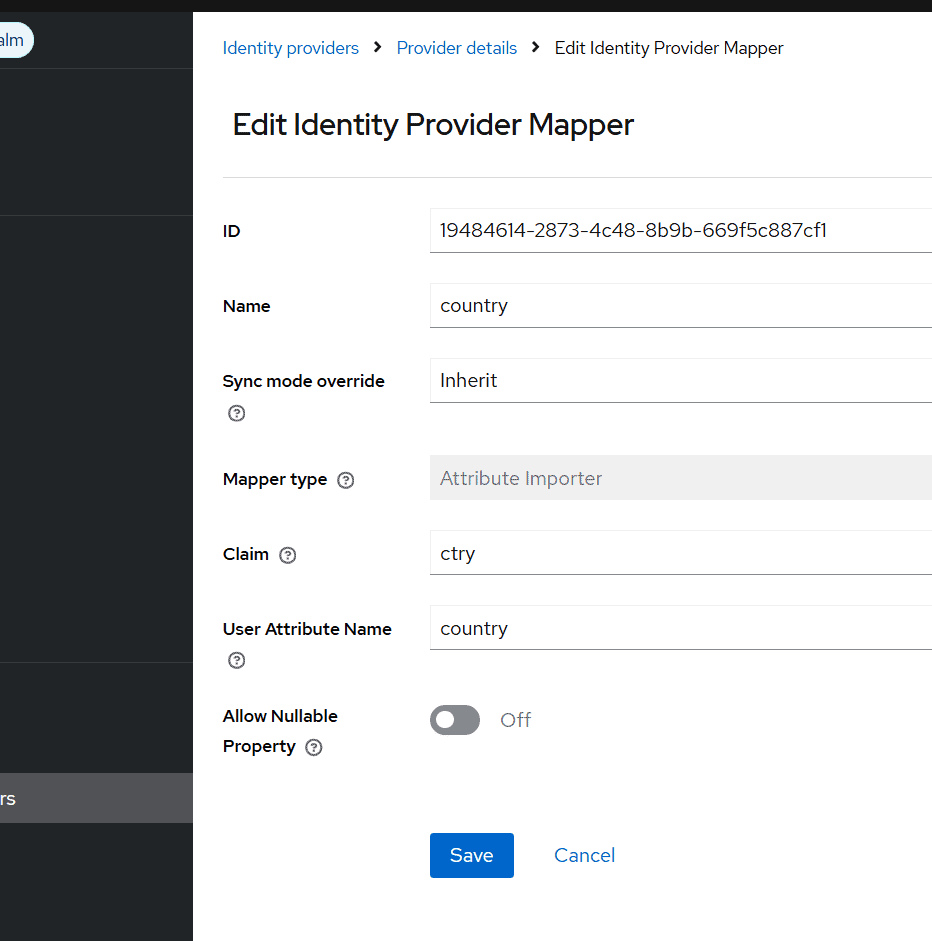
Map the Country Claim
- Navigate to:
Identity Providers → entra-id → Mappers - Click Add Mapper.
- Configure:
| Field | Value |
|---|---|
| Name | country |
| Mapper Type | Attribute Importer |
| Claim | ctry |
| User Attribute Name | country |
- Click Save.
The value of the ctry claim will now be stored in the Keycloak user attribute named country.
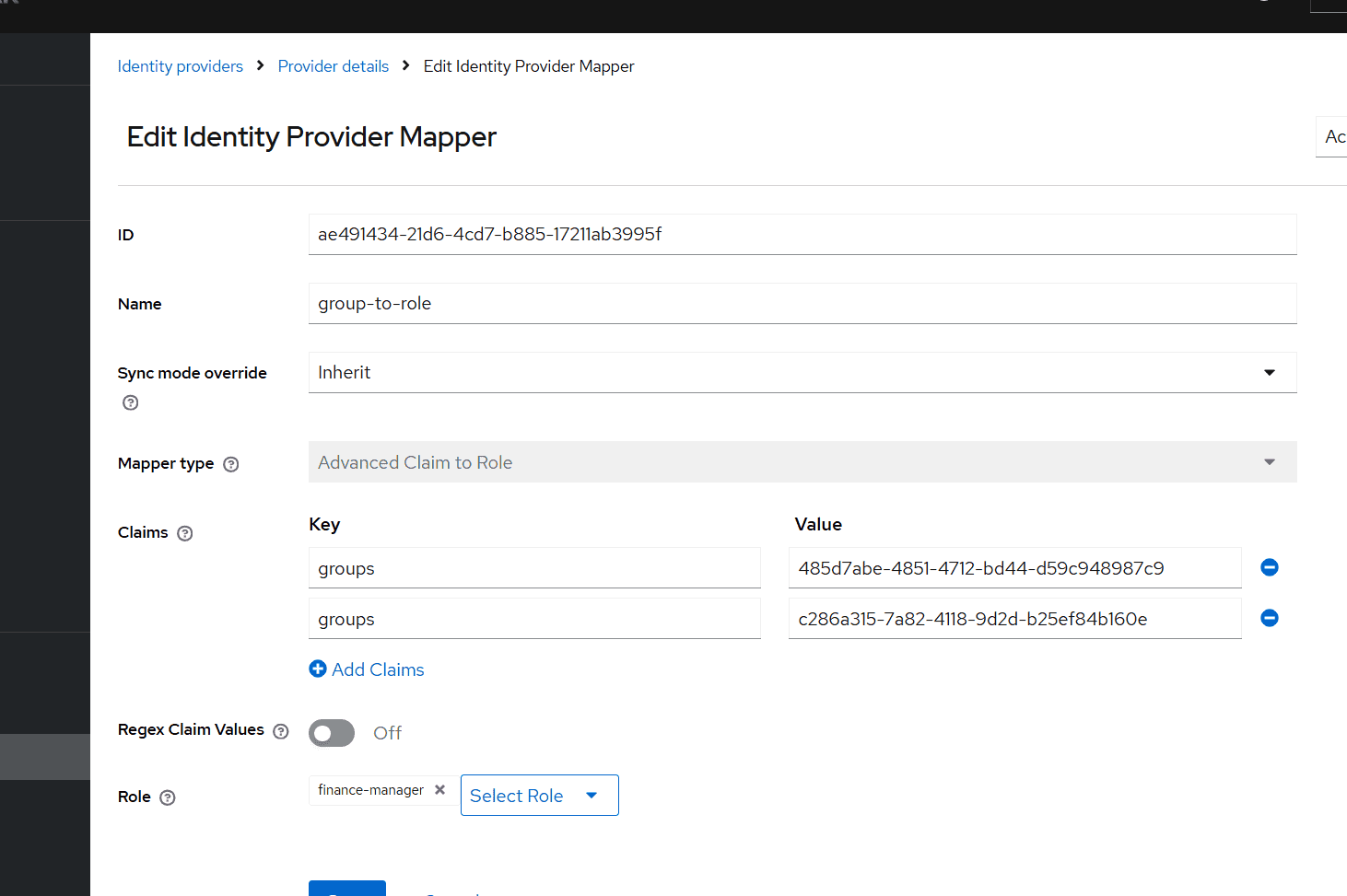
Map Entra ID Groups to Keycloak Roles
- Navigate to:
Identity Providers → entra-id → Mappers - Click Add Mapper.
- Configure:
| Field | Value |
|---|---|
| Name | group-to-role |
| Mapper Type | Advanced Claim to Role |
| Claim Name | groups |
| Claim Value | Entra Group Object ID |
| Role | finance-manager |
- Repeat the configuration for each Entra ID group that should map to the same role.
When the specified group Object ID is present in the token, Keycloak automatically assigns the configured realm role.
For more details on Microsoft Entra ID, please refer the documentation.
Final Verification
Open the Keycloak Account Console and authenticate using Microsoft Entra ID.
Verify:
- The user is created in Keycloak.
- The
countryuser attribute is populated. - The
finance-managerrealm role is assigned. - The user is linked to the Entra ID identity provider.
For more details on Identity Brokering with Entra ID, see how to set up SSO with Microsoft in Skycloak. If necessary, we can use kc_idp_hint query string parameter to select an Identity Provider upfront, covered in using kc_idp_hint to choose an identity provider in Keycloak.
Conclusion
In this article, we integrated Microsoft Entra ID with Keycloak using OpenID Connect (OIDC) Identity Brokering. We configured Entra ID as the external Identity Provider and Keycloak as the Relying Party. We also demonstrated how to:
- Emit optional claims from Entra ID.
- Map the
ctryclaim into a Keycloak user attribute. - Emit Entra ID group claims.
- Map Entra ID group memberships to Keycloak realm roles.
These techniques allow organizations to centralize user management in Entra ID while leveraging Keycloak’s powerful identity brokering and authorization capabilities.
About Skycloak
Skycloak is a fully managed Keycloak platform hosted in the cloud. It enables organizations to leverage the power of open-source Keycloak IAM without the operational overhead of installing, maintaining, and scaling production-grade Keycloak environments, delivered securely and cost-effectively.
If you’re new to Skycloak, visit the Skycloak Getting Started Guide to learn more