Last updated: March 2026
Introduction
In this article, we discuss how to restrict administrative access to a Skycloak cluster. Skycloak is a fully managed Keycloak platform hosted in the cloud.
Using Skycloak allows organizations to harness the powerful features of the open-source Keycloak IAM product while avoiding the challenges of installing, maintaining, and scaling Keycloak for production-grade environments — all in a cost-effective way.
Skycloak provides enterprise-grade security controls such as Web Application Firewall (WAF), geo-blocking, IP access control, rate limiting, and more.
In this article, we specifically focus on IP or CIDR-based whitelisting to allow only trusted IP addresses to access the Keycloak administration interface.
Overview
Organizations often do not want their Keycloak administrative console (/admin/*) to be publicly accessible. Administrators typically prefer to allow access only from trusted office networks, VPN ranges, or known administrator IP addresses.
Restricting admin access is one of the most important steps in securing your Keycloak deployment. Combined with role-based access control (RBAC) and proper session management, IP whitelisting adds a strong network-level security layer.
Let us see how IP-based whitelisting can be configured for Skycloak.
Understanding CIDR Notation
Before configuring IP restrictions, it helps to understand CIDR (Classless Inter-Domain Routing) notation, which is used to define IP address ranges.
CIDR notation combines an IP address with a prefix length that indicates how many bits of the address define the network portion. For example:
192.168.1.0/24— Matches all 256 addresses from192.168.1.0to192.168.1.255. The/24means the first 24 bits are the network prefix.10.0.0.0/8— Matches all addresses starting with10.x.x.x(over 16 million addresses).203.0.113.42/32— Matches exactly one IP address (203.0.113.42). The/32prefix means all 32 bits must match.
Common CIDR ranges you might use:
| CIDR | Range | Use Case |
|---|---|---|
/32 |
Single IP | Individual administrator |
/28 |
16 IPs | Small team or office |
/24 |
256 IPs | Office network |
/16 |
65,536 IPs | Large corporate network |
When configuring Skycloak’s IP access control, you can enter individual IPs (equivalent to /32) or CIDR ranges to cover broader network blocks.
Steps to Whitelist Access to Keycloak Admin Console
Step 1: Log in to Skycloak Console
Navigate to your cluster dashboard.
Step 2: Open Security Configuration
From the left navigation panel, select:
Your Cluster -> Security
Here you will find options to enable or configure:
- Web Application Firewall (WAF)
- Geo-blocking
- IP Access Control
- Rate Limiting
Step 3: Enable IP Access Control
Enable IP Access Control for IP access restrictions.
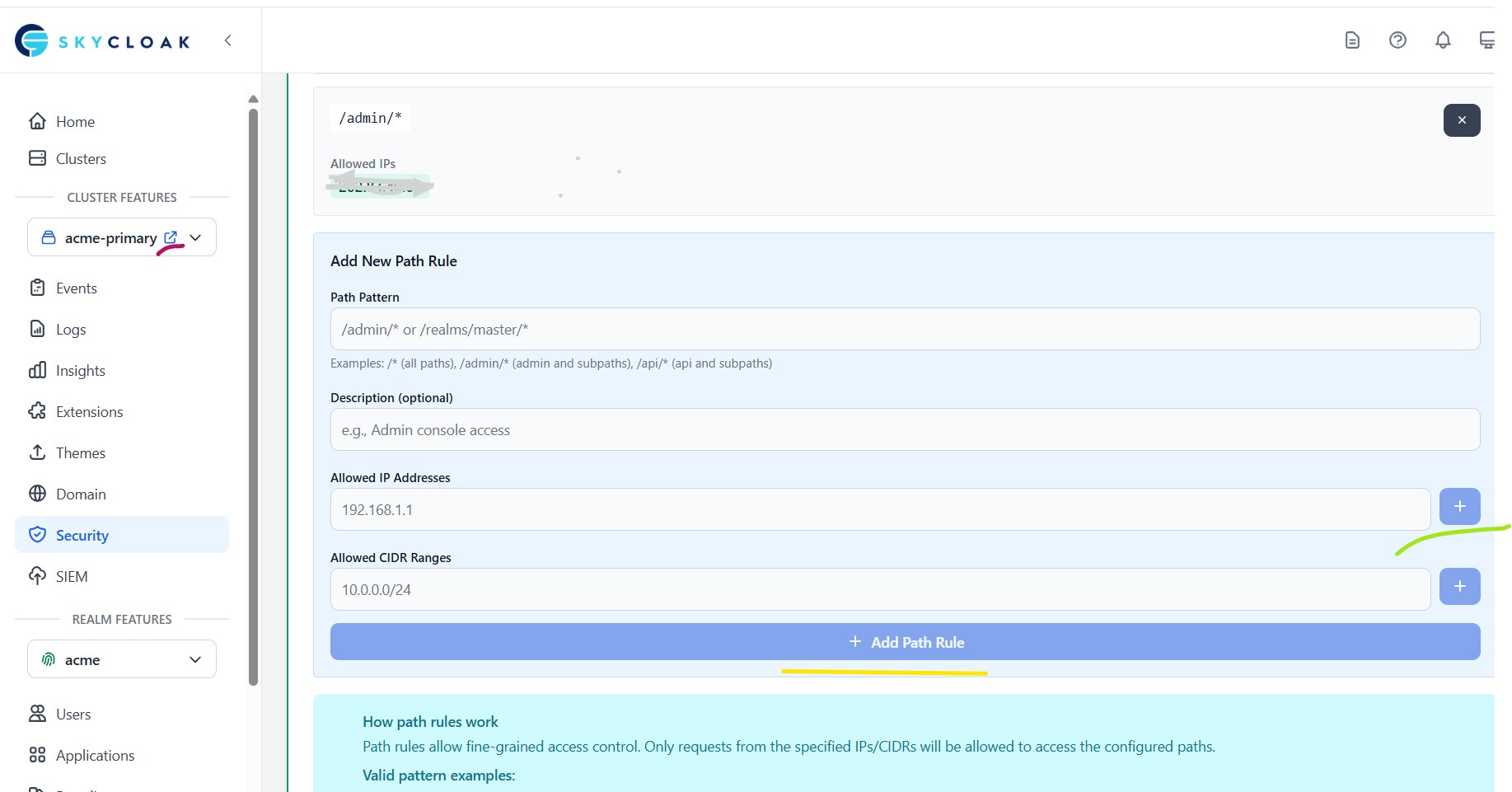
Step 4: Configure Path-Specific Access Rule
Add a new path rule:
- Path Pattern:
/admin/* - Allowed IP Addresses: For testing, enter
1.2.3.4 - Click the + button to the right of Allow IP Address to add this IP address
- Select Add Path Rule
At this point, only IP 1.2.3.4 can access the /admin/* URLs of your Keycloak instance.
You can now test by accessing the Keycloak admin console from a machine not having this IP — you should see an IP Not Allowed message.
Validation
Next, repeat the above steps but enter your actual IP address in the Allowed IP field.
Once saved, your system should now be able to access the admin console.
Additional Security Recommendations
IP whitelisting is just one layer of a comprehensive security strategy. Consider also:
- Enabling audit logs to monitor all admin access and changes
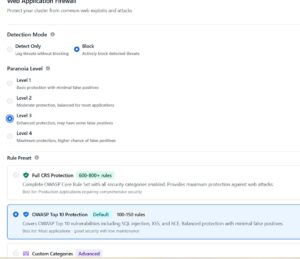
- Configuring the WAF to block malicious requests
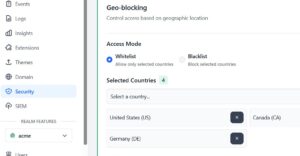
- Setting up geo-blocking to restrict access by country
- Using multi-factor authentication for admin accounts
- Reviewing Keycloak’s security recommendations for production deployments
Summary
In this article, we configured path-based IP whitelisting to restrict access to the /admin/* URLs of a Skycloak cluster. This ensures that only trusted users from approved networks can access the Keycloak admin interface.
You may now delete the first entry (1.2.3.4) and replace it with actual production-grade IPs or CIDR ranges.
Skycloak provides production-ready managed Keycloak hosting, helping teams avoid the complexity of maintaining and scaling Keycloak themselves.
If you’re new to Skycloak, visit the Skycloak Getting Started Guide to learn more.

Ready to simplify your authentication?
Deploy production-ready Keycloak in minutes. Unlimited users, flat pricing, no SSO tax.