Active Directory is Microsoft’s directory service for Windows networks. It stores users, computers and groups in a database on servers called domain controllers, and it uses two protocols, Kerberos and LDAP, to sign people in and to decide what they can access. When you sign in to a domain-joined work laptop once and then open a file share without being asked for your password again, that is usually Kerberos single sign-on at work: Microsoft explains that after the initial domain sign-on, Kerberos manages your credentials throughout the forest whenever you try to reach a resource (Microsoft Learn, Kerberos authentication overview, 2026).
Key Takeaways
- Active Directory (AD DS) is the account database for a Windows network, and every domain controller holds a full copy of its domain (Microsoft Learn).
- Kerberos signs you in once and gives you tickets for other services, and LDAP is how other software reads the directory.
- Microsoft Entra ID, formerly Azure AD, is a different, cloud-based product (Microsoft Learn).
- Keycloak can connect to Active Directory over LDAP and turn AD accounts into OpenID Connect and SAML sign-ins for web applications (Keycloak docs).
This guide is for IT newcomers, help desk staff and developers who hear “AD” at work and want a plain explanation of what it does and how its parts fit together. It is not a deployment manual. We explain each term the first time it appears, walk through one Windows login step by step, compare Active Directory with Microsoft Entra ID, and finish with how Active Directory connects to a modern identity provider such as Keycloak.
What does Active Directory actually do?
Microsoft describes a directory as a hierarchical structure that stores information about objects on a network, and a directory service as the software that stores that data and makes it available to users and administrators (Microsoft Learn, AD DS overview, updated 2025). The full product name is Active Directory Domain Services, usually shortened to AD DS or just AD. Microsoft introduced it in Windows 2000 so that organizations could manage their on-premises systems with a single identity per user (Microsoft Learn, Compare Active Directory to Microsoft Entra ID, 2022).
In practice it does three jobs for an organization:
- It is the account database. User accounts, computers and groups are stored in it as objects, so there is one place to create an account, disable it or look up who is in a team (Microsoft Learn, How Domains and Forests Work, 2014).
- It signs people in. When you type your password on a domain-joined PC, a domain controller checks it against the directory and hands back proof that you are who you say you are.
- It decides and enforces. Administrators put users in groups and give those groups access to applications and resources, and Group Policy applies managed settings to users and computers (Microsoft Learn, Compare Active Directory to Microsoft Entra ID; Microsoft Learn, Group Policy Overview, 2016).
The result, in Microsoft’s words, is that with one network username and password, authorized users can reach resources anywhere on the network (Microsoft Learn, AD DS overview).
What are the parts of Active Directory?
You can follow most day-to-day conversations about AD with six terms: domain controllers, objects, domains and forests, organizational units, groups, and Group Policy.
Domain controllers
A domain controller is a Windows Server that runs AD DS and holds a copy of the directory database. All domain controllers in a domain participate in replication and contain a complete copy of all directory information for their domain, and any change is replicated to all of them (Microsoft Learn, AD DS overview). So a domain with several domain controllers has several complete, matching copies of its data.
The domain controller is also the Kerberos server. In Windows Server the KDC runs on every domain controller and uses the domain’s AD DS database as its account database (Microsoft Learn, Kerberos authentication overview). KDC stands for Key Distribution Center, which is the part of Kerberos that issues tickets, and we come back to it in the login walkthrough below.
Objects, attributes and the schema
Everything stored in the directory is an object, such as a user, a computer or a group. Each object has attributes, which are its fields, for example a display name or an email address on a user account. The schema is the rule book: Microsoft describes it as the set of rules that defines which classes of objects and attributes the directory can hold, their limits, and the format of their names (Microsoft Learn, AD DS overview).
Each object also has a distinguished name, a string that includes the object’s location in the directory, and distinguished names are unique within a forest (Microsoft Learn, Object Names and Identities, 2018). You will meet it the moment you connect anything to AD over LDAP, so here is a made-up one in the same format as Microsoft’s own example, CN=Users,DC=Fabrikam,DC=com:
CN=Samantha Smith,OU=Marketing,DC=example,DC=comRead it from right to left. The abbreviations are the LDAP naming attributes Microsoft lists as domain component (DC), organizational unit (OU) and common name (CN) (Microsoft Learn, How Domains and Forests Work), so this example names an entry called Samantha Smith in an organizational unit called Marketing in the domain example.com.
Domains, trees and forests
A domain is the basic unit. Microsoft describes it as one partition of the database, containing objects such as users, computers and groups to which you can grant or deny access to network resources, and Active Directory domains have DNS names, such as example.com (Microsoft Learn, How Domains and Forests Work).
A tree is made up of domains that share a common schema and configuration and form one contiguous namespace (Microsoft Learn, Domain Trees, 2018), for example example.com with a child domain emea.example.com.
A forest is the top of the structure: a set of one or more domain trees that share a common schema, configuration and global catalog (Microsoft Learn, Forests, 2018). The domains in a forest are connected by two-way, transitive trust relationships, so a single logon lets the system authenticate a user in any domain in the forest (Microsoft Learn, How Domains and Forests Work).
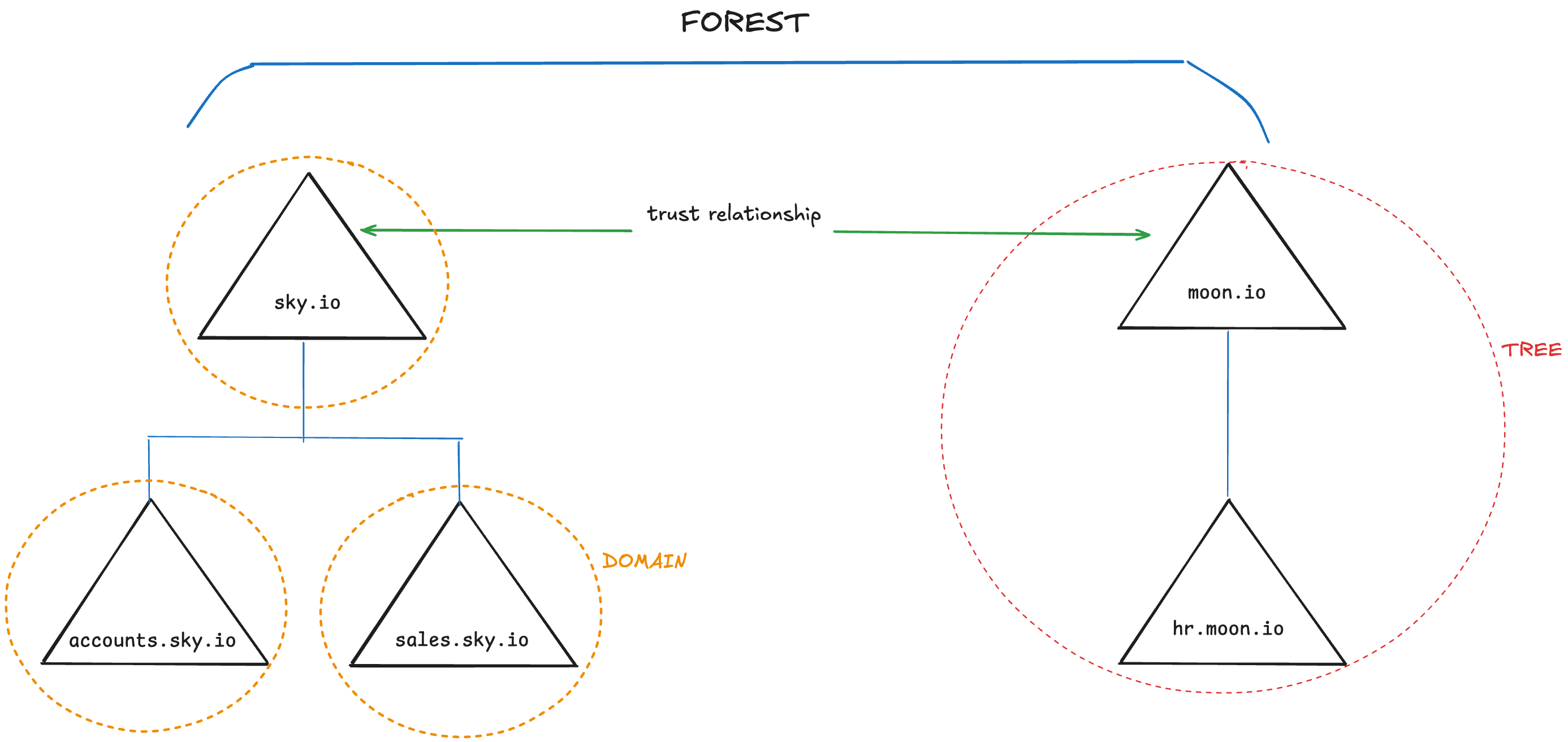
If you only ever see one domain name at work, that is still a forest: Microsoft notes that a single domain constitutes a tree of one domain, and a single tree constitutes a forest of one tree (Microsoft Learn, How Domains and Forests Work).
Organizational units and groups
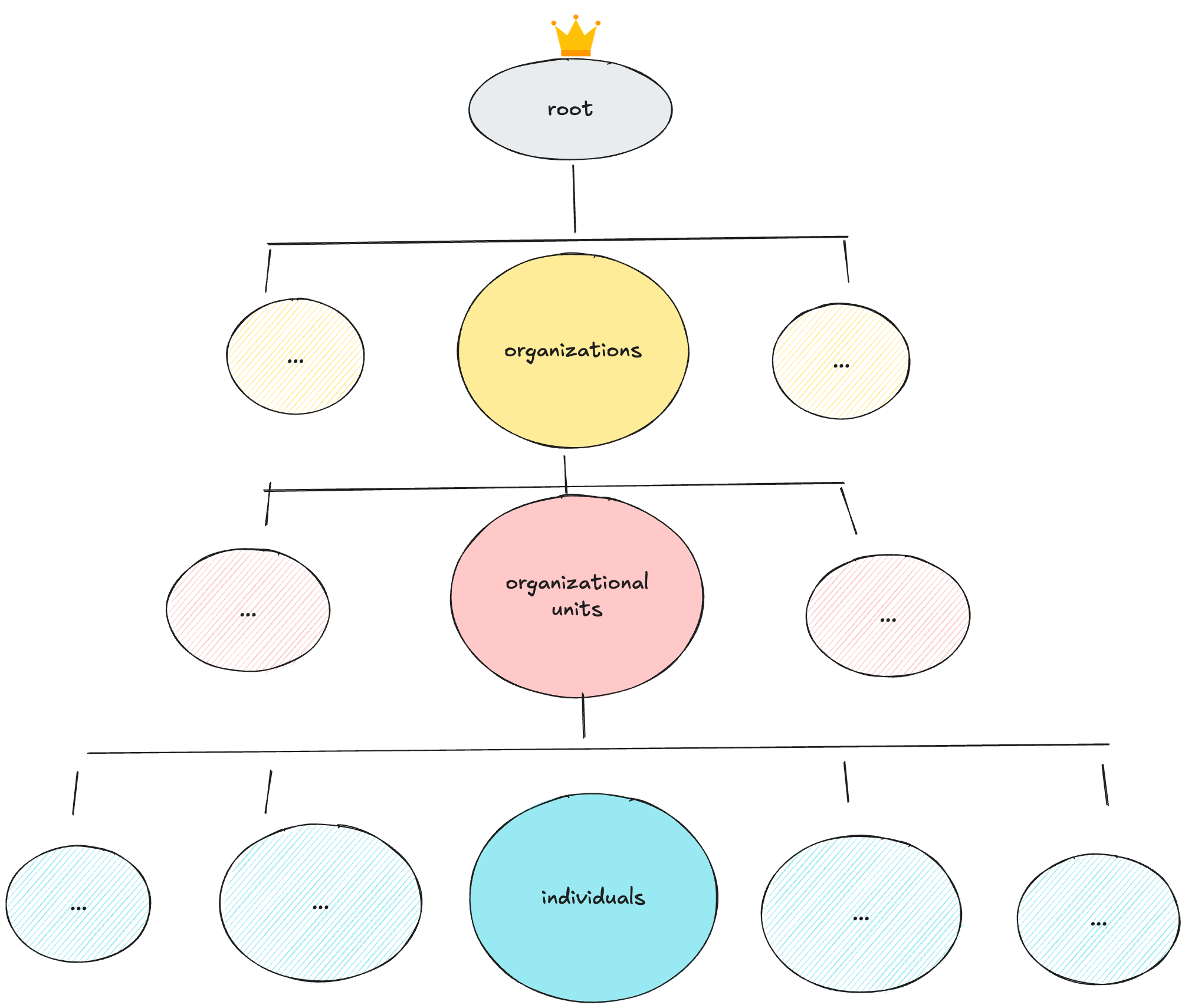
An organizational unit (OU) is a container inside a domain, which Microsoft compares to a directory in a file system. OUs can be nested to form logical administrative units for users, groups and resources, and Group Policy can be applied to an OU to define what the computers and users inside it can do (Microsoft Learn, How Domains and Forests Work).
Groups do a different job, and the two are easy to mix up. In AD, administrators make users members of groups, and the owners of applications and resources then give those groups access (Microsoft Learn, Compare Active Directory to Microsoft Entra ID). So the OU is where an account sits for management and policy, and the group is what grants it access to a share or an application.
Group Policy
Group Policy is how AD configures computers and user sessions in bulk: Microsoft describes it as an infrastructure that lets administrators specify managed configurations for users and computers (Microsoft Learn, Group Policy Overview). The settings are stored in Active Directory as Group Policy objects (GPOs), and a GPO can be associated with a site, a domain or an organizational unit (Microsoft Learn, How Domains and Forests Work).
The global catalog
The global catalog contains information about every object in the directory, and users and administrators can use it to find directory information regardless of which domain actually contains the data (Microsoft Learn, AD DS overview). All trees in a forest share it (Microsoft Learn, Forests).
How does a Windows login flow through Kerberos and LDAP?
Two protocols do the work, and it helps to separate them before following the flow.
Kerberos proves who you are. Version 5 of the protocol, the one Windows Server implements, is specified in RFC 4120 (IETF, 2005), and the idea is simple: instead of sending your password to every server, you prove your identity once to a server everyone trusts (the KDC on the domain controller) and receive tickets that you show to other services (Microsoft Learn, Kerberos authentication overview).
LDAP, the Lightweight Directory Access Protocol, reads and writes the directory. RFC 4511 (IETF, 2006) defines its operations, which include Bind (connect and prove who you are), Search, Modify, Add and Delete. A simple split for beginners: Kerberos is for signing in, and LDAP is for looking things up.
Here is what happens when you sign in to a domain-joined PC and open a file share, following Microsoft’s Kerberos authentication overview. The step numbers match the diagram below.
- Your PC proves who you are to the domain controller. When you sign in, the Kerberos client contacts the KDC to prove your identity.
- The domain controller returns a ticket-granting ticket (TGT). The TGT lets your PC ask for access to services without presenting your password again, and Windows keeps it in a ticket cache until it expires.
- You open a file share, and your PC asks for a service ticket. It presents the TGT to the KDC and asks for a ticket for that one service. You are not prompted for a password because the TGT stands in for it.
- The domain controller returns the service ticket.
- Your PC presents the service ticket to the file server. The ticket already holds what the server needs to verify you, so the server does not have to contact a domain controller for each connection.
- The file server decides what you can see. Windows extends standard Kerberos to carry authorization data in the ticket, which the server uses to decide what you may open.
 Your PC                        Domain controller (KDC)             File server
   |                                     |                               |
   |-- 1. username + proof ------------->|                               |
   |<- 2. ticket-granting ticket --------|                               |
   |                                     |                               |
   |-- 3. TGT + "ticket for FILES01" --->|                               |
   |<- 4. service ticket for FILES01 ----|                               |
   |                                     |                               |
   |-- 5. service ticket --------------------------------------------->  |
   |<- 6. session opened, access decided by the authorization data in the ticket --|
LDAP sits around the edges of this flow rather than in the middle of it. Microsoft notes that most on-premises applications use LDAP or Windows-Integrated Authentication (NTLM and Kerberos) to control access (Microsoft Learn, Compare Active Directory to Microsoft Entra ID), and an identity provider such as Keycloak uses LDAP to look up users in AD and check their passwords (Keycloak Server Administration Guide).
NTLM is the older Windows authentication protocol: before Kerberos, an application server using NTLM had to contact a domain controller to authenticate every client, and NTLM does not let a client verify the server’s identity (Microsoft Learn, Kerberos authentication overview). That makes an application that still needs it worth noting when you harden the environment.
If you need port numbers for firewall rules, our Keycloak Active Directory integration guide lists the LDAP and LDAPS ports Keycloak must be able to reach on a domain controller, and Microsoft’s service overview and network port requirements page (updated 2026) is the full reference for every Windows service.
What is the difference between Active Directory and Microsoft Entra ID?
The names cause much of the confusion. Microsoft renamed Azure Active Directory to Microsoft Entra ID, with the change starting in 2023, and one stated reason was to reduce confusion with Windows Server Active Directory (Microsoft Learn, New name for Azure Active Directory, updated 2025). They are different products: Active Directory runs on domain controllers you operate, and Entra ID is Microsoft’s cloud identity and access management service (Microsoft Learn, What is Microsoft Entra?, 2026).
Microsoft’s own comparison page is the source for this short summary:
| Job | Active Directory (AD DS) | Microsoft Entra ID |
|---|---|---|
| How apps sign users in | LDAP and Windows-Integrated Authentication (NTLM, Kerberos) | OAuth2, SAML and WS-* |
| Managing Windows PCs | Domain join and Group Policy | Entra join, with Intune and Conditional Access |
| Cloud (SaaS) apps | Needs a federation system such as AD FS | Supported directly |
Organizations that run both use Microsoft Entra Connect to sync their AD identities to the cloud (Microsoft Learn, Compare Active Directory to Microsoft Entra ID), so a person can have an AD account for the office network and a synchronized identity in Entra ID.
Related reading: Learning Microsoft Entra ID through a Keycloak lens and Keycloak vs Microsoft Entra ID.
What are the other Active Directory services?
Several other Microsoft server roles also carry the Active Directory name, and each has its own overview page on Microsoft Learn. Only the first row in this table is the directory described in this guide. Here is what each does, in one line, in Microsoft’s own words.
| Role | What it does |
|---|---|
| AD DS (Domain Services) | The directory itself: accounts, authentication, Group Policy (Microsoft Learn, updated 2025) |
| AD LDS (Lightweight Directory Services) | An LDAP directory service for directory-enabled applications, without the dependencies and domain-related restrictions of AD DS (Microsoft Learn, 2016) |
| AD FS (Federation Services) | Federated identity and access management, by sharing digital identity and entitlement rights across security and enterprise boundaries; Microsoft recommends migrating to Microsoft Entra ID instead of upgrading to the latest AD FS version (Microsoft Learn, 2024) |
| AD CS (Certificate Services) | A role for issuing and managing the public key infrastructure (PKI) certificates used in secure communication and authentication protocols (Microsoft Learn, 2026) |
| AD RMS (Rights Management Services) | Management and development tools, working with encryption, certificates and authentication, for building information protection solutions (Microsoft Learn, 2016) |
Talk through your identity setup with us
Book a demo and we will walk you through Skycloak with the sign-in, SSO and migration questions your team is working on.
What are the security basics for Active Directory?
Because AD holds the organization’s accounts, Microsoft warns that an attacker with privileged access to a domain controller can modify, corrupt and destroy the AD database (Microsoft Learn, Best practices for securing Active Directory, updated 2025). That document is the reference, and a beginner can take five points from it.
- Protect the three most powerful groups. Enterprise Admins, Domain Admins and Administrators have the highest privileges by default, and Microsoft recommends removing permanent membership and granting it only when needed.
- Use least privilege for administration. Avoid highly privileged accounts for everyday tasks, and give admin accounts only the privileges their job requires.
- Keep admin credentials off ordinary machines. Do not sign in to privileged accounts on unsecured computers or browse the internet with them; use dedicated administrative hosts with multifactor authentication.
- Treat domain controllers as the crown jewels. Keep them physically secure, patched and running nothing they do not need.
- Patch and monitor. Patch applications and operating systems, and monitor sensitive AD objects for modification attempts.
One more habit matters as soon as anything outside Windows talks to AD: connect over LDAPS (LDAP wrapped in SSL/TLS, the same encryption layer that protects HTTPS websites) rather than plain LDAP, so that directory traffic is encrypted on the network. Our Keycloak Active Directory integration guide shows the LDAPS connection settings and the port numbers involved.
How does Active Directory connect to a modern identity provider like Keycloak?
Microsoft’s comparison notes that AD does not support SaaS apps natively, while cloud apps sign users in with protocols such as OAuth2 and SAML (Microsoft Learn, Compare Active Directory to Microsoft Entra ID). If your users live in Active Directory and your applications expect OpenID Connect or SAML, an identity provider such as Keycloak can sit in between and give them single sign-on.
Keycloak calls this user federation. The Keycloak documentation says it can federate existing external user databases, that it ships with support for syncing users from LDAP and Active Directory servers, and that it maps LDAP user attributes into its own common user model (Keycloak Server Administration Guide). Keycloak and the application then talk to each other through OpenID Connect (OIDC, the sign-in protocol built on OAuth 2.0 that most modern web applications use) or SAML messages, and protocol mappers put user attributes into the tokens Keycloak issues (Keycloak Server Administration Guide). In plain terms, Keycloak reads your AD users over LDAP, its group mapper can bring LDAP groups into Keycloak groups (Keycloak Server Administration Guide), and web applications receive tokens they already understand. If you want to see what those tokens contain, our JWT token analyzer decodes them in the browser.
Three details from the Keycloak docs are worth knowing before you configure anything (Keycloak Server Administration Guide):
- Passwords stay in Active Directory. Keycloak never imports passwords; password validation happens on the LDAP server.
- You choose whether to copy user records. The Import Users switch decides whether Keycloak keeps a local copy of each user, synchronized on demand or by a periodic background task, and the Edit Mode setting (READ_ONLY, WRITABLE or UNSYNCED) decides whether changes made in Keycloak are written back to AD. See also: Keycloak LDAP user federation explained.
- Desktop sign-in can carry over to the browser. Keycloak supports login with a Kerberos ticket through SPNEGO (Simple and Protected GSSAPI Negotiation Mechanism, the mechanism a browser uses to hand a Kerberos ticket to a web server). If the browser has a Kerberos ticket from the desktop login, it transfers that sign-on information to Keycloak, which acts as a broker for Kerberos/SPNEGO login, and if the browser is not set up for SPNEGO, Keycloak falls back to its regular login screen (Keycloak Server Administration Guide).
The same LDAP federation works with other directories as well (Keycloak Server Administration Guide); for a general LDAP walkthrough, see our Keycloak LDAP integration guide. On Skycloak, user federation with LDAP and Active Directory is part of the managed Keycloak clusters we run, listed in our getting started overview, so the directory stays where it is and the Keycloak side is operated for you.
Frequently asked questions
Is Active Directory the same thing as a domain controller?
No. Active Directory is the service and the database. A domain controller is a server that runs it, and each domain controller in a domain holds a complete copy of that domain’s directory data (Microsoft Learn, AD DS overview).
Is Active Directory an LDAP server?
Programs can query it over LDAP, the protocol defined in RFC 4511, and Microsoft notes that most on-premises applications use LDAP or Windows-Integrated Authentication to control access to users (Microsoft Learn, Compare Active Directory to Microsoft Entra ID), so from a program’s point of view it acts as one. But AD also runs the Kerberos KDC for sign-in (Microsoft Learn, Kerberos authentication overview) and replicates data between domain controllers (Microsoft Learn, AD DS overview).
Is Active Directory the same as Azure AD or Entra ID?
No. Entra ID is the cloud service that used to be called Azure Active Directory, and Microsoft says the Active Directory name itself is not changing (Microsoft Learn, New name for Azure Active Directory). Organizations that run both can sync AD identities to Entra ID with Microsoft Entra Connect.
Do I need Windows Server to run Active Directory?
For the domain controllers, yes: Microsoft’s developer documentation states that Active Directory Domain Services run on Windows 2000 and later domain controllers (Microsoft Learn, Active Directory Domain Services for developers, 2018). The other machines do not all have to be Windows, since Linux machines can be configured to authenticate with Active Directory as a Kerberos realm (Microsoft Learn, Compare Active Directory to Microsoft Entra ID).
Is Active Directory still used, or is it being replaced by the cloud?
It is still supported. Microsoft says it continues to support and enhance Windows Server Active Directory for on-premises identity and access management, as many organizations continue to rely on it (Microsoft Learn, New name for Azure Active Directory).
What to do next
If your next job is to get your Windows users into web applications with modern single sign-on, the practical step is to connect Active Directory to Keycloak over LDAP and let Keycloak issue the OpenID Connect and SAML tokens your applications expect. Start with our Keycloak Active Directory integration guide. If you would rather not run Keycloak yourself, Skycloak operates it for you, and you can compare plans to see what fits.
Sources
- Microsoft, “Active Directory Domain Services overview”, Microsoft Learn, updated March 2025, retrieved 2026-10-18, https://learn.microsoft.com/en-us/windows-server/identity/ad-ds/get-started/virtual-dc/active-directory-domain-services-overview
- Microsoft, “Active Directory Domain Services” (developer documentation), Microsoft Learn, May 2018, retrieved 2026-10-18, https://learn.microsoft.com/en-us/windows/win32/ad/active-directory-domain-services
- Microsoft, “Object Names and Identities”, Microsoft Learn, May 2018, retrieved 2026-10-18, https://learn.microsoft.com/en-us/windows/win32/ad/object-names-and-identities
- Microsoft, “Domain Trees”, Microsoft Learn, May 2018, retrieved 2026-10-18, https://learn.microsoft.com/en-us/windows/win32/ad/domain-trees
- Microsoft, “Forests”, Microsoft Learn, May 2018, retrieved 2026-10-18, https://learn.microsoft.com/en-us/windows/win32/ad/forests
- Microsoft, “How Domains and Forests Work”, Windows Server 2003 documentation (archived), November 2014, retrieved 2026-10-18, https://learn.microsoft.com/en-us/previous-versions/windows/it-pro/windows-server-2003/cc783351(v=ws.10)
- Microsoft, “Group Policy Overview”, Windows Server 2012 R2 documentation (archived), August 2016, retrieved 2026-10-18, https://learn.microsoft.com/en-us/previous-versions/windows/it-pro/windows-server-2012-r2-and-2012/hh831791(v=ws.11)
- Microsoft, “Compare Active Directory to Microsoft Entra ID”, Microsoft Learn, August 2022, retrieved 2026-10-18, https://learn.microsoft.com/en-us/entra/fundamentals/compare
- Microsoft, “New name for Azure Active Directory”, Microsoft Learn, updated May 2025, retrieved 2026-10-18, https://learn.microsoft.com/en-us/entra/fundamentals/new-name
- Microsoft, “What is Microsoft Entra?”, Microsoft Learn, updated June 2026, retrieved 2026-10-18, https://learn.microsoft.com/en-us/entra/fundamentals/what-is-entra
- Microsoft, “Kerberos authentication overview in Windows Server”, Microsoft Learn, updated September 2026, retrieved 2026-10-18, https://learn.microsoft.com/en-us/windows-server/security/kerberos/kerberos-authentication-overview
- Microsoft, “Service overview and network port requirements for Windows”, Microsoft Learn, updated February 2026, retrieved 2026-10-18, https://learn.microsoft.com/en-us/troubleshoot/windows-server/networking/service-overview-and-network-port-requirements
- Microsoft, “Best practices for securing Active Directory”, Microsoft Learn, updated May 2025, retrieved 2026-10-18, https://learn.microsoft.com/en-us/windows-server/identity/ad-ds/plan/security-best-practices/best-practices-for-securing-active-directory
- Microsoft, “Active Directory Lightweight Directory Services Overview”, Windows Server 2012 R2 documentation (archived), August 2016, retrieved 2026-10-18, https://learn.microsoft.com/en-us/previous-versions/windows/it-pro/windows-server-2012-r2-and-2012/hh831593(v=ws.11)
- Microsoft, “Active Directory Federation Services overview”, Microsoft Learn, February 2024, retrieved 2026-10-18, https://learn.microsoft.com/en-us/windows-server/identity/ad-fs/ad-fs-overview
- Microsoft, “Active Directory Certificate Services overview”, Microsoft Learn, updated May 2026, retrieved 2026-10-18, https://learn.microsoft.com/en-us/windows-server/identity/ad-cs/active-directory-certificate-services-overview
- Microsoft, “Active Directory Rights Management Services Overview”, Windows Server 2012 R2 documentation (archived), August 2016, retrieved 2026-10-18, https://learn.microsoft.com/en-us/previous-versions/windows/it-pro/windows-server-2012-r2-and-2012/hh831364(v=ws.11)
- IETF, RFC 4120, “The Kerberos Network Authentication Service (V5)”, July 2005, retrieved 2026-10-18, https://www.rfc-editor.org/rfc/rfc4120
- IETF, RFC 4511, “Lightweight Directory Access Protocol (LDAP): The Protocol”, June 2006, retrieved 2026-10-18, https://www.rfc-editor.org/rfc/rfc4511
- Keycloak, “Server Administration Guide”, version 26.8.1 (latest), retrieved 2026-10-18, https://www.keycloak.org/docs/latest/server_admin/index.html