
Last updated: March 2026
If your identity platform generates security events but nobody is watching them, do those events even matter? For teams running Keycloak through Skycloak, the answer is clear: security logs are only valuable when they reach the systems where your operations and security teams actually work. Syslog remains one of the most reliable and widely supported protocols for getting those logs where they need to go.
This guide walks through how to forward Skycloak security logs to external SIEM and log management platforms using syslog, covering protocol fundamentals, configuration steps, parsing strategies, and alerting best practices.
Why Centralized Logging Matters for Identity Infrastructure
Identity systems sit at the center of your security posture. Every authentication attempt, every permission change, every administrative action flows through your identity provider. When these events are scattered across isolated log files on individual servers, you lose the ability to correlate them with broader system activity.
Centralized logging solves several critical problems:
- Incident response speed: When a breach occurs, investigators need a single place to search across all systems. If your identity logs live in a separate silo, piecing together the timeline of an attack takes significantly longer.
- Compliance requirements: Regulations like SOC 2, HIPAA, and GDPR require demonstrable log retention and monitoring capabilities. Auditors expect to see that authentication events are captured, stored, and reviewed.
- Operational visibility: Patterns like gradual increases in failed login attempts or unusual administrative activity are only visible when logs are aggregated and analyzed together.
- Cross-system correlation: A failed login attempt is interesting. A failed login attempt followed by a successful one from a different IP, followed by a privilege escalation, is a story that only centralized logging can tell.
Skycloak’s security logs capture the full spectrum of Keycloak events. The challenge is getting those events into your existing monitoring stack efficiently and reliably.
Skycloak’s Security Log Capabilities
Keycloak generates a rich set of security events that Skycloak surfaces through its audit log interface. These events fall into several categories:
Authentication events cover the full login lifecycle: successful logins, failed login attempts, token refreshes, logouts, and session expirations. Each event includes the user identifier, client application, IP address, and timestamp.
Administrative events track changes made through the admin console or API: user creation and deletion, role assignments, client configuration changes, realm setting modifications, and identity provider updates.
Error events capture system-level issues: token validation failures, certificate problems, LDAP connection errors, and email delivery failures.
Account events record user-initiated actions: password changes, profile updates, email verifications, and consent grants.
Each event type carries structured metadata that becomes valuable during log analysis. The event type, timestamp, realm, user ID, client ID, IP address, and event-specific details are all available for parsing and alerting.
Syslog Protocol Fundamentals
Syslog has been the standard for log message transport since the 1980s, and the modern specification (RFC 5424) provides a well-defined message format that most log management platforms understand natively.
Message Structure
An RFC 5424 syslog message consists of a header and a structured data section:
<priority>version timestamp hostname app-name procid msgid [structured-data] messageFor Keycloak events, a typical message looks like:
<134>1 2026-03-13T09:15:22.345Z skycloak-prod keycloak 12345 LOGIN_EVENT [auth@skycloak realm="production" user="jsmith" clientId="frontend-app" ipAddress="203.0.113.42"] User login successfulThe priority value encodes both the facility (typically local0 through local7 for custom applications) and the severity level (from emergency down to debug).
Transport Options: TCP vs UDP
UDP (port 514) is the traditional syslog transport. It is fast and connectionless, but offers no delivery guarantee. If the receiving server is down or a packet is lost in transit, the log message is gone. For non-critical operational logs, UDP may be acceptable.
TCP (port 514 or 6514) provides reliable delivery through connection-oriented transport. The sender knows if the receiver acknowledged the message. For security events, TCP is the minimum acceptable transport.
TLS over TCP (port 6514) adds encryption to reliable delivery. Since security logs often contain user identifiers, IP addresses, and action details, encrypting them in transit is essential. RFC 5425 defines the standard for TLS transport of syslog messages.
For any production deployment, use TLS over TCP. The marginal overhead is negligible compared to the risk of exposing authentication event data in cleartext on your network.
Configuring Log Forwarding from Skycloak
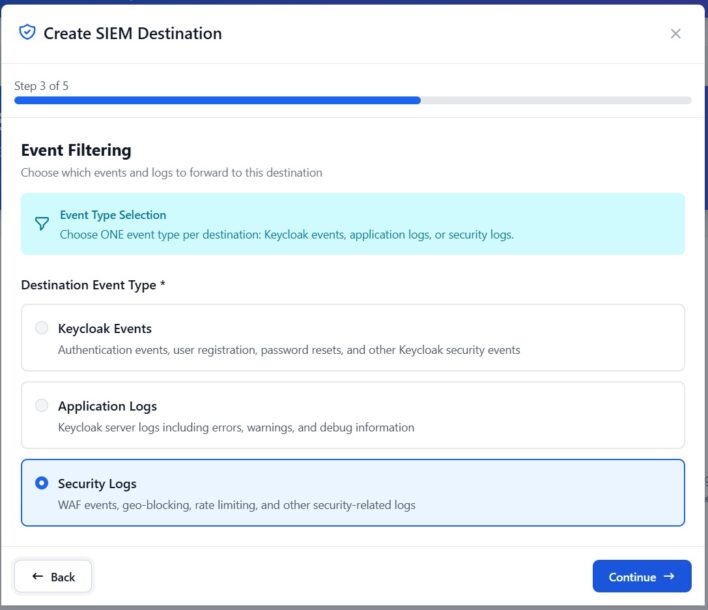
Skycloak provides managed infrastructure for your Keycloak instances, which means log forwarding configuration is handled through the platform rather than manual server configuration.
Step 1: Enable Security Event Logging
In your Skycloak dashboard, navigate to your cluster’s security settings. Ensure that both login events and admin events are enabled for the realms you want to monitor. By default, Skycloak captures these events, but you can customize which specific event types are recorded.
Step 2: Configure the Syslog Destination
Provide your syslog endpoint details:
- Host: The hostname or IP address of your syslog collector
- Port: Typically 6514 for TLS, 514 for unencrypted
- Protocol: TCP with TLS (recommended)
- Facility: Choose an appropriate syslog facility (e.g.,
local0) - Format: RFC 5424 (structured) or RFC 3164 (legacy)
Step 3: Certificate Configuration
For TLS connections, you will need to provide or configure:
- The CA certificate that signed your syslog server’s TLS certificate
- Optionally, a client certificate for mutual TLS authentication
Step 4: Test and Validate
Trigger a test event (such as a login attempt) and verify it arrives at your syslog destination. Check that the message format, severity mapping, and structured data fields are parsed correctly by your receiving platform.
Common Syslog Destinations
Most SIEM and log management platforms accept syslog input natively. Here is how the integration works with popular platforms:
Splunk
Splunk accepts syslog via a dedicated TCP/UDP input or through the Splunk Universal Forwarder. Configure a TCP input on port 6514 with TLS enabled, and create a source type that parses Keycloak event fields. Skycloak’s Splunk integration guide covers the specifics of field extraction and dashboard setup.
Datadog
Datadog’s log collection supports syslog over TCP with TLS. Point your syslog output to the Datadog log intake endpoint, and use log pipelines to parse Keycloak event fields into searchable attributes. See the Datadog integration guide for pipeline configuration examples.
Elastic Stack (ELK)
Logstash includes a syslog input plugin that handles both RFC 3164 and RFC 5424 formats. Configure a Logstash pipeline with a syslog input, a grok or dissect filter for Keycloak event parsing, and an Elasticsearch output. Kibana dashboards can then visualize authentication patterns and anomalies.
IBM QRadar
QRadar has native syslog collection and can automatically detect and parse many log source types. Configure a log source for your Skycloak endpoint, and QRadar’s DSM framework will map event fields to its normalized event model. Custom DSM extensions can handle Keycloak-specific event types that are not mapped automatically.
Log Format and Parsing
Getting logs to your SIEM is only half the battle. Parsing them into structured, searchable fields is where the real value emerges.
Structured vs Unstructured
RFC 5424 syslog supports structured data elements, which carry key-value pairs within the message header. When available, these are far easier to parse than free-text messages:
# Structured (RFC 5424) - easy to parse
[keycloak@skycloak realm="production" eventType="LOGIN" userId="abc-123" clientId="frontend" ipAddress="203.0.113.42" outcome="SUCCESS"]

# Unstructured - requires regex parsing
keycloak LOGIN event: user=abc-123 realm=production client=frontend ip=203.0.113.42 result=success
Always prefer the structured format when your receiving platform supports it. The parsing rules are simpler, less fragile, and easier to maintain.
Key Fields to Extract
Regardless of format, ensure your parsing extracts these fields into searchable attributes:
| Field | Purpose |
|---|---|
eventType |
The specific Keycloak event (LOGIN, LOGIN_ERROR, REGISTER, etc.) |
realm |
The Keycloak realm where the event occurred |
userId |
The user involved in the event |
clientId |
The application or client that initiated the event |
ipAddress |
The source IP address |
outcome |
Success or failure |
timestamp |
When the event occurred (use the syslog header timestamp) |
errorType |
For error events, the specific error category |
Normalization
If you run multiple identity providers or authentication systems, normalize the field names across sources. Map Keycloak’s LOGIN_ERROR to your SIEM’s standard “authentication failure” category so that correlation rules and dashboards work across all identity sources.
Setting Up Alerts on Critical Events
Raw logs become actionable intelligence when you define alerts for events that require immediate attention.
High-Priority Alert Conditions
Brute force detection: Alert when a single user account or source IP generates more than a threshold number of failed login attempts within a time window. A common starting point is 10 failed attempts in 5 minutes.
eventType="LOGIN_ERROR" | stats count by userId, ipAddress | where count > 10Administrative privilege changes: Alert on any role assignment that grants admin-level access. These should be rare and expected.
eventType="GRANT_ROLE" AND roleName IN ("admin", "realm-admin", "manage-users")User lockouts: Alert when accounts are disabled or locked, especially in bulk. A sudden spike in lockouts may indicate an attack or a misconfiguration.
eventType="USER_DISABLED" | stats count by realm | where count > 5Configuration changes: Alert on realm setting modifications, client secret rotations, and identity provider configuration changes. These events should correlate with change management records.
Impossible travel: If your SIEM supports geolocation enrichment, alert when a user authenticates from two geographically distant locations within an implausibly short time window.
Alert Tuning
Start with conservative thresholds and tighten them over time. Every false positive erodes trust in the alerting system, and alert fatigue is a real operational risk. Review alert volumes weekly during the first month and adjust thresholds based on your baseline activity.
Best Practices
Use TLS for all syslog transport. Security logs contain sensitive information. Transmitting them in cleartext defeats the purpose of monitoring for security events.
Retain logs for at least 12 months. Many compliance frameworks require this minimum, and investigation of sophisticated attacks often requires looking back months or even years. Skycloak’s security features are designed with compliance retention in mind.
Separate identity logs from application logs. Use a dedicated syslog facility or tag for Keycloak events so they can be easily filtered and searched without wading through application noise.
Monitor the log pipeline itself. Set up alerts for gaps in log delivery. If your syslog forwarder stops sending events, you want to know immediately, not when an auditor asks why there is a 3-day gap in your authentication logs.
Document your parsing rules. When a SIEM engineer leaves the team, the next person needs to understand how Keycloak events are parsed, normalized, and routed. Treat parsing configurations as code and keep them in version control.
Test your alerts regularly. Generate synthetic events that should trigger each alert condition, and verify they produce the expected notification. An untested alert is an unreliable alert.
Plan for log volume growth. As your user base grows, authentication event volume grows with it. Estimate your daily event volume and ensure your syslog infrastructure and SIEM licensing can handle projected growth for at least the next 12 months.
Conclusion
Forwarding Skycloak security logs via syslog is a foundational step in building a mature security operations practice around your identity infrastructure. The combination of Keycloak’s comprehensive event model, syslog’s universal transport protocol, and modern SIEM platforms creates a monitoring pipeline that supports both real-time alerting and historical investigation.
Start with the critical event types, get your parsing right, and build alerts incrementally. The goal is not to capture every possible event on day one but to establish a reliable pipeline that you can expand as your monitoring capabilities and secure practices mature. With Skycloak handling the infrastructure complexity, your team can focus on what matters: keeping your authentication system visible and secure.