Introduction
A survey conducted by the Keycloak team in 2024 highlights how Configuration as Code (CaC) is being adopted across the community. The results show that Terraform has emerged as the dominant tool, with over 50% of respondents using it for managing Keycloak configurations.
This strong adoption reflects a clear shift toward declarative, version-controlled configuration management, aligning Keycloak with broader DevOps practices commonly associated with Infrastructure as Code (IaC).
While Terraform is often referred to as IaC, in the context of Keycloak it is more accurately described as Configuration as Code (CaC), since it manages application-level configuration rather than infrastructure.
In this article, we will explore how to use the Keycloak Terraform Provider in a beginner-friendly way.
Overview
The Keycloak Terraform provider is available here.
The provider acts as a bridge between Terraform and Keycloak, allowing you to define and manage Keycloak configurations declaratively. Terraform interacts with Keycloak via its Admin REST API, making it a powerful tool for automating identity configuration at scale.
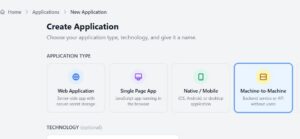
To enable Terraform to manage Keycloak, it must authenticate using an OIDC client. In this article, we use the Client Credentials flow, where Terraform authenticates using a client ID and client secret associated with a service account.
Authentication Approach
- Create an OIDC client in:
- master realm → for managing the entire Keycloak instance
- or a specific realm → for scoped access
- Assign Service Accounts Roles for the new client
Note down the client ID and client secret, as they will be required in Step 3.
Recommended Roles (Least Privilege)
Instead of using overly broad permissions, assign only what is required:
- create-realm
- manage-clients
⚠️ Always follow the principle of least privilege in production environments.
Step 1: Provider Configuration
providers.tf
terraform {
  required_providers {
    keycloak = {
      source  = "keycloak/keycloak"
      version = "5.7.0"
    }
  }
}

provider "keycloak" {
  client_id = var.keycloak_client_id
  client_secret = var.keycloak_client_secret
  url = var.keycloak_url
  realm = var.keycloak_realm
}
Step 2: Define Variables
variables.tf
variable "keycloak_client_id" {
  description = "OIDC client ID for Terraform authentication"
  type        = string
  sensitive   = true
}

variable "keycloak_client_secret" {
  description = "OIDC client secret"
  type        = string
  sensitive   = true
}

variable "keycloak_url" {
  description = "Keycloak/Skycloak base URL"
  type        = string
}

variable "keycloak_realm" {
  description = "Realm used for authentication"
  type        = string
}
Step 3: Set Environment Variables
Avoid hardcoding secrets in code. The below values correspond to the OIDC client (with Client Credentials grant) which is actually used by the Keycloak terraform provider to authenticate to Keycloak.
export TF_VAR_keycloak_client_id="your-client-id"
export TF_VAR_keycloak_client_secret="your-client-secret"
export TF_VAR_keycloak_url="https://skycloak-hostname"
export TF_VAR_keycloak_realm="master"
In production environments, consider using secret managers (such as HashiCorp Vault or cloud-native solutions) instead of plain environment variables.
Step 4: Create a Realm & a confidential client
main.tf
resource "keycloak_realm" "tf_realm" {
  realm   = "acme"
  enabled = true
}

resource "keycloak_openid_client" "tf_acme_client" {
  realm_id            = keycloak_realm.tf_realm.id
  client_id           = "acme-app"
  name                = "acme-app"
  enabled             = true

  access_type         = "CONFIDENTIAL"
  standard_flow_enabled = true
  valid_redirect_uris = [
        "http://localhost:8080/openid-callback"
    ]

}
Step 5: Initialize and Apply
terraform init
terraform plan
terraform apply
Verification
After applying:
- Log in to Keycloak Admin Console
- Navigate to:
- Realm: acme
- Client: acme-app
This confirms that the Terraform code has executed successfully.
In this subsequent article, we will explore how to integrate this setup with a CI/CD pipeline using GitHub Actions.
Summary
Terraform provides a powerful way to manage Keycloak using Configuration as Code. By defining your identity configurations declaratively, you gain:
- Version control
- Repeatability
- Auditability
- Automation
As organizations increasingly adopt DevOps practices, using Terraform with Keycloak is a natural step toward standardized and scalable identity management.
About Skycloak
Skycloak is a fully managed Keycloak platform hosted in the cloud. It enables organizations to leverage the power of open-source Keycloak IAM without the operational overhead of installing, maintaining, and scaling production-grade Keycloak environments — delivered securely and cost-effectively.
If you’re new to Skycloak, visit the Skycloak Getting Started Guide to learn more.

Ready to simplify your authentication?
Deploy production-ready Keycloak in minutes. Unlimited users, flat pricing, no SSO tax.