Introduction
In this article, we will explore SCIM (System for Cross-domain Identity Management) provisioning from Microsoft Entra ID to Keycloak.
Starting with Keycloak 26.6, SCIM is available as a Preview feature. By default, the SCIM API is disabled and must be explicitly enabled.
We will configure Keycloak as a SCIM Server and Microsoft Entra ID as a SCIM Client. The article demonstrates:
- User provisioning (create)
- User updates
- User deprovisioning (disable)
- Synchronization of custom user attributes from Entra ID to Keycloak
We will also configure a custom attribute mapping using the SCIM Enterprise User schema.
Note: SCIM support in Keycloak 26.6.x is still a Preview feature. Functionality and compatibility may change in future releases.
Implementation Overview
The implementation consists of the following steps:
- Enable SCIM in Keycloak.
- Create an OIDC client in Keycloak using the Client Credentials Grant.
- Assign the required service account roles.
- Create a SCIM Enterprise Application in Microsoft Entra ID.
- Configure SCIM provisioning.
- Configure user attribute mappings.
- Add users to the application.
- Configure a custom SCIM attribute mapping.
- Test provisioning and deprovisioning.
Step 1: Enable SCIM in Keycloak
Enabling SCIM involves two steps:
- Enable SCIM during Keycloak startup.
- Enable SCIM at the realm level.
Enable SCIM During Startup
Start Keycloak with the following feature flag:
--features=scim-api
For Skycloak users, SCIM can be enabled from the cluster configuration.
Navigate to:
Skycloak Console
→ Select Cluster
→ Actions
→ Edit Cluster
→ Advanced Keycloak Configuration
→ Integrations
→ Enable SCIM 2.0 API
Enable SCIM at Realm Level
From the Keycloak Admin Console:
Realm Settings
→ Enable SCIM API
Once enabled, Keycloak exposes SCIM endpoints for the realm.
Example:
https://<keycloak-host>/realms/<realm-name>/scim/v2
Step 2: Create an OIDC Client in Keycloak
Create a confidential OIDC client with the following settings:
- Client Authentication: Enabled
- Service Accounts: Enabled
- Client Credentials Grant: Enabled
Navigate to:
Clients
→ <client>
→ Service Account Roles
→ realm-management
Assign the following roles:
manage-users
view-users
query-users
query-groups
view-realm
Record the following values:
- Client ID
- Client Secret
These values will be required when configuring Microsoft Entra ID provisioning.
Step 3: Create an Enterprise Application in Microsoft Entra ID
Create a non-gallery Enterprise Application.
Navigate to:
Microsoft Entra ID
→ Enterprise Applications
→ New Application
Select:
Create your own application
Provide a name such as:
Keycloak SCIM
Choose:
Integrate any other application you don't find in the gallery (Non-gallery)
Create the application.
Step 4: Configure SCIM Provisioning
Open:
Provisioning
→ Edit Provisioning
Select:
Authentication Method:
OAuth2 Client Credentials Grant
Configure the following:
Tenant URL
https://<keycloak-host>/realms/<realm-name>/scim/v2
OAuth Token Endpoint
https://<keycloak-host>/realms/<realm-name>/protocol/openid-connect/token
Provide:
- Client ID
- Client Secret
from the Keycloak client created earlier.
Select Test Connection.
If the connection is successful, save the configuration.
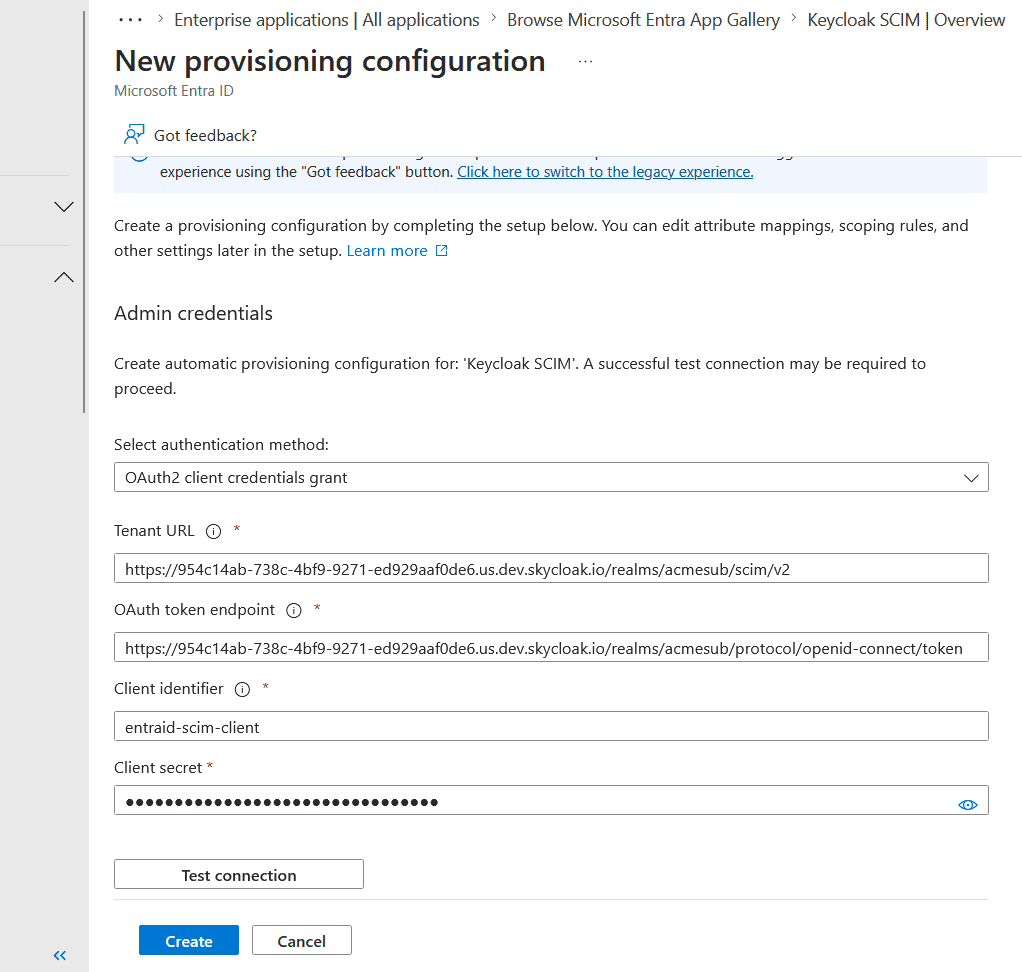
Finally, set:
Provisioning Mode = Automatic
Step 5: Configure Attribute Mappings
Navigate to:
Provisioning
→ Mappings
→ Provision Microsoft Entra ID Users
The default mappings are generally sufficient.
| Microsoft Entra ID | SCIM Attribute |
|---|---|
| userPrincipalName | userName |
| givenName | name.givenName |
| surname | name.familyName |
| emails[type eq “work”].value | |
| accountEnabled | active |
These mappings align well with Keycloak’s user model.
Remove any mappings that are not required for your environment.
Step 6: Configure a Custom Attribute Mapping
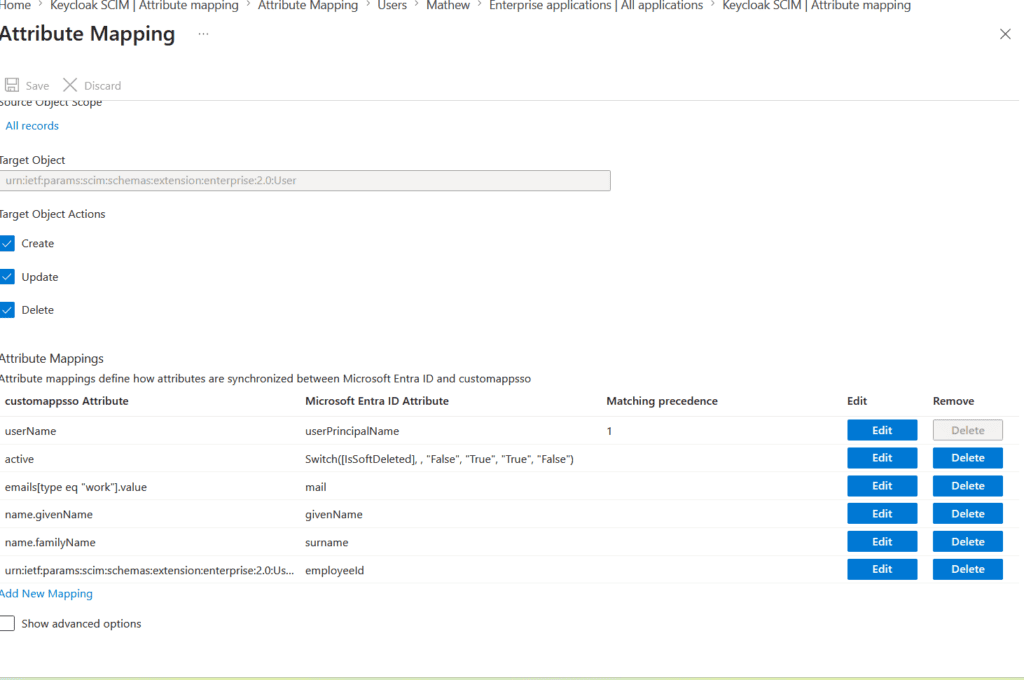
In this example, we will synchronize the Employee Number attribute.
First, ensure that users in Entra ID have an Employee ID value configured.
Navigate to:
Provisioning
→ Mappings
→ Provision Microsoft Entra ID Users
→ Add New Mapping
Configure:
| Setting | Value |
|---|---|
| Source Attribute | employeeId |
| Target Attribute | urn:ietf:params:scim:schemas:extension:enterprise:2.0:User:employeeNumber |
| Apply Mapping | Always |
Save the mapping.
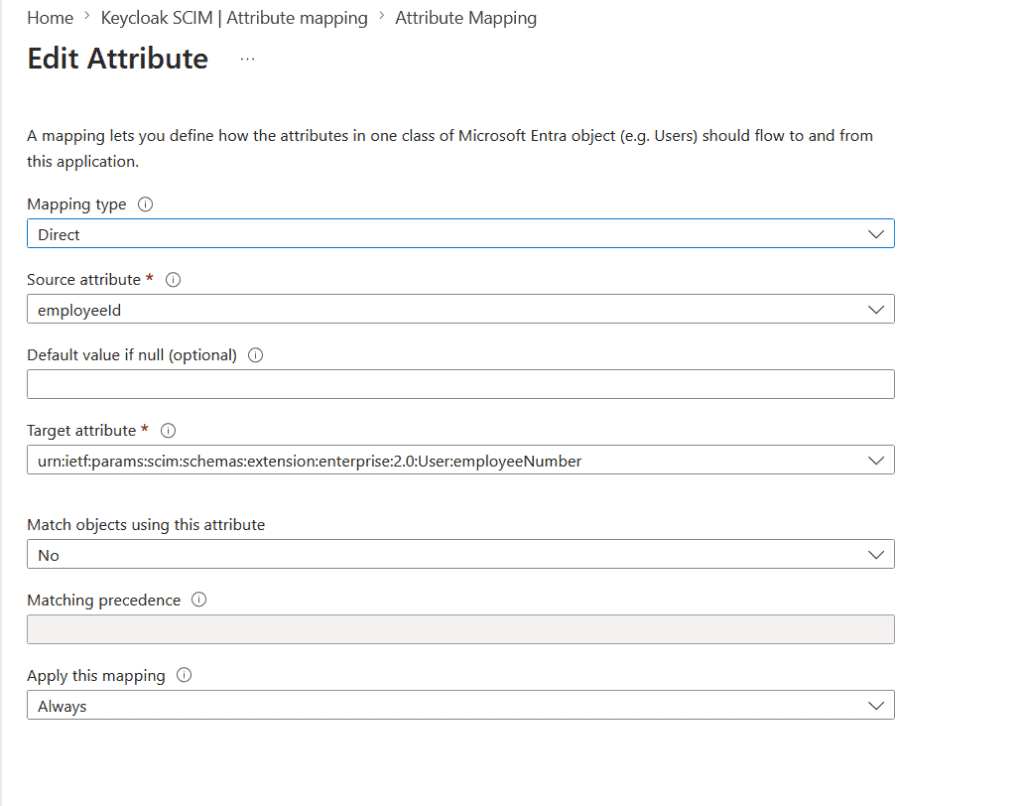
In my test environment, the configured user attribute mappings in Entra ID are as per the following screeshot.
For more details on SCIM, please refer the Keycloak documentation over here.
Step 7: Create the Corresponding Attribute in Keycloak
In Keycloak:
Realm Settings
→ User Profile
→ Attributes
→ Create Attribute
Configure:
Attribute Name
employeeNumber
Display Name
employeeNumber
Configure the desired permissions.
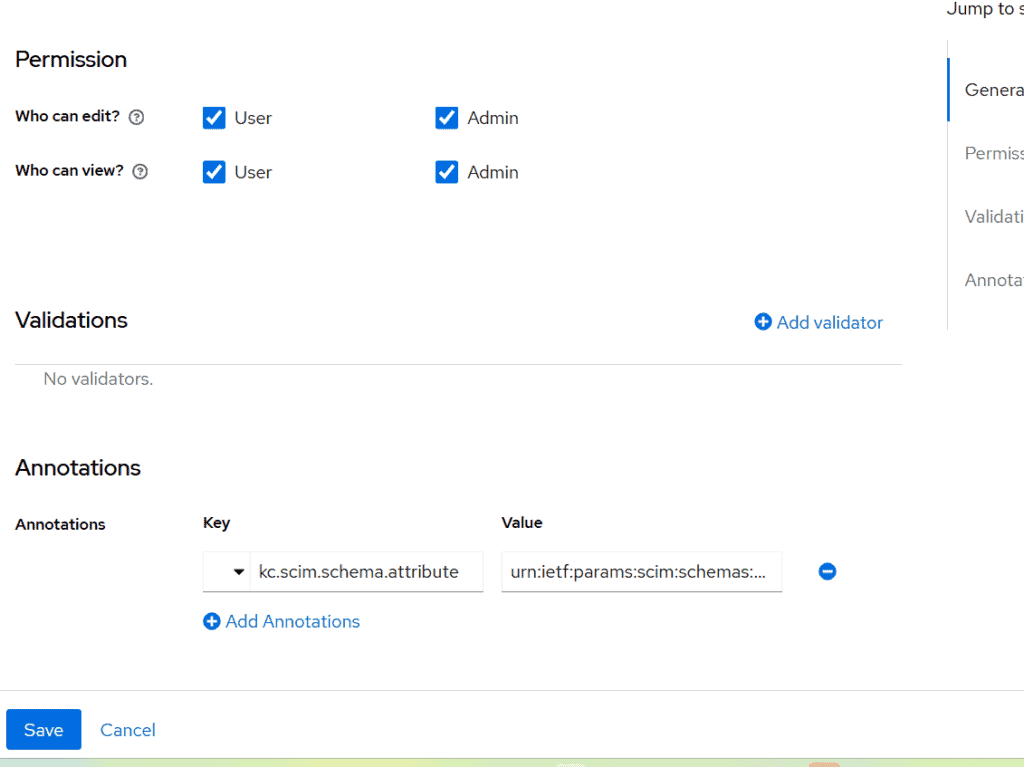
Under Annotations, add:
Key
kc.scim.schema.attribute
Value
urn:ietf:params:scim:schemas:extension:enterprise:2.0:User.employeeNumber
Save the attribute.
This annotation tells Keycloak how the SCIM Enterprise User attribute maps to the Keycloak user profile attribute.
Step 8: Test the Implementation
Assign one or more users to the Enterprise Application.
Navigate to:
Enterprise Application
→ Users and Groups
Assign users.
Since provisioning mode is configured as Automatic, Entra ID will synchronize users to Keycloak.
Verify that users are created successfully in:
Keycloak
→ Users
Testing Updates
Modify user details in Entra ID and verify that the changes are reflected in Keycloak.
Provision On Demand
Entra ID performs synchronization on scheduled intervals.
For immediate testing, use:
Provisioning
→ Provision on Demand
This is particularly useful when validating new mappings or custom attributes.
Testing Deprovisioning
Remove a user from:
Enterprise Application
→ Users and Groups
Entra ID performs a SCIM soft delete operation.
In Keycloak, the corresponding user should become disabled rather than being physically deleted.
Group Provisioning
This article focuses on user provisioning.
Group provisioning can be configured in a similar manner by enabling and configuring the corresponding SCIM group mappings in Microsoft Entra ID.
Conclusion
SCIM (System for Cross-domain Identity Management) is an open standard designed to automate identity lifecycle management across applications and platforms.
With the SCIM Preview feature introduced in Keycloak 26.6, organizations can integrate Keycloak with Microsoft Entra ID for centralized user provisioning and lifecycle management.
In this article, we configured Keycloak as a SCIM server, enabled automatic user provisioning from Entra ID, synchronized a custom attribute, and validated user creation, updates, and deprovisioning workflows.
About Skycloak
Skycloak is a fully managed Keycloak platform hosted in the cloud. It enables organizations to leverage the power of open-source Keycloak IAM without the operational overhead of installing, maintaining, and scaling production-grade Keycloak environments — delivered securely and cost-effectively.
If you’re new to Skycloak, visit the Skycloak Getting Started Guide to learn more