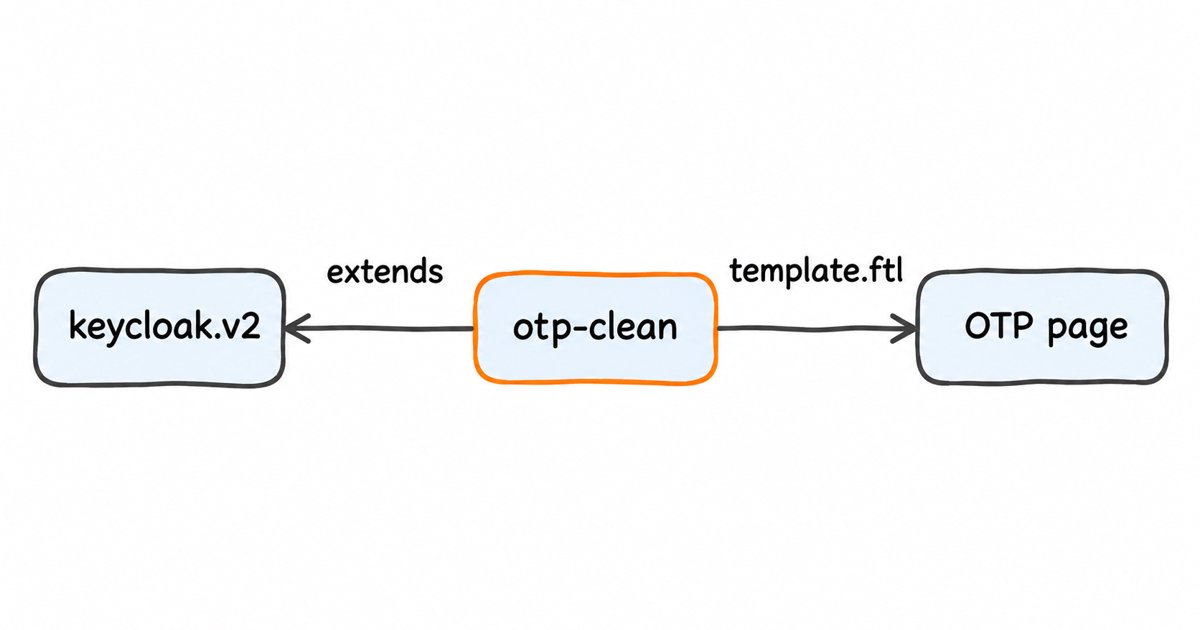
How to show password policy on the Keycloak reset page. The stock Keycloak reset page lists no password rules. Override login-update-password.ftl in a login theme to show rules like a 20 character minimum up front.
To show your password rules on Keycloak’s password reset page before the user types, such as a 20 character minimum, create a custom login theme that overrides login-update-password.ftl, add the rule text from the theme’s messages file above the password field, and select the theme for your realm.
Prerequisites
- Keycloak 26.8.2, the release this post was done on, or a nearby 26.x release, because a template you copy from one release may need updating on the next.
- An admin account for the realm, and write access to the server’s
themesdirectory (or to the image you build Keycloak from). - A test user you can give the Update Password required action, and SMTP set up in the realm’s Email settings if you also want to test the emailed reset link.
Step 1: Set the realm’s password policy
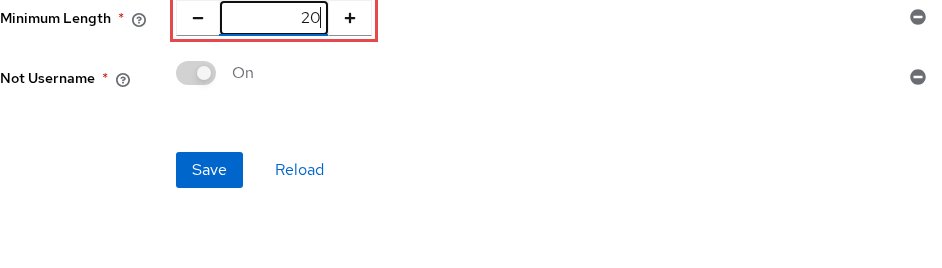
The admin guide’s password policy procedure is: click Authentication, click the Policies tab, select a policy in the Add policy drop-down, enter its value and click Save. Use it to add Minimum Length with the value 20, then Not Username. Write down every policy you add, because the page you build will list them.
Step 2: Create the theme folder

In Keycloak’s themes directory, create password-rules/login/ and a theme.properties file in it. The folder name becomes the theme’s name, and the parent line makes the theme inherit every page and style from keycloak.v2, so you only override what you change:
parent=keycloak.v2Step 3: Override login-update-password.ftl
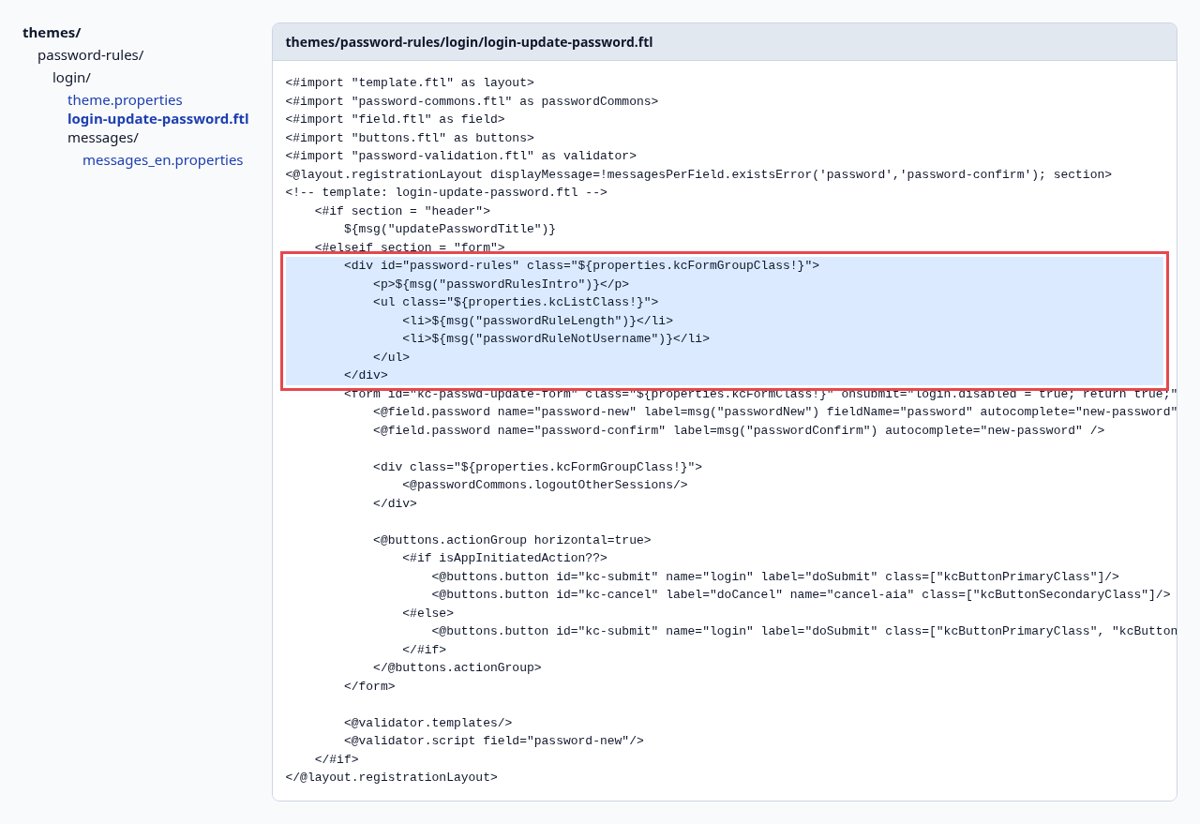
Copy the stock login-update-password.ftl of the keycloak.v2 theme from the 26.8.2 source into password-rules/login/. In that file, line 10 is #elseif section = "form". Add this block directly under it, so the list sits above the password fields:
        <div id="password-rules" class="${properties.kcFormGroupClass!}">
            <p>${msg("passwordRulesIntro")}</p>
            <ul class="${properties.kcListClass!}">
                <li>${msg("passwordRuleLength")}</li>
                <li>${msg("passwordRuleNotUsername")}</li>
            </ul>
        </div>
The two class names come from the parent theme’s theme.properties, so the list picks up the page’s existing styles.
Step 4: Add the rule text to the messages file

Create password-rules/login/messages/messages_en.properties with one line per key the template uses. Keeping the text here lets you translate it without touching the template:
passwordRulesIntro=Your new password must:
passwordRuleLength=be at least 20 characters long
passwordRuleNotUsername=not be the same as your username
Restart Keycloak so it picks up the new theme, unless you run it with theme caching turned off.
Somewhere to run this that stays patched
Everything above works the same on Skycloak, because it is real upstream Keycloak rather than a fork. What changes is who handles the upgrades, backups and security patches afterwards.
Step 5: Select the login theme for the realm
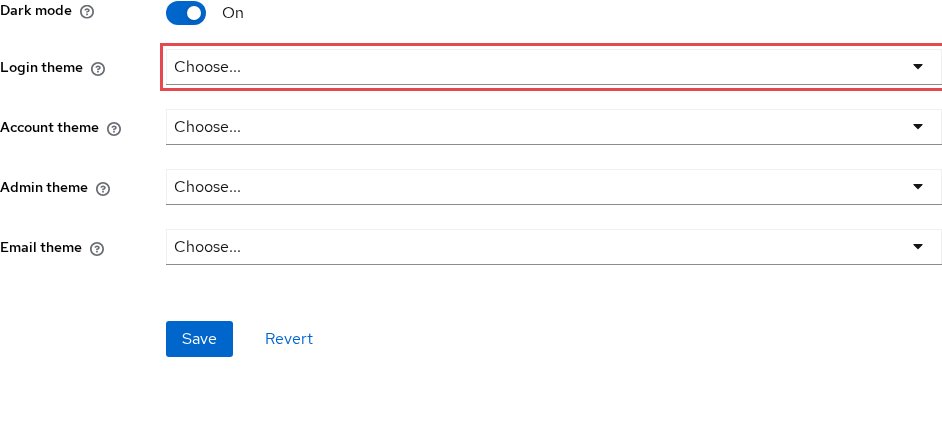
Open Realm settings, choose the Themes tab, pick password-rules under Login theme, and choose Save, as the theme guide describes.
Step 6: Generate the list from the realm’s password policy
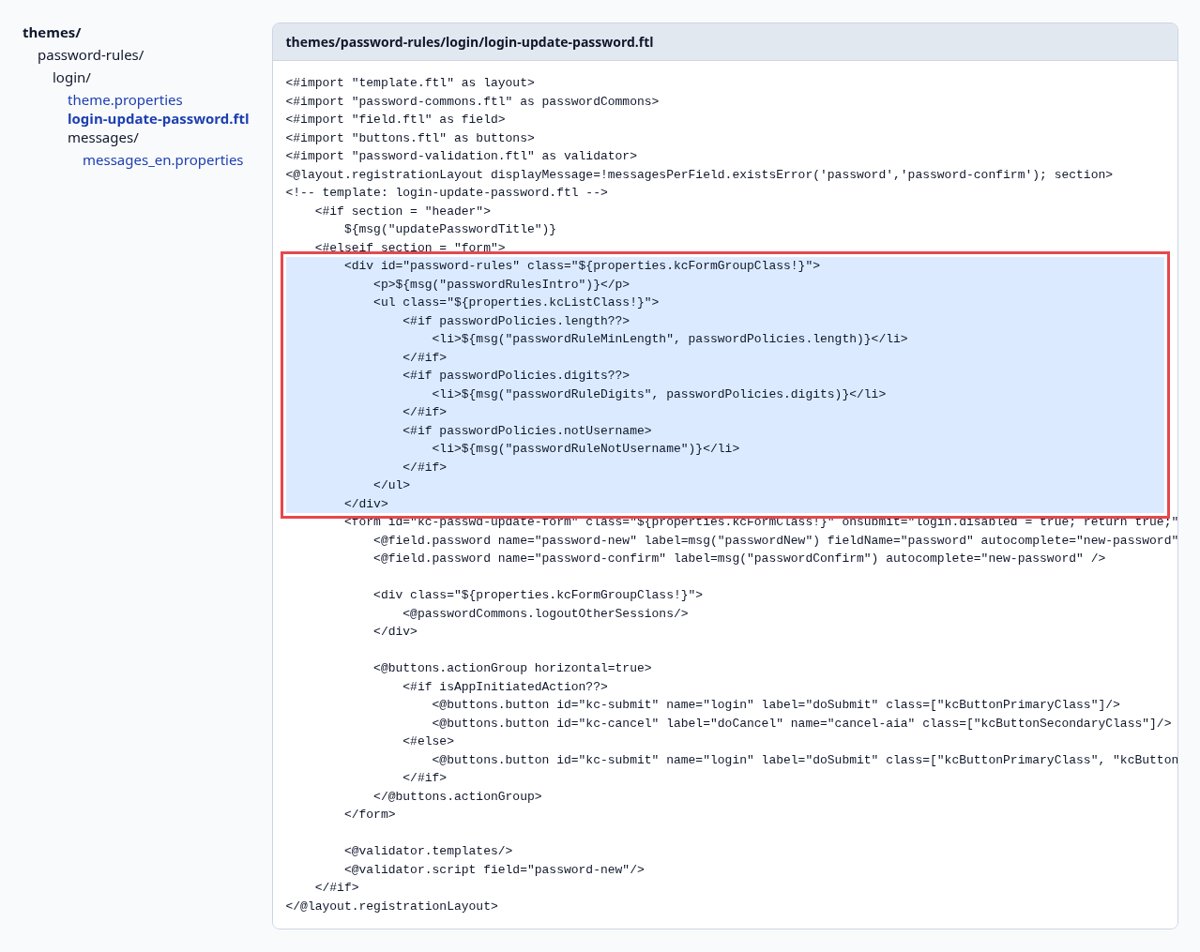
Static text drifts when the policy changes. Replace the Step 3 block with one that reads a passwordPolicies variable. This post took that variable from the 26.8.2 source, not from the documentation, so it may change between releases and you should check it after an upgrade:
        <div id="password-rules" class="${properties.kcFormGroupClass!}">
            <p>${msg("passwordRulesIntro")}</p>
            <ul class="${properties.kcListClass!}">
                <#if passwordPolicies.length??>
                    <li>${msg("passwordRuleMinLength", passwordPolicies.length)}</li>
                </#if>
                <#if passwordPolicies.digits??>
                    <li>${msg("passwordRuleDigits", passwordPolicies.digits)}</li>
                </#if>
                <#if passwordPolicies.notUsername>
                    <li>${msg("passwordRuleNotUsername")}</li>
                </#if>
            </ul>
        </div>
Then add the two new keys to messages_en.properties:
passwordRuleMinLength=be at least {0} characters long
passwordRuleDigits=contain at least {0} digits
Test it
In Users, open your test user, select Update Password in the Required User Actions list and click Save, following the admin guide’s steps for setting required actions for one user. Sign in as that user at https://your-keycloak-host/realms/your-realm/account in a private window. The page should show “Your new password must:” with your rules above the New Password field before you type anything. To test the emailed reset, turn on Forgot password in the Login tab of Realm settings (see the admin guide’s forgot password section) and choose Forgot Password? on the sign-in page. The emailed link leads to the same page, so the list should appear there too.
Troubleshooting
password-rules is missing from the Login theme menu. Check that password-rules/ sits directly in the themes directory and holds login/theme.properties, the layout the theme guide describes, then restart Keycloak. Our theme not loading guide has more checks.
Your edits do not show after you save the file. Theme caching keeps the old files. Restart Keycloak, or while you work, start it with --spi-theme--static-max-age=-1 --spi-theme--cache-themes=false --spi-theme--cache-templates=false, which the theme guide says lets you edit theme resources without restarting.
The page shows passwordRuleLength instead of the sentence. The template names a key that your theme’s messages file does not define, so check that the file sits in login/messages/ and the key’s spelling and capitals match the template.
The list says 20 characters but the policy now asks for 16. That is static text drifting from the policy. Use the generated list from Step 6, or update the messages file in the same change as the policy.
FAQ
Why does Keycloak hide password rules until the password fails?
The stock 26.8.2 login-update-password.ftl holds only the two password fields, the sign-out option and the buttons, with no text about the rules. The default theme’s rule messages, such as “Invalid password: minimum length {0}.”, are worded for a password that Keycloak has already rejected.
How do I show password rules on the Keycloak registration page?
Make the same change in register.ftl, which uses the same validation script. Copy it into your theme and add the same block directly under its #elseif section = "form" line, above the whole form, because its password fields are drawn inside the user profile fields loop.
Can I show password rules in Keycloak without a custom theme?
Not as a list above the field. The stock template has no place for that text, so you need at least a theme that overrides login-update-password.ftl, as in the steps above.
Next steps
Add the rule list to your login theme and run a password reset to confirm users see it before they type. Read next:
- Keycloak password policy best practices
- How to change the username label on the Keycloak login page
- Keycloak theme customization guide
If you would rather not run the Keycloak server yourself, you can try managed Keycloak hosting on Skycloak.