
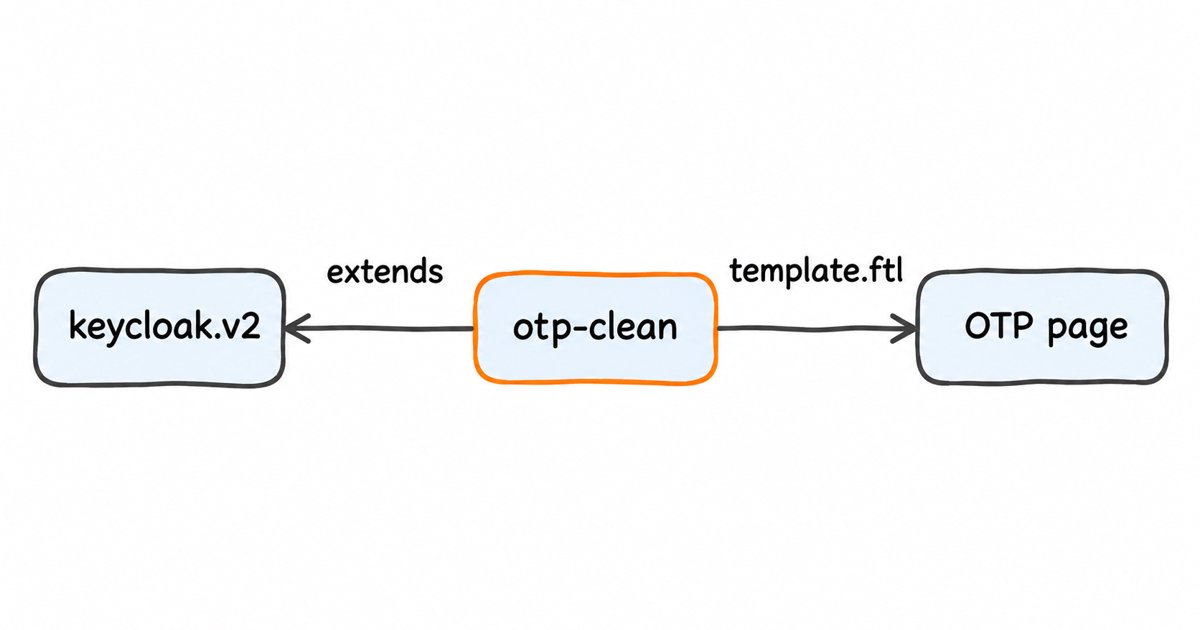
How to remove the Log In link from the Keycloak OTP page. The extra link under the Sign In button on the Keycloak OTP page comes from template.ftl. Override it in a custom login theme for the login-otp page only.
To remove the extra link under the Sign In button on the Keycloak OTP page (its default text is Try Another Way), create a login theme that extends your current parent (keycloak.v2 or keycloak), copy the parent’s template.ftl into its login folder, add pageId != "login-otp" to the condition that renders the link, and select the theme under Realm settings, Themes. Copying login-otp.ftl does not help, because in Keycloak 26.4.0 that file holds only the OTP form (a device choice for users with more than one OTP device, the code field and the Sign In button), in the keycloak.v2 theme and in the base theme that the legacy keycloak theme names as its parent. Hiding the link with CSS also works, but the link stays in the page markup.
The link is the try-another-way element, which sits in the shared layout, template.ftl, after the page’s form in keycloak.v2 and in base. Its condition, auth.showTryAnotherWayLink(), is true when getAuthenticationSelections().size() > 1, that is, when the flow offers more than one option at that step. If your link carries a different label, right-click it, choose Inspect and read its id: try-another-way means the same block with changed text, and any other id means your own theme adds the link, so search your theme folder for it. These steps were done on Keycloak 26.4.0.
Prerequisites
- Keycloak 26.4.0, the release these steps and their source links were checked on. In 26.8.2 the link block still opens with
auth.showTryAnotherWayLink()in keycloak.v2 and base, but always copy the file from the release you run. - Admin access to the realm and write access to the server’s
themesfolder or its theme JAR. - A test realm with a user who has OTP and a second option for that step, such as a security key, so the OTP page shows the link.
- A text editor and a private browser window.
Step 1: Check which login theme your realm uses
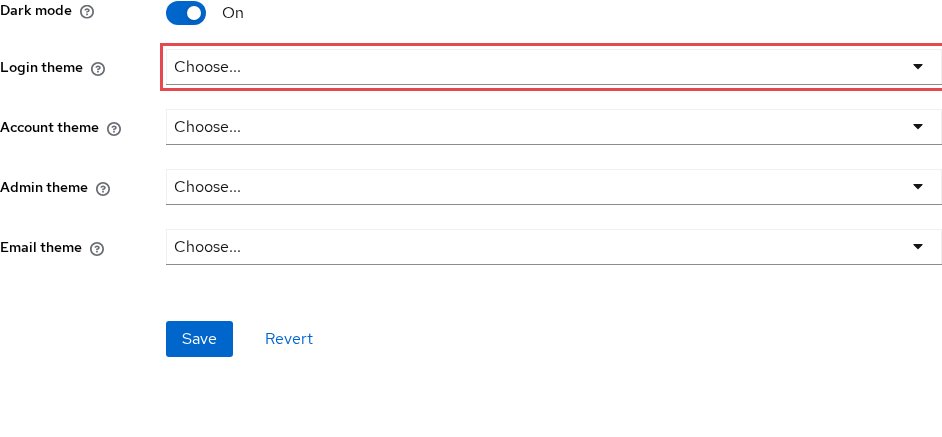
Open Realm settings, then the Themes tab, and note the value of Login theme. If it is keycloak.v2, your parent is keycloak.v2. If it is empty, the realm sets no login theme of its own, so find out which theme your server applies before you choose a parent. If it is keycloak, your parent is the legacy theme, which inherits from base. If it names your own theme, make the changes below in that theme instead of creating a new one.
Step 2: Create the theme folder with its theme.properties

The themes guide explains that the folder name under themes becomes the theme name. Create themes/otp-clean/login/theme.properties with one line that names the parent from Step 1:
parent=keycloak.v2Use parent=keycloak for the legacy theme. Every page, stylesheet and message your theme does not override comes from the parent, so the theme stays as small as one file plus the template.
Step 3: Copy template.ftl and skip the link on the OTP page

Copy the parent’s template.ftl into themes/otp-clean/login/. For keycloak.v2, take keycloak.v2/login/template.ftl; for the legacy theme, take base/login/template.ftl, because the keycloak theme inherits from base. Then change one line, the condition that opens the link block:
<#if auth?has_content && auth.showTryAnotherWayLink() && pageId != "login-otp">Keycloak sets pageId with templateName.substring(0, templateName.length() - 4), which turns login-otp.ftl into login-otp, so the link disappears on the OTP page and stays everywhere else. Leave the rest of the file untouched, so that after an upgrade you can copy the new template.ftl and add the same condition again. If otp-clean does not appear in Step 4, restart Keycloak; while you test, the themes guide shows how to turn off theme caching.
Somewhere to run this that stays patched
Everything above works the same on Skycloak, because it is real upstream Keycloak rather than a fork. What changes is who handles the upgrades, backups and security patches afterwards.
Step 4: Select the theme for the realm
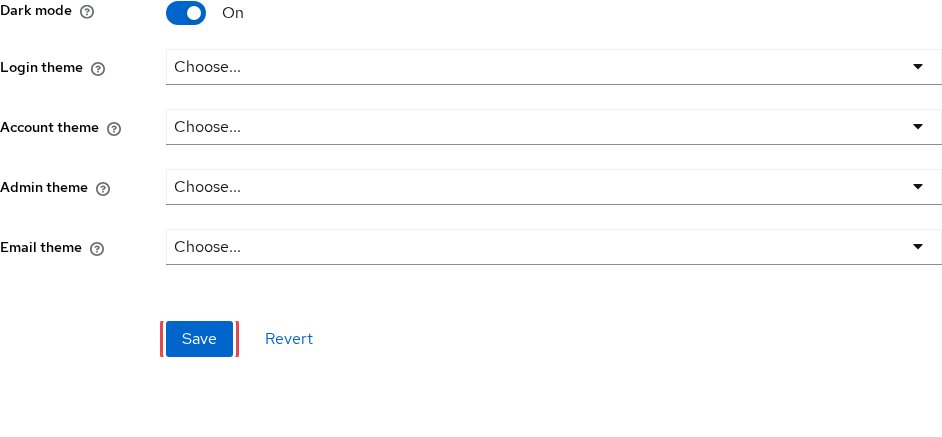
Back in Realm settings, Themes, choose otp-clean in Login theme and select Save. The theme applies to every login page of this realm, but only the OTP page changes, because it is the only page your template treats differently.
Test it
Open a private window, go to https://your-keycloak-host/realms/your-realm/account, and sign in with the test user. On the OTP page you should see the code field and the Sign In button, with no link under it. Right-click the page and choose View page source: no element with the id try-another-way should be there. Then check one other page, such as the password form, to confirm it still looks as before.
Troubleshooting
The link is still there after you select the theme. Keycloak caches templates in production mode, and the themes guide notes that you can clear the cache by deleting data/tmp/kc-gzip-cache. Restart Keycloak after copying files, and see why a Keycloak theme is not loading for other causes.
otp-clean is missing from the Login theme list. Keycloak did not find the folder. Check that the path is themes/otp-clean/login/theme.properties on the server itself (inside the container, if you run one), then restart.
The login pages lose their styling or show a FreeMarker error. The copied template does not match the parent or your Keycloak version, for example a keycloak.v2 template under parent=keycloak. Copy template.ftl again from the parent and the release tag you run.
Users can no longer reach their other sign-in method. The link is how a user who also has, say, a security key switches to it from the OTP page. If some users need that, keep the link and remove the extra credentials or flow options that make Keycloak offer it.
FAQ
Which Keycloak template renders the Try Another Way link?
template.ftl, the layout every login page uses, renders it after the page’s form. login-otp.ftl only renders the OTP form, which ends with the Sign In button that keycloak.v2 draws with the loginButton macro of buttons.ftl.
Can I hide the link on the Keycloak OTP page with CSS instead?
Yes. Both layouts write data-page-id="login-${pageId}" on the body (keycloak.v2, base), which gives login-login-otp on the OTP page, so a stylesheet in your theme can hide #try-another-way on that page only. The link still ships in the page markup, though, so removing it from the template is the cleaner fix.
Does the same change apply to the WebAuthn and recovery code pages?
In 26.4.0, Templates.java maps them to webauthn-authenticate.ftl and login-recovery-authn-code-input.ftl, but the link comes from the same layout. Add their page names to the condition if you want it gone there too.
Will my template override survive a Keycloak upgrade?
The themes guide warns that custom templates may need updates on upgrade. Because you changed one line, copy the new release’s template.ftl and add the condition again.
Next steps
Apply the override in a test realm, confirm the link is gone on the OTP page, and then roll the theme out to production. These links help with the rest of your theme:
- The Keycloak theme customization guide, for styles, messages and other templates.
- How to change the username label on the Keycloak login page.
- Customizing Keycloak themes with Keycloakify in Skycloak.
If you would rather not run the Keycloak server yourself, you can try managed Keycloak hosting on Skycloak.