Last updated: March 2026
Introduction
This article is a continuation of the previous one on Keycloak WebAuthn passwordless with passkeys. In that earlier article, we discussed how to enable passkeys as a first-factor authentication method in Keycloak. If you have not gone through it yet, it is strongly recommended that you read that article before continuing with this one.
In this follow-up, we focus primarily on using passkeys as a second factor in Keycloak, which strengthens your multi-factor authentication posture.
For this article, I have used Keycloak 26.4.5. The Keycloak documentation referenced in the earlier article highlights the changes related to passkeys in Keycloak 26.4.
Browser Compatibility
WebAuthn passkeys are supported across modern browsers:
- Chrome 67+
- Firefox 60+
- Safari 14+
- Edge 79+
Ensure your users are on supported browser versions before enabling WebAuthn-based authentication. For mobile devices, iOS 16+ and Android 9+ provide native passkey support.
Brief Overview
The following use cases are covered:
- Enable passkeys as first factor
- In addition to point 1, enable passkeys as second factor
- Disable passkeys from first factor and use passkeys only as second factor
We have already covered point 1 in the previous article. Here, we will look mainly at how to enable passkeys as a second factor alongside the first factor (point 2).
If you’re wondering why passkeys and passwordless authentication are gaining adoption, see our post on why everyone is talking about passwordless authentication.
Configuration Steps
Registering a User for Passkey (Second Factor)
You can register new users for passkeys as described in the previous article by visiting the account console at:
https://<skycloak_hostname>/realms/<realm_name>/account
Then navigate to:
Account Security -> Signing In
Note: If configuring both passwordless (first factor) and passkey (second factor) for the same user, use different authentication providers during registration.
Alternatively, to enforce registration during login for new users, enable:
Authentication -> Required Actions -> WebAuthn Register -> Set as Default Action = ON
For details on required actions, see the Keycloak Required Actions documentation.
Enabling Passkeys as Second Factor
We will use the default browser flow for the test cases. To enable WebAuthn as a second factor:
Navigate to:
Authentication -> Browser flow
Change WebAuthn Authenticator from DISABLED to ALTERNATIVE, as shown in the default browser flow snippet.
By default, Conditional 2FA is marked as CONDITIONAL. Whenever all conditions under it are satisfied (e.g., Condition — User Configured and Condition — Credential), the subflow is executed.
Selecting the gear icon next to Condition — Credential opens the configuration.
The default (and customizable) configuration ensures that if a passkey is already used as first factor, this condition fails, preventing execution of the second-factor WebAuthn subflow.
For more about authentication flows in Keycloak, see the Authentication Flows documentation.
Disabling OTP From First Factor
If you’re continuing from the previous article, first-factor passkeys are already enabled. To revert to the default behaviour:
Navigate to:
Realm Settings -> Authentication -> Policies -> WebAuthn Passwordless Policy
Set Enabled Passkeys = OFF
This disables passkeys for first-factor authentication.
Testing the Implementation
Use Case 1 — First Factor + Second Factor Enabled
- Access your application or account console.
- Select “Sign in using Passkey” on the login page.
- Choose the appropriate passkey for the first factor.
If the authentication completes successfully, Keycloak proceeds with login.
Use Case 2 — Password + Passkey (Second Factor)
- Access your application or account console.
- Enter the username and password.
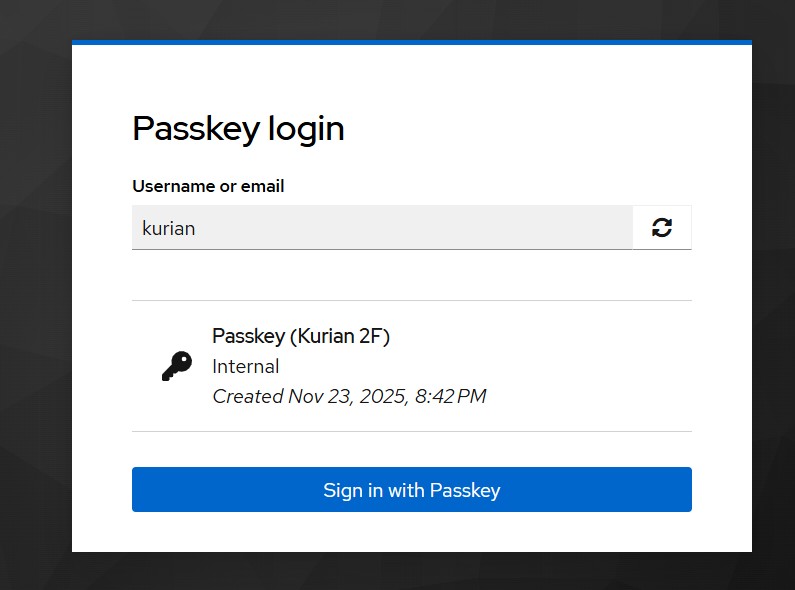
- You will then be prompted for a second-factor passkey.
Note: OTP is not configured for the user in my case.
Upon successful passkey verification, login completes.
Use Case 3 — First Factor Disabled
If first-factor passkeys are disabled, the login process is the same as Use Case 2, except that in UI:
- The “Sign in with Passkey” button will not appear.
Summary
In this article, we explained how to use passkeys as a second-factor authentication method in Keycloak, including the required modifications to the default browser flow and steps for user registration.
Using passkeys for 2FA provides a phishing-resistant alternative to traditional OTP methods. Combined with Keycloak’s flexible authentication flows, you can build a robust security posture for your applications.
Skycloak provides production-ready managed Keycloak hosting, helping teams avoid the complexity of maintaining and scaling Keycloak themselves.
If you’re new to Skycloak, visit the Skycloak Getting Started Guide to learn more.

Ready to simplify your authentication?
Deploy production-ready Keycloak in minutes. Unlimited users, flat pricing, no SSO tax.