
Keycloak supports passkeys natively since 26.4: turn on Enable Passkeys for the realm (it drives the WebAuthn Passwordless Policy), enable the Webauthn Register Passwordless required action, and the default browser flow shows a passkey sign-in with an account picker and no password. The separate WebAuthn Policy and Webauthn Register action add a passkey as a second factor on top of a password instead. Native support shipped in Keycloak 26.4. The second-factor setup is the one in the Server Administration Guide’s WebAuthn section. The 26.7.0 guide and the latest guide both put the Enable Passkeys switch under Realm settings > Login, where the 26.4 announcement still had it inside the policy.
This guide covers Keycloak 26.x and walks through both modes: which policy, required action and flow each one touches, how users register, how to roll passkeys out without locking anyone out, and what to check when the passkey prompt never appears. If you have not decided yet whether passkeys are the right fit for your users, our post on why everyone is talking about passwordless authentication goes through the benefits and the types of passwordless login, and FIDO2 passwordless authentication in Keycloak explains WebAuthn and CTAP, the two parts of FIDO2 underneath passkeys.
What are passkeys and WebAuthn?
A passkey is a WebAuthn credential that the user unlocks the same way they unlock their device, with a fingerprint, face, PIN or pattern. That is how the FIDO Alliance defines it, and Keycloak handles passkeys with its existing WebAuthn registration and authentication, using the passwordless variants of both, as the admin guide explains.
WebAuthn is the W3C browser API for creating and using these credentials, defined in the Web Authentication specification. FIDO2 is the FIDO Alliance’s name for WebAuthn plus CTAP, the Client to Authenticator Protocol. CTAP is the conversation between your browser or operating system and a security key, and the FIDO Alliance says that “CTAP is implemented by authenticators and client platforms, not Relying Parties”, so it is the part a Relying Party such as Keycloak never touches. What makes a credential a passkey is that it is discoverable: the authenticator stores it together with the account it belongs to, so the browser can list the user’s accounts when they click into the username field. The specification calls these client-side discoverable credentials (the older name is resident keys), and that account list is what the Keycloak guide calls the conditional UI, or autofill.
Keycloak plays the Relying Party role, the web application that registers and authenticates users through the API (specification, and the admin guide says the same). Registration and login work like this:
- Keycloak builds the creation options: a randomly generated challenge, its own name and RP ID, and the allowed signature algorithms.
- The browser calls
navigator.credentials.create(), and the authenticator creates a key pair and keeps the private key, as the specification describes. With a synced passkey, the passkey provider copies that private key to the user’s other devices through its sync fabric, which NIST SP 800-63B-4 covers in its Appendix B. - The public key comes back to Keycloak, which stores it against the user account.
- At login, Keycloak sends a fresh challenge, the authenticator signs it after the local biometric or PIN check (the user verification step), and Keycloak checks the signature with the stored public key by following the specification’s assertion verification steps.
Each credential is scoped to one Relying Party, so a lookalike domain cannot ask for a credential registered to yours, which is why the FIDO Alliance says passkeys “are always strong and phishing-resistant”. And because only the public key is returned to the Relying Party, the private key never reaches Keycloak, so a copy of the Keycloak database does not contain the secret that lets someone sign in, unlike a password hash.
Platform, roaming, synced and device-bound authenticators
| Type | Examples | What it means for Keycloak |
|---|---|---|
| Platform, synced | iCloud Keychain, Google Password Manager and 1Password, the providers the 26.7 release notes name | The passkey is synced to the user’s other devices that use the same passkey provider (FIDO Alliance) |
| Platform, device-bound | Windows Hello today: the passkeys.dev matrix lists synced passkeys on Windows as planned and device-bound passkeys as supported | The passkey stays on the device where it was created |
| Roaming (security key) | Yubikey 5 NFC, one of the passkeys tested with Keycloak | External hardware reached over USB, Bluetooth Low Energy or NFC (specification); the passkeys.dev matrix lists device-bound passkeys on security keys for Android, ChromeOS, iOS, macOS and Ubuntu |
Both synced and device-bound passkeys work for same-device and cross-device login, per the admin guide. The Authenticator Attachment setting in either WebAuthn policy decides which kinds are accepted: platform for built-in authenticators, cross-platform for security keys, or left unset to accept both. Leaving it unset gives users the most freedom.
Passwordless or second factor: which mode should you use?
Use passwordless mode when you want users to sign in with only a passkey, and use second-factor mode when you want to keep the password and add a stronger check after it. Keycloak keeps the two apart with a separate WebAuthn Passwordless Policy and a separate Webauthn Register Passwordless required action, so the table below is the quickest way to see what each mode touches.
| Passwordless (passkey login) | Second factor (password + passkey) | |
|---|---|---|
| What the user does | Picks an account from the browser prompt, then biometric or PIN | Types username and password, then uses the passkey |
| Switch to turn on | Enable Passkeys (Realm settings > Login in the 26.7.0 and current guides) | None in the guide’s two-factor setup |
| Policy | WebAuthn Passwordless Policy | WebAuthn Policy |
| Required action | Webauthn Register Passwordless | Webauthn Register |
| Browser flow change | None on the default flow | Set WebAuthn Authenticator to Alternative in Browser - Conditional 2FA (guide) |
| Discoverable credential | Required (the default for this policy) | Not specified; the policy table says the deprecated Require Discoverable Credential option is used then, and that one behaves like “No” when blank |
| User verification | Required (the default for this policy) | Not specified, which the policy table says behaves like preferred |
| Account console section | Passwordless | Two-factor authentication |
| Best fit | Consumer and SaaS apps that want to retire passwords | Enterprise apps with a password policy that need phishing-resistant MFA |
You can run both at once: the admin guide says Keycloak “can use WebAuthn as both the passwordless and two-factor authentication mechanism in the context of a realm and a single authentication flow”, and it is the pattern we would start with. People who have a passkey use it to sign in directly, and everyone else keeps their password plus a second factor. If you are choosing between passkeys, magic links and passwords for business customers rather than configuring Keycloak, our post on enterprise passkeys for B2B SaaS compares those three options.
Mode 1: How do you enable passkey login in Keycloak?
You enable passkey login by turning on Enable Passkeys for the realm and enabling the Webauthn Register Passwordless required action; the default browser flow then offers passkeys on the login page by itself. Everything below assumes Keycloak 26.4 or newer.
Step 1: Turn on Enable Passkeys
Open Realm settings, go to the Login tab, and in the Login Screen Customization section switch Enable Passkeys on. The latest guide and the 26.7.0 guide both describe this location in the same words, “In the Login Screen Customization section, activate the Enable Passkeys switch”, and note that the settings icon next to the switch opens the WebAuthn Passwordless Policy. On 26.4, the announcement puts the switch in Authentication > Policies > Webauthn Passwordless Policy and says passkey support “is not enabled by default”.
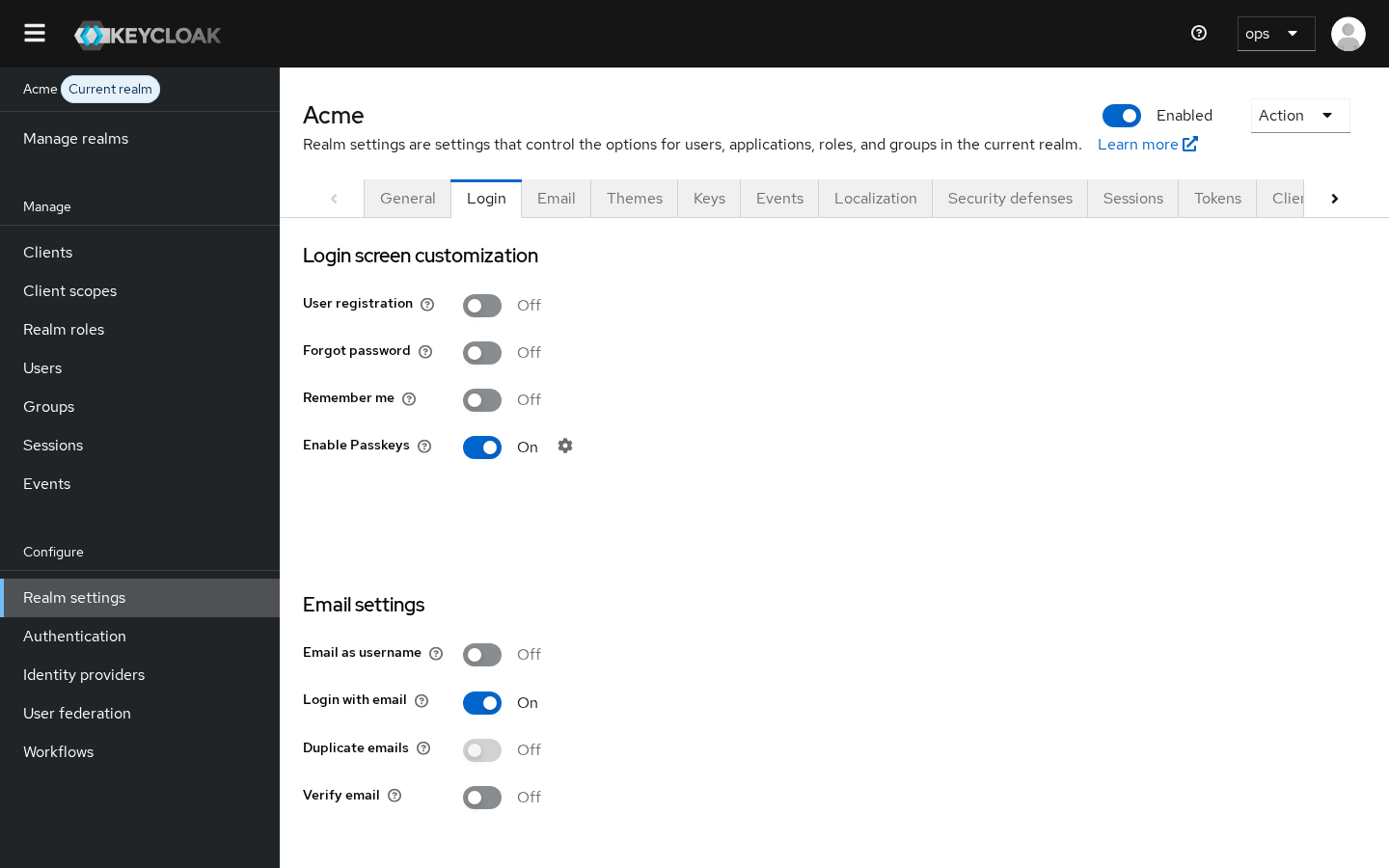
Once the switch is on, a Passkey Mediation select appears (in Keycloak 26.8.1 it sits at the top of the WebAuthn Passwordless Policy page, as the screenshot in Step 2 shows). The admin guide says it “maps directly to the mediation parameter” of navigator.credentials.get() and controls what happens when the login page loads:
| Passkey Mediation | What the user sees on page load |
|---|---|
conditional (default) |
Nothing pops up; passkeys appear in the browser’s autofill list when the user clicks the username field |
none |
Nothing automatic; the user clicks Sign in with Passkey |
optional |
A passkey picker opens automatically, and the user can dismiss it |
required |
A passkey picker opens immediately and must be used or dismissed |
silent |
The browser tries without any UI; the guide says it is “unlikely to succeed for most passkey types” and meant for advanced cases |
Start with the default conditional value, which is the least intrusive. Switch to optional if your users mostly have passkeys and you want the picker to open on its own. The guide warns that support for required and silent is “known to be different among browsers”, so test those two in your users’ browsers before relying on them.
Step 2: Check the WebAuthn Passwordless Policy
Open Authentication > Policies > WebAuthn Passwordless Policy. The defaults (user verification required, discoverable credential required) are usually enough for passkeys, as the loginless section of the admin guide says. These are the settings worth knowing, all described in the guide’s policy table:
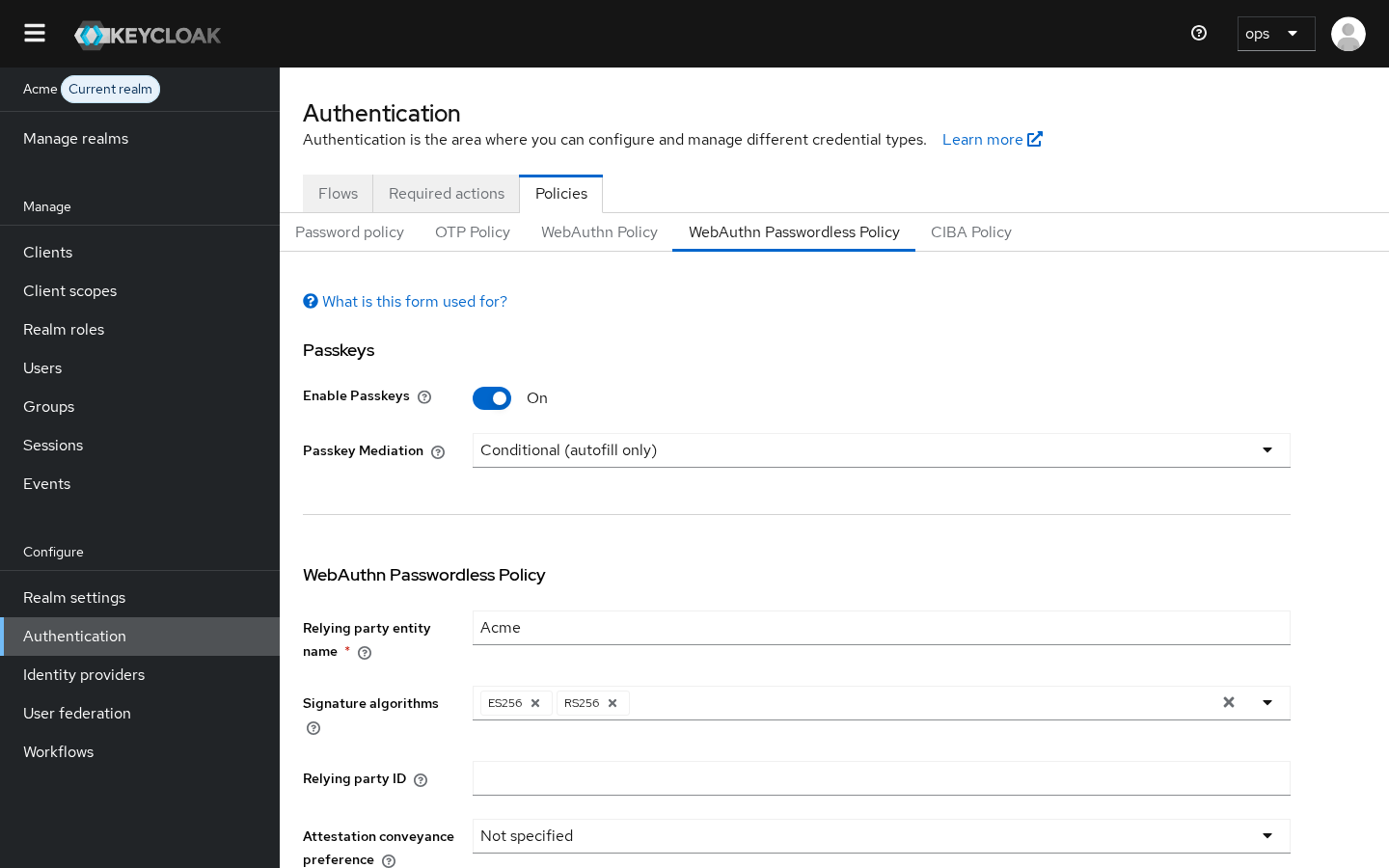
- Relying Party Entity Name: the readable name of your service, which the browser shows during registration. The default is “keycloak”, so change it to your product name.
- Relying Party ID: the domain credentials are bound to. Leave it blank and Keycloak uses the host part of its base URL. Check this setting first when passkeys stop working after a hostname or proxy change; the troubleshooting section covers it.
- Signature Algorithms: ES256 and RS256 are the defaults. Keep RS256 in the list if you want Windows Hello to work: the guide’s Windows Hello remarks say to “configure the Signature Algorithms setting of the WebAuthn Passwordless Policy to include the RS256 value”.
- Discoverable Credential:
required,preferredordiscouraged. This option is listed under Keycloak 26.7.0 in the release notes, which say the two policies “now provide a Discoverable credential option that follows the current WebAuthn specification, supporting required, preferred, and discouraged values” and that it improves compatibility with passkey providers such as iCloud Keychain, Google Password Manager and 1Password. It replaces the old Yes or No Require Discoverable Credential option, which is now deprecated and only used when the new option is left unspecified. Keep it atrequiredfor passkey login. - User Verification Requirement: keep
required. User verification is the biometric or PIN check that proves the person holding the passkey is its owner, and the guide lists it as a requirement for loginless authentication. - Attestation Conveyance Preference:
noneis right for most sites. Attestation is the authenticator’s proof of its own make and model (specification), and you only need it configured (normallydirect) if you plan to restrict which authenticator models may register, which the AAGUID filtering section below covers. - Authenticator Attachment: leave it unset unless you have a reason to restrict users to built-in or external authenticators.
Step 3: Enable the Webauthn Register Passwordless required action
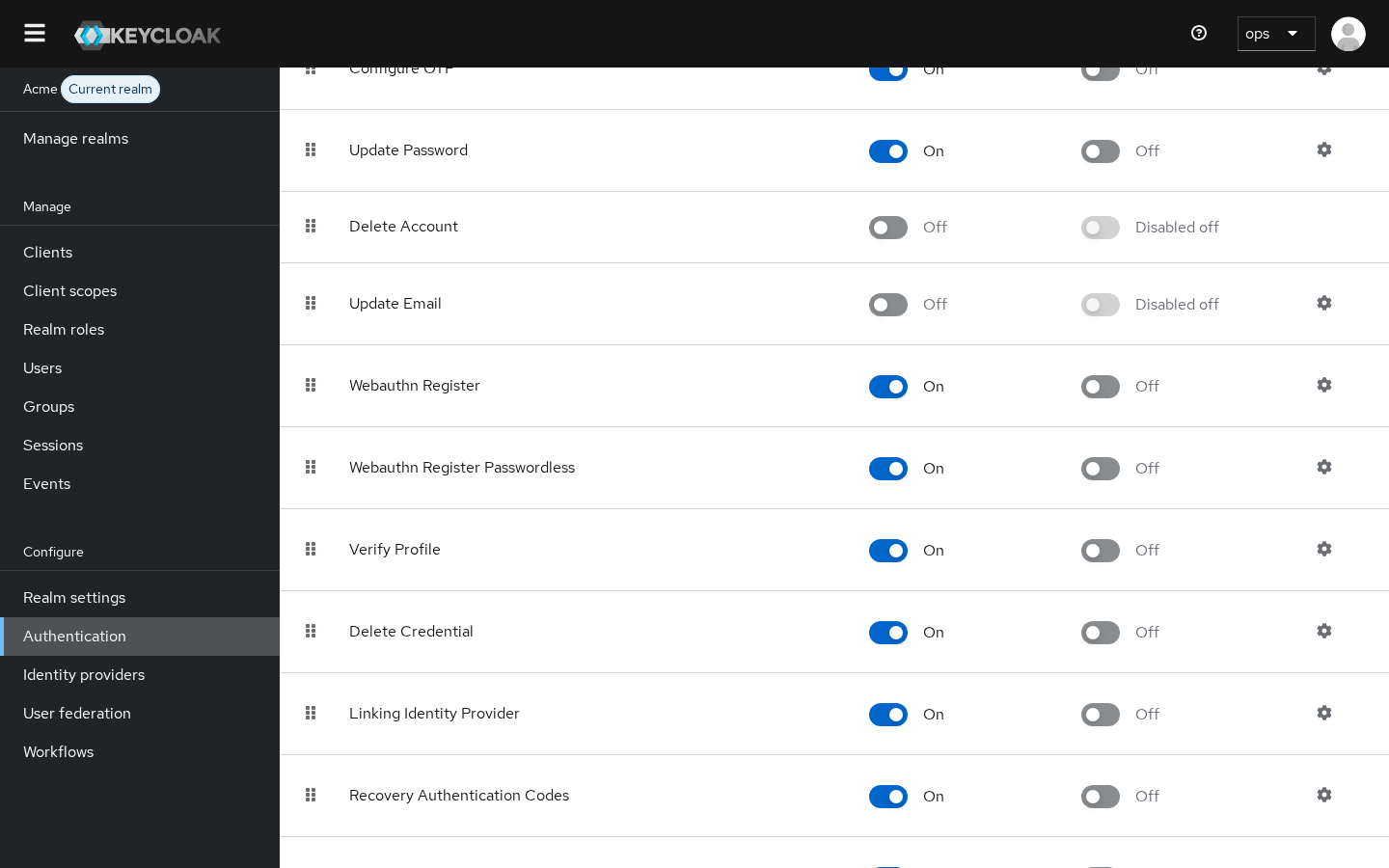
Go to Authentication > Required actions and switch Webauthn Register Passwordless on. Turn on Default Action as well if you want every new user to be asked to create a passkey after their first sign-in: the guide says that with a WebAuthn registration action set as Default Action, “new users must set up the Passkey after their first login”. Do not confuse it with Webauthn Register, the action without “Passwordless”, which creates a second-factor credential instead and is the subject of Mode 2.
Step 4: Leave the default browser flow alone
With Enable Passkeys on, the default browser flow already handles passkeys. The admin guide lists what changes: the Username Password Form and Username Form show both the autofill (conditional) UI and a Sign in with Passkey button (the modal UI), the Password Form is skipped when the user already authenticated with a passkey, and a Condition - credential step inside Browser - Conditional 2FA skips the second factor after a passkey login. The same section says passkeys also appear in the re-authentication form used during identity provider first login and in the organization login form.
If you run a copied or custom browser flow, keep one of the forms that section lists in it, because the guide says the passkey UI is “available in the forms in which the username input is displayed (for example Username Password Form or Username Form)”. Our guide to Keycloak custom authentication flows covers duplicating a built-in flow, editing the copy and binding it to the realm.
Step 5: Register a passkey
Users can register from the Account Console, which the guide says lives at server-root/realms/{realm-name}/account (so https://keycloak.example.com/realms/your-realm/account with your own host and realm name): open Account security > Signing in and click Set up a Passkey in the Passwordless section, as the passwordless procedure describes. If you made the required action a default action, new users get the prompt right after their first login instead.
Applications can also start registration themselves with an Application Initiated Action (AIA), which the guide says is triggered “by adding the kc_action parameter to the OIDC login URL”. Two prerequisites apply: the same section says AIA “are supported only for OIDC clients”, and the redirect URI you send has to match one of the client’s Valid redirect URIs, which the client settings compare with “Exact (case sensitive) string matching”. The WebAuthn AIA section names the two actions, webauthn-register and webauthn-register-passwordless, and says both accept a skip_if_exists parameter, appended after a colon, that skips the action when the user already has a credential of that type and returns kc_action_status=success. The parameter is listed under Keycloak 26.3 in the release notes, which say both actions “now support a parameter skip_if_exists when initiated by the application (AIA)”. So a “Set up a passkey” button in your app is a normal authorization request with one extra parameter. Copy this URL and replace the host, realm, client ID and redirect URI with your own:
https://keycloak.example.com/realms/your-realm/protocol/openid-connect/auth?client_id=my-app&redirect_uri=https%3A%2F%2Fapp.example.com%2Fcallback&response_type=code&scope=openid&kc_action=webauthn-register-passwordless%3Askip_if_existsIf you would rather build it in code, this is the same request with the parameters assembled and encoded for you:
const keycloak = "https://keycloak.example.com";
const realm = "your-realm";

const params = new URLSearchParams({
  client_id: "my-app",
  redirect_uri: "https://app.example.com/callback",
  response_type: "code",
  scope: "openid",
  kc_action: "webauthn-register-passwordless:skip_if_exists",
});

window.location.href =
  `${keycloak}/realms/${realm}/protocol/openid-connect/auth?${params}`;
The user signs in if they have no session (the guide says AIA also works when the user “is already authenticated on the client and has an active SSO session”), registers the passkey or is skipped straight through if they already have one, and comes back to your redirect URI with the usual code plus a kc_action_status parameter: the WebAuthn AIA section says it is success when the action was skipped, and the AIA section says a user who cancels comes back with kc_action_status=cancelled. Drop the :skip_if_exists suffix when you want the registration prompt even for users who already have a passkey, for example on an “add another passkey” button. For a React or Next.js front end, implementing passkeys in React and Next.js with Keycloak covers the Keycloak configuration, a login page with conditional UI and a passkey registration component.
Step 6: Test the login
Open the login page in a normal browser window (the guide’s Windows Hello remarks note that “some browsers don’t allow access to platform Passkey (like Windows Hello) inside private windows”), click into the username field, and pick your account from the autofill list (or click Sign in with Passkey). After the biometric or PIN check you should land in the application without seeing a password field. Then sign in once with a password-only test user to confirm the password path and its second factor still work.
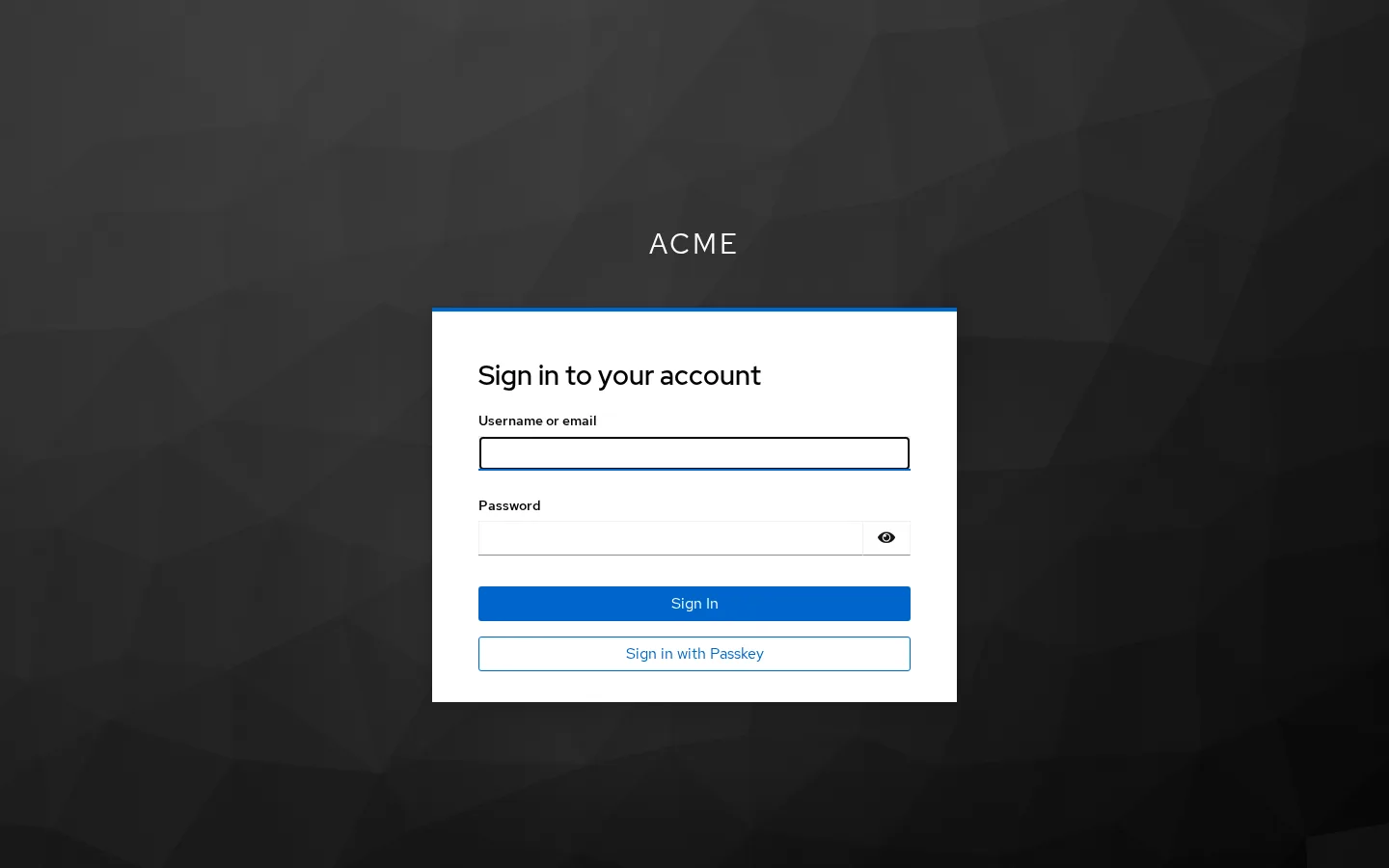
The autofill list is drawn by the browser itself when the username field gets focus, so it is not part of the page above; what the page contributes is the username field with the autofill token and the Sign in with Passkey button.
Mode 2: How do you add a passkey as a second factor?
You add a passkey as a second factor by enabling the Webauthn Register required action and changing WebAuthn Authenticator from Disabled to Alternative in the browser flow’s Browser - Conditional 2FA sub-flow, which is the setup the admin guide gives for WebAuthn two-factor authentication. The user still types a password, then confirms with the passkey.
Step 1: Configure the WebAuthn Policy
Open Authentication > Policies > WebAuthn Policy (the one without “Passwordless”). Both policies have the same fields, described once in the guide’s policy table, but the blank defaults suit a second factor: user verification behaves like preferred, and the discoverable credential setting falls back to the deprecated Require Discoverable Credential option, which behaves like “No” when blank. Set the Relying Party Entity Name and leave the Relying Party ID blank unless you need a parent domain, for the same reasons as in Mode 1.
Step 2: Enable the Webauthn Register required action
In Authentication > Required actions, switch Webauthn Register on, and turn on Default Action if every new user should enroll. To enroll an existing user, open them under Users and add Webauthn Register to their required user actions: the guide describes this as assigning the action “from the Reset Actions list”, and the user is then asked to register at their next login. Users can also do it themselves in the Account Console under Account security > Signing in with Set up a Passkey, the two-factor procedure in the guide.
Step 3: Turn on the WebAuthn Authenticator in the browser flow
These are the steps on the default flow:
- Open Authentication and click the browser flow. You cannot edit the steps of a built-in flow, but you can change their requirements, so this change works on the built-in flow directly. If you also want to add or remove steps, duplicate the flow, edit the copy, and use Bind flow to make it the browser flow.
- Inside Browser - Conditional 2FA, find WebAuthn Authenticator.
- Change its requirement from Disabled to Alternative.
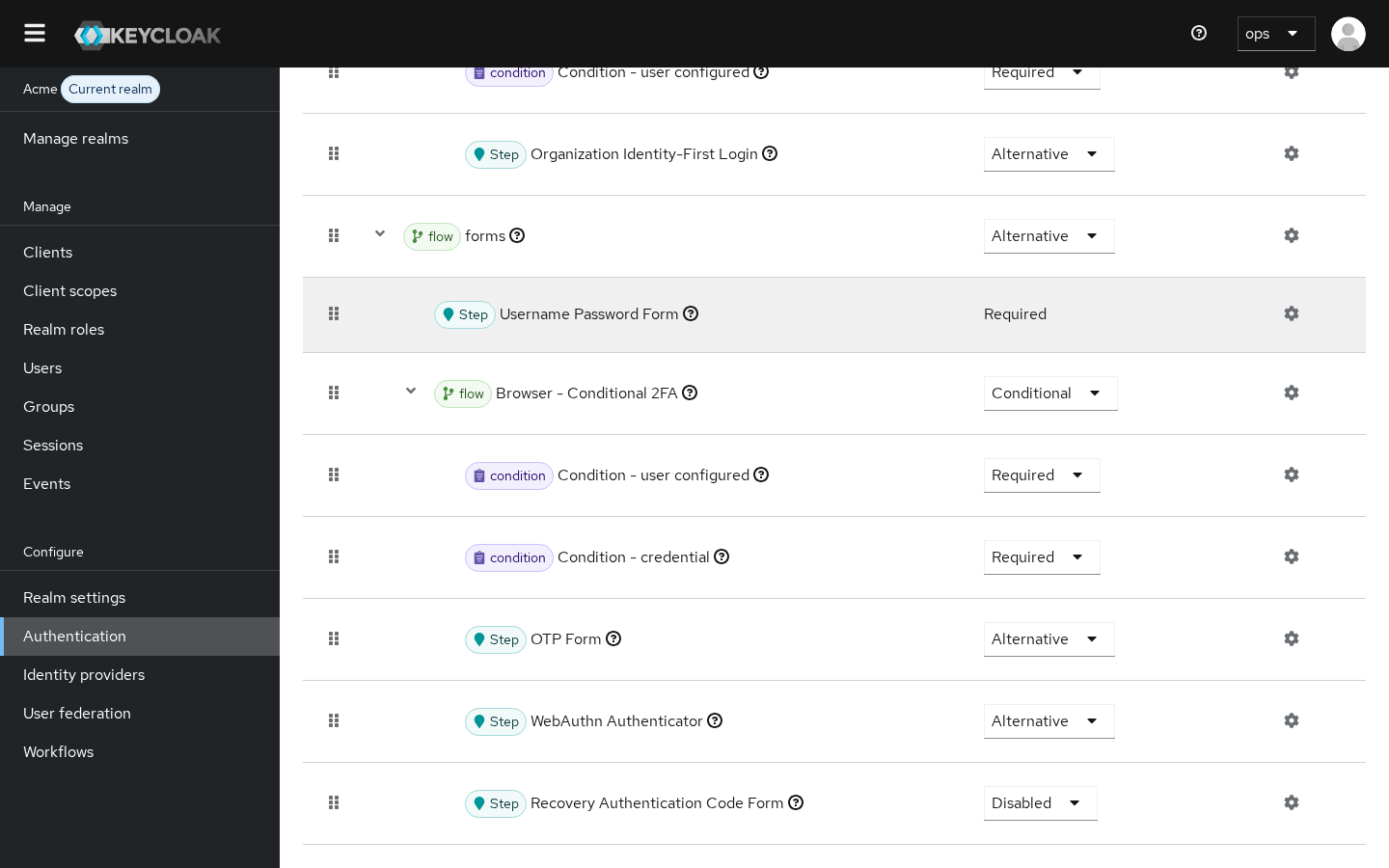
With that change, a user who has registered a WebAuthn credential can choose between it and OTP for the second factor, and Keycloak shows a Try Another Way option when both are configured. To make the passkey the only second factor, set OTP Form to Disabled as well. Setting WebAuthn Authenticator to Required inside that sub-flow is not enough on its own to force enrollment, because the sub-flow is conditional and only asks users who have already registered a second-factor credential. To require WebAuthn for everyone and make users enroll when they have no credential yet, make three changes: Browser - Conditional 2FA to Required, OTP Form to Disabled and WebAuthn Authenticator to Required. The guide’s WebAuthn authenticator setup walks through each of these variants with a screenshot of the resulting flow. Keep the Webauthn Register required action from Step 2 enabled, since that is the action that registers the credential. If you keep the sub-flow conditional, enrollment comes from the required action instead: as a Default Action for new users, or added to existing users one by one.
The sub-flow also contains Condition - credential, which skips the second factor when the user already signed in with a passkey. If your policy says a password login and a passkey login should both require 2FA, change that condition from Required to Disabled, which is the change the passkeys section of the guide suggests when you always want 2FA. For applying a passkey prompt only to some clients or actions, see step-up authentication with Keycloak, and for MFA patterns in general, Keycloak MFA configuration patterns for enterprise.
Running both modes together
Both modes can be active in the same realm, and Keycloak keeps the two credential types apart: the guide describes a separate required action and a separate “WebAuthn Passwordless Authenticator” for the passwordless side. A credential created by Webauthn Register Passwordless is the one the Account Console’s Passwordless section sets up and can start a login; one created by Webauthn Register is the one its two-factor procedure sets up and is only asked for after a password. The Condition - credential step prevents a double prompt for someone who already used a passkey.
In practice this gives you a gradual migration: everyone keeps their password and second factor, the people who register a passkey stop typing passwords, and you can measure adoption before deciding whether to make passkeys required.
Talk through your identity setup with us
Book a demo and we will walk you through Skycloak with the sign-in, SSO and migration questions your team is working on.
Troubleshooting: why does the passkey prompt not appear?
Work through five places in this order: the Relying Party ID, the required action that was used, the login form, user verification, and authenticator filtering.
The RP ID does not match the domain (proxies and custom domains)
A passkey is scoped to the Relying Party ID it was created for, and the browser only allows an RP ID that equals the domain in the address bar or a registrable parent of it: the WebAuthn specification says that “Web Authentication requires that the RP ID be equal to the origin’s effective domain, or a registrable domain suffix of the origin’s effective domain” (the RP ID definition has the full rule). A blank RP ID in Keycloak means the host part of Keycloak’s base URL, per the policy table. Two situations to check follow from that:
- Behind a reverse proxy, if Keycloak’s base URL is not the public hostname, the RP ID it derives can differ from the domain the user sees, and the browser rejects the request. Set the public hostname as described in Keycloak’s hostname guide and forward the right headers per the reverse proxy guide.
- After moving to a custom domain, passkeys registered on the old login hostname stay bound to that RP ID, so expect them not to be offered on the new one. Plan the move before passkey rollout if you can. If several login hostnames share a parent domain (for example
login.example.comandauth.example.com), the parent-domain rule permits an RP ID ofexample.comfor both, so set it before users register if you want one set of credentials across them.
Native mobile apps that call WebAuthn from a non-web origin can list that origin in the policy’s Extra Origins field, which the release notes for Keycloak 23 introduced for “better interoperability with non-Web platforms (for example, native mobile applications)”.
The user registered with Webauthn Register instead of Webauthn Register Passwordless
This is an easy mix-up. A credential created by Webauthn Register is a second-factor credential, and loginless authentication only works with WebAuthn Passwordless credentials created under the WebAuthn Passwordless Policy, as the loginless section of the guide explains, so it is not offered on the login page as a passkey even if the device stored it as a discoverable credential. Open the user’s Credentials tab in the admin console: if it shows a WebAuthn credential but no passwordless one, ask the user to add a passkey in the Passwordless section of the Account Console, or give them the Webauthn Register Passwordless required action.
Conditional UI (autofill) does not show
The autofill list only appears in a username field tagged with the username webauthn autocomplete token, which the stock Keycloak forms carry, as the guide’s conditional UI section explains. If it does not show, check these in turn:
- Enable Passkeys is off, or Passkey Mediation is set to
none(users then need the Sign in with Passkey button). - The theme dropped the token. A custom login theme that rewrote the username input must keep
autocomplete="username webauthn"on it. - The browser does not support autofill for passkeys. The passkeys.dev support matrix lists which browser versions do. When the browser does not support conditional mediation, Keycloak behaves as if the mediation were
none, per the mediation table. - The device has no matching passkey. Autofill only lists credentials the browser can enumerate. Passkeys on hardware tokens or on other devices need the modal Sign in with Passkey button, which the guide’s modal UI section says makes all passkeys usable.
- Authenticator Attachment is
platformand the device has no user-verifying platform authenticator, in which case Keycloak skips the automatic passkey flow on page load whatever the mediation value, per the mediation section.
User verification fails
With user verification set to required, the authenticator must check a biometric or PIN, and not every authenticator can. The guide’s compatibility check list tells you to check with your passkey vendor whether the device supports user verification, so when registration or login fails, first ask whether the device can verify the user at all: a security key with no PIN set, or a laptop with no Windows Hello unlock configured, are worth ruling out. Ask the user to set a PIN on the key or turn on the platform unlock, or relax the requirement to preferred in the second-factor policy (keep it required for passwordless). If only Windows Hello users fail, check that RS256 is in the signature algorithms, per the guide’s Windows Hello remarks.
Synced versus device-bound passkeys, and AAGUID filtering
Authenticators report an AAGUID, a 128-bit identifier for the authenticator’s make and model. You can restrict registration to approved models with Acceptable AAGUIDs, but this needs attestation configured (normally direct), because with the default attestation of none the authenticator can report an all-zero AAGUID and legitimate passkeys get rejected. Keycloak also verifies the attestation statement against the vendor root certificates in its truststore, so those must be imported. All three points come from the guide’s policy table.
Decide on filtering based on assurance level. NIST’s Authentication Assurance Levels (AAL) grade how much confidence a login gives: AAL2 requires two distinct factors and a phishing-resistant option, and AAL3 requires a phishing-resistant authenticator whose key cannot be exported from a hardware-protected environment. Because syncable authenticators need an exportable private key, NIST SP 800-63B-4 says they “SHALL NOT be used at AAL3”, while its Appendix B sets the requirements for using them at the lower levels. If you need AAL3, Acceptable AAGUIDs is the Keycloak setting for limiting registration to device-bound hardware keys, though AAL3 has further requirements (such as FIPS 140 validation of the authenticator) that Keycloak settings alone do not meet. For most consumer and SaaS logins, in our view, filtering locks out the synced passkeys people actually have, and we would not do it.
Users from a federation provider cannot register
WebAuthn limits the user handle, the identifier the Relying Party passes at registration, to 64 bytes: the specification defines it as “an opaque byte sequence with a maximum size of 64 bytes”. Keycloak passes its internal user ID there, and for users from a federation provider such as LDAP that ID is a storage ID made of an f: prefix, the provider ID and the user ID. The admin guide says that this storage ID “can exceed the 64 byte limitation”, and tells you to use short IDs for the federation provider component and for the users coming from it if you combine federation and WebAuthn.
Rollout and recovery: how do you avoid locking users out?
Roll passkeys out as an addition before you make them a requirement, ask everyone to register a second passkey, and give second-factor users recovery codes rather than an SMS fallback. Users lose phones, and the recovery path decides whether that becomes a support ticket or a five-minute fix.
- Keep a fallback during rollout. With Enable Passkeys on, the default flow keeps the username and password form and adds the passkey options to it, so a user without their passkey can still type their password and complete the second factor. Do not remove passwords until most active users have a passkey.
- Ask for a second passkey. A synced passkey is still there after one device is lost, because the passkey provider copies it to the user’s other devices that use the same provider, but a device-bound passkey lives only on the device where it was created. Encourage users to register another passkey on a second device or a security key, with the same Account Console procedure as the first one.
- Enable recovery codes for second-factor users. Recovery codes have been a supported feature since Keycloak 26.3, which promoted them from preview. Keycloak generates a set of sequential one-time codes (12 in the current version) that the user keeps somewhere safe. To offer them, enable the Recovery Authentication Codes required action and set Recovery Authentication Code Form to Alternative inside Browser - Conditional 2FA, next to the WebAuthn Authenticator; the recovery codes procedure has the clicks. Since Keycloak 26.4 you can also make the Configure OTP action ask for recovery codes automatically.
- Do not add SMS as the escape hatch. A one-time code over SMS is out-of-band authentication over the public switched telephone network, which SP 800-63B-4 lists as its one restricted authenticator at the time of publication, so adding it gives every account a path that NIST itself restricts. If you are moving away from SMS today, our Entra SMS MFA retirement and Keycloak passkey migration plan explains how to retire SMS without locking people out.
- Lock down enrollment and recovery. Once passkeys take phishing off the table, the help desk and the “add a new passkey” step are the parts left to harden. Require a fresh strong login before a new credential is added, and verify identity before an administrator resets one. Our post on MFA fatigue and enrollment abuse in Keycloak covers controlling authenticator enrollment and the events that record a registration, and device code phishing and passkey lures covers cutting off an attacker after a suspected help desk lure.
Browser and OS support in October 2026
The platforms in the passkeys.dev device support matrix all list passkey support in current versions, and the remaining gaps are in autofill on Linux and in syncing on Windows. The table below summarizes that matrix as last updated in September 2026.
| Platform | Synced passkeys | Autofill (conditional UI) | Notes |
|---|---|---|---|
| Android | Android 9+ | Chrome 108+, Edge 122+ | Third-party passkey managers from Android 14 |
| iOS and iPadOS | iOS 16+ | iOS 16.1+ in Safari, Chrome, Edge and Firefox | Third-party managers from iOS 17 |
| macOS | macOS 13+ | Safari 16.1+, Chrome 108+, Firefox 122+, Edge 122+ | Third-party managers from macOS 14 |
| Windows | Listed as planned; device-bound passkeys supported | Chrome 108+, Firefox 122+, Edge 122+ on Windows 11 22H2+ | Can use a phone for cross-device login from 23H2; third-party managers from 25H2 |
| ChromeOS | ChromeOS 129+ | ChromeOS 129+ | Can use a phone for cross-device login |
| Linux (Ubuntu in the matrix) | Through browser extensions | Through browser extensions | Cross-device login in Chrome and Edge |
Two practical notes. WebAuthn only runs in secure contexts: the specification says “user agents only expose this API to callers in secure contexts”, so your Keycloak login page must be served over HTTPS, and the Secure Contexts specification returns “Potentially Trustworthy” for localhost and for hosts in 127.0.0.0/8 or ::1/128, which covers local development. Cross-device login, where a phone that holds the passkey approves a sign-in started on another device, is listed per platform in the matrix’s cross-device authentication rows, and the admin guide says both synced and device-bound passkeys can be used for it without describing any Keycloak setting for it.
Frequently asked questions
Does Keycloak support passkeys?
Yes. Keycloak has supported passkeys natively since version 26.4, when the passkeys integration moved from preview to supported, according to the 26.4 announcement. You turn it on per realm with the Enable Passkeys switch, and the default login forms then offer passkey sign-in through browser autofill and a Sign in with Passkey button.
Which Keycloak version do I need for passkeys?
You need Keycloak 26.4 or newer for the built-in passkey login. The release notes for Keycloak 26.3 introduced the switch (“A new switch Enable Passkeys is available in the configuration”) but said the feature “is still in preview” and pointed to the features guide to enable it at server start. Keycloak 26.7 added the Discoverable Credential option for better compatibility with password managers, and the 26.7.0 guide and later place the Enable Passkeys switch under Realm settings > Login.
What is the difference between Webauthn Register and Webauthn Register Passwordless?
Webauthn Register creates a second-factor credential under the WebAuthn Policy, which is only used after a password. Webauthn Register Passwordless creates a passkey under the WebAuthn Passwordless Policy, which can start a login on its own. They are separate credentials, set up from separate procedures in the Account Console.
Do I need to change the browser flow to use passkeys?
Not for passkey login on the default browser flow: Enable Passkeys is enough. You do need a flow change to use a passkey as a second factor, by setting WebAuthn Authenticator to Alternative in Browser - Conditional 2FA. A custom flow needs one of the forms the guide lists, such as Username Password Form or Username Form, for the passkey UI to appear.
Why is the “Sign in with Passkey” option missing?
The usual causes are that Enable Passkeys is off, the realm uses a custom browser flow or theme that does not render the stock username form, or the browser does not support passkeys. If the button shows but the user’s passkey is not offered, check the RP ID against the login domain and confirm the user registered a passwordless credential rather than a second-factor one.
Do Keycloak passkeys sync across devices?
Syncing is done by the user’s passkey provider (iCloud Keychain, Google Password Manager or a third-party manager), not by Keycloak: the FIDO Alliance says a passkey “gets synced to all the user’s other devices using the same passkey provider”. Keycloak stores the public key, which the specification says “is returned to the Relying Party, which then stores it in the active user account”, so a synced passkey can be used from the user’s other devices without any change on the Keycloak side.
Can passkeys meet phishing-resistant MFA requirements?
Yes. Passkeys are scoped to your Relying Party ID, the specification calls synced passkeys a “phishing-resistant sign in”, and the FIDO Alliance says they “are always strong and phishing-resistant”. Under NIST SP 800-63B-4, syncable authenticators “SHALL NOT be used at AAL3”, which requires a non-exportable key, while Appendix B sets the requirements for using them.
What happens if a user loses their only passkey?
In the default flow the password form is still there, so they can sign in with their password and second factor, then register a new passkey from the Account Console. If you have removed passwords, there is no self-service path left: an administrator has to verify the user by whatever process you have, give them a way to sign in once (a temporary password, for example), and assign the Webauthn Register Passwordless required action, which the guide says prompts the user “to register a Passkey” after they authenticate. That is why asking for a second passkey during rollout matters.
Running passkeys on managed Keycloak
Turning passkeys on in a realm is a handful of admin console steps (the 26.4 announcement lists them under “A few examples”), and most of the ongoing work is keeping Keycloak current (the passkey settings changed in 26.3, 26.4 and 26.7, per the release notes linked above), keeping hostnames and custom domains stable so registered passkeys keep working, and handling recovery. Skycloak runs managed Keycloak clusters on the version you pick from our supported list, with custom domains and branding for your login page, so you can follow this guide on a realm without operating the servers yourself.
To get started, see the passwordless feature page and the multi-factor authentication feature page. If you are building the realm from scratch, the Keycloak config generator produces a starting realm JSON with clients and roles that you can import before switching passkeys on as above. If you want to run it on managed Keycloak, compare plans on the pricing page to follow the steps on your own realm, or book a demo and we will walk you through it.
Sources
- Keycloak, “Passkeys support in upcoming Keycloak release (26.4)”, dated September 16 2025 on the page, https://www.keycloak.org/2025/09/passkeys-support-26-4
- Keycloak, “Server Administration Guide”, version 26.8.1, sections “WebAuthn”, “Passkeys”, “Managing policy”, “Recovery Codes”, “Application Initiated Actions”, “Managing credentials” and “Using the Account Console”, https://www.keycloak.org/docs/latest/server_admin/index.html
- Keycloak, “Server Administration Guide”, version 26.7.0, section “Passkeys”, https://www.keycloak.org/docs/26.7.0/server_admin/index.html
- Keycloak, “Release Notes”, sections for 26.7.0, 26.4.0, 26.3.0 and 23.0.0, https://www.keycloak.org/docs/latest/release_notes/index.html
- Keycloak, “Configuring the hostname” and “Using a reverse proxy”, https://www.keycloak.org/server/hostname and https://www.keycloak.org/server/reverseproxy
- W3C, “Web Authentication: An API for accessing Public Key Credentials Level 3”, https://www.w3.org/TR/webauthn-3/
- W3C, “Secure Contexts”, section “Is origin potentially trustworthy?”, https://w3c.github.io/webappsec-secure-contexts/
- FIDO Alliance, “Passkeys”, https://fidoalliance.org/passkeys/
- FIDO Alliance, “FIDO2”, https://fidoalliance.org/fido2/
- passkeys.dev, “Device Support”, last updated September 21 2026 per the page, https://passkeys.dev/device-support/
- NIST, “SP 800-63B-4: Digital Identity Guidelines: Authentication and Authenticator Management”, sections 2.2.3, 3.2.9 and Appendix B, https://pages.nist.gov/800-63-4/sp800-63b.html