What Is Passwordless Login? How It Works and Keycloak Setup. A passwordless login proves who you are with a passkey or a one-time link instead of a stored secret. How it works, and how to turn it on in Keycloak 26.x.
A passwordless login verifies who you are without a password you type or the server stores. Instead it uses something you have (a phone, a security key, your email inbox) or something you are (a fingerprint or face), most often through a passkey or a one-time magic link. Because no reusable secret is stored, it cannot be stuffed or brute-forced the way a password can, and with passkeys it cannot be phished either.
This post gives the plain definition, explains the two mechanisms you will actually meet (public-key passkeys and emailed one-time links), ranks the common methods by how well they resist phishing, and then walks through turning each one on in Keycloak 26.x: passkeys with the built-in support, and magic links with our open-source extension. If you only want the Keycloak passkey setup in depth, our complete guide to Keycloak passkeys and WebAuthn covers it step by step, including the troubleshooting.
What is a passwordless login?
A passwordless login is any sign-in where the user never types a password and the server never keeps one. The proof of identity comes from a different factor. NIST SP 800-63B names the three factors in its authenticator requirements: it says “A password is “something you know””, and that a multi-factor cryptographic authenticator such as a passkey “is “something you have” and is activated by an activation factor that represents either “something you know” or “something you are””, in the standard’s words. A passwordless method simply drops the password as the thing you present to the website.
Two things are easy to confuse with it. A one-time code you enter after your password is multi-factor authentication, not passwordless, because the password is still there to steal. And a fingerprint that unlocks a password manager, which then fills in a password, is still a password login as far as the server is concerned, because the server still stores and checks a secret that someone could phish. Passwordless means the secret that the server checks is never a shared, reusable string. Our explainer on phishing-resistant MFA goes further into why the server-side secret is the part that matters.
In practice, the methods you will meet are:
- Passkeys and security keys, which use public-key cryptography through the WebAuthn browser API.
- Magic links, one-time links sent to your email that sign you in when you open them.
- Push approval, where you tap “approve” on a phone that was registered earlier.
- One-time codes by SMS or email, used on their own rather than after a password.
The rest of this post concentrates on the first two, because they are the ones most products ship first and the ones Keycloak can do today.
How does a passwordless login work?
The two mechanisms work in very different ways, so it helps to see each one on its own. A passkey proves possession of a private key by signing a challenge. A magic link proves control of an inbox by making you open a link only the inbox received.
Passkeys: a signature instead of a secret
A passkey is, in the FIDO Alliance’s words, “an authentication credential based on FIDO standards, that can be stored on your phone or computer, or in a hardware security key allowing a user to sign in to apps and websites with the same process that they use to unlock their device”. Under the hood it is a WebAuthn credential: a key pair that the device creates when you register. The device keeps the private key and gives the website only the public key. The WebAuthn specification says the credential “can only be accessed by origins belonging to that Relying Party”, and that this scoping “is enforced jointly by conforming User Agents and authenticators”.
At login the server sends a fresh random challenge. You unlock the device (fingerprint, face or PIN, checked locally: the FIDO Alliance says “Biometric information and processing continues to stay on the device and is never sent to any remote server”), the private key signs the challenge, and the server checks the signature with the public key it stored. A copy of the server’s database holds nothing that lets anyone sign in, which is the opposite of a password hash. Our post on FIDO2 and passwordless security explains the two protocols underneath, WebAuthn and CTAP.
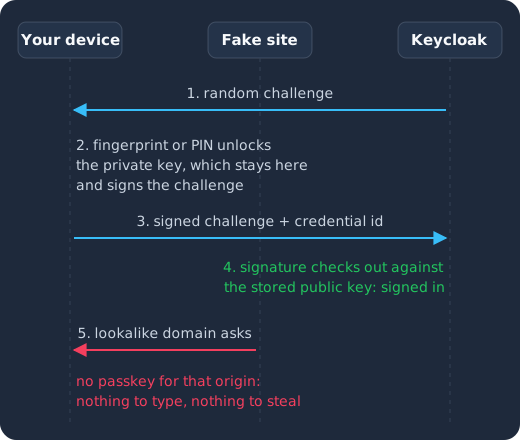
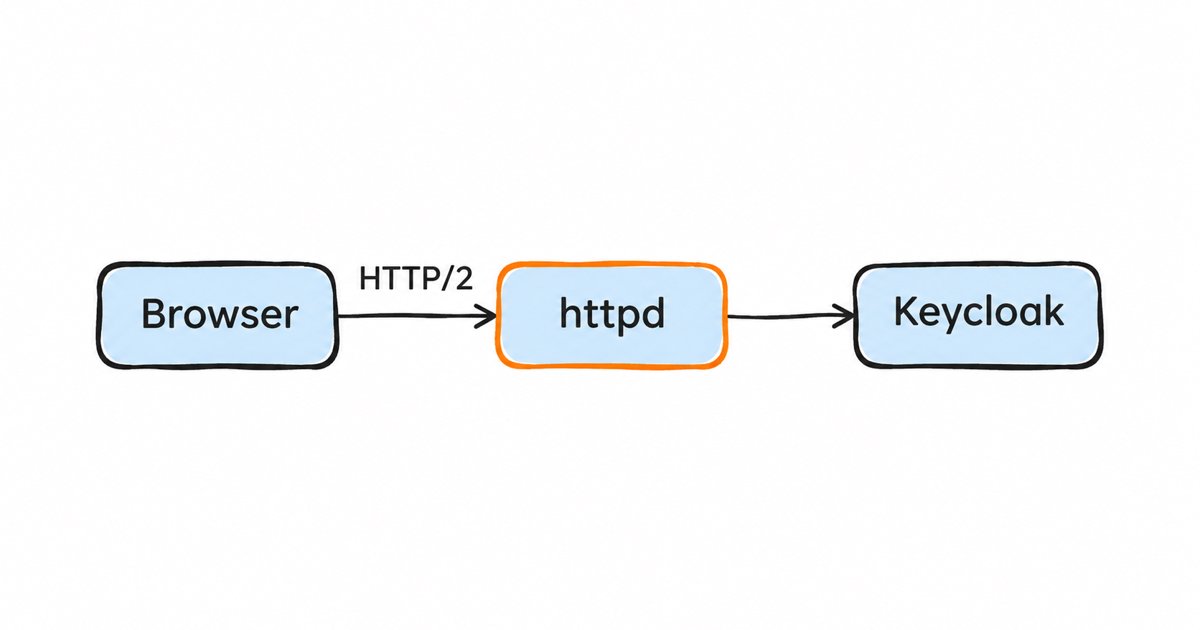
Keycloak sends a random challenge (1), your device unlocks the private key and signs the challenge without the key ever leaving the device (2), the signed challenge goes back (3) and Keycloak verifies it with the stored public key (4). A lookalike domain that asks for the credential gets nothing, because the WebAuthn specification says the credential “can only be accessed by origins belonging to that Relying Party” (5).
That last step is why passkeys resist phishing. There is nothing to type into a fake page, and the credential is scoped to the Relying Party that registered it, so a domain other than yours cannot ask for it. It is also what makes passkeys different from a code you read off a phone and type in. Our guide to device-code phishing and passkey lures shows what attackers try instead once passwords are gone.
Magic links: a one-time link in your inbox
A magic link turns your email inbox into the “something you have”. You type your email address, the server generates a random, single-use token, embeds it in a link and emails it to you. Opening the link presents the token, the server checks that it is unused and not expired, marks it used, and signs you in. Nothing is stored that could be replayed: the token is good once, for a few minutes, and only the inbox received it.
A plain link works in any browser, and that is its weak spot: a link forwarded to the wrong person, or opened by a corporate email scanner, signs that browser in. Our Magic Link (Skycloak) extension for Keycloak is built to avoid that: its README’s security model section says that “The link completes only in the browser that requested it”, so “an intercepted or forwarded link is useless elsewhere”, and that under same-device “a scanner’s cookieless prefetch fails without consuming” the link.
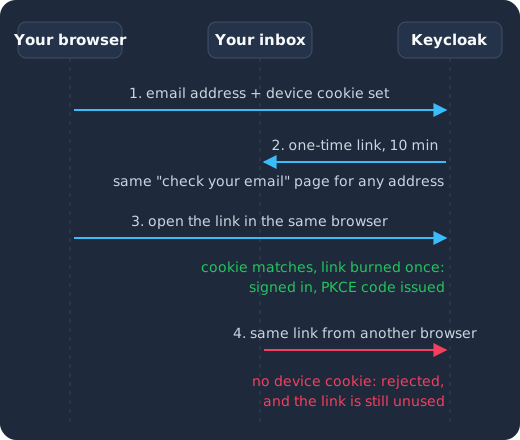
You type your email and the browser gets a device cookie (1). The extension emails a one-time link and, as its README’s security model section says, shows the same “check your email” page “whether or not the address exists” (2). Opening the link in the same browser matches the cookie, burns the link and signs you in (3). The same link opened from another browser has no cookie, so Keycloak rejects it and the link stays unused (4).
Email one-time codes work the same way as magic links except that you type the code instead of clicking, which is why they sit a step lower in the ranking below. Our post on the email OTP extension for Keycloak covers that option, and what OTP is and how it helps is the background if the term is new.
Which passwordless methods resist phishing?
Not every passwordless method is phishing resistant, and the standards are clear about which are. NIST SP 800-63B says that “Phishing resistance requires single- or multi-factor cryptographic authentication” and that “Authenticators that involve the manual entry of an authenticator output (e.g., out-of-band and OTP authenticators) SHALL NOT be considered phishing-resistant because the manual entry does not bind the authenticator output to the specific session being authenticated”. The same document calls use of the phone network for out-of-band codes “restricted” and says plainly that “Email SHALL NOT be used for out-of-band authentication”.
Read as a ranking, that gives:
| Method | How it proves you | Phishing resistance | What NIST 800-63B says |
|---|---|---|---|
| Passkeys and hardware security keys | A signature over a server challenge, scoped to the origin | Resistant | Cryptographic authenticators are the only ones that count as phishing resistant; because a synced passkey’s private key is exportable, “syncable authenticators SHALL NOT be used at AAL3”, so AAL3 needs a device-bound key |
| Push approval and magic links | You approve, or open a link, on something you control | Not counted as resistant | Out-of-band methods bind nothing to the session on their own; same-device binding of a magic link helps, but email is not accepted as an out-of-band channel |
| SMS and email one-time codes | You read a code and type it in | Not resistant | Manual entry of a code can be relayed by an impostor site; the phone network is restricted, email is excluded |
Passkeys and security keys are the only methods in the table that meet NIST’s definition of phishing resistance, because they are the only cryptographic authenticators on it. The others are improvements on passwords in convenience and in removing a stored secret, not in phishing resistance. If your users are the kind a regulator or an enterprise customer cares about, our post on enterprise passkeys for B2B SaaS is the one to read next, and if you are leaving SMS because a provider is retiring it, the Entra SMS MFA retirement and Keycloak passkeys post is written for that move.
Why does it matter?
Passwords are still a large share of how attackers get in, even though they are no longer the largest. The 2026 Verizon Data Breach Investigations Report reports that “31% of breaches now start with software vulnerabilities, beating stolen passwords as the top way attackers get in” (GitGuardian’s summary puts exploited vulnerabilities “at 31%, up from 18% in the previous report”). In GitGuardian’s summary of the same report, credential abuse “appears at 13% as an initial vector, down from the high of 22% a year prior”, and “credential abuse appears in 39% of breaches” once you count every step of an intrusion rather than just the first.
On the adoption side, the FIDO Alliance reports that “In a 2024 independent survey commissioned by the FIDO Alliance, 53% of people reported enabling passkeys on at least one of their accounts”. Your users are increasingly arriving with a passkey already on their phone, so the question for most teams is no longer whether to offer passwordless but how to turn it on without locking anyone out.
How do you turn on passkey login in Keycloak 26.x?
Keycloak’s own 26.4 announcement dates official, built-in passkey support to that release: it says “Passkeys have been available in Keycloak since version 23.0.0 as a preview feature” and announces “official support for passkeys in upcoming Keycloak 26.4.0”. The same announcement says “Passkeys support is not enabled by default” and, at the time, pointed to the WebAuthn Passwordless Policy to enable it. The current Server Administration Guide puts the switch under Realm settings instead, so follow the steps below rather than the announcement’s screenshots. The guide is the source for each step.
Step 1: Enable the Webauthn Register Passwordless required action
The guide’s Setup says to “Check the required action for WebAuthn Register Passwordless is enabled”, using the same steps as for the two-factor WebAuthn action “but using WebAuthn Register Passwordless instead of WebAuthn Register”. Those steps, in the guide’s WebAuthn registration section, are: “Click Authentication in the menu. Click the Required Actions tab. Check action Webauthn Register switch is set to ON”, so here you check the Webauthn Register Passwordless switch instead. Those are two different actions: the one without “Passwordless” creates a second-factor credential that is only asked for after a password, as the passwordless WebAuthn section explains.
Step 2: Turn on Enable Passkeys in Realm settings
Open Realm settings, go to the Login tab, and in the Login Screen Customization section switch Enable Passkeys on. The guide says: “In the Admin Console, navigate to Realm Settings → Login tab. In the Login Screen Customization section, activate the Enable Passkeys switch. Use the settings icon next to the switch to navigate directly to the WebAuthn Passwordless Policy for additional configuration.”
The guide says that “Once Enable Passkeys is on, the Passkey Mediation select appears”. The default, conditional, means that “No dialog is shown on page load. Passkeys are offered only through the browser’s autofill dropdown when the user focuses the username input field”, in the guide’s table of options. Leave it there for a first rollout. The policy the settings icon opens needs no change for most realms: the guide says “The default configuration for the passwordless policy is usually enough for correct passkeys integration”.
Step 3: Leave the default browser flow alone
You do not need to edit the browser flow. With Enable Passkeys on, the guide says the feature “has been integrated seamlessly in the default authentication forms in two different ways”: the conditional UI, where clicking into the username field shows “a list of discovered credentials for the user to select from” (the account picker), and the modal UI, which “can always be initiated using the button Sign in with Passkey”. The Password Form “checks if the user was already authenticated using a passwordless WebAuthn credential and, if that is the case, no password is requested”, and “the default browser flow is modified to skip the flow Browser - Conditional 2FA if a passkey was used previously to authenticate the account”, through a new Condition - credential step.
Step 4: Let users register a passkey
A user adds a passkey from the Account Console, or you turn on Default Action on the required action so new users are asked to create one after their first login. Because the default flow keeps the username and password form, anyone without a passkey yet signs in the way they always did. Our complete passkeys guide covers the registration screens, the second-factor mode and what to check when the passkey prompt does not appear, starting with the Relying Party ID.
Patched on the day, not on your next maintenance window
Keycloak 26.7.2 fixed CVE-2026-18963, an account takeover through password reset. Skycloak had it available for auto-upgrade and told customers the same day upstream shipped it. Self-hosted teams schedule that work themselves.
How do you turn on magic-link login in Keycloak?
For magic links this part uses Magic Link (Skycloak), our open-source extension, which its README describes as “One small jar, Apache 2.0, no extra service to run”, for Keycloak 25 and 26. It sends mail through the realm’s SMTP settings, listed under the README’s prerequisites, and, per the README’s security model, keeps the single-use links “cluster-wide in Keycloak’s SingleUseObjectProvider”.
Step 1: Install the extension
On a self-hosted server, copy the JAR and restart, as the README’s install section shows:
cp keycloak-magic-link.jar /opt/keycloak/providers/On a Skycloak managed cluster, install it from the extension marketplace instead of copying a JAR. The extensions documentation walks through the clicks (open the cluster, choose Extensions in the sidebar, pick the extension and click Install) and notes that the marketplace shows only extensions compatible with your cluster’s Keycloak version.
Step 2: Duplicate the browser flow and add the execution
The README’s Mode A section describes the setup in three short steps: duplicate the browser flow, add the Magic Link (Skycloak) execution to the copy and make it Required, then use the flow’s Action menu to bind it as the Browser flow. In the admin console that is Authentication > Flows, duplicate browser, add the execution to the copy and set it to Required, and set the copy’s forms sub-flow (the one holding Username Password Form) to Disabled, otherwise the realm asks for a password as well as the link. Binding is Action > Bind flow > Browser flow on the copy, and the per-client override is in the client’s Advanced tab under authentication flow overrides. If you have not built a custom flow before, our Keycloak custom authentication flow walkthrough explains executions, sub-flows and requirements.
Step 3: Keep or change the defaults
The execution has four settings. The README’s per-flow configuration table lists them with these defaults:
| Setting | Default | What it does |
|---|---|---|
| Token lifespan | 600 seconds | How long a link stays valid |
| Auto-create user | Off | Create a user for an unknown email on first request |
| Requests per minute per IP | 5 | Rate limit per client address; 0 disables it |
| Requests per minute per email | 3 | Rate limit per address; 0 disables it |
Two behaviours are not switches, on purpose, and the README’s security model section describes both. Same-device binding cannot be turned off in the current release: the README says the link “completes only in the browser that requested it”, that the release “enforces this unconditionally” and that an any-device mode “is a deferred follow-up”, so a forwarded link or a scanner’s prefetch does not sign anyone in. And the authenticator “shows the same ‘check your email’ page whether or not the address exists”, which keeps the form from revealing which emails have accounts. The README also says that codes “stay bound to the client’s PKCE challenge” and that consuming a link “emits LOGIN and LOGIN_ERROR user events”, so your existing audit pipeline sees magic-link logins like any other. Leave auto-create off unless you really want a sign-up form; with it off, the README says the authenticator “sends only for a real enabled user”, and the page looks the same either way.
Password or magic link, side by side
If you want to offer a password login and a magic link on the same realm, keep the stock browser flow bound for the realm and bind the magic-link flow only on the clients that should use it, through the per-client override above. A consumer web app can get the magic-link flow while an admin tool keeps passwords and a second factor. That is also the simplest way to pilot: one client, a handful of users, and the realm’s other logins untouched.
To offer both on the same login page instead, the README’s conditional flows section says to “Put Password and Magic Link (Skycloak) as Alternative executions in the same sub-flow”, and that “Keycloak shows one, with a ‘Try another way’ link to switch”. The same section warns that an identity-first flow which shows different options per user reveals whether an account exists, so the standalone magic-link step is the one to choose when hiding that matters.
How do you roll it out without locking users out?
Passwordless rollouts fail when the fallback disappears before the new method has spread. A plan that works:
- Turn on passkeys in the default flow first. Nothing changes for users without a passkey, because the default flow keeps the username and password form and only adds the passkey options to it.
- Ask for a passkey after login, not before. Set the required action as a default action so new users register one, and prompt existing users from the Account Console. Encourage a second passkey or a synced one, because the FIDO Alliance defines device-bound passkeys as “those that never leave a single device”, and once the password is gone there is no self-service way back without a second credential.
- Pilot magic links on one client. Bind the magic-link flow on a single client with the per-client override, watch the login and error events, and only then widen it.
- Keep the password as a fallback until the numbers say otherwise. Count how many active users have a passwordless credential before you remove the password form from any flow. Once you do remove it, account recovery becomes an administrator process, so write that process down first.
- Decide what the second factor does. With passkeys on, the guide says “2FA is only presented if the user introduced a common password to login, not if a passkey was used”. If your policy demands a second factor every time, the same guide says: “If you want to always use 2FA, you can just change the requirement from Required to Disabled for this condition”, the Condition - credential step.
If you need approvals that start from somewhere other than the user’s browser, such as a call-center agent triggering a login that the customer approves on their phone, that is a different flow, and our post on Keycloak CIBA backchannel authentication covers it.
Passwordless on Skycloak managed Keycloak
On Skycloak, passkeys are the Keycloak 26.x steps above, with nothing to install, or a few clicks through the Passkeys recipe in the dashboard, which enables the required action and builds a separate identity-first browser flow that keeps the password as a fallback. The magic-link extension installs in a few clicks from the extension marketplace, which is available on every plan. Our passwordless authentication feature page lists what is included, the pricing page compares the plans, and the clusters documentation lists how many clusters of each size a plan includes. Upgrading a cluster’s Keycloak version is a button in the dashboard, and the clusters documentation’s version upgrade notes say Skycloak “enforces sequential version upgrades”, so you “must upgrade one version at a time”, so a passkey improvement that lands in a new 26.x release is an upgrade you start yourself rather than a server you patch.
Frequently asked questions
Is passwordless login the same as MFA?
No. Multi-factor authentication adds a second check after a password, so the password is still stored and still phishable. A passwordless login replaces the password. A passkey on its own can still be multi-factor in the sense NIST 800-63B uses: it says multi-factor cryptographic authenticators hold keys that “SHALL only be accessible through the presentation and verification of an activation factor (i.e., a password or a biometric characteristic)”, which is the unlock step before the device signs.
Are magic links secure?
They are safer than a password, because there is no reusable secret to steal, but a plain magic link is not phishing resistant and NIST does not accept email as an out-of-band channel. Binding the link to the browser that requested it, keeping it single use and short-lived, and rate limiting requests, which the Skycloak extension does by default, closes the practical holes. For the strongest guarantee, use passkeys.
Which Keycloak version do I need for passkeys?
Keycloak 26.4 or newer for supported, built-in passkey login, according to the 26.4 announcement. On the current 26.x releases the switch is under Realm settings > Login, as the guide describes.
Do I have to remove passwords to go passwordless?
Not at first. Keycloak’s default flow offers passkeys next to the password form, and the magic-link flow can be bound per client. Remove the password form only once most active users have a passwordless credential and you have a written recovery process.
Can a passkey be phished?
A passkey registered for your domain is never offered to another domain, because the WebAuthn specification scopes the credential to the Relying Party’s origins and browsers enforce that scope. Attackers therefore try to get around passkeys rather than through them, for example with device-code lures, which our device-code phishing post explains.
What to do next
Start with passkeys on the default browser flow, because it changes nothing for users who do not have one yet, and add the magic-link flow on one client where typing a password is the thing you most want to remove. Keep the password as a fallback until your own numbers show the passwordless credentials have spread, and write the recovery process before you pull it.
See what the passwordless feature includes on a managed Keycloak realm, where the magic-link extension installs in a few clicks from the marketplace, and contact us to talk through a passwordless rollout.