
Introduction
Keycloak Dynamic Client Registration (DCR) lets an MCP client such as Visual Studio Code create its own OAuth client in your realm the first time it connects to a protected MCP server. Keycloak blocks anonymous registration by default, so you allow it with the Trusted Hosts policy and give the MCP scope an audience mapper.
In a previous article, I showed how to secure an MCP server with Keycloak using a pre-registered OIDC client. That approach works well when you know your clients in advance, but it becomes impractical for AI agents and editors that you have never seen before and cannot register by hand.
An OIDC client can be established in Keycloak in three ways:
- Pre-registered clients, created by an administrator.
- OAuth Client ID Metadata Documents (CIMD), where the client ID is an HTTPS URL that points to the client’s published metadata.
- Dynamic Client Registration (DCR), where the client calls a registration endpoint and Keycloak creates the client on the spot.
This article walks through DCR end to end with Keycloak and VS Code, explains which Keycloak policies decide whether a registration succeeds, and shows how to troubleshoot the errors you are most likely to hit. If you want the CIMD route instead, we cover it in Keycloak CIMD for MCP.
What is Dynamic Client Registration in Keycloak?
Dynamic Client Registration is a standard, defined in RFC 7591, that lets an application register itself with an authorization server by sending its metadata (name, redirect URIs, grant types) to a registration endpoint. The server answers with a client ID, and the application uses that ID for the normal OAuth login flow.
Keycloak implements OpenID Connect Dynamic Client Registration, which extends RFC 7591, at the endpoint /realms/<realm>/clients-registrations/openid-connect. It advertises that URL as registration_endpoint in the realm’s discovery metadata, which is how an MCP client learns that DCR is available.
Keycloak accepts two kinds of registration request:
- Authenticated requests carry an initial access token or a bearer token. Keycloak recommends initial access tokens for most registrations, because each one has an expiry and a limit on how many clients it can create.
- Anonymous requests carry no token at all. This is what an MCP client like VS Code sends, because it has no prior relationship with your realm.
Anonymous requests are governed by a set of client registration policies. The one that matters most is the Trusted Hosts policy, which ships with an empty list, so anonymous registration is effectively disabled until you add hosts to it.
DCR, CIMD or pre-registration: which should an MCP client use?
The MCP authorization specification (2025-11-25) tells clients to try pre-registered credentials first, then Client ID Metadata Documents if the authorization server advertises support, and to fall back to DCR. The 2026-07-28 revision goes further and deprecates DCR in favour of CIMD, which we discussed in the 2026-07-28 MCP spec changes. DCR still matters in practice, because it is fully supported in Keycloak while CIMD is still experimental.
| Approach | How the client gets an ID | Keycloak status (26.8) | Best fit |
|---|---|---|---|
| Pre-registration | An admin creates the client in the console or via the Admin REST API | Supported | Known clients you control, such as an internal agent |
| Client ID Metadata Document (CIMD) | The client ID is an HTTPS URL; Keycloak fetches the metadata from it | Experimental, enabled with --features=cimd |
Public MCP clients with no prior relationship, once you accept an experimental feature |
| Dynamic Client Registration (DCR) | The client POSTs its metadata to the registration endpoint and receives a new client | Supported | Clients that do not support CIMD yet, or realms where you cannot enable experimental features |
Keycloak’s own MCP integration guide lists DCR as supported and both CIMD and RFC 8707 resource indicators as experimental, which is why this article uses DCR with VS Code.
How an MCP client finds Keycloak and registers
The flow below is what happens when VS Code connects to a protected MCP server for the first time. Seeing it in order makes the Keycloak settings later in the article easier to reason about.
- VS Code calls the MCP server without a token, and the server answers
401 Unauthorizedwith aWWW-Authenticateheader that points to its protected resource metadata, defined in RFC 9728. - VS Code reads that metadata, which names Keycloak’s realm URL as the authorization server.
- VS Code reads Keycloak’s discovery metadata and finds the
registration_endpoint. - VS Code sends an anonymous registration request with its redirect URIs,
token_endpoint_auth_method: none(a public client with no secret) and the scopes the MCP server supports. - Keycloak runs its anonymous client registration policies. If they pass, it creates the client and returns a generated client ID.
- VS Code opens your browser for a normal authorization code login with PKCE, and Keycloak shows a consent screen.
- VS Code receives an access token and sends it to the MCP server, which validates it before running any tool.
What you need for this walkthrough
The environment consists of four parts:
- Keycloak as the authorization server.
- An OIDC client in Keycloak that the MCP server uses for token introspection (checking with Keycloak whether a token is active and what it contains).
- An MCP server, which exposes tools.
- An MCP client, which obtains tokens and invokes the tools. Here that is Visual Studio Code.
In the MCP ecosystem the AI application acts as the MCP client, while the tool provider exposes functionality through an MCP server. The facts in this article were checked against Keycloak 26.8.1.
Implementation steps
Keycloak as authorization server
For testing, I ran a Keycloak instance with Docker on localhost:8080. A realm named acme is used throughout this article.
Create an OIDC client for the MCP server
In this example the MCP server validates incoming access tokens using Keycloak’s token introspection endpoint, so it needs its own confidential client to authenticate those calls.
Navigate to:
Clients → Create ClientCreate a client with these settings:
- Client ID:
mcp-server(or a name of your choice). - Client authentication: On. In the current admin console this is what makes a client confidential; older guides call it “Access Type: Confidential”, a setting that no longer exists.
- Standard flow can be switched off, because this client never logs users in. It only calls the introspection endpoint.
Complete the client creation and note these values, because the MCP server needs them later:
- Realm name
- Client ID
- Client secret, from the client’s Credentials tab
Configure scope and audience
The access token that VS Code sends to the MCP server must carry the right scope and an audience (aud claim) that names the MCP server. The sample server used below rejects any token whose aud does not name its own URL (or a path under it), which is the audience check the MCP specification asks servers to make.
Navigate to:
Keycloak Console → Client Scopes → Create Client ScopeCreate a scope with the following configuration:
- Name:
mcp:tools - Include in token scope: On
Then set the scope’s type to Default in the client scopes list. Setting it to Optional also works, but leaving it at None, which is where a new scope starts, does not. The anonymous Allowed Client Scopes policy only lets a dynamically registered client use the realm’s Default and Optional client scopes plus any scopes you list in the policy, so a scope of type None makes VS Code’s registration fail. Keycloak attaches the scopes requested at registration to the new client as optional client scopes, which is how mcp:tools ends up on the VS Code client.
Next, select the new scope and navigate to:
Mappers → Configure a New Mapper → AudienceSpecify:
- Name:
audience-config - Included Custom Audience:
http://localhost:3000
The custom audience must be the MCP server’s URL exactly. Keycloak treats RFC 8707 resource indicators as an experimental feature, and without it Keycloak ignores the resource parameter that MCP clients send, so this mapper is what puts the server’s URL into the token. If tokens come back without the right audience, our post on the Keycloak MCP server 401 and the audience claim walks through the fix.
Configure Trusted Hosts for Dynamic Client Registration
Navigate to:
Clients → Client Registration → Anonymous access policies → Trusted HostsThe Trusted Hosts policy runs two checks, and both are on by default:
- Host sending client registration request must match. The request’s source address must be the address that one of the trusted entries resolves to, or it must reverse-resolve to a trusted host or wildcard domain.
- Client URIs must match. Every URL in the new client’s metadata, including each redirect URI and the base URL, must use a trusted host.
Each entry is a hostname, an IP address or a wildcard domain such as *.vscode.dev. Keycloak compares the host part only, so entries written as URLs with a scheme or path (for example https://vscode.dev/redirect/*) never match anything. This is easy to get wrong, and an earlier version of this article did.
VS Code registers with redirect URIs on vscode.dev, insiders.vscode.dev and 127.0.0.1, and sends https://code.visualstudio.com as its client_uri, which Keycloak stores as the client’s base URL. You can see the exact request in VS Code’s OAuth source. For local testing, I configured these trusted hosts:
- The IP address the registration request reaches Keycloak from. With Keycloak in Docker this is usually the Docker network gateway rather than
127.0.0.1, and if you get it wrong, the Keycloak server log prints aFailed to verify remote hostwarning naming the host or address it saw. 127.0.0.1*.vscode.dev, which covers bothvscode.devandinsiders.vscode.devcode.visualstudio.com
The other anonymous policies stay at their defaults, and they shape what VS Code ends up with. Consent Required turns on the consent screen for every dynamically registered client, Full Scope Disabled stops the new client from receiving every realm role, and Max Clients Limit rejects new registrations once the realm holds 200 clients.
MCP server
For testing, I used a minimal TypeScript MCP server sample. It publishes protected resource metadata that points at Keycloak, and it validates each bearer token by calling Keycloak’s introspection endpoint and checking that the aud claim names its own URL (or a path under it). Its README is clear that it is for experimentation only, so treat it as a reference rather than production code.
Before running the MCP server, create a .env file with the following configuration:
# Server host/port
HOST=localhost
PORT=3000

# Auth server location
AUTH_HOST=localhost
AUTH_PORT=8080
AUTH_REALM=<YOUR_REALM_NAME>

# Keycloak OAuth client credentials
OAUTH_CLIENT_ID=<YOUR_SERVER_CLIENT_ID>
OAUTH_CLIENT_SECRET=<YOUR_SERVER_CLIENT_SECRET>
Start the MCP server after configuring the environment variables (npm install, then npm run dev).
MCP client: connecting VS Code to the MCP server
Perform the following steps in Visual Studio Code:
- Open Visual Studio Code.
- Press Cmd + Shift + P (or Ctrl + Shift + P on Windows and Linux).
- Select MCP: Add Server.
- Choose HTTP.
- Enter the MCP server URL:
http://localhost:3000- Provide a name for the server.
In mcp.json you should now see an entry like this:
{
	"servers": {
		"my-mcp-server-92bd9269": {
			"url": "http://localhost:3000",
			"type": "http"
		}
	},
	"inputs": []
}
When VS Code connects to the MCP server, it starts the Dynamic Client Registration process described earlier. VS Code first asks for permission to sign in with the MCP server’s authorization server.
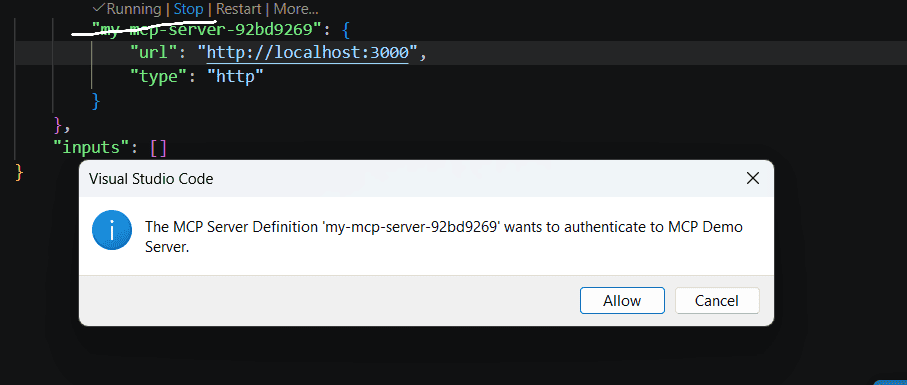 VS Code consent prompt
You are then redirected to your browser and asked to log in to Keycloak. After you authenticate, Keycloak shows a consent screen requesting access to the mcp:tools scope, because the Consent Required policy applies to every anonymously registered client.
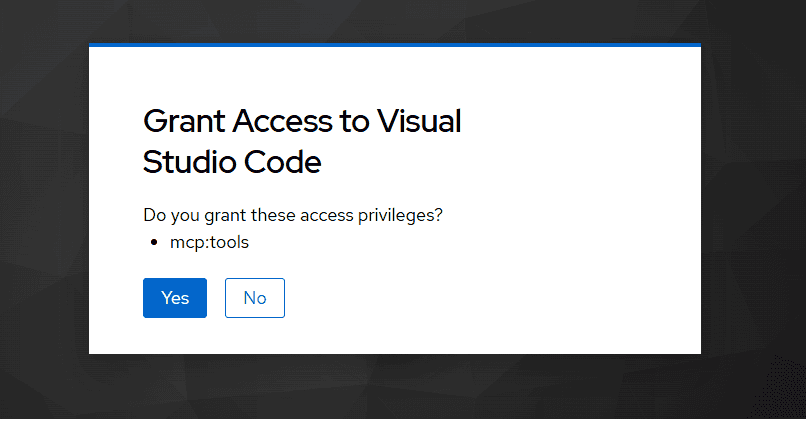 Keycloak consent prompt
Once you grant consent, VS Code can use the tools exposed by the MCP server, and you can invoke them directly from the VS Code Chat interface.
Verifying Dynamic Client Registration
VS Code registers a new OIDC client in Keycloak during this flow. If you open Clients in the Keycloak admin console, you will see a client that was created automatically with a generated client ID.
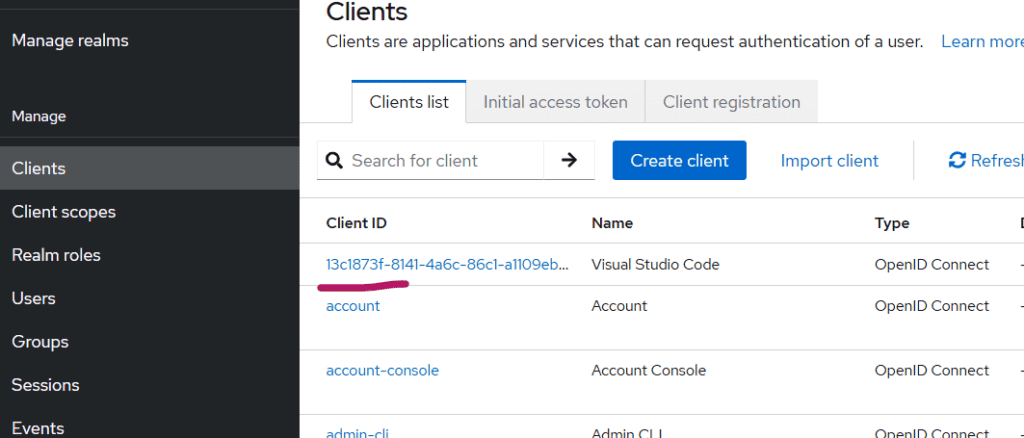 Clients list with the dynamically registered client
Selecting the new client lets you inspect the metadata VS Code registered, including its redirect URIs and the mcp:tools client scope. If you save user events for the realm, each registration is also recorded as a CLIENT_REGISTER event, which is useful for auditing which agents have registered.
Troubleshooting Keycloak DCR errors
When a client registration policy rejects a request, Keycloak returns HTTP 403 with the error insufficient_scope and a short description of which check failed. The Keycloak server log records the same rejection. These are the messages you are most likely to see:
| Error description | Cause | Fix |
|---|---|---|
Host not trusted. |
The IP address the request came from does not match any trusted host | Add the address from the Keycloak log, or a hostname that resolves to it |
URI doesn't match any trusted host or trusted domain |
A redirect URI uses a host that is not trusted | Add the host (for VS Code, *.vscode.dev and 127.0.0.1) as a bare hostname, not a URL |
URL doesn't match any trusted host or trusted domain |
The client’s base URL, root URL or admin URL uses an untrusted host | For VS Code, add code.visualstudio.com |
Not permitted to use specified clientScope |
The client asked for a scope whose realm type is None and that is not listed in Allowed Client Scopes | Set mcp:tools to Default or Optional, or add it to the Allowed Client Scopes policy |
It's allowed to have max 200 clients per realm |
The Max Clients Limit policy has been reached | Clean up stale dynamic clients, or raise the limit deliberately |
Hardening anonymous DCR before production
Anonymous DCR means anyone who can reach your registration endpoint from a trusted host can create a client, so the trusted host list is your main control. Keep it to the exact hosts your MCP clients need, and avoid trusting broad networks.
A few further steps help:
- Use a dedicated realm for MCP clients, so dynamically registered clients never sit beside your core applications.
- Keep the Consent Required and Full Scope Disabled policies in place, so a registered client gets only the scopes a user approves and no realm roles by default.
- Review and delete unused dynamic clients regularly, because each one stays in the realm until someone removes it, and the Max Clients Limit counts all of them.
- Prefer authenticated registration with an initial access token wherever the client supports it, since each token can be limited in lifetime and client count.
- Plan your move to CIMD as Keycloak’s support matures, because it removes the need for anonymous registration altogether.
If you want help deciding between these approaches for a specific agent or tool, our MCP authorization decision tree compares them by scenario.
Frequently asked questions
Does Keycloak support Dynamic Client Registration?
Yes. Keycloak implements OpenID Connect Dynamic Client Registration, which builds on RFC 7591, at /realms/<realm>/clients-registrations/openid-connect. Registration can be authenticated with an initial access token or bearer token, or anonymous, and anonymous requests must pass the realm’s client registration policies.
Why does Keycloak reject anonymous DCR requests by default?
The anonymous Trusted Hosts policy ships with an empty list of hosts, so no anonymous request can pass it until you add the hosts your clients register from. Keycloak’s documentation describes anonymous registration as effectively disabled in this default state.
What is the difference between DCR and CIMD in Keycloak?
With DCR the client sends its metadata to Keycloak, and Keycloak stores a new client in the realm. With CIMD the client ID is an HTTPS URL, and Keycloak fetches the client’s metadata from that URL when it is used, so nothing has to be registered in advance. In Keycloak 26.8, DCR is supported while CIMD is experimental and must be enabled with --features=cimd.
How do I secure an MCP server with Keycloak?
Make Keycloak the authorization server named in the MCP server’s protected resource metadata, and have the MCP server validate every bearer token, either by introspection or by checking the JWT signature, including its audience. Then choose how clients get IDs: pre-registration for known clients, DCR or CIMD for clients you have never seen. Our OAuth 2.0 walkthrough covers the server side in detail.
Is the MCP scope required for Dynamic Client Registration to work?
The scope itself is something your MCP server defines, but whichever scope VS Code requests must be allowed by the Allowed Client Scopes policy. By default that policy allows the realm’s Default and Optional client scopes, so a new scope left at type None is rejected, which is why this walkthrough marks mcp:tools as a Default scope.
Conclusion
In this article we used Dynamic Client Registration to let VS Code connect to an MCP server secured by Keycloak without anyone creating its client by hand. The work on the Keycloak side comes down to three settings: a default mcp:tools client scope with an audience mapper for the MCP server’s URL, trusted host entries written as bare hostnames and IP addresses, and the default consent and scope policies left in place.
DCR works well today for MCP clients you cannot pre-register. OAuth Client ID Metadata Documents are becoming the preferred approach, because the client’s metadata lives at a published URL and the server does not accumulate registered clients, so it is worth evaluating CIMD for production as Keycloak’s support moves out of experimental. For more detail on the MCP side, see the MCP authorization tutorial.
About Skycloak
Skycloak is a fully managed Keycloak platform hosted in the cloud. It lets organizations use open-source Keycloak for identity and access management without the operational work of installing, maintaining and scaling production Keycloak environments. You can manage the clients your MCP servers rely on through application management, and if you are new to Skycloak, the Skycloak Getting Started Guide is a good place to begin, or you can book a demo.