Last updated: March 2026
If your Keycloak cluster serves users in specific regions, there is no reason to leave it open to the entire internet. Geo-blocking lets you restrict access by country, cutting your attack surface and helping you meet data residency requirements. Skycloak makes this straightforward with built-in geo-blocking at the WAF layer, so you never have to patch together firewall rules or maintain GeoIP databases yourself.
This guide walks you through why geo-blocking matters, how Skycloak implements it, and how to configure it for your Keycloak clusters.
Why Geo-Blocking Matters for Keycloak
Keycloak is the front door to your applications. Every authentication request, token exchange, and admin console interaction passes through it. Leaving that front door open to every country on earth creates unnecessary risk.
Reducing Your Attack Surface
The majority of brute-force attacks, credential stuffing campaigns, and automated scanning originate from a relatively small set of geographic regions. If your users are concentrated in North America and Western Europe, there is little reason to accept traffic from regions where you have no customers. Blocking those regions eliminates entire categories of automated attacks before they reach your Keycloak endpoints.
Meeting Compliance Requirements
Regulations like GDPR, PIPEDA, and various data sovereignty laws impose restrictions on where personal data can be processed. While geo-blocking alone does not make you compliant, it is an important technical control that demonstrates you are actively restricting access to authorized regions. Auditors and compliance officers expect to see geographic access controls as part of a defense-in-depth strategy.
Supporting Data Residency
Organizations handling sensitive data often need to ensure that authentication traffic stays within specific jurisdictions. A healthcare company operating in Germany, for example, may need to guarantee that authentication requests are processed within the EU. Geo-blocking ensures that only traffic originating from approved regions reaches your Keycloak clusters.
How Skycloak Implements Geo-Blocking
Skycloak’s geo-blocking operates at the WAF (Web Application Firewall) layer, sitting in front of your Keycloak instances. This means traffic is evaluated and filtered before it ever reaches Keycloak, keeping blocked requests from consuming your cluster’s resources.
The WAF Layer
Every request to your Skycloak-managed Keycloak cluster passes through a configurable WAF that inspects incoming traffic. The WAF evaluates the source IP address against continuously updated GeoIP databases to determine the request’s country of origin. Blocked requests receive a 403 response and never touch your Keycloak pods.
This architecture has several advantages over implementing geo-blocking within Keycloak itself or at the application level:
- Performance: Blocked traffic is dropped at the edge, preserving cluster resources for legitimate users.
- Consistency: The same geo-blocking rules apply to all Keycloak endpoints, including the admin console, token endpoints, and user-facing login pages.
- Simplicity: You configure geo-blocking once through Skycloak’s dashboard rather than managing iptables rules, Nginx configurations, or custom Keycloak SPIs.
GeoIP Database Management
Skycloak maintains and automatically updates GeoIP databases, so you always have accurate country-level IP resolution. IP-to-country mappings change frequently as ISPs acquire new address blocks and regional internet registries reallocate space. Managing this yourself means setting up update pipelines, handling database licensing, and ensuring your firewall reloads mappings without downtime. Skycloak handles all of this transparently.
Configuring Country-Level Allow and Deny Lists
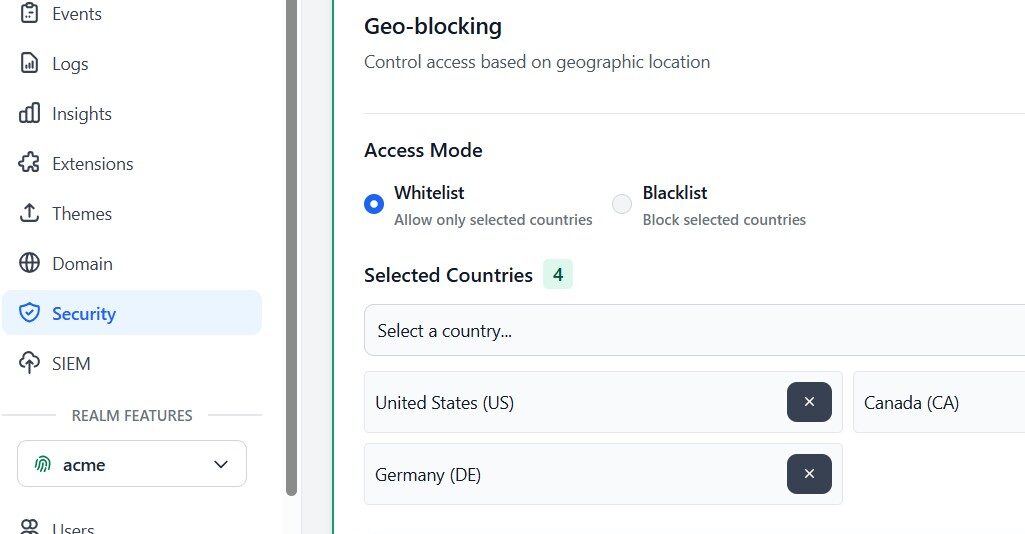
Skycloak supports two approaches to geo-blocking, and choosing the right one depends on how restrictive you need to be.
Allow List (Recommended for Most Use Cases)
An allow list specifies exactly which countries can access your Keycloak cluster. All other countries are blocked by default. This is the more secure approach because it follows the principle of least privilege: only explicitly approved regions get through.
For example, if your application serves customers in the United States, Canada, and the United Kingdom, you would add those three countries to your allow list. Every other country is automatically denied.
This approach works well when:
- You have a well-defined user base in specific countries.
- Compliance requirements mandate restricting access to approved jurisdictions.
- You want the strongest possible geographic restriction.
Deny List
A deny list blocks specific countries while allowing all others. This is less restrictive and is typically used when you want to block a handful of high-risk regions without limiting access broadly.
This approach fits scenarios where:
- Your application serves a global audience but you want to block specific high-risk regions.
- You are responding to an active attack originating from a particular country.
- Regulatory sanctions require blocking access from certain nations.
Configuration Best Practices
When setting up your geo-blocking rules, keep these points in mind:
- Start with an allow list if possible. It is always easier to add approved countries than to chase new threat sources with a deny list.
- Include countries where your team operates. If your developers or DevOps engineers are in a country not on the allow list, they will be locked out of the admin console.
- Account for travel. If team members travel frequently, consider whether you need to add additional countries or implement a VPN-based bypass.
- Test before enforcing. Skycloak lets you monitor what would be blocked before you flip the switch, preventing accidental lockouts.
Geo-Blocking for Compliance
Geographic access controls are a practical component of compliance strategies for several regulatory frameworks.
GDPR and EU Data Protection
GDPR requires that organizations implement appropriate technical and organizational measures to protect personal data. Geo-blocking your Keycloak cluster to only accept traffic from EU member states and approved countries is a concrete technical measure you can document in your Data Protection Impact Assessment (DPIA).
Combined with Skycloak’s EU-region hosting options, geo-blocking ensures that authentication data stays within jurisdictions that provide adequate data protection under GDPR.
Data Sovereignty
Some industries and government contracts require that data processing occurs exclusively within national borders. Geo-blocking enforces this at the network level, ensuring that authentication requests from outside the approved country are rejected before any data processing occurs.
Audit Trail
Every blocked request is logged, giving you a clear record for compliance audits. Skycloak’s audit logging captures the source country, IP address, timestamp, and the rule that triggered the block. This data is invaluable when demonstrating to auditors that your geographic access controls are functioning as intended.
Region-Specific Keycloak Realms
For organizations operating across multiple regulated regions, Skycloak supports configuring different geo-blocking rules for different Keycloak realms. This enables sophisticated architectures where each realm serves a specific geographic market.
Consider a SaaS company with customers in both the EU and Asia-Pacific:
- EU realm: Geo-blocked to accept traffic only from EU member states and EEA countries. Hosted on Skycloak’s EU infrastructure.
- APAC realm: Geo-blocked to accept traffic only from approved Asia-Pacific countries. Hosted on regional infrastructure.
Each realm maintains its own set of users, identity providers, and client configurations while enforcing region-appropriate access controls. Users are routed to the correct realm based on their region, and geo-blocking ensures they cannot accidentally or intentionally access a realm outside their jurisdiction.
This pattern is particularly useful for meeting data localization requirements that vary by region, without maintaining completely separate Keycloak deployments.
Handling VPN and Proxy Traffic
Geo-blocking is effective but not infallible. Sophisticated users can route traffic through VPNs or proxy servers to appear as if they are in an approved country. Understanding these limitations helps you set appropriate expectations and implement complementary controls.
Known VPN and Proxy Detection
Skycloak’s WAF layer includes detection capabilities for known commercial VPN endpoints and public proxy servers. When a request arrives from an IP address associated with a known VPN provider, it can be flagged or blocked based on your configuration.
You have three options for handling detected VPN traffic:
- Allow: Treat VPN traffic the same as direct traffic. The geo-blocking rule is applied based on the VPN exit node’s country.
- Flag: Allow the traffic but log it with a VPN indicator for review.
- Block: Reject all traffic from known VPN and proxy IP addresses regardless of their apparent country.
Defense in Depth
Geo-blocking should be one layer in a broader security strategy. Combine it with:
- Rate limiting to throttle suspicious request patterns regardless of origin.
- Bot detection to identify automated traffic that may be using residential proxies.
- Multi-factor authentication to ensure that even if an attacker bypasses geo-blocking, they cannot complete authentication without a second factor.
- Session monitoring to detect impossible travel patterns, where a user authenticates from one country and then appears in a different country minutes later.
Monitoring Blocked Requests
Visibility into what your geo-blocking rules are doing is essential for both security operations and ensuring you are not blocking legitimate users.
Dashboard Metrics
Skycloak’s dashboard provides real-time visibility into geo-blocked traffic, including:
- Total blocked requests over configurable time periods.
- Top blocked countries showing which regions generate the most denied traffic.
- Block rate trends helping you identify spikes that may indicate targeted attacks.
- Blocked endpoint distribution showing whether attacks target the admin console, token endpoints, or login pages.
Alerting
Configure alerts for unusual patterns in blocked traffic. A sudden spike in blocked requests from a country that normally generates little traffic could indicate a coordinated attack. Conversely, a spike in blocks from a country on your allow list might indicate a misconfiguration or an IP range reclassification in the GeoIP database.
Log Integration
Geo-blocking logs integrate with Skycloak’s broader audit logging system. You can export these logs to your SIEM or log management platform for correlation with other security events. This gives your security team a unified view of geographic access patterns alongside authentication events, failed login attempts, and other security-relevant data.
Best Practices
After working with organizations across industries, here are the geo-blocking practices that deliver the best results:
-
Start in monitor mode. Before enforcing geo-blocking rules, run them in monitor-only mode for at least a week. Review the logs to ensure you are not about to block legitimate traffic.
-
Use allow lists over deny lists. An allow list is inherently more secure. You explicitly approve what gets through rather than trying to enumerate everything that should not.
-
Keep your allow list minimal. Only include countries where you have actual users or team members. Every additional country widens your attack surface.
-
Review blocked traffic regularly. Check your geo-blocking logs weekly. Look for patterns that suggest misconfiguration, such as repeated blocks from countries where you have known users.
-
Coordinate with your team. Before enabling geo-blocking, communicate with your organization. Ensure remote workers, traveling employees, and international contractors know which countries are approved and how to request access if needed.
-
Document your geo-blocking policy. Write down which countries are approved, why, and who can authorize changes. This documentation is valuable for compliance audits and onboarding new team members.
-
Combine with other controls. Geo-blocking is most effective as part of a layered security approach. Pair it with rate limiting, bot detection, MFA enforcement, and session monitoring for comprehensive protection.
-
Plan for incidents. Have a process for quickly adding or removing countries from your geo-blocking rules. During an active attack, you may need to temporarily tighten restrictions. During a business expansion, you may need to add new countries quickly.
Conclusion
Geo-blocking is one of the most effective ways to reduce your Keycloak cluster’s exposure to unwanted traffic. By restricting access to only the countries where your users operate, you eliminate a significant portion of automated attacks, support compliance with data residency requirements, and secure your authentication infrastructure.
Skycloak makes geo-blocking practical by handling it at the WAF layer with automatically updated GeoIP databases, so you get strong geographic access controls without the operational burden of managing them yourself. Combined with Skycloak’s other security features, including rate limiting, bot detection, and comprehensive audit logging, geo-blocking helps you build an authentication platform that is both resilient and secure.
Ready to lock down your Keycloak cluster by region? Get started with Skycloak and configure geo-blocking in minutes.