

A passkey is a passwordless FIDO2/WebAuthn credential: your device holds a private key that you unlock with your face, fingerprint or PIN, and the website stores only the matching public key. Because the private key never leaves your device and only answers the site it was made for, there is no password to phish, reuse or leak.
If your bank, Google, Apple or Microsoft has just asked you to “create a passkey”, this post explains what you would be agreeing to. We cover how a passkey works in plain terms, how it compares with a password, how passkeys sync between your devices, what happens if you lose your phone, whether a passkey counts as multi-factor and phishing resistant, and which devices support them. At the end there is a short, separate section for developers and IT leads on offering passkeys to your own users with Keycloak.
What is a passkey, in plain words?
The FIDO Alliance, the industry group that writes the standard, defines a passkey as “an authentication credential based on FIDO standards, that can be stored on your phone or computer, or in a hardware security key allowing a user to sign in to apps and websites with the same process that they use to unlock their device” (FIDO Alliance, Passkeys). The UK’s National Cyber Security Centre puts it in similar words: “a secure, passwordless authentication method that allows you to log into an app and website using your existing device biometrics (like Face ID or fingerprints) or lock screen PIN” (NCSC, Passkeys).
The word is not a brand name: the FIDO Alliance notes that “passkey” is “a cross-platform general-use term, not a feature tied to any specific platform” (FIDO Alliance), so a passkey you create on an iPhone and one you create in Google Password Manager follow the same standard. Under the hood, the passkeys.dev reference describes a passkey as “the high level, end-user centric term for a FIDO2/WebAuthn Discoverable Credential” (passkeys.dev, Terms). WebAuthn is the W3C browser standard that lets a website create and use these credentials, and “discoverable” means the credential is stored together with your account name, so your device can offer it without you typing a username first.
A simple way to picture it: when you create a passkey, the website gets a lock that only one key in the world opens, and your device keeps that key. The website can check that you opened the lock, but it never holds the key itself, and the key will not even try a lock on a different website. The next section shows how that plays out when you sign in.
How does a passkey work when you sign in?
A passkey is built on public key cryptography, which uses a pair of keys: a private key that signs things and a public key that can only check those signatures. When you create a passkey, your device makes a new pair for that one website, keeps the private key and sends the public key to the site. When you come back to sign in, it goes like this:
- The website sends your device a random challenge, a one-time value that is different every time.
- Your device asks you to unlock the passkey with your face, fingerprint or device PIN.
- The device signs the challenge with the private key and sends back the signature.
- The website checks the signature with the public key it stored, and if it matches, you are signed in.
Your fingerprint or face scan never leaves your device. The FIDO Alliance explains that the server only receives confirmation that the biometric check succeeded, not the biometric itself (FIDO Alliance), so the biometric is only there to unlock the key locally. The W3C specification also ties each credential to the site that created it: it “can only be accessed by origins belonging to that Relying Party”, and sites “are not able to detect any properties, or even the existence, of credentials scoped to other Relying Parties” (W3C Web Authentication Level 3, Introduction). A Relying Party is simply the website or app you are signing in to.
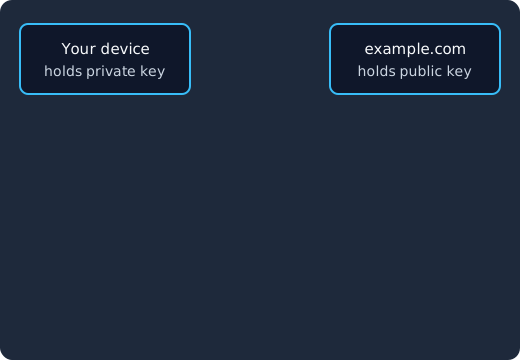
The website sends a random challenge (1), you unlock the passkey with your face, fingerprint or PIN (2), your device signs the challenge with the private key (3), and the site checks the signature with the public key it stored (4). A look-alike site gets nothing, because no passkey exists for its domain.
Passkey vs password: what is the difference?
A password is a shared secret: you know it, the website keeps a copy (ideally hashed), and anyone who learns it can use it from anywhere. A passkey is not shared at all, which is why it removes most of the ways passwords fail. This table puts the two side by side.
| Password | Passkey | |
|---|---|---|
| What the website stores | A copy of your secret (usually hashed) | Only a public key, which cannot sign you in on its own |
| What you have to remember | The password, one per site if you follow advice | Nothing; you unlock it the way you unlock your phone |
| Reuse across sites | Common, so one leak can open many accounts | Impossible: each site gets its own key pair (W3C WebAuthn) |
| Phishing | You can type it into a fake site | Phishing resistant: it only answers the real site’s domain (NIST SP 800-63B-4) |
| A breach of the website | Leaked hashes can be cracked offline | A leaked public key does not let anyone sign in |
| Second factor | Usually needs an SMS code or app code on top | Possession of the device plus your face, fingerprint or PIN in one step |
| Recovery | Reset by email or SMS | Synced copies on your other devices, or the site’s fallback sign-in |
The NCSC summarises the security difference directly: “Passkeys are resistant to phishing, as they can’t be intercepted, reused or stolen like passwords”, and it “recommends users opt for passkeys over passwords wherever they are available” (NCSC, Passkeys).
What is the difference between synced and device-bound passkeys?
There are two kinds of passkey, and the difference decides what happens when you change or lose a device.
A synced passkey is backed up by a passkey provider, which passkeys.dev defines as “an app and/or service that is responsible for storing and managing passkeys” (passkeys.dev, Terms). iCloud Keychain, Google Password Manager and third-party password managers are passkey providers. The FIDO Alliance explains that syncing makes your passkeys available on all of your devices that use the same passkey provider (FIDO Alliance). Apple, for example, syncs them with iCloud Keychain, which it says “is end-to-end encrypted with strong cryptographic keys not known to Apple and rate limited to help prevent brute-force attacks” (Apple Support, About the security of passkeys).
A device-bound passkey never leaves one piece of hardware. passkeys.dev describes it as “a WebAuthn Discoverable Credential that is bound to a single authenticator” and adds that “FIDO2 security keys typically hold device-bound passkeys” (passkeys.dev, Terms). A YubiKey or a similar USB or NFC security key is the usual example.
Most people asked by a bank or a big consumer service end up with a synced passkey, because it is the default on phones and in password managers. Device-bound passkeys are more common at work, where a security team may require keys that cannot be copied.
What happens if you lose your phone?
With a synced passkey, losing one device does not lose the passkey. The NCSC says your credential manager “makes a backup of your passkeys for safety, which means you shouldn’t completely lose access to your passkeys in the event you lose your device(s)” (NCSC, Passkeys). You sign in to your Apple, Google or password manager account on a new device, and your passkeys come back. Apple documents its version of this: if you lose all your devices, you can recover iCloud Keychain by authenticating with your iCloud account and password, responding to an SMS sent to your registered phone number and entering your device passcode, with only 10 attempts allowed (Apple Support).
With a device-bound passkey on a security key, a lost key really is gone, so register a second key or keep another sign-in method on the account. Most websites also keep a fallback. Google, for example, says “You can always fall back to legacy authentication options such as passwords and traditional 2-step-verification”, and points to its account recovery flow if you have forgotten the password (Google Safety Center, Passkeys). In practice, the safe setup is a passkey plus one backup method you can still reach, such as a second device or recovery codes.
Identity management as a service, on open source
Skycloak is a managed identity platform in the same category as Auth0 or Okta, built on real upstream Keycloak. You get SSO, MFA, SCIM and audit logs without running the servers, and you can export and self-host whenever you want.
Is a passkey multi-factor and phishing resistant?
A passkey combines two factors in one step: something you have (the device that holds the private key) and something you are or know (the face, fingerprint or PIN that unlocks it). NIST’s digital identity guidelines describe this pattern: “When a biometric comparison is used as an activation factor for a multi-factor authenticator, the authenticator itself serves as the physical authenticator” (NIST SP 800-63B-4, AAL2).
Passkeys are also phishing resistant by design, not by asking you to be careful (our post on what phishing-resistant MFA is defines the term). NIST names WebAuthn as “an example of a standard that provides phishing resistance through verifier name binding by choosing an authenticator secret based on the authenticated domain name of the verifier” (NIST SP 800-63B-4, verifier name binding). In plain terms, the passkey is created for one domain, so a fake site on a different domain has nothing to ask for. SMS codes and authenticator app codes do not have this property: NIST says authenticators “that involve the manual entry of an authenticator output (e.g., out-of-band and OTP authenticators) SHALL NOT be considered phishing-resistant” (NIST SP 800-63B-4, phishing resistance), which is why moves away from SMS such as Microsoft Entra retiring SMS MFA usually point to passkeys.
There is one nuance for regulated environments. NIST allows synced passkeys at its middle assurance level, AAL2, but not at its highest: “Since syncable authenticators (described in Appendix B) require the private key to be exportable, syncable authenticators SHALL NOT be used at AAL3” (NIST SP 800-63B-4, AAL3 requirements; Appendix B). For everyday accounts this does not matter, but organizations that need AAL3 use device-bound passkeys on hardware keys. Attackers have also started tricking people into approving sign-ins on a different flow altogether, which our post on device code phishing and passkey lures explains.
Which devices support passkeys?
All the major operating systems support passkeys today, but synced passkeys and signing in with your phone on another computer vary by platform. This table is taken from the passkeys.dev support matrix (passkeys.dev, Device Support), which also notes that some capabilities depend on support from credential managers and operating systems, not only the browser.
| Platform | Synced passkeys | Use your phone to sign in on this device | Third-party passkey managers |
|---|---|---|---|
| Android | Android 9 and later | Android 9 and later (and the phone can act as the passkey for other devices) | Android 14 and later |
| iOS and iPadOS | iOS 16 and later | iOS 16 and later (and the phone can act as the passkey for other devices) | iOS 17 and later |
| macOS | macOS 13 and later | macOS 13 and later | macOS 14 and later |
| ChromeOS | Version 129 and later | Version 108 and later | Through browser extensions |
| Windows | Not yet (planned); device-bound passkeys on security keys work | Windows 11 23H2 and later | Windows 11 25H2 and later |
The middle column is what passkeys.dev calls cross-device authentication, which “allows a passkey from one device to be used to sign in on another device” (passkeys.dev, Terms). In practice, a computer shows a QR code, you scan it with your phone, and your phone unlocks the passkey and completes the sign-in over a nearby connection. On Windows, a password manager that supports passkeys is the usual way to get the same passkeys you use on your phone.
When should you start using passkeys?
You can start as soon as an account you care about offers one. The NCSC recommends passkeys over passwords “wherever they are available” (NCSC, Passkeys), and it says that its technical paper “demonstrates that passkeys are always as secure or more secure than 2SV using the strongest password” (NCSC, Passkeys). Begin with your email and your main Apple, Google or Microsoft account, because those accounts reset everything else, then add your bank and any other service that offers a passkey prompt.
When you accept a prompt, check where the passkey is being saved (your phone’s built-in manager or a password manager you already use), and make sure you can still reach a backup sign-in method on that account. Keep the old password for now if the site does not let you remove it, and treat the passkey as your everyday way in.
How do companies offer passkeys to their own users with Keycloak?
This section is for developers and IT leads. If you run your own login with Keycloak, which its project describes as “Open Source Identity and Access Management” (keycloak.org), passkeys are built in. Native passkey support shipped in Keycloak 26.4, and the Server Administration Guide describes the switch: “In the Login Screen Customization section, activate the Enable Passkeys switch”. Users register a passkey through the Webauthn Register Passwordless required action, which the guide’s WebAuthn section covers, and with the default Passkey Mediation setting the login page offers passkeys “only through the browser’s autofill dropdown when the user focuses the username input field” (Keycloak, Passkey Mediation).
The guide states that “Keycloak provides support for W3C Web Authentication (WebAuthn)” and acts as a WebAuthn Relying Party, and it notes that success “depends on the user’s WebAuthn supporting authenticator, browser, and platform” (Keycloak, WebAuthn). Keycloak also generates recovery codes, one-time codes the guide says “can be used as a 2nd Factor Authentication (2FA)”, which gives your users another way in besides the passkey. For more, read our Keycloak passkeys and WebAuthn guide, implementing passkeys in React and Next.js with Keycloak, which covers the front end, and FIDO2 passwordless authentication in Keycloak. If you sell to businesses, enterprise passkeys for B2B SaaS compares passkeys with magic links and passwords for that audience.
On Skycloak, we run Keycloak for you, so the same WebAuthn passkey and passwordless options are available in your realms without operating the servers yourself.
FAQ
What is a passkey in simple terms?
A passkey is a sign-in credential that replaces your password. Your phone, computer or password manager keeps a private key for each website, you unlock it with your face, fingerprint or PIN, and the website only keeps a public key that checks your signature.
Is a passkey safer than a password?
Yes. A passkey cannot be reused on another site, cannot be typed into a phishing page, and a breach of the website only exposes a public key. The NCSC says passkeys “can’t be intercepted, reused or stolen like passwords” (NCSC).
Can someone use my passkey if they steal my phone?
They would also need to unlock the passkey with your face, fingerprint or device PIN, because the device asks for that before it signs anything. If your phone is stolen, change your device PIN or remove the device from your Apple, Google or password manager account.
Do passkeys work across devices?
Synced passkeys follow you to your other devices signed in to the same passkey provider, such as iCloud Keychain or Google Password Manager. On a device without your passkeys, you can usually scan a QR code with your phone to sign in (passkeys.dev).
Are passkeys the same as two-factor authentication?
A passkey gives you two factors in one step: the device that holds the key and the biometric or PIN that unlocks it. That is why a site does not need to ask for an SMS or app code on top of a passkey, and Keycloak’s guide, for example, says that when passkeys are enabled in a realm, “2FA is only presented if the user introduced a common password to login, not if a passkey was used” (Keycloak Server Administration Guide).
Does a website store my fingerprint or face?
No. The biometric check happens on your device, and the FIDO Alliance explains that the server only receives confirmation that the check succeeded (FIDO Alliance).
What to do next
If you were just prompted to create a passkey, accept it on your most important accounts first, check where it is saved, and keep one backup sign-in method you can still reach. If you are building login for your own users, read our Keycloak passkeys and WebAuthn guide to see the setup, and book a call with a Keycloak engineer if you would like to see passkey login running on managed Keycloak. When you would rather not operate Keycloak yourself, Skycloak’s managed Keycloak hosting runs it for you.