
Two-factor authentication (2FA) is a login that asks for two different kinds of proof, usually a password plus something you have, like a code from an authenticator app or a security key. The methods are not equal: SMS codes can be phished or taken over with a SIM swap, app codes are better, and passkeys or FIDO2 security keys resist phishing best.
If you have just been asked to turn on 2FA, the first half of this post explains what it is and which option to pick when a site offers you several. If you are a developer or an admin deciding which method your users must use, the second half compares the methods against the attacks that defeat them and shows how an identity provider such as Keycloak enforces your choice for every application at once.
What is two-factor authentication?
A password is one kind of proof: something you know. Two-factor authentication adds a second proof of a different kind, so someone who has stolen or guessed your password still cannot sign in. NIST’s digital identity guidelines say of their second assurance level that “proof of the possession and control of two distinct authentication factors is required” (NIST SP 800-63B-4, introduction), and the same guidelines name the three types of authentication factors as “something you know, something you have, and something you are” (NIST SP 800-63B-4, definitions).
The two proofs have to be of different kinds. A password plus a security question is still two things you know, so an attacker who phished one can usually phish the other in the same conversation. A password plus a code from your phone forces the attacker to get hold of something you carry as well.
People use 2FA, two-step verification and multi-factor authentication (MFA) almost interchangeably. Strictly, 2FA is MFA with exactly two factors, and most logins that call themselves MFA use two. Our older post on what multi-factor authentication is covers the wider term.
The three kinds of factor, with examples
| Factor | What it means | Everyday examples |
|---|---|---|
| Something you know | A secret you remember | A password, a PIN, the passcode that unlocks your phone |
| Something you have | A device or object only you hold | Your phone with an authenticator app, a USB or NFC security key, a smart card |
| Something you are | A physical trait | A fingerprint, a face scan |
NIST adds a detail that matters for the third row: “A biometric characteristic is not recognized as an authenticator by itself.” A fingerprint only counts when it is checked together with a physical device, which then serves as “something you have” while the biometric match serves as “something you are” (NIST SP 800-63B-4, section 2.2.1). That is why the fingerprint reader on your laptop is used to unlock a key stored on that laptop, rather than being sent to the website as proof on its own.
What is a two-factor authentication method?
A 2FA method is the specific way the second proof is collected. These are the ones you will meet:
- SMS or voice codes. The site texts or calls you with a short code that you type in.
- Email codes. The same idea, delivered to your inbox. Our post on using an email OTP extension with Skycloak shows one way to add it to Keycloak.
- Authenticator app codes (TOTP). An app such as Google Authenticator or FreeOTP shows a six-digit code that changes every 30 seconds. TOTP stands for time-based one-time password: the app and the server share a secret, and each derives the code from that secret and the current time, with 30 seconds as the recommended default step (RFC 6238, section 5.2). We explained the general idea in what an OTP is.
- Push approvals. An app on your phone pops up “Is this you signing in?” and you tap approve. Some versions ask you to type a number shown on the login screen, which is called number matching.
- Passkeys. A cryptographic key pair stored on your phone, laptop or password manager, unlocked with your fingerprint, face or device PIN. The FIDO Alliance calls passkeys “FIDO cryptographic credentials that are tied to a user’s account on a website or application” (FIDO Alliance, FIDO2).
- Hardware security keys. A small USB or NFC device, such as a YubiKey, that holds the same kind of key pair and never lets it be copied off.
Passkeys and security keys both use FIDO2, which the FIDO Alliance describes as WebAuthn and CTAP (FIDO Alliance, FIDO2). WebAuthn is the W3C’s browser API for public key credentials (W3C WebAuthn Level 2), and CTAP is the FIDO Alliance’s Client to Authenticator Protocol, which that specification references.
2FA methods compared: phishing resistance, cost and friction
The table scores each method on the three things an admin usually trades off. “Phishing resistant” uses NIST’s definition: the protocol prevents your secrets from being handed to an attacker posing as the real site “without relying on the vigilance of the claimant”, which means it still works when you have been fooled (NIST SP 800-63B-4, section 3.2.5). The cost and friction columns are our own judgement of typical deployments, not measured figures.
| Method | Phishing resistant | Attacks that beat it | Cost to run | Friction for users |
|---|---|---|---|---|
| SMS or voice code | No | Real-time phishing, SIM swap, SS7 interception | Per-message fees and a gateway to run | Low to set up, a short wait for each code |
| Email code | No | Real-time phishing, mailbox takeover | Low, uses your existing mail setup | Low, but slow if mail is delayed |
| Authenticator app (TOTP) | No | Real-time phishing within the code’s window | Free apps, no per-login cost | Moderate: scanning a QR code once, typing a code each time |
| Push without number matching | No | Push fatigue, real-time phishing | Usually a vendor app or service | Low: one tap |
| Push with number matching | No | Real-time phishing where you read the number to the fake page | Usually a vendor app or service | Low to moderate |
| Passkey (synced or device-bound) | Yes | None of the above; recovery of the sync account becomes the weak point | No per-login cost; users’ devices already support it | Lowest: a fingerprint or face scan |
| Hardware security key | Yes | None of the above; a lost key needs a recovery path | Buying a key, ideally two, per user | Moderate: carry the key and plug or tap it |
CISA’s fact sheet on phishing-resistant MFA orders the methods in much the same way: it presents FIDO/WebAuthn as the phishing-resistant option to aim for, treats app-based codes and push with number matching as the next best, and warns that SMS and voice codes are exposed to phishing, SIM swap and SS7 attacks (CISA, Implementing Phishing-Resistant MFA). The fact sheet also makes the point that any MFA is better than none, which is worth remembering if SMS is the only option a site gives you.
How real attacks defeat specific 2FA methods
SIM swap: taking over your phone number
In a SIM swap, the attacker convinces your mobile carrier to activate a new SIM card connected to your phone number on a phone they own, and from then on the text messages with your login codes go to them (FTC, SIM swap scams). CISA’s fact sheet lists flaws in the SS7 signalling protocol of the phone network’s communications infrastructure as a second way to intercept codes sent by text or voice. Neither attack involves your phone or your behaviour, so being careful does not protect you, and app codes, push, passkeys and security keys are not affected by either.
Push fatigue: approving just to make it stop
CISA describes push bombing, also called push fatigue, as attackers who already have your password sending you push notifications over and over until you tap approve (CISA, Implementing Phishing-Resistant MFA). NIST no longer accepts the variant where you compare a code shown on both screens and then tap approve, because it “increases the likelihood that the subscriber would approve an authentication request without actually comparing the secrets as required”, adding that “this has been observed with ‘authentication fatigue’ attacks” (NIST SP 800-63B-4, section 3.1.3). It also says verifiers that send push notifications “SHOULD implement a reasonable limit on the rate or total number of push notifications that will be sent since the last successful authentication” (NIST SP 800-63B-4, section 3.1.3.2). Number matching fixes the case where you approve a prompt you did not start, and we went through the helpdesk side of these attacks in MFA fatigue and helpdesk vishing.
Real-time phishing proxies: relaying your code
This is the attack that beats every method where you type or read a code. You get an email, click a link to a page that looks exactly like your company’s login, and type your password and your six-digit code; CISA’s fact sheet uses exactly this example, with the code coming from the user’s authenticator app (CISA, Implementing Phishing-Resistant MFA). A proxy behind the fake page passes both to the real site while the code is still valid, and the real site hands the logged-in session back to the attacker. A TOTP code gives the attacker roughly 30 seconds plus whatever delay window the server allows, since RFC 6238 recommends accepting at most one extra time step for network delay (RFC 6238, section 5.2), and that is plenty of time for software.
NIST states the reason directly: authenticators that involve manual entry, such as OTP and out-of-band codes, “SHALL NOT be considered phishing-resistant because the manual entry does not bind the authenticator output to the specific session being authenticated”, so “an impostor verifier could relay an authenticator output to the verifier and successfully authenticate” (NIST SP 800-63B-4, section 3.2.5).
Passkeys and security keys break this attack because there is nothing for you to type. The WebAuthn specification says the authenticator “ensures that all operations are scoped to a particular origin, and cannot be replayed against a different origin, by incorporating the origin in its responses” (W3C WebAuthn Level 2, section 5), and that “a public key credential can only be used for authentication with the same entity (as identified by RP ID) it was registered with” (W3C WebAuthn Level 2, RP ID). A look-alike domain cannot ask for your real site’s passkey, and if a proxy relays the exchange anyway, the signature names the fake origin and the real site rejects it.
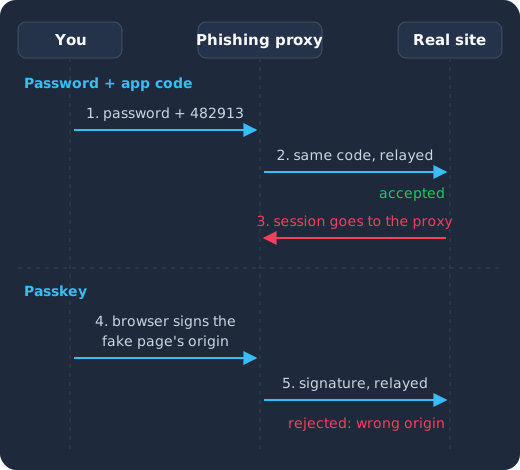
With an app code, you type your password and code into the fake page (1), the proxy relays the same code to the real site in time (2), and the real site hands the session to the proxy (3). With a passkey, your browser signs over the fake page’s origin (4), the proxy relays that signature (5), and the real site rejects it because the origin does not match.
For a deeper look at which methods count as phishing resistant, see what phishing-resistant MFA is.
Identity management as a service, on open source
Skycloak is a managed identity platform in the same category as Auth0 or Okta, built on real upstream Keycloak. You get SSO, MFA, SCIM and audit logs without running the servers, and you can export and self-host whenever you want.
Where NIST and CISA stand on SMS
NIST has not banned SMS, but it labels it. The PSTN (the public phone network that carries SMS and voice calls) is the one “restricted” authenticator in SP 800-63B-4: “Use of the PSTN for out-of-band verification is restricted” (NIST SP 800-63B-4, section 3.1.3.3), and an organisation that accepts it has to “assess, understand, and accept the risks associated with that authenticator and acknowledge that risks will likely increase over time” (NIST SP 800-63B-4, section 3.2.9). It also tells verifiers to look at risk signals such as “device swap, SIM change, number porting” before sending a code by phone (NIST SP 800-63B-4, section 3.1.3.3).
Email fares worse. NIST says “Email SHALL NOT be used for out-of-band authentication”, citing access with only a password, interception at mail servers and rerouting through DNS spoofing (NIST SP 800-63B-4, section 3.1.3.1). Email codes are still common as a convenience factor, but you should not count them as strong.
At the second assurance level, NIST says “Verifiers SHALL offer at least one phishing-resistant authentication option at AAL2” and that verifiers “SHOULD encourage the use of phishing-resistant authentication at AAL2 whenever practical” (NIST SP 800-63B-4, section 2.2.2). CISA recommends app-based or token-based codes and push with number matching for small and medium-sized businesses that cannot move to phishing-resistant MFA straight away, and treats SMS as at most a temporary solution while organisations move to something stronger (CISA, Implementing Phishing-Resistant MFA). Some vendors are already acting on this; our post on Entra’s SMS MFA retirement and moving to passkeys covers one example.
Why a passkey is one step but still two factors
A passkey counts as two factors even though you only touch a fingerprint sensor once, because the passkey itself is the “something you have” (a private key on a device you hold), and your fingerprint, face or device PIN is the second factor that unlocks it. NIST calls this a multi-factor authenticator: it “requires two factors to execute a single authentication event, such as a cryptographically secure device with an integrated biometric sensor that is required to activate the device” (NIST SP 800-63B-4, section 2.2.1).
Your fingerprint never reaches the website. The FIDO Alliance notes that biometric information “continues to stay on the device and is never sent to any remote server”, and that the server “only sees an assurance that the biometric check was successful” (FIDO Alliance, FIDO2).
One difference between synced passkeys and hardware keys matters for high-risk accounts. A synced passkey can move between your devices through a platform account, which means its private key has to be exportable, and NIST says “syncable authenticators SHALL NOT be used at AAL3”, its highest level, while allowing them at the level below (NIST SP 800-63B-4, section 2.3.2). For most users a synced passkey is the right choice, and hardware keys are worth requiring for administrators. Our post on FIDO2 for passwordless security covers the standard in more detail.
If you were just asked to turn on 2FA, which method should you pick?
Pick the strongest option the site offers that you will actually keep using:
- A passkey, if the site offers one. It is the fastest to use and the one a fake login page cannot steal.
- A hardware security key, if you have one or your employer issues them. Register two and keep the spare somewhere safe.
- An authenticator app, if the site only offers codes. Most apps can back up their secrets, which saves you when you replace your phone.
- SMS, only if nothing else is available. It is still far better than a password alone.
Whatever you choose, save the recovery codes the site gives you when you set it up, so that losing your phone or key does not lock you out. On a Keycloak-based login, you set this up yourself in the account console under Account security, then Signing in, where you can choose Set up Authenticator application or Set up a Passkey (Keycloak Server Administration Guide, two-factor authentication with OTP).
For admins: enforce 2FA in the identity provider, not in each app
If every application implements its own second factor, you end up with several enrolment screens, several sets of recovery codes and no single place to change the policy. When applications sign users in through one identity provider over OpenID Connect or SAML, the second factor is asked for once, at the identity provider, and every application that trusts it inherits the policy. Changing from app codes to passkeys later is then one change in one place. We compared this model across vendors in Okta policies versus Keycloak authentication flows, and looked at rollout patterns in how to set up MFA for enterprise applications.
How Keycloak asks for a second factor today
In a Keycloak realm, the default browser flow first shows the Username Password Form, then runs a Browser - Conditional 2FA sub-flow. That sub-flow runs “only when the user has a configured OTP credential”, so out of the box a user who never set up an authenticator app is not asked for one (Keycloak Server Administration Guide, built-in flows). The same sub-flow already contains WebAuthn Authenticator and Recovery Authentication Code Form executions, disabled by default, which you switch to Alternative to let users choose a security key or recovery codes as their second step (Keycloak Server Administration Guide, built-in flows). It also contains a Condition - credential step, so that when passkeys are enabled in the realm the second factor is skipped for a user who already signed in with a passkey (Keycloak Server Administration Guide, passkeys).
Require an authenticator app for everyone
- Set the code rules under Authentication, Policy tab, OTP Policy tab. Keycloak supports time-based (TOTP) and counter-based (HOTP) codes, and its guide says TOTP “is more secure than HOTP because the matchable OTP is valid for a short window of time” (Keycloak Server Administration Guide, OTP policies).
- Make enrolment part of the first login. Under Authentication, Required Actions tab, tick Set as default action for Configure OTP, so new users must set up an app the first time they sign in (Keycloak Server Administration Guide, default required actions). For users who already exist, add Configure OTP as a required action on the user’s Details tab (Keycloak Server Administration Guide, required actions). Configure OTP can also hand out recovery codes when you turn on Add recovery codes (Keycloak Server Administration Guide, recovery codes).
- Close the gap for users without a second factor. Because the default sub-flow is conditional, a copy of the browser flow needs one more change. The Keycloak guide gives two patterns: add a step that denies access when no second factor ran, or make the OTP Form required so that “if the user has none of the 2FA methods configured, the OTP setup will be enforced to continue the login” (Keycloak Server Administration Guide, Conditional 2FA sub-flow with OTP default).
If only some applications need a second factor, or only some actions inside an application, ask for it there instead of for everyone; our Keycloak step-up authentication guide shows how, and the ultimate guide to custom authentication flows explains how flows and conditions fit together.
Require a passkey or security key instead
For security keys as a second factor, enable the Webauthn Register required action, optionally as a default action, and set the matching WebAuthn Authenticator step in the conditional 2FA sub-flow (Keycloak Server Administration Guide, WebAuthn setup). Registration rules such as the relying party ID, allowed signature algorithms and user verification live under Authentication, Policy tab, WebAuthn Policy tab (Keycloak Server Administration Guide, managing WebAuthn policy).
Passkeys used to sign in without a password have their own policy. Keycloak keeps a separate WebAuthn Passwordless Policy, a Webauthn Register Passwordless required action and a WebAuthn Passwordless Authenticator, so you can set stricter rules for passwordless credentials, such as requiring a PIN (Keycloak Server Administration Guide, passwordless WebAuthn together with two-factor). To offer passkeys on the standard login page, turn on Enable Passkeys under Realm settings, Login tab (Keycloak Server Administration Guide, passkeys). The full walkthrough, including the browser side, is in our Keycloak passkeys and WebAuthn guide.
Frequently asked questions
Is 2FA the same as MFA?
2FA is a kind of MFA with exactly two factors. MFA means two or more, but in practice most MFA logins use two, so the terms are used almost interchangeably.
Is SMS 2FA better than nothing?
Yes. CISA’s fact sheet makes the point that any form of MFA is better than none (CISA, Implementing Phishing-Resistant MFA). SMS stops an attacker who only has your password, but it does not stop SIM swaps or real-time phishing, so move to an app or a passkey when the site allows it.
Can 2FA be hacked?
Every method that relies on you typing or approving something can be defeated by a convincing phishing page or by repeated push prompts. Passkeys and security keys resist both because the credential is bound to the real site’s origin. Attackers can still steal a session cookie after you log in, which our post on infostealers and stolen sessions covers.
What happens if I lose my phone?
Use the recovery codes you saved when you set up 2FA, or a second registered method such as a spare security key or a passkey synced to another device. If you have neither, you will need the site’s account recovery process, which is usually slower and stricter.
Does a passkey replace my password and 2FA?
It can. A passkey proves possession of a device and is unlocked by your fingerprint, face or PIN, so on its own it satisfies two factors. When passkeys are enabled in a Keycloak realm, its default browser flow treats it that way and skips the extra 2FA step after a passkey sign-in (Keycloak Server Administration Guide, passkeys).
What to do next
If you are a user, turn on the strongest method your accounts offer, starting with your email account and any account that controls your money or work, and save your recovery codes. If you are an admin, require an authenticator app or a passkey for every user with a Keycloak required action, make passkeys the method you encourage, and keep SMS as a fallback only where you must. Skycloak runs managed Keycloak, so the OTP, WebAuthn and passkey settings above are available on the hosted login; the pages on multi-factor authentication and passwordless sign-in show what is available, and you can try managed Keycloak on Skycloak.