Auth0 Universal Login vs Keycloak Login Themes. Auth0 Universal Login is Auth0's hosted login page. Here is how each of its features maps to a Keycloak login theme, realm setting or flow, with effort notes.
Auth0 Universal Login is Auth0’s hosted login page: your application redirects to it, and it handles login, signup, multi-factor authentication (MFA), password reset and email verification on Auth0’s domain, customized through branding settings and page templates. Auth0 describes it as “the hosted login page that handles every authentication flow for your applications”. Keycloak offers the same hosted flows through login themes, written as FreeMarker templates or built with Keycloakify, so most Universal Login features have a direct Keycloak equivalent in a theme, a realm setting or an authentication flow.
This guide is for developers and identity leads who already know how Universal Login works and want to check whether Keycloak can match it before they switch. It maps each Universal Login capability to the Keycloak feature that does the same job, gives the admin console path, and says plainly where the effort differs. It covers Universal Login only. Auth0’s older Classic Login and its Lock widget are the legacy path, and Auth0 says that Classic Login no longer receives updates.
How do Universal Login and Keycloak login themes work?
Both products use the same pattern, which is a redirect to a login page that the identity provider serves. Your application sends the user to the provider’s authorization endpoint, the provider shows its login page and runs whatever steps the user needs (password, second factor, password change), and then it sends the user back to your application with an authorization code. Auth0’s overview puts it this way: you redirect users to Universal Login and let Auth0 handle the authentication process.
In Keycloak, the page the user sees comes from the realm’s login theme. A theme is a folder of HTML templates written in FreeMarker (a server-side templating language for Java), plus stylesheets, images, scripts and message bundles. Keycloak has five theme types: account, admin, email, login and welcome. You pick the login theme for a realm under Realm settings, on the Themes tab, and the Keycloak theme guide adds that “clients being able to override the login theme” is the one exception to the realm-wide setting.
The two differ mainly in who runs the page. With Universal Login, Auth0 renders the page on its servers and you adjust it within the options Auth0 exposes. With Keycloak, the templates run on your Keycloak server, so you can change any part of the page, and you are also responsible for what you put there.
Feature parity table: Universal Login vs Keycloak
The table maps each Universal Login capability that Auth0 documents to its Keycloak counterpart. The Auth0 column links Auth0’s documentation, and the Keycloak column links the Keycloak guide or source file for each item.
| Universal Login capability | How Auth0 does it | Keycloak equivalent and where to find it | Effort note |
|---|---|---|---|
| Branding (logo, colors, fonts) | A no-code editor or the Management API’s Branding endpoints | A login theme that extends the stock one with a parent theme in theme.properties and adds your CSS and images, selected on the realm’s Themes tab | Customizing a theme means editing its files. Skycloak adds a Branding page with logo, color and footer settings |
| Page templates | Liquid page templates, set through the Management API, which need a custom domain | FreeMarker templates such as login.ftl in your theme, which you can override one page at a time |
Keycloak gives you every template, not a wrapper around one widget, so you can change more and you also maintain more |
| Text and translations | Edit text and translations in the dashboard or the Management API | Message bundles in the theme, or realm-level translations as described under enabling internationalization | Similar effort. Our username label guide walks through one override |
| Login with social and enterprise connections | A button for each enabled connection on the login page | Identity providers configured in the realm through identity brokering | Similar effort |
| Signup | A signup page, which screen_hint=signup opens directly for a user without a session |
Self-registration, which you enable for the realm | Similar effort. Skycloak’s registration form follows the user profile without theme code |
| MFA | An MFA page that lets users choose their factor when they have several, and flows you can customize to challenge a specific factor | OTP policies, WebAuthn, and conditional flows in authentication flows, as in the Skycloak MFA setup guide | Keycloak shapes MFA through flows instead of code. See also Auth0 vs Keycloak: Login & Token Customization |
| Passkeys | Available for database connections | Keycloak’s passkeys support | Similar effort |
| Password reset | A hosted reset flow that ignores the email template’s redirect URL and needs an Application Login URI | Forgot password, which you turn on in the realm’s login options | Similar effort |
| Email verification | A confirmation page after the user clicks the verification link | Verifying a user’s email address | Similar effort |
| Custom database connections | Scripts whose ValidationErrors and WrongUsernameOrPasswordError errors Universal Login shows on the matching page |
LDAP federation, or external user storage that you code as an extension | More effort, because you write and deploy an extension instead of a script in the dashboard |
| Accessibility | Auth0 says Universal Login enables WCAG 2.2 AA and EN 301 549 by default | The stock theme is a starting point for your own | Test your own theme, since your changes decide the result |
| Per-organization branding | Logo and colors per organization, available to templates as organization.branding variables | Per-client login themes, a realm per tenant, or a custom theme selector, covered below | More effort for many tenants on one login page |
Most rows are a like-for-like match. The rows marked “more effort” are where you will spend your time on a migration, so the next sections go through them.
How do Auth0 Advanced Customizations compare with Keycloakify themes?
Advanced Customizations for Universal Login (ACUL) is Auth0’s code-level option. Auth0 says it “extends the capabilities of Universal Login to support multi-branding, complex security configurations, and integration of numerous analytics platforms”. You build the login screens as your own front-end application with the ACUL SDKs, in React or plain JavaScript, while Auth0 keeps running the authentication steps behind them. Your build pipeline uploads the compiled JavaScript and CSS to storage you control, which serves as your own content delivery network, and the browser checks Subresource Integrity hashes (fingerprints of each file) before it runs them. The same page lists a tenant with Universal Login and a custom domain as a prerequisite.
Keycloakify is the closest Keycloak match. Its documentation describes it as “a tool for creating custom Keycloak themes”, and it supports React, Angular and Svelte. You write the login pages as components, preview them in Storybook, and Keycloakify bundles the result into a JAR file that you import into Keycloak. Keycloakify also says its themes are backward compatible with Keycloak versions back to 11, while it cannot guarantee that a given build will work with future major versions.
The two approaches feel similar to a front-end developer, because in both you write components against a set of screens that the identity provider defines. They differ in where the code ends up. ACUL assets stay on your CDN and Auth0’s page loads them, so you deploy them on your own schedule. A Keycloakify JAR is installed into Keycloak itself, which the Keycloak guide describes as adding it to the providers directory and restarting the server, so a theme release is a Keycloak deployment. On Skycloak you upload the JAR in the Theme Library instead of handling files on a server. For a longer example, see Customizing Keycloak Themes with Keycloakify in Skycloak.
How do you brand the login page per organization or per client?
Auth0 Organizations let you set an organization logo, a primary color and a page background color, which you can enter in the dashboard or through the Management API, as described in Create Organizations. Page templates can read those values as organization.branding.logo_url and the matching color variables, and they can read the application with application.name and application.logo_url, according to the page template variables. Auth0 notes on the Create Organizations page that availability varies by plan.
Keycloak supports per-application branding directly. The theme guide says the realm’s theme is used “with the exception of clients being able to override the login theme”, and it explains that a custom theme selector, a small Java provider built from ThemeSelectorProviderFactory and ThemeSelectorProvider, can pick a theme by any rule you write. Skycloak’s Theme Library can assign different themes to different realms and clients from the console.
Per-organization branding takes more thought. The three options are one realm per tenant, each with its own theme (see Multitenancy in Keycloak Using the Organizations Feature); one client per tenant with its own login theme; or a custom theme selector. For a wider comparison of Auth0’s B2B features with Keycloak Organizations, see Auth0 B2B Connect and Tenancy-as-a-Service vs Keycloak Organizations.
Open source, without the per-user bill
Most identity platforms charge per monthly active user and gate enterprise SSO behind an upgrade. Skycloak bills for infrastructure instead, so every plan carries unlimited users and unlimited applications, on real upstream Keycloak you can export at any time.
How do you move a Universal Login design to a Keycloak theme?
You do not export a Universal Login design into Keycloak, because the two products use different template systems, so you rebuild it. Skycloak’s Auth0 user import brings users across, and its documentation says plainly that branding is not imported. The rebuild is usually a short list of steps if you work through the parity table in order.
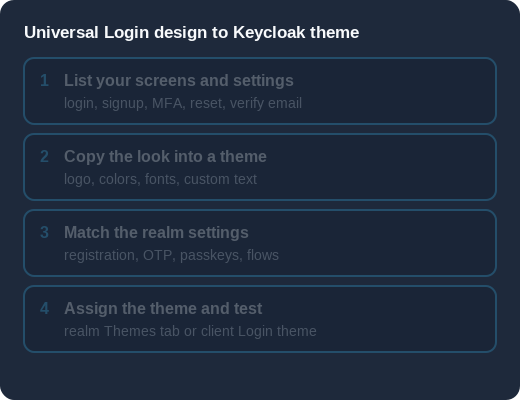
You list the Universal Login screens and settings you use (1), copy the logo, colors, fonts and text into a Keycloak theme (2), turn on the matching realm settings and flows (3), and assign the theme to the realm or client and test every screen (4).
- List what you use today. Go through the screens your users see (login, signup, MFA enrollment and challenge, password reset, email verification) and note the branding values, any custom text, and whether you use page templates or ACUL.
- Carry the look across. Create a theme that extends the stock login theme, then add your logo, colors and fonts in CSS. Move custom text into message files or realm overrides. If you used ACUL with React, Keycloakify lets you keep working in components.
- Match the behavior with realm settings. Turn on registration, forgot password, remember me, email verification and passkeys as needed, and build the MFA steps in the browser flow.
- Assign the theme and test. Select the theme on the realm’s Themes tab, or on a client to override it, and sign in through every flow from a private browser window. While you iterate, the Keycloak guide suggests disabling theme caching and re-enabling it in production.
If you only need a logo, colors and links, the Skycloak Branding page can produce a branded login theme without writing a theme by hand, and the theme customization guide covers the file structure when you do.
How do you harden a login page you control?
Moving to Keycloak themes means the login page’s code is yours, and so is its security. The Keycloak theme guide warns that “a malicious template can run code as the Keycloak process”, so treat theme files as server code, review them like any other change, and install them only from your own build.
Scripts in the browser are the second concern. A login page is where users type passwords, so any script that runs there can read them. Keycloak sets security headers per realm under Realm settings, Security defenses, Headers, and the default Content Security Policy (CSP, the browser header that limits what a page may load) listed in the Skycloak security hardening guide is frame-src 'self'; frame-ancestors 'self'; object-src 'none';, which has no script-src rule. See also Entra ID Will Block Login Script Injection: Harden Keycloak CSP. In short, keep analytics and chat widgets off the login page, serve theme JavaScript from your own host as files, and turn on brute force detection for the realm, which the security hardening guide notes is off on a new realm.
ACUL handles the same risk with integrity hashes on the files it loads from your CDN, as described on Auth0’s Advanced Customizations page. On Keycloak you get the same result by keeping all scripts in the theme, served from Keycloak itself.
Frequently asked questions
What is Auth0 Universal Login?
It is Auth0’s hosted login page. Your application redirects users to it, and it runs login, signup, MFA, password reset and email verification on Auth0’s domain. You customize it with branding settings, text settings, Liquid page templates, or code through Advanced Customizations for Universal Login.
Does Keycloak have an equivalent of Auth0 Universal Login?
Yes. Keycloak’s login pages are hosted by the Keycloak server and drawn by the realm’s login theme, and the parity table above maps each Universal Login flow to its Keycloak setting. You change their look with a theme and their behavior with realm settings and authentication flows.
Can I use React for a Keycloak login page like Auth0 ACUL?
Yes, with Keycloakify, which builds Keycloak themes from React, Angular or Svelte components and bundles them into a JAR that Keycloak loads. The main difference from ACUL is that the theme is installed in Keycloak instead of being loaded from your own CDN.
Can Keycloak show a different login page per application?
Yes. A client can override the realm’s login theme, so each application can have its own page. For rules beyond one theme per client, a custom theme selector provider can choose the theme in code.
Do I need a custom domain to customize the Keycloak login page?
No. The Keycloak theme guide has you select the login theme on the realm’s Themes tab. Auth0, by contrast, requires a custom domain for page templates and for Advanced Customizations, according to its own documentation.
What to do next
Take the parity table as your checklist: mark each Universal Login feature you use today, note the Keycloak setting or theme file that replaces it, and spend your planning time on the rows marked “more effort”, which are usually custom database connections and per-organization branding. Then build the theme, starting from the stock one or from Keycloakify, and test every flow before you move users.
If you want to try that on managed Keycloak, start a Skycloak managed Keycloak trial and rebuild your Universal Login page as a login theme, using the parity table as the checklist, or see how managed Keycloak hosting works.