Theme Library
The Theme Library is Skycloak’s centralized theme management system, available on the Business and Enterprise plans. It provides one place to upload, organize, and assign custom Keycloak themes — including JAR files produced by Keycloakify — across every realm and application in your cluster.
Overview
Section titled “Overview”The Theme Library transforms how you manage Keycloak themes by providing:
- Centralized Management: Upload and organize all your custom themes in one place
- ZIP and JAR uploads: Drop in either a standard ZIP theme or a Keycloakify-style JAR
- You name your ZIP themes: For ZIP uploads the name you type is the theme name — handy for versioning (e.g.
mytheme-v2026-04-29). For Keycloakify JARs the theme name(s) come from inside the JAR (Keycloak loads JAR themes by their built-in directory names) - Multi-theme JARs: A single Keycloakify JAR that packages several themes creates one library entry per inner theme automatically
- Automatic Type Detection: System identifies login, email, admin, and account theme types
- Application-Specific Assignment: Assign different themes to different realms and clients
- Apply from the library: Point a realm at a theme without leaving Skycloak
- Replace in place: Ship a change to a theme already in use, with no gap where your sign-in page is unbranded
- Download: Get the archive back for any theme you uploaded
- Email Conflict Detection: Automatically detect and resolve email template conflicts
- Usage Analytics: Track theme usage and performance across your organization
Theme Types
Section titled “Theme Types”The Theme Library supports four distinct theme types, each serving different aspects of your Keycloak instance:
Login Themes
Section titled “Login Themes”Purpose: Customize user-facing authentication pages
- Login and registration forms
- Password reset pages
- Multi-factor authentication screens
- Social login integration pages
Use Cases:
- Brand consistency across authentication flows
- Custom login experiences per application
- A/B testing different authentication designs
- Localized authentication pages
Email Themes
Section titled “Email Themes”Purpose: Customize email templates sent to users
- Welcome and verification emails
- Password reset notifications
- Account lockout alerts
- Invitation emails
Use Cases:
- Branded email communications
- Custom email layouts and styling
- Localized email content
- Transactional email customization
Important: Email themes may conflict with custom email templates. The system automatically detects and warns about potential conflicts.
Admin Themes
Section titled “Admin Themes”Purpose: Customize the Keycloak admin console
- Admin dashboard appearance
- Configuration interface styling
- Administrative workflow customization
- White-label admin experiences
Use Cases:
- Branded admin interfaces for managed services
- Custom admin workflows
- Simplified admin interfaces
- Partner/client-specific admin experiences
Account Themes
Section titled “Account Themes”Purpose: Customize user account management pages
- User profile management
- Account settings pages
- Security settings interfaces
- Personal information management
Use Cases:
- Branded user self-service portals
- Custom account management flows
- Enhanced user experience
- Integrated account management
Theme Management
Section titled “Theme Management”Upload Process
Section titled “Upload Process”-
Access Theme Library
- Select your workspace and cluster in the sidebar
- Click “Themes” in the cluster navigation
- Requires the Business plan or higher
-
Upload Theme Package
- Click “Upload Theme”
- Select a Keycloak theme archive —
.zipor.jar(Keycloakify-style), max 50MB - Enter a theme name and description
- System validates and processes upload
-
How the theme name is decided
ZIP uploads use the name you type. A ZIP’s internal folder is just packaging, so the Name field in the dialog is the theme name. To ship a change to a theme you already uploaded, use Replace rather than uploading under a new name — see Replacing a theme’s files.
Keycloakify JARs use the names inside the JAR. A provider JAR carries its theme directory names internally (
theme/<name>/...), and Keycloak loads JAR themes by those names — so Skycloak uses them as-is and the dialog Name is ignored. This guarantees the on-disk path matches what your build produces.Multi-theme JARs. A Keycloakify JAR can package several themes (
theme/Alpha/login/...,theme/Beta/account/...). Uploading such a JAR via the Theme Library creates one library entry per inner theme, all sharing the source archive but installed into distinct Keycloak theme directories. Auto-apply settings, if any, are applied only to the alphabetically first theme; the rest land in the library unassigned so you can wire them up afterwards. If a theme inside the JAR already exists in the cluster, the upload is rejected and the conflicting theme name(s) are listed so you can remove or rename them first. -
Automatic Type Detection
- System scans theme structure
- Identifies supported theme types
- Detects login, email, admin, and account components
- Reports detected capabilities
-
Theme Validation
- Validates Keycloak theme structure
- Checks for required files and templates
- Identifies potential issues
- Provides validation feedback
-
Publish Theme
- Review detected theme types
- Publish to make available for assignment
- Manage theme versions and updates
Theme Organization
Section titled “Theme Organization”Theme Listing:
- View all uploaded themes
- Filter by type (login, email, admin, account)
- Search by name or description
- Sort by upload date or usage
Theme Details:
- Theme name and description
- Detected theme types
- File size and upload date
- Usage statistics
- Assignment status
Version Management:
- Track theme versions
- Update existing themes
- Rollback to previous versions
- Compare theme changes
Theme Status
Section titled “Theme Status”Draft: Recently uploaded, not yet published Published: Available for assignment to applications Deployed: Currently assigned to one or more applications Deprecated: Marked for removal, not recommended for new assignments
Applying a theme to a realm
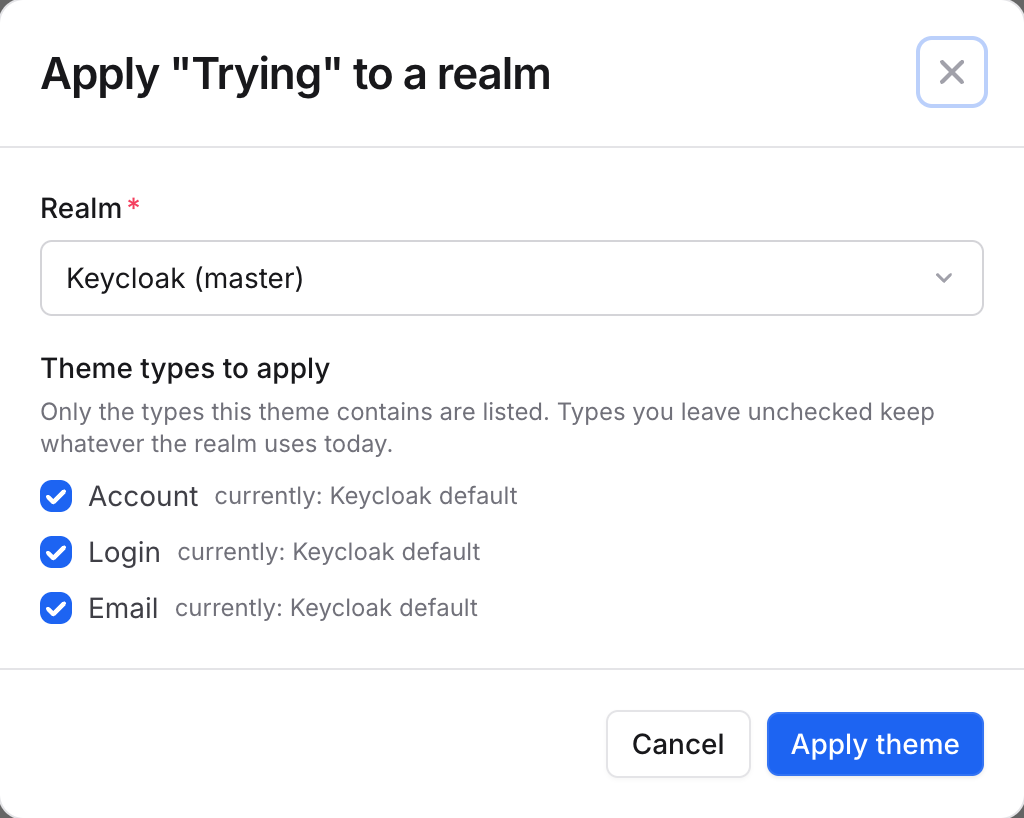
Section titled “Applying a theme to a realm”A theme in the library does nothing until it is applied. Until you apply it, Keycloak carries on serving whatever it served before, so a theme can sit in the library looking finished while your sign-in page never changes.
Themes that are not applied anywhere are labelled Not applied in the library, so you can tell at a glance.
- Find the theme and click Assign.
- Pick the realm.
- Tick the parts you want it to cover. Only the types the theme actually contains are offered, and anything you leave unticked keeps whatever the realm uses today.
- Click Apply theme. The sign-in page picks it up straight away.
Replacing a theme’s files
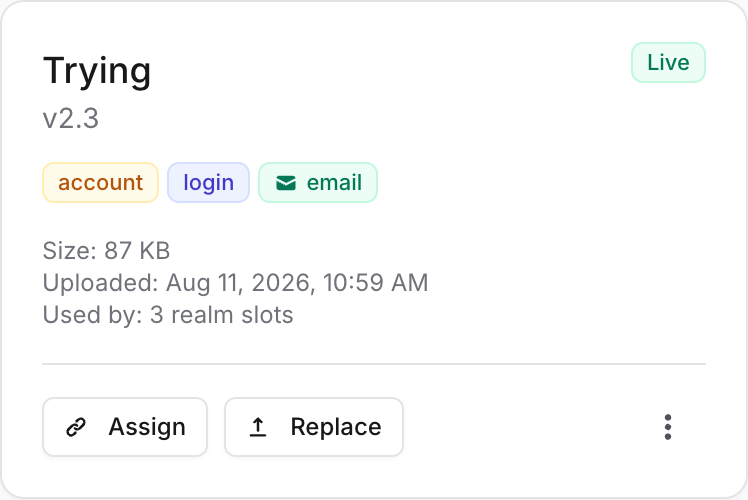
Section titled “Replacing a theme’s files”Use Replace to ship a change to a theme that is already in use. The theme keeps its name and every realm and application it is applied to, so there is no moment where your sign-in page is unbranded.
- Find the theme and click Replace.
- Choose the new
.zipor.jar. - Optionally set a new version. Leave it as it is if the change does not need one; the version is only recorded once the new content is live.
The new design appears on your sign-in page immediately. No restart, and nothing to reassign afterwards.
Two things worth knowing:
- The new file must still cover what the theme is being used for. If a realm is using this theme for email and your new file has no email templates, the replacement is refused rather than quietly leaving that realm unbranded.
- Themes brought in by a database migration cannot be replaced. A migrated realm refers to its theme by folder name, so that name cannot move. Upload the new version as a separate theme and apply it instead.
Setting themes with your own automation
Section titled “Setting themes with your own automation”If you set realm or application themes yourself (for example with the Keycloak Admin API, Terraform, or a realm import), use the theme’s directory, not its name. That is the folder Keycloak actually serves the theme from.
- In the dashboard, each theme card shows its directory next to the version, with a copy button.
- In the Skycloak API, every theme response includes it as the
directoryfield.
Only use the directory once the theme’s status is Deployed. Before that, or after a failed upload, it may name a folder that does not exist yet.
The directory changes each time you replace the theme’s files, so read it again after a replace. What happens to existing settings:
- Realm themes that name the previous directory are moved to the new one automatically, even if you set them outside Skycloak.
- Child themes (themes whose parent is this theme) are moved to the new directory too.
- Application themes set outside Skycloak are not moved. Update them after a replace, or assign them through Skycloak so they follow along.
Keep exact theme names
Section titled “Keep exact theme names”If your automation sets themes by the theme’s own name and cannot read the directory first, turn on Keep exact theme names in the settings at the top of the Theme Library. Only workspace owners and admins can change it.
With it on, every theme in the workspace is served from a folder named exactly like the theme, and that name never changes, even when you replace the files.
- Turning it on moves your existing themes to their exact names right away. Realm themes and Skycloak-assigned application themes are moved for you. Application themes you set yourself outside Skycloak are not; update those to the exact name.
- If a theme cannot be moved, for example because its cluster is busy updating, its card says so. Replace the theme’s files to finish the move.
- Turning it off changes nothing straight away. Each theme goes back to a changing directory the next time you replace its files.
The trade-off: replaced files are live only after a restart. Keycloak keeps
a theme’s pages in memory under its folder name, so when the name stays the
same, it keeps showing the previous design until your Keycloak instances
restart. After a replace, the theme card shows Updated files are live after
your Keycloak instances restart, and the Skycloak API returns
restart_required: true for that theme until the restart has happened.
Workspace owners, admins, and cluster admins can choose Restart now on the card to restart your instances:
- Clusters with more than one instance restart one instance at a time, so sign-ins keep working. A single-instance cluster is unavailable for up to about a minute.
- If your cluster applies changes only during its maintenance window, the card tells you the restart is scheduled for that window instead.
- A restart for any other reason, such as maintenance, also makes the new files live, and the notice clears on its own.
Stylesheets, scripts, and images keep the same address after a replace. We clear our edge cache for you, but a visitor’s browser may keep an older copy for a while. If a style change must show immediately, give the changed file a new name in your theme.
Doing this from your own automation
Section titled “Doing this from your own automation”Both steps above are also available through the Skycloak API, so your automation can turn on exact theme names and trigger the restart itself instead of waiting for someone to click through the dashboard.
GET /theme-settingsandPUT /theme-settingsread and change the exact theme names setting for your workspace. The body is a single field,exact_theme_names.POST /clusters/{cluster_id}/restart-instancesstarts the same restart as the Restart now button. The response says whether it started right away or was scheduled for the cluster’s maintenance window, and when that window opens if it is known.
See the API reference for the full request and response shapes.
Downloading a theme
Section titled “Downloading a theme”Open the ⋮ menu on any theme and choose Download to get the archive back.
It is unavailable for themes uploaded before this feature existed, since their original file is no longer stored. Replace that theme’s content once and it becomes downloadable from then on.
What you get is the archive as the library holds it, which is not always byte-for-byte what you first uploaded: archives are filtered when you keep only some theme types, and split when one file contained several themes.
Application Theme Assignment
Section titled “Application Theme Assignment”Assignment Process
Section titled “Assignment Process”-
Open the Theme Library
- Select your cluster, then click Themes in the sidebar and open the theme’s assignment options
- Requires the Business plan or higher
-
Select Theme Type
- Choose from login, email, admin, or account
- View available themes for selected type
- See theme preview and details
-
Assign Theme
- Select theme from available options
- Preview theme assignment
- Apply theme to application
-
Manage Assignments
- View current theme assignments
- Update or remove theme assignments
- Monitor theme performance
Per-Application Theming
Section titled “Per-Application Theming”Flexible Assignment:
- Assign different themes to different applications
- Mix and match theme types per application
- Override default themes for specific use cases
Assignment Examples:
- Customer Portal: Custom login + account themes
- Admin Dashboard: Admin theme only
- Marketing Site: Login + email themes
- Partner Portal: Complete custom theme set
Theme Conflicts
Section titled “Theme Conflicts”Email Theme Conflicts:
- Automatically detected when email themes conflict with custom templates
- Warning indicators on affected applications
- Guidance for resolving conflicts
- Option to prioritize themes or templates
Resolution Options:
- Remove conflicting email theme
- Disable custom email templates
- Use theme-specific email templates
- Contact support for advanced resolution
Advanced Features
Section titled “Advanced Features”Advanced Management
Section titled “Advanced Management”Bulk Operations:
- Upload multiple themes simultaneously
- Bulk assign themes to applications
- Mass update theme assignments
- Batch delete unused themes
Analytics and Reporting:
- Theme usage statistics
- Performance metrics
- User engagement analytics
- Theme effectiveness reporting
A/B Testing:
- Test different themes simultaneously
- Compare theme performance
- Gradual rollout capabilities
- Data-driven theme optimization
Integration Capabilities
Section titled “Integration Capabilities”Multi-Environment Support:
- Development, staging, production themes
- Environment-specific theme management
- Synchronized theme deployment
- Environment promotion workflows
Custom Development:
- Theme development services
- Custom theme creation
- Migration assistance
- Technical consulting
Support and Maintenance
Section titled “Support and Maintenance”Priority Support:
- Dedicated theme support team
- Technical assistance for complex themes
- Migration and upgrade support
- Performance optimization help
Professional Services:
- Custom theme development
- Theme migration from other systems
- Training and best practices
- Architecture and design consultation
Theme Development
Section titled “Theme Development”Theme Structure
Section titled “Theme Structure”Standard Keycloak theme structure:
my-theme/
├── login/
│   ├── resources/
│   │   ├── css/
│   │   ├── img/
│   │   └── js/
│   ├── messages/
│   ├── *.ftl templates
│   └── theme.properties
├── email/
│   ├── html/
│   ├── text/
│   └── messages/
├── admin/
│   └── resources/
└── account/
    └── resources/
Theme Requirements
Section titled “Theme Requirements”File Structure:
- Must follow Keycloak theme conventions
- Include theme.properties configuration
- Contain appropriate template files
- Support required message bundles
Type Detection:
- Login: Requires login/ directory with templates
- Email: Requires email/ directory with templates
- Admin: Requires admin/ directory with resources
- Account: Requires account/ directory with resources
Best Practices:
- Test themes in development environment
- Follow Keycloak security guidelines
- Optimize images and assets
- Document theme customizations
Testing Themes
Section titled “Testing Themes”Development Testing:
- Local Keycloak instance testing
- Multiple browser testing
- Mobile responsiveness testing
- Accessibility compliance testing
Staging Validation:
- Upload to staging environment
- Test with real user flows
- Validate theme assignments
- Check performance impact
Production Deployment:
- Gradual rollout to applications
- Monitor user feedback
- Track performance metrics
- Maintain rollback capability
Troubleshooting
Section titled “Troubleshooting”Common Issues
Section titled “Common Issues”Theme Upload Fails:
- Check file size (max 50MB)
- Verify the archive structure (ZIP or JAR — Keycloakify JARs are accepted)
- Ensure valid Keycloak theme format
- Check for corrupted files
Type Detection Issues:
- Verify theme directory structure
- Check for required template files
- Ensure proper theme.properties configuration
- Review error messages for specifics
Assignment Problems:
- Confirm theme is published
- Check application permissions
- Verify theme type compatibility
- Review conflict warnings
Email Conflicts:
- Check for existing email templates
- Review email theme assignments
- Understand conflict resolution options
- Contact support for complex scenarios
Error Messages
Section titled “Error Messages”“Theme validation failed”:
- Check Keycloak theme structure
- Verify required files are present
- Review theme.properties configuration
- Check for syntax errors in templates
“Type detection failed”:
- Ensure proper directory structure
- Check for required template files
- Verify theme.properties settings
- Review theme naming conventions
“Assignment not allowed”:
- Verify your workspace is on the Business plan or higher
- Check application permissions
- Confirm theme is published
- Review plan limitations
Getting Help
Section titled “Getting Help”Support Resources:
- Skycloak support ticket system
- Theme development documentation
- Best practices guides
When Contacting Support:
- Include theme files and error messages
- Provide workspace and application details
- Describe expected vs actual behavior
- Include steps to reproduce issues
Plan Requirements
Section titled “Plan Requirements”The Theme Library is included on the Business and Enterprise plans. The basic per-realm Custom Theme upload (on the Branding page) is also gated to Business and above.
Where each feature lands across Skycloak plans:
| Feature | Free Trial | Developer | Launch | Business | Enterprise |
|---|---|---|---|---|---|
| Basic branding (colors, logo, copy) | ✓ | ✓ | ✓ | ✓ | ✓ |
| Per-realm Custom Theme upload | – | – | – | ✓ | ✓ |
| Theme Library (cluster-wide) | – | – | – | ✓ | ✓ |
| ZIP and JAR (Keycloakify) uploads | – | – | – | ✓ | ✓ |
| Multi-theme JARs | – | – | – | ✓ | ✓ |
| Automatic type detection | – | – | – | ✓ | ✓ |
| Per-realm / per-client assignment | – | – | – | ✓ | ✓ |
| Email conflict detection | – | – | – | ✓ | ✓ |
Upgrading
Section titled “Upgrading”- Open Billing from the left sidebar and pick Business (or higher) — or contact sales for Enterprise / volume pricing.
- The Theme Library unlocks immediately after the plan change.
- Existing custom themes on the Branding page are preserved across plan changes.