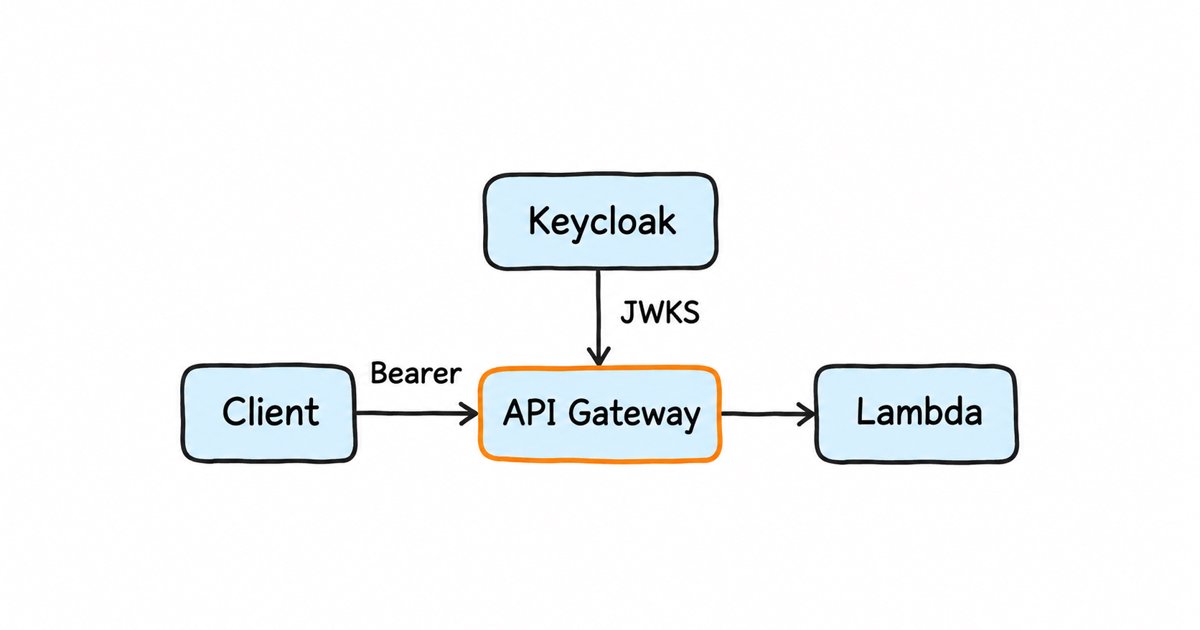
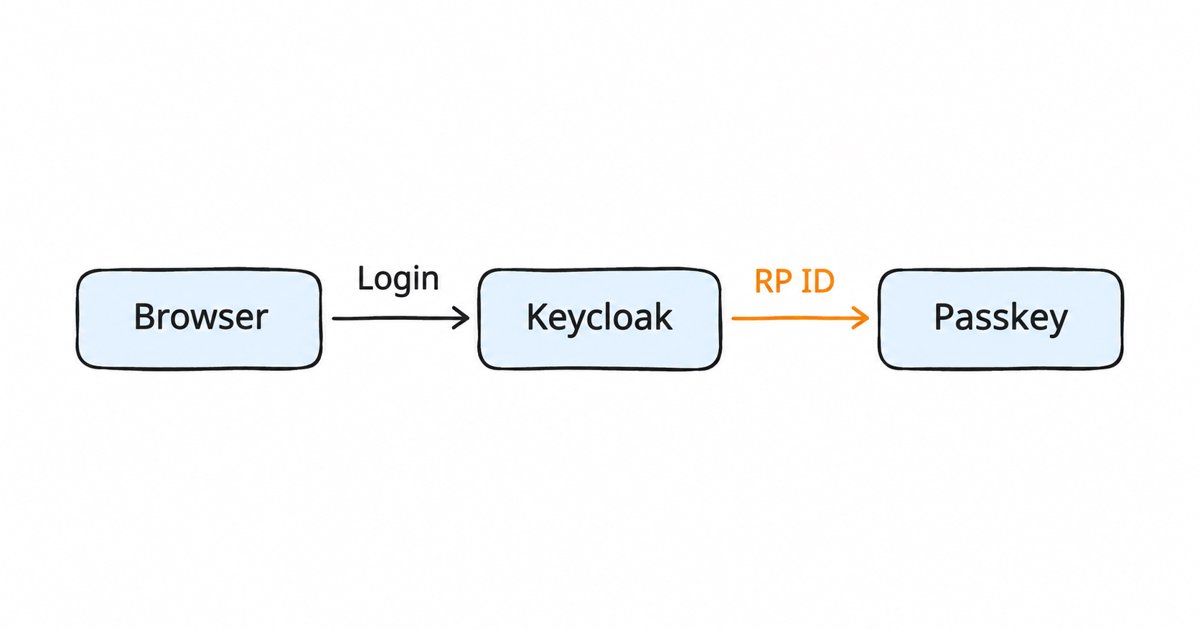
How to fix a Keycloak passkey not offered at login. Keycloak offers a registered passkey at login only when Enable Passkeys is on, the credential is Passwordless, the RP ID matches and the theme renders the form.
When Keycloak does not offer a registered passkey at login, the cause is usually one of these: Enable Passkeys is off for the realm (Realm settings, Login tab), the credential was registered as a second factor rather than as Passwordless, or the RP ID does not match the login domain. A custom login theme that drops the WebAuthn form inputs, including authenticatorAttachment, breaks it too. This checklist walks through each cause in order.
A passkey is a WebAuthn credential that signs the user in without a password. Keycloak has a two-factor WebAuthn variant and a passwordless one, and the admin guide says passkeys use “the passwordless variants”.
Prerequisites
- Keycloak 26.4 or newer, the release for which the Keycloak team announced “official support for passkeys”. The screenshots show Keycloak 26.8.2, so menus may differ on other releases.
- An admin account that can change the realm’s settings and authentication.
- A test user and a browser and device that support passkeys. passkeys.dev lists which platforms support autofill and cross-device sign-in.
Step 1: Turn on Enable Passkeys
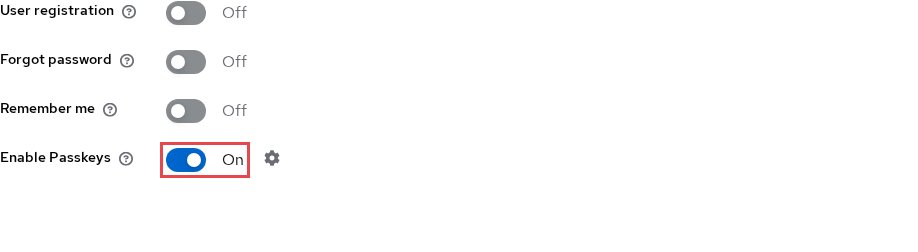
Open Realm settings, choose the Login tab and turn on Enable Passkeys. Passkey support is not enabled by default, so users who already registered a passkey are not offered it until this is on.
Step 2: Choose the Passkey Mediation
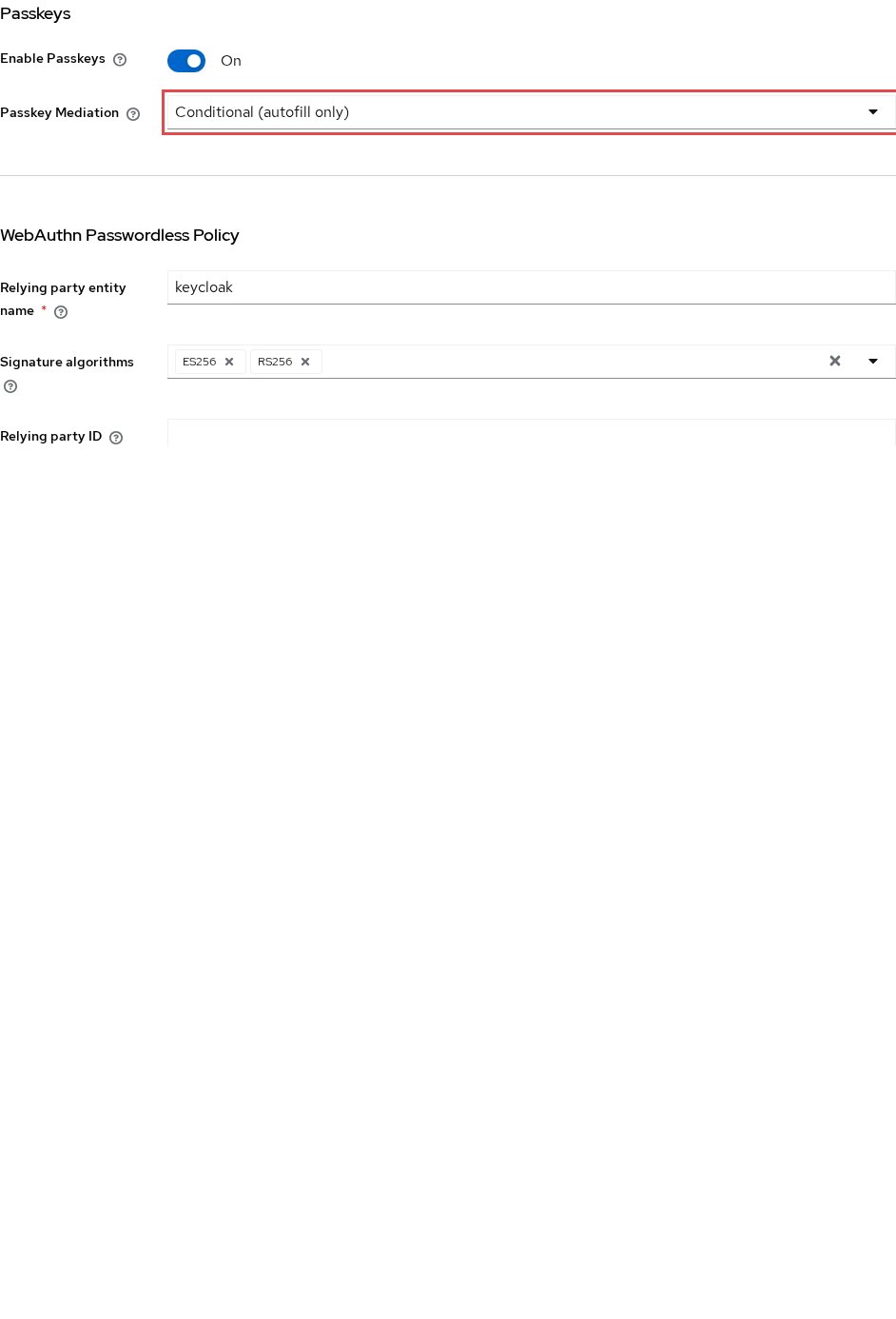
Open Authentication, then Policies, then WebAuthn Passwordless Policy, and pick a Passkey Mediation value. The admin guide lists conditional as the default and says it opens no dialog: passkeys are “offered only through the browser’s autofill dropdown when the user focuses the username input field.” Users who expect a prompt report this as the passkey not being offered, so choose optional if you want a dialog on page load. The Sign in with Passkey button stays available either way.
Step 3: Check the RP ID
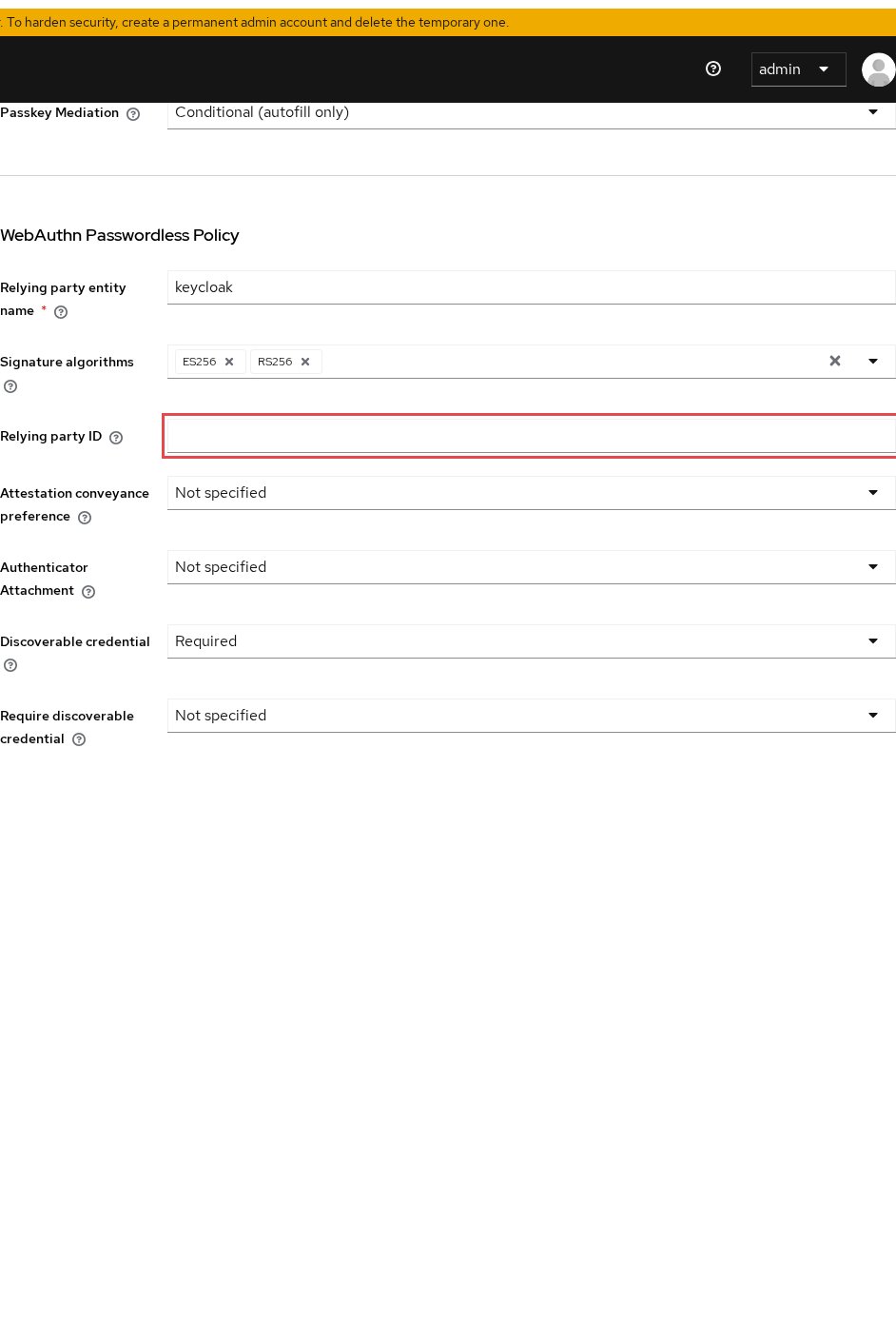
On the same policy, look at Relying Party ID, one of the settings in the WebAuthn policy reference. The WebAuthn specification says a credential “can only be accessed by origins belonging to that Relying Party”, so a passkey registered under one RP ID may not be offered on a login domain outside it. Set the RP ID to the domain your users sign in on, or to a parent domain such as example.com that covers both.
Step 4: Enable the Webauthn Register Passwordless required action
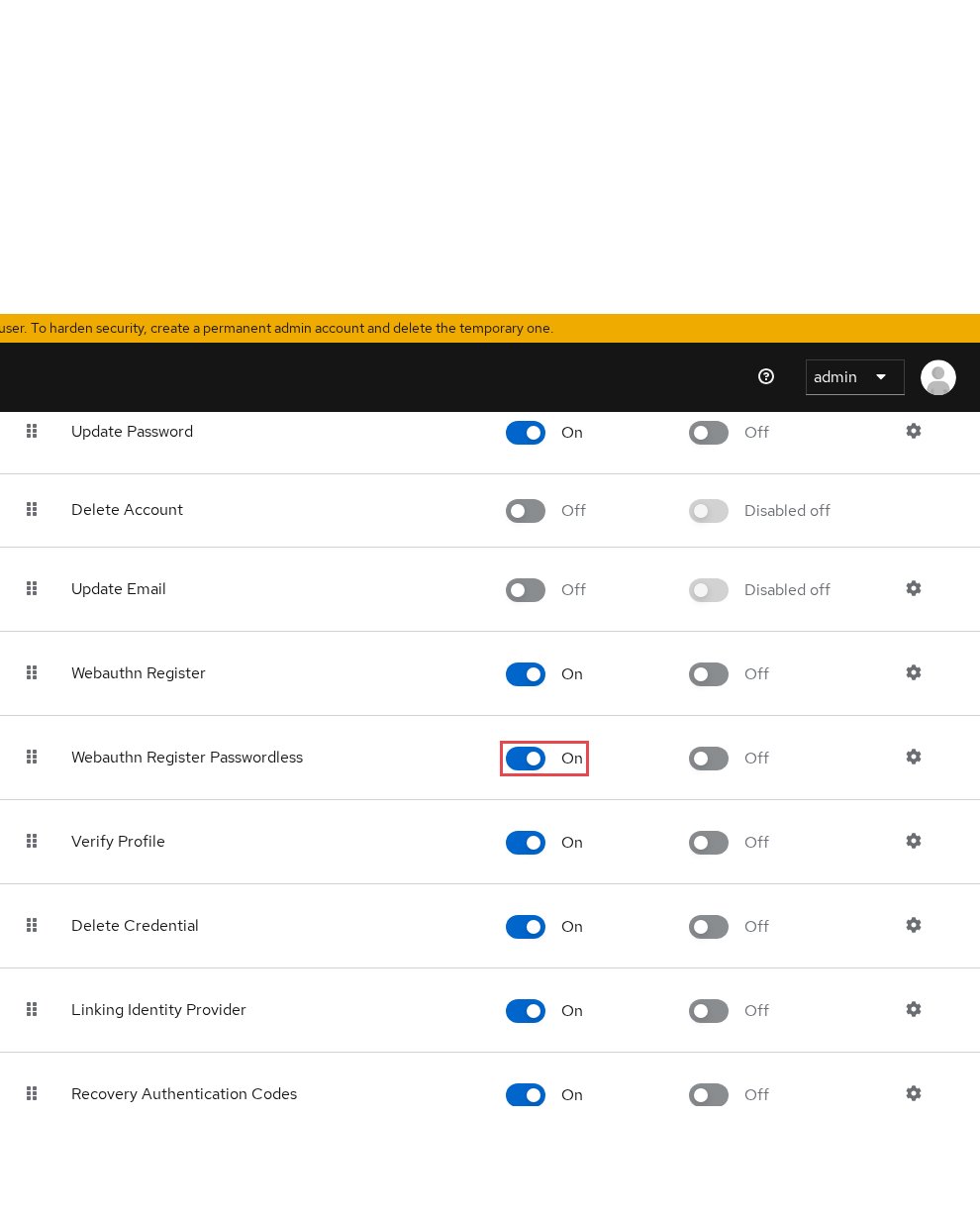
Open Authentication, then Required actions, and make sure Webauthn Register Passwordless is on. This action registers a passwordless WebAuthn credential. Webauthn Register, the action next to it, registers a two-factor one.
Step 5: Check the credential type on the user’s Credentials tab

Open Users, select the user and choose the Credentials tab. The Type column shows what each credential is. If the user’s WebAuthn credential came from Webauthn Register rather than the passwordless action, it is a second factor, not a passkey: have the user register a passkey through the action from Step 4, then delete the old credential.
Somewhere to run this that stays patched
Everything above works the same on Skycloak, because it is real upstream Keycloak rather than a fork. What changes is who handles the upgrades, backups and security patches afterwards.
Step 6: Check the browser flow’s login form
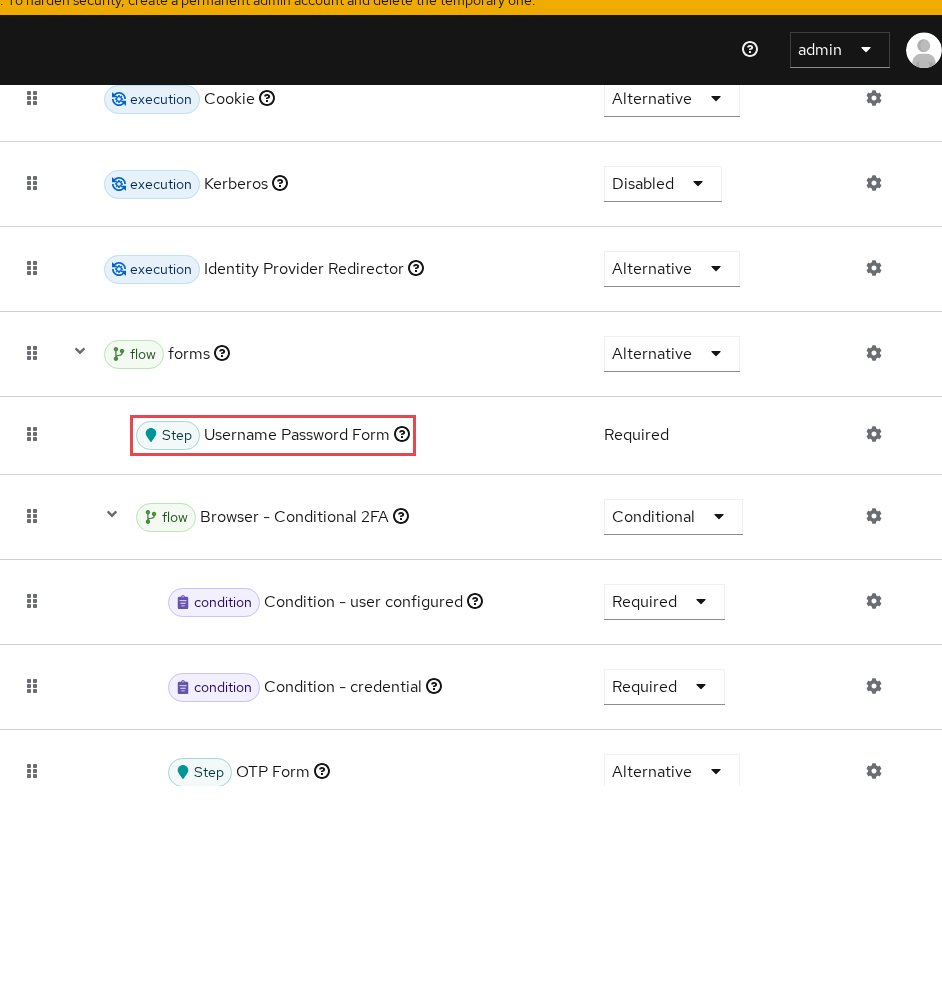
Open Authentication, select the flow bound as the browser flow and check that it still contains Username Password Form or Username Form. Keycloak added passkeys to these forms and to Password Form, so no extra execution is needed. Our guide to custom authentication flows explains how to rebuild one.
Step 7: Check which login theme the realm uses
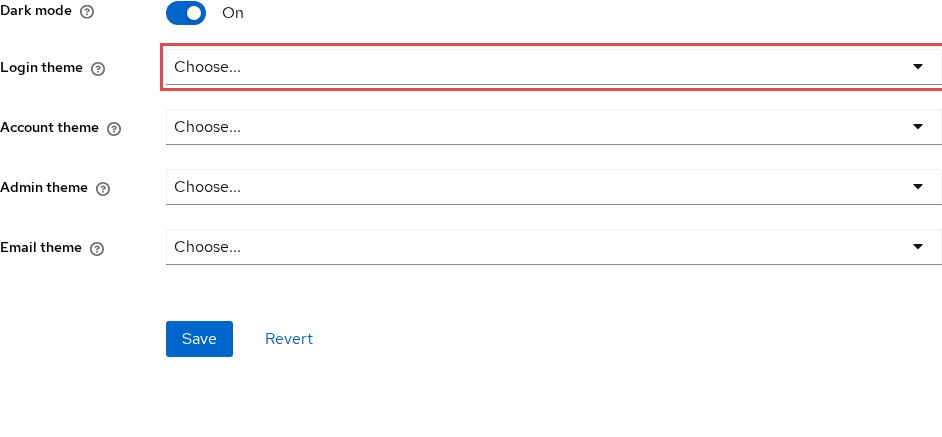
Open Realm settings, then Themes, and note the Login theme. The built-in themes need no changes. A custom theme copied from an older release may miss what passkeys need:
- Compare
login.ftlwith the built-in template, keeping its passkey markup around the username field. - Compare
webauthn-register.ftlwith the built-in template, keeping its hiddenauthenticatorAttachmentinput.
Our theme customization guide shows how to compare a custom theme with its parent.
Test it
Open a private browser window and start a login to the realm. Click into the username field: with conditional mediation, the browser’s autofill list should include the passkey. The Sign in with Passkey button should sit under the form, and choosing it should open the browser’s passkey dialog and sign you in without a password.
Troubleshooting
The button shows, but autofill lists nothing. Autofill needs browser support for conditional mediation, and without it the admin guide says the behaviour is the same as none. Use the button, or check the device on passkeys.dev.
The passkey works on one domain but not on another. The RP ID may not cover both hosts. Fix it as in Step 3, then register passkeys made under the old RP ID again.
No passkey dialog opens on page load on a laptop. With Authenticator Attachment set to platform and no built-in authenticator, the admin guide says the automatic flow is skipped. Set it to not specified.
Users are still asked for a second factor after using a passkey. The admin guide says the default browser flow skips Browser - Conditional 2FA when a passkey was used. A custom flow may lack that condition: compare it with the built-in browser flow.
FAQ
Why does Keycloak not show passkey autofill on the username field?
With conditional mediation the passkey appears only when the user focuses the field in a browser that supports it, and the theme keeps the built-in passkey markup, as in Step 7.
What is the difference between WebAuthn and WebAuthn Passwordless in Keycloak?
The WebAuthn Policy governs second-factor credentials, and the passwordless policy governs passkeys used to sign in.
Do I need to add a WebAuthn step to the browser flow for passkeys?
Not for the built-in flow. The 26.4 announcement says “There is no need to modify default browser flow to use passkeys.”
Can I convert a two-factor WebAuthn credential into a passkey in Keycloak?
The simplest path is to have the user register a new passkey with the passwordless required action, then delete the two-factor credential from the Credentials tab.
Next steps
Run the checklist against your realm’s login settings, browser flow and theme, then test login with a registered passkey. These links are useful next:
- The complete Keycloak passkeys guide, for rollout and recovery.
- How to change the username label on the Keycloak login page, if the field needs clearer wording.
- Enterprise passkeys for B2B SaaS, for rolling passkeys out to business customers.
- Managed Keycloak hosting on Skycloak, if you would rather not run the server yourself.