
Introduction
SCIM (System for Cross-domain Identity Management) is an open standard protocol designed to automate the exchange of user identity information between different systems.
I had previously written about SCIM 2.0 provisioning with Skycloak managed Keycloak using REST calls, together with the Metatavu keycloak-scim-server extension for Keycloak.
Starting from Keycloak 26.6+, SCIM support has been introduced as a preview feature. In this article, we will explore provisioning from Okta to Keycloak using:
- Okta as the SCIM client
- Keycloak 26.6+ as the SCIM server
We will first use the native SCIM preview feature introduced in Keycloak 26.6+ and later compare it with the older SCIM extension approach.
Since SCIM support in Keycloak 26.6+ is still a preview feature, behavior and compatibility may change in future releases.
Architecture Overview
In this setup:
- Okta acts as the SCIM client
- Keycloak acts as the SCIM server
- Okta authenticates to Keycloak using OAuth2 Client Credentials
- SCIM provisioning is attached to a SAML application in Okta
Although SAML is used for the application integration, SCIM provisioning works independently through SCIM REST endpoints exposed by Keycloak. More details are in our walkthrough of the Keycloak SCIM 2.0 preview feature.
Prerequisites
Before starting, ensure the following are available for verifying SCIM preview feature:
- Keycloak 26.6+
- Okta developer/integrator account
- A Keycloak realm
- HTTPS-enabled Keycloak endpoint
- SCIM preview feature enabled in Keycloak
- A confidential OIDC client in Keycloak with Client Credentials enabled
Implementation Steps
Although this article describes the steps for configuring Okta-to-Keycloak provisioning using the SCIM preview feature introduced in Keycloak 26.6+, I encountered issues with user synchronization in Keycloak 26.6.1 related to handling of the
passwordattribute. We will discuss this limitation later in the article and finally compare the behaviour with older SCIM extension.
Step 1: Enable SCIM Preview Feature in Keycloak
As of Keycloak 26.6.1, SCIM is available as a preview feature.
Enabling SCIM involves two steps:
- Enable on Keycloak Startup
- Enable on realm level
Enable SCIM During Keycloak Startup
Start Keycloak using:
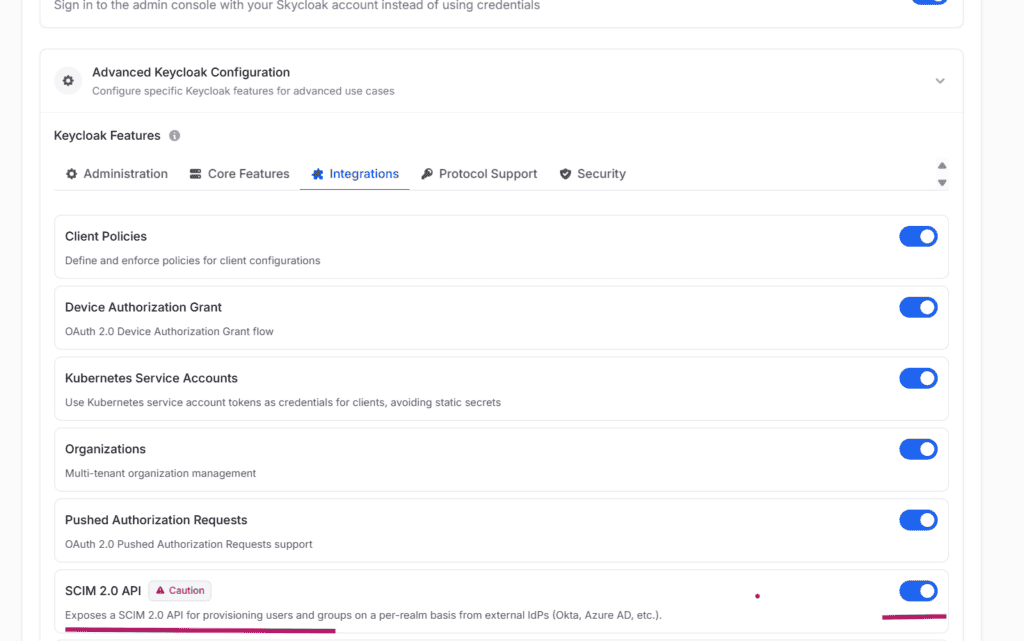
--features=scim-apiIn Skycloak, this can be enabled from the cluster configuration.
Navigate to:
- Skycloak Console
- Select Cluster
- Actions → Edit Cluster
- Expand Advanced Keycloak Configuration
- Navigate to Integrations
- Enable SCIM 2.0 API
Enable SCIM at Realm Level
From the Keycloak Admin Console:
- Navigate to Realm Settings
- Enable SCIM API
Once enabled, Keycloak exposes SCIM endpoints for the realm.
Example:
https://<keycloak-host>/realms/<realm-name>/scim/v2Step 2: Create an OIDC Client in Keycloak
Create a confidential OIDC client in Keycloak with:
- Client Authentication enabled
- Service Accounts enabled
- Client Credentials Grant enabled
Under:
- Service Account Roles
- realm-management client roles
Assign the following roles:
- manage-users
- view-users
- query-groups
- query-users
- view-realm
Note down the following:
- Client ID
- Client Secret
These will be required in Okta
Step 3: Create a SAML Application in Okta
Navigate to:
- Okta Admin Console
- Applications
- Applications
- Create App Integration
- SAML 2.0
Specify:
- Single Sign-On URL
- Audience URI (SP Entity ID)
These values are commonly used when configuring Identity Brokering between Okta and Keycloak. However, for SCIM provisioning alone, creating an Identity Broker in Keycloak is not mandatory. Okta communicates directly with Keycloak SCIM endpoints.
Complete the application creation.
Enable SCIM Provisioning in Okta
Navigate to:
- Application → General Tab
- Provisioning
- Enable SCIM Provisioning
This enables the Provisioning tab.
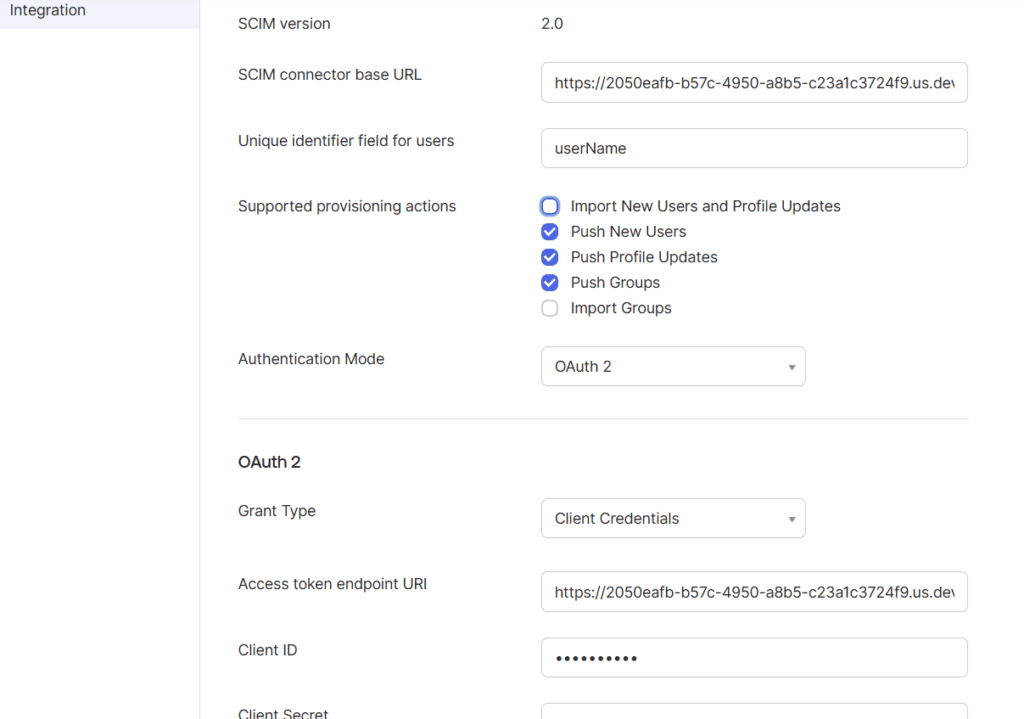
Specify the following:
SCIM Connector Base URL
https://<keycloak-host>/realms/<realm-name>/scim/v2Unique Identifier Field for Users
userNameThe userName attribute is the standard SCIM user identifier field.
Supported Provisioning Actions
I enabled:
- Push New Users
- Push Profile Updates
- Push Groups
The following options are for reverse synchronization from Keycloak to Okta:
- Import New Users and Profile Updates
- Import Groups
Since Okta is the source system in this setup, these options are typically not required.
Authentication Mode
OAuth2Grant Type
Client CredentialsAccess Token Endpoint
https://<keycloak-host>/realms/<realm-name>/protocol/openid-connect/tokenClient ID
Specify the Keycloak OIDC client ID.
Client Secret
Specify the Keycloak OIDC client secret.
Test the connection and save the configuration.
Ensure the SCIM connection test succeeds successfully.
Step 4: Enable User and Group Provisioning
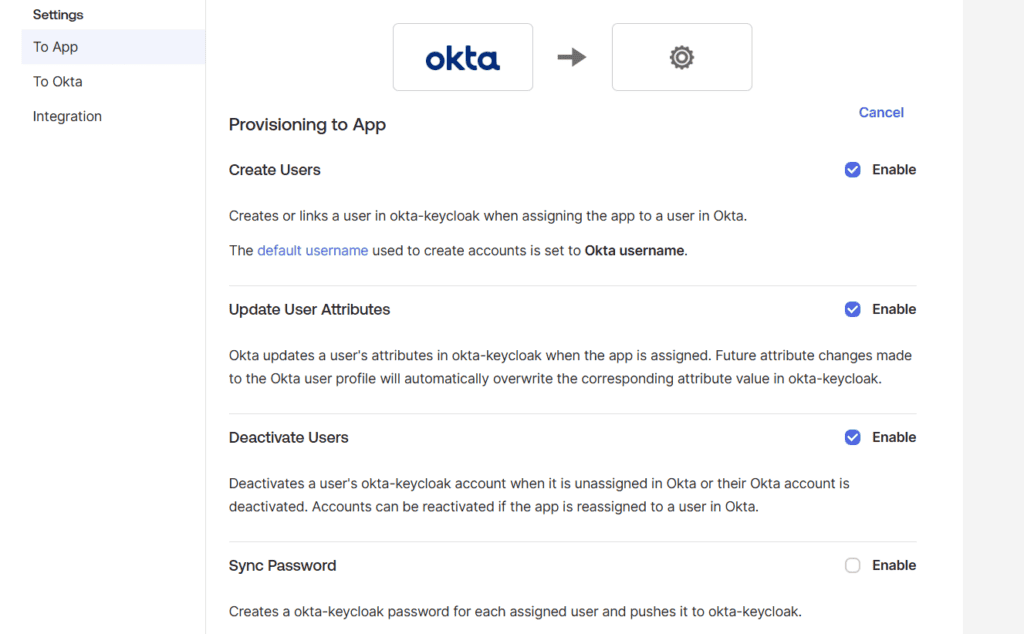
Automatically Push Users
Enable the provisioning options as required so that users assigned to the Okta application are automatically synchronized to Keycloak.
Unfortunately, while synchronizing users to Keycloak, I encountered failures related to the password attribute.
According to the following Okta article, Okta always sends the password attribute during SCIM provisioning, even when password synchronization is disabled:
The Keycloak SCIM preview implementation appears to reject requests containing the password attribute.
Under Provisioning -> Attribute Mappings at Okta, I had selected only the attributes by default supported by Keycloak.
Automatically Push Groups
Configure Push Groups either:
- by group name
- or using rules
Groups are synchronized successfully to the Keycloak realm when assigned to the application.
Comparison with the SCIM Extension
Since user synchronization failed with the SCIM preview feature, I repeated the same provisioning setup using the older SCIM extension in a Keycloak environment where the SCIM preview feature was not enabled. For integrating the SCIM extension, I referred to the blog mentioned in the introduction section of this article.
While testing the SCIM extension, I used the Bearer Token authentication option in Okta to authenticate with Keycloak instead of the OAuth2 Client Credentials options described in this article. OAuth2 authentication may also work with the SCIM extension, but I did not perform the required configuration for testing it.
Observations
I felt that the native Keycloak SCIM implementation is architecturally cleaner and better integrated. However, interoperability with Okta user provisioning currently appears limited due to handling of the password attribute.
Comparison Summary
SCIM Extension
- REST requests work successfully
- Okta → Keycloak user synchronization works
- Okta → Keycloak group synchronization works
- I used bearer token authentication configured as EXTERNAL token
- Requests containing
passwordare accepted - However, passwords are not actually synchronized or stored in Keycloak
Keycloak SCIM Preview Feature
- REST requests succeed when
passwordis absent - REST requests fail when
passwordis included - OAuth2 Client Credentials authentication works successfully
- Group synchronization works successfully
- User synchronization from Okta fails because Okta always sends
password
Additional Observation
The SCIM specification defines password as a valid SCIM attribute.
However, many SCIM implementations:
- ignore the attribute
- treat it specially
- or do not persist it directly
The issue observed here is not that Keycloak does not synchronize passwords. The issue is that the current SCIM preview implementation appears to reject the entire request when the password attribute is present.
This may be:
- a limitation of the preview implementation
- an interoperability issue
- or incomplete handling of SCIM password attributes
Summary
In this article, we explored SCIM provisioning from Okta to Keycloak 26.6+ using the new SCIM preview feature.
Although group provisioning works successfully, user provisioning currently faces interoperability issues with Okta because Okta always sends the password attribute during SCIM user creation requests.
The older SCIM extension does not reject such requests, although it also does not synchronize passwords into Keycloak.
Since the Keycloak SCIM feature is still in preview, it will be interesting to see how interoperability evolves in future releases.
About Skycloak
Skycloak is a fully managed Keycloak platform hosted in the cloud. It enables organizations to leverage the power of open-source Keycloak IAM without the operational overhead of installing, maintaining, and scaling production-grade Keycloak environments, delivered securely and cost-effectively.
If you’re new to Skycloak, visit the Skycloak Getting Started Guide to learn more