Use the Skycloak Dashboard in French or German. Yes, the Skycloak dashboard runs in English, French and German. Each person picks a language, saved to their account, or it follows a French or German browser.
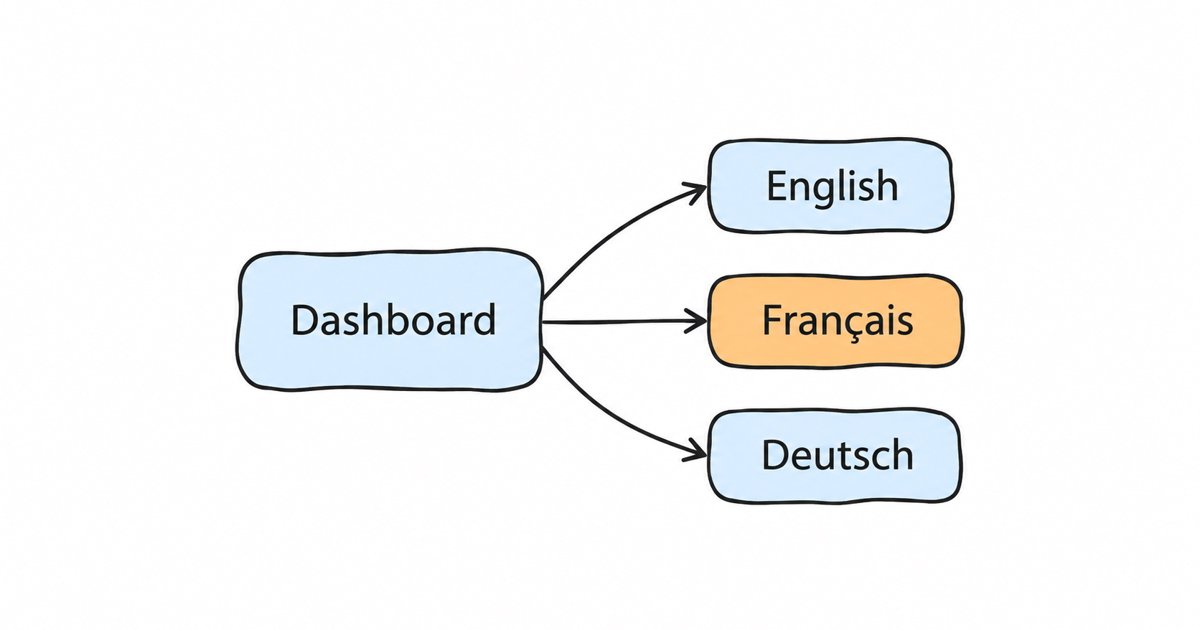
Yes, the Skycloak dashboard is available in English, French and German. Each person picks a language in the switcher in the top bar, and the choice is saved to their own account, so it follows them to every browser and device. Without a saved choice, the dashboard follows your browser language if it is French or German, and otherwise shows English (Dashboard and Login Language).
This post explains how the dashboard picks a language, how each person switches it, which parts of the dashboard are translated today, and how this differs from the language your own users see on your Keycloak login pages.
How does the dashboard choose its language?
When you open the dashboard, Skycloak looks at three things in a fixed order and uses the first one that applies, as our language documentation describes:
- The language you chose and saved on your account.
- Your browser’s language, if it is French or German.
- English.
In practice, someone whose browser is set to French or German sees the dashboard in that language from their very first visit, without touching any setting. Once they pick a language themselves, that saved choice wins over the browser on every device they sign in from.
The Skycloak sign-in and sign-up pages use the same setting. After you have chosen a language and signed in, the sign-in page opens in that language the next time. If you arrive from the French or German pages of skycloak.io, the sign-up and sign-in pages also open in that language before you have chosen anything, and they have their own language menu if you want to change it there.
Is the language set per person or per workspace?
The language is set per person. The language is saved on the account, not on the workspace, so a French account owner and a German teammate in the same workspace each see the dashboard in their own language, and an English speaking colleague can keep English. Nobody needs to agree on a single workspace language, and changing yours does not change what anyone else sees.
How do you switch the dashboard language?
The switch takes a few seconds, and it only changes your own view of the dashboard.
- Select the globe button in the top bar of the dashboard. It shows the code of the current language, such as EN.
- Pick English, Français or Deutsch. Each language is written in its own language, so a colleague who does not read English can still find theirs.
The dashboard switches straight away, without reloading the page, and the choice is saved to your account at the same moment. If you are still setting up a new workspace, the same button sits at the bottom of the setup screens. If the save fails, for example because your connection dropped, a message tells you so, and the new language stays only until you reload the page; pick it again once you are back online to save it (Choose your language).
Identity management as a service, on open source
Skycloak does what Auth0 and Okta do, SSO, MFA, SCIM, audit logs and enterprise federation, on an open source core. Unlimited users and applications on every plan, no charge per monthly active user, and you can export and self-host whenever you want.
Which dashboard pages are in French and German?
The account and workspace settings, team management and billing pages are available in all three languages. That covers the screens owners and admins use most for running the account: renaming the workspace, inviting members and assigning their roles (described in Team Management), and managing the plan, invoices and payment methods (described in Billing). The shared upgrade and billing dialogs also follow your choice wherever they appear in the dashboard.
Beyond those pages, the language documentation lists these areas as translated as well:
- The navigation: the top bar, the sidebar and the breadcrumbs.
- The workspace switcher, the sign-in related screens, workspace setup and the trial screens.
- Events, logs, SIEM, webhooks, marketplace extensions and configuration recipes.
- Instructions for catalog extensions, which follow your dashboard language and fall back to English. Custom extensions always show the text their uploader supplied.
Other dashboard pages are still being translated and show in English until they are done. Anything not yet translated appears in English, never as a blank label, so a half translated page is still fully usable.
Why do some Keycloak words stay in English?
Some Keycloak terms stay in English in every language, for example realm, client, identity provider and cluster. These are the words you will find in Keycloak’s own documentation, logs and admin console, so keeping them in English means a French or German admin can search for an error or follow a Keycloak guide without translating the term back first.
The French and German translations are machine-produced. If a wording looks wrong or confusing, report a problem from the dashboard and we will fix it.
Dashboard language versus your login page language
The dashboard language only changes the Skycloak screens you and your team use to manage your workspace. It does not change the language your own end users see on your realms’ Keycloak login pages, which is a separate setting on each realm.
For your end users, Keycloak handles languages through realm localization. The section of the Keycloak Server Administration Guide on enabling internationalization explains that English is the default language, that an admin picks the locales a realm supports and which of them is the default, and that once internationalization is on, a user can pick a language on the login page. Our internationalization guide shows how to set this up for login pages and emails on a Skycloak cluster.
If you want to go further than translation, these posts cover the next steps:
- How to change the username label on the Keycloak login page shows how to change one piece of login page text with a realm override, on the Realm overrides sub-tab of the realm’s Localization tab, and how to add the same override again in each language you support. The same section of the Keycloak admin guide notes that realm-specific texts on the Localization tab can replace the internationalized texts a theme provides.
- Customizing Keycloak themes with Keycloakify in Skycloak covers a fully custom login theme when you need more than changed wording.
- Federated identity management for B2B SaaS on Skycloak Organizations is useful when your own customers in France or Germany sign in through their company’s identity provider.
FAQ
Can each team member use a different dashboard language?
Yes. The language is saved on each person’s account, not on the workspace, so every member of a workspace can use English, French or German independently of the others.
Does the dashboard follow my browser language?
It does until you choose a language yourself. If your browser is set to French or German and you have not saved a choice, the dashboard opens in that language. Any other browser language shows English, and a saved choice always wins over the browser.
Do I have to set the language again on a new laptop?
No. The choice is stored on your Skycloak account rather than in the browser, so it applies on every browser and device where you sign in.
Does changing the dashboard language translate my Keycloak login pages?
No. Your end users’ login pages follow the localization settings of each realm. See our internationalization guide to set the languages your users can pick.
Is every dashboard page translated?
Not yet. Settings, team management, billing, the navigation, events, logs, webhooks and several other areas are translated, and the remaining pages show in English until their translation is done.
Next steps
Open your Skycloak dashboard, select the globe button in the top bar and pick Français or Deutsch, then tell your teammates that they can each choose their own language the same way. If you are not on Skycloak yet and want us to run Keycloak for your team, see managed Keycloak hosting.