Billing & Subscription Management
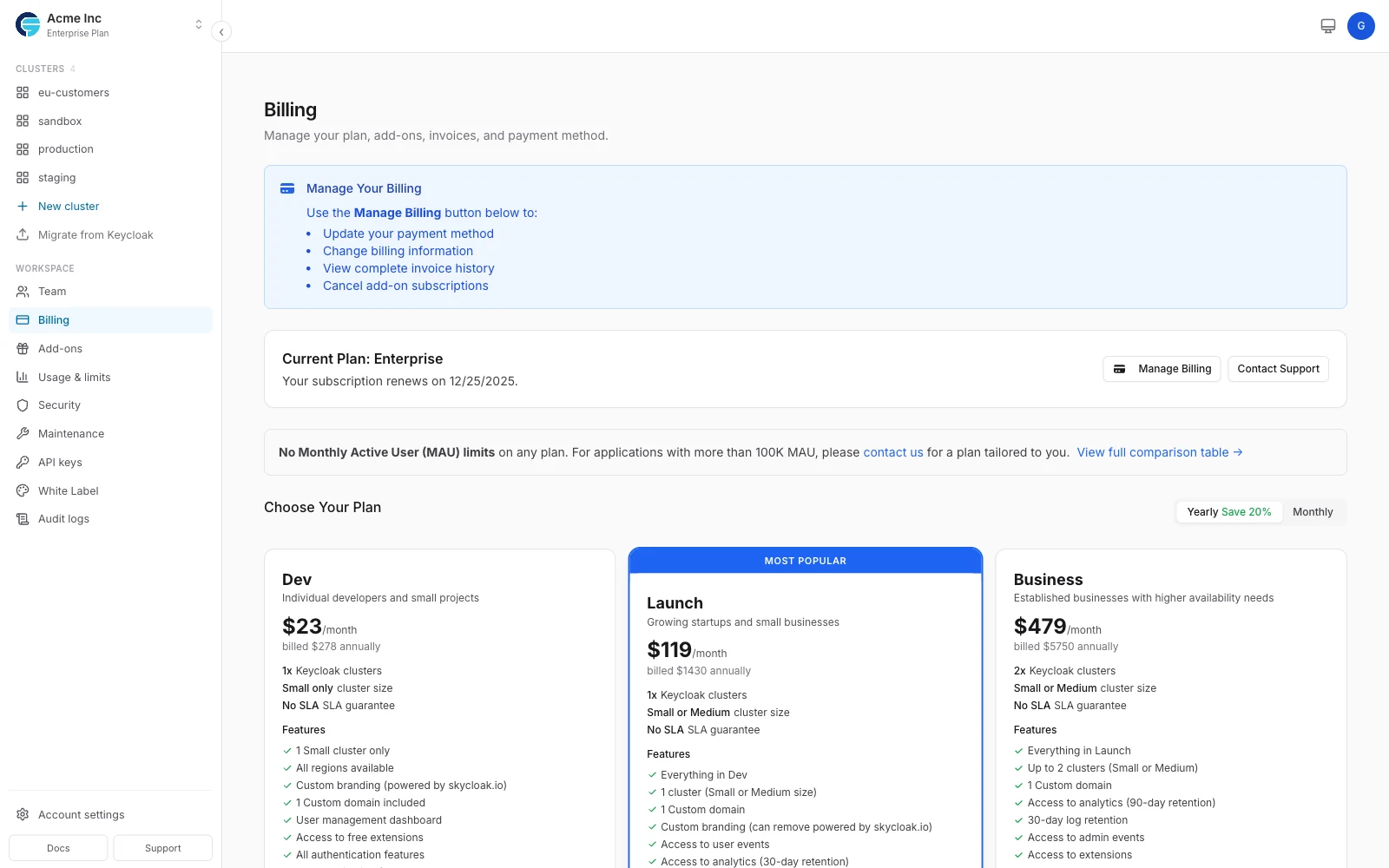
The Billing section helps you manage your Skycloak subscription, track usage, view invoices, and update payment methods. Understanding your billing is crucial for optimizing costs and ensuring uninterrupted service.
Understanding Skycloak Billing
Section titled “Understanding Skycloak Billing”Billing Model
Section titled “Billing Model”Skycloak uses a hybrid billing model:
- Base Plan Fee: Monthly subscription for features and resources
- Usage-Based Charges: Additional fees for exceeding plan limits
- Add-ons: Optional features and services
Billing Cycle
Section titled “Billing Cycle”- Bills generated monthly on your signup date
- Usage calculated at end of billing period
- Payment processed automatically
- Invoices available immediately
Accessing Billing Information
Section titled “Accessing Billing Information”Navigation
Section titled “Navigation”- Click Billing in the main sidebar — it’s a standalone item, no need to go through Settings
Permissions
Section titled “Permissions”- workspace:owner: Full billing access and subscription management
- workspace:billing: View and manage all billing aspects
- workspace:admin: View billing information only
- cluster:admin: No billing access
- cluster:viewer: No billing access
Subscription Management
Section titled “Subscription Management”Current Plan Overview
Section titled “Current Plan Overview”Your billing dashboard shows:
- Plan Name: Developer, Launch, Business, or Enterprise
- Monthly Cost: Base subscription fee
- Billing Period: Current cycle dates
- Payment Status: Active, Trial, or Past Due
Plan Features
Section titled “Plan Features”View what’s included in your plan:
- Number of clusters allowed
- Available regions
- Support level
- Feature access
Usage Metrics
Section titled “Usage Metrics”Monitor your current usage:
- Active Users: Unique users who signed in this period — informational only, never billed or capped
- Cluster Hours: Resource consumption
- Storage Used: Database and file storage
- API Calls: If applicable
Usage Alerts
Section titled “Usage Alerts”Set up alerts to avoid overages:
- Click “Configure Alerts”
- Set thresholds (e.g., 80% of cluster resource usage)
- Choose notification method
- Save alert preferences
Upgrading Your Plan
Section titled “Upgrading Your Plan”When to Upgrade
Section titled “When to Upgrade”Consider upgrading when:
- Approaching usage limits
- Need additional features
- Require better support
- Planning for growth
Upgrade Process
Section titled “Upgrade Process”- Verify your email address if you haven’t already - a verified email is required to subscribe
- Click “Change Plan”
- Select new plan
- Review feature comparison
- Confirm changes
Proration
Section titled “Proration”When upgrading:
- Immediate access to new features
- Prorated charge for current month
- Credit for unused time on old plan
- New rate starts next billing cycle
Example (30-day billing cycle, 15 days remaining):
Current Plan: Developer ($29/month)
Upgrade to: Launch ($149/month)
Days left in cycle: 15 of 30

New plan charge for remaining 15 days:  $149 × (15/30) = $74.50
Credit for unused time on old plan:      $29 × (15/30) = $14.50
-----------------------------------------------------------
Amount due today:                        $74.50 - $14.50 = $60.00
Downgrading Your Plan
Section titled “Downgrading Your Plan”Before Downgrading
Section titled “Before Downgrading”Check compatibility:
- Current usage within new limits
- Features you’ll lose access to
- Data retention policies
- Active configurations
Downgrade Process
Section titled “Downgrade Process”- Review current usage
- Reduce resources if needed
- Select lower plan
- Acknowledge feature changes
- Confirm downgrade
Grace Period
Section titled “Grace Period”When downgrading:
- 30-day grace period for adjustments
- Warnings for exceeding limits
- Automatic resource limiting after grace period
Payment Methods
Section titled “Payment Methods”Adding a Payment Method
Section titled “Adding a Payment Method”- Go to Payment Methods section
- Click “Add Payment Method”
- Enter card details or bank information
- Set as default if desired
Supported Payment Types
Section titled “Supported Payment Types”- Credit Cards: Visa, MasterCard, Amex
- Debit Cards: With recurring payment support
- Bank Transfer: Enterprise only
- ACH/SEPA: For qualified accounts
Managing Payment Methods
Section titled “Managing Payment Methods”- Set default payment method
- Remove outdated cards
- Update billing address
- Enable backup payment method
Invoices and Receipts
Section titled “Invoices and Receipts”Invoice Access
Section titled “Invoice Access”All invoices available in billing section:
- PDF download option
- Email delivery
- Detailed line items
- Tax information included
Invoice History Table
Section titled “Invoice History Table”The Invoice History table at the bottom of the Billing page lists every invoice on your workspace, newest first:
| Column | What it shows |
|---|---|
| Invoice | The invoice number |
| Date | The date the invoice was issued |
| Amount | The amount charged |
| Status | Whether the invoice is paid or still open |
| Receipt | A link to the receipt for the payment, when there is one |
The last column of each row has a PDF button that downloads the invoice itself.
Downloading a Receipt
Section titled “Downloading a Receipt”Select Receipt on any paid invoice row. The receipt for that payment opens in a new tab, where you can print it or save it as a PDF.
Rows that show Not available instead of a link have no receipt yet: a receipt only exists once a payment has been collected, so open, draft, and cancelled invoices do not have one. The invoice PDF is still available for those rows.
You only ever see invoices and receipts belonging to the workspace you are signed in to.
Invoice Details
Section titled “Invoice Details”Each invoice includes:
- Workspace information
- Billing period
- Base subscription fee
- Usage charges (if any)
- Credits or adjustments
- Tax calculation
- Total amount
Tax Handling
Section titled “Tax Handling”- Automatic tax calculation based on location
- VAT support for EU customers
- Tax exemption certificates accepted
- Updated rates automatically applied
Free Trial Management
Section titled “Free Trial Management”Trial Overview
Section titled “Trial Overview”All new accounts start with:
- 21-day free trial (7 days on the Expert path)
- Full feature access
- No credit card required
- Automatic conversion option
Trial Limitations
Section titled “Trial Limitations”During trial:
- Realm path (default, 21 days): a managed realm on the Shared Cluster — no dedicated cluster
- Expert path (7 days): 1 dedicated Small cluster, provisioned immediately
- US region only
- Standard support
- No custom domains
Converting from Trial
Section titled “Converting from Trial”Options when trial ends:
- Auto-convert: Add payment method for seamless transition
- Manual upgrade: Choose plan and add payment
- Extend trial: Earn extra days by completing actions such as a feedback survey, a public review, or a sales call
- Downgrade: Move to free tier (if available)
A verified email address is required to subscribe.
What happens to your trial realm: after payment, a cluster setup wizard provisions your dedicated cluster, then asks whether to Move your trial realm onto it or Delete it and start fresh. Moving is the default and carries over all users, credentials, and configuration; your issuer URL is unchanged. After a Move, the old shared realm remains available for 14 days before it is decommissioned - a banner and sidebar indicator show the countdown.
Managing Costs
Section titled “Managing Costs”Cost Optimization Tips
Section titled “Cost Optimization Tips”-
Right-size Clusters
- Use small clusters for development
- Scale up only for production
- Shut down unused clusters
-
Match Cluster Size to Load
- Review authentication traffic trends in Insights
- Downsize clusters that consistently run under capacity
- Upgrade size only when latency or load calls for it
-
Optimize Features
- Disable unused features
- Consolidate applications
- Review integration usage
Budget Alerts
Section titled “Budget Alerts”Set spending limits:
- Define monthly budget
- Configure alert thresholds
- Set up notifications
- Review spending trends
Billing Support
Section titled “Billing Support”Common Billing Issues
Section titled “Common Billing Issues”Payment Failed
- Check card expiration
- Verify billing address
- Confirm sufficient funds
- Update payment method
Invoice Questions
- Review usage details
- Check billing period
- Verify tax calculations
- Contact support
Plan Confusion
- Compare plan features
- Review usage patterns
- Calculate projected costs
- Get personalized recommendation
Getting Help
Section titled “Getting Help”For billing support:
- 📧 Email: billing@skycloak.io
- 💬 Chat: Available in dashboard
- 📞 Phone: Enterprise customers
- 🎫 Tickets: Via support portal
Enterprise Billing
Section titled “Enterprise Billing”Custom Pricing
Section titled “Custom Pricing”Enterprise customers receive:
- Volume discounts
- Custom contracts
- Flexible payment terms
- Dedicated account management
Invoice Processing
Section titled “Invoice Processing”Enterprise features:
- Purchase orders accepted
- NET 30/60/90 terms
- Custom billing cycles
- Consolidated invoicing
Compliance
Section titled “Compliance”Supporting requirements:
- SOC 2 reports available
- Custom security assessments
- Vendor questionnaires
- Procurement support
Accessing Billing Information
Section titled “Accessing Billing Information”All billing and subscription management is handled through the Skycloak dashboard. For automated billing needs or enterprise requirements, please contact our support team.
Frequently Asked Questions
Section titled “Frequently Asked Questions”Can I pause my subscription?
Section titled “Can I pause my subscription?”Yes, contact support for temporary suspension options.
Do you offer refunds?
Section titled “Do you offer refunds?”14-day money-back guarantee for new customers.
Can I change billing currency?
Section titled “Can I change billing currency?”Currency is set based on location but can be changed by support.
Are there setup fees?
Section titled “Are there setup fees?”No setup fees for standard plans. Enterprise may have onboarding fees.
Can I pay annually?
Section titled “Can I pay annually?”Yes, annual payment offers 2 months free. Contact sales.
Next Steps
Section titled “Next Steps”- Review subscription plans in detail
- Set up usage alerts to avoid overages
- Optimize your costs with best practices
- Contact sales for enterprise pricing