Team Management
Learn how to effectively manage your team within Skycloak workspaces, including inviting members, assigning roles, and controlling access to your Keycloak clusters.
Understanding Workspaces
Section titled “Understanding Workspaces”What is a Workspace?
Section titled “What is a Workspace?”A workspace in Skycloak is your organization’s dedicated environment that contains:
- All your Keycloak clusters - Development, staging, and production instances
- Team members - Colleagues who collaborate on identity management
- Shared resources - Applications, configurations, and settings
- Billing and subscription - Centralized billing for all clusters
- Event logs - Activity tracking across your organization
Think of a workspace as your company’s account in Skycloak where all team members can collaborate on managing authentication and authorization.
Belonging to Multiple Workspaces
Section titled “Belonging to Multiple Workspaces”A user can be a member of multiple workspaces at the same time. Signup creates exactly one workspace per user; membership in any additional workspace comes from accepting an invitation to it. Each membership has its own role, and you switch between workspaces with the workspace switcher.
Renaming Your Workspace
Section titled “Renaming Your Workspace”Your workspace is named when you sign up, and you can change that name at any time.
- Open Settings > General from the Workspace section of the sidebar.
- Next to Workspace name, select Rename.
- Type the new name and select Save changes.
The new name appears immediately in the workspace switcher at the top left, and everyone in the workspace sees it the next time their dashboard loads.
Things worth knowing:
- Only workspace owners and admins can rename a workspace. Other members see the name but no rename control.
- A name is required and can be up to 100 characters. If the name is empty or too long, the form tells you and nothing is saved.
- Cancel discards your edit and keeps the current name.
- Renaming changes the display name only. Your clusters, realms, sign-in URLs, invitations and billing are untouched, and no one is signed out.
- The change is recorded in your audit log, with the old and new names.
Workspace Hierarchy
Section titled “Workspace Hierarchy”Workspace (Your Organization)
├── Team Members
│ ├── Workspace Owners
│ ├── Workspace Admins
│ ├── Workspace Billing
│ ├── Workspace Members
│ ├── Cluster Admins
│ └── Cluster Viewers
├── Keycloak Clusters
│ ├── Development Cluster
│ ├── Staging Cluster
│ └── Production Cluster
├── Applications
├── Billing & Subscription
└── Settings & SecurityTeam Roles and Permissions
Section titled “Team Roles and Permissions”Skycloak uses a role-based access control (RBAC) system with six predefined roles:
Role Comparison
Section titled “Role Comparison”| Feature | Workspace Owner | Workspace Admin | Workspace Billing | Workspace Member | Cluster Admin | Cluster Viewer |
|---|---|---|---|---|---|---|
| Workspace Management | ||||||
| View workspace | ✅ | ✅ | ✅ | ✅ | ✅ | ✅ |
| Update workspace settings | ✅ | ✅ | ❌ | ❌ | ❌ | ❌ |
| Delete workspace | ✅ | ❌ | ❌ | ❌ | ❌ | ❌ |
| Invite team members | ✅ | ✅ | ❌ | ❌ | ❌ | ❌ |
| Billing & Subscription | ||||||
| View billing information | ✅ | ❌ | ✅ | ❌ | ❌ | ❌ |
| Manage subscription | ✅ | ❌ | ✅ | ❌ | ❌ | ❌ |
| Update payment methods | ✅ | ❌ | ✅ | ❌ | ❌ | ❌ |
| Cluster Operations | ||||||
| Create clusters | ✅ | ✅ | ❌ | ❌ | ✅ | ❌ |
| View clusters | ✅ | ✅ | ✅ | ❌* | ✅ | ✅ |
| Update clusters | ✅ | ✅ | ❌ | ❌ | ✅ | ❌ |
| Delete clusters | ✅ | ✅ | ❌ | ❌ | ✅ | ❌ |
| Keycloak Management | ||||||
| Access Keycloak admin | ✅ | ✅ | ❌ | ❌ | ✅ | ❌ |
| Manage realms | ✅ | ✅ | ❌ | ❌ | ✅ | ❌ |
| Configure applications | ✅ | ✅ | ❌ | ❌ | ✅ | ❌ |
| Manage users | ✅ | ✅ | ❌ | ❌ | ✅ | ❌ |
| Monitoring | ||||||
| View logs | ✅ | ✅ | ✅ | ❌ | ✅ | ✅ |
| View metrics | ✅ | ✅ | ✅ | ❌ | ✅ | ✅ |
| Export data | ✅ | ✅ | ❌ | ❌ | ✅ | ❌ |
*Workspace Member can only view clusters for which they also hold a Cluster Admin or Cluster Viewer role.
What each role sees in the sidebar
Section titled “What each role sees in the sidebar”The sidebar shows only what your role can actually open, so you no longer get a menu entry that sends you back to your account page or shows an empty screen.
- Workspace Members no longer see Logs or Themes. Both belong to the roles that operate a cluster, so the Member role no longer lists them. They keep Insights, Recipes, Team, API keys and the workspace settings pages, plus every cluster and realm page they can open.
- Workspace Admins no longer see Billing. Billing is for the Workspace Owner and the Workspace Billing role.
- New cluster and Migrate from Keycloak now appear only for the roles that can start them: Workspace Owner, Workspace Admin and Cluster Admin. Workspace Members, the Workspace Billing role and Cluster Viewers still see the clusters they can open, just not the two buttons that create one.
- The Workspace Billing role sees the billing and usage pages and drops the pages it cannot open, such as Audit logs, API keys, Logs, Themes, Branding, Custom domain, Email, Identity providers and Recipes.
- Cluster Admins and Cluster Viewers see Team as their only workspace settings entry, because the other workspace settings pages are for workspace roles.
A menu entry disappearing does not change anyone’s access: it only stops offering the page in the sidebar. If someone needs one of these pages, change their role from Team settings.
Role Descriptions
Section titled “Role Descriptions”🔑 Workspace Owner (workspace:owner)
Section titled “🔑 Workspace Owner (workspace:owner)”- Full control over the entire workspace
- Can manage billing, subscriptions, and payment methods
- Can invite and manage all team members
- Has all cluster management permissions
- Can delete the workspace
- Typically the person who created the workspace
🛡️ Workspace Admin (workspace:admin)
Section titled “🛡️ Workspace Admin (workspace:admin)”- Full technical control over the workspace
- Cannot access billing information
- Can invite and manage team members
- Full cluster creation and management rights
- Cannot delete the workspace
💳 Workspace Billing (workspace:billing)
Section titled “💳 Workspace Billing (workspace:billing)”- Focused on financial aspects of the workspace
- Can view and manage billing information
- Can update payment methods and subscriptions
- Cannot manage clusters or team members
- Ideal for finance team members
👤 Workspace Member (workspace:member)
Section titled “👤 Workspace Member (workspace:member)”- Basic workspace membership with no administrative access by default
- Can view general workspace information
- Gains cluster-level access only when also assigned a Cluster Admin or Cluster Viewer role
- Cannot manage billing, team members, or workspace settings
- Default role for newly invited team members
🔧 Cluster Admin (cluster:admin)
Section titled “🔧 Cluster Admin (cluster:admin)”- Full control over cluster operations
- Can create, update, and delete clusters
- Has full Keycloak administration access
- Cannot manage workspace settings or billing
- Perfect for DevOps and technical team members
👁️ Cluster Viewer (cluster:viewer)
Section titled “👁️ Cluster Viewer (cluster:viewer)”- Read-only access to cluster information
- Can view logs, metrics, and configurations
- Cannot make any changes
- Ideal for stakeholders, auditors, or support staff
Managing Team Members
Section titled “Managing Team Members”The team management interface provides a comprehensive view of your workspace members and their roles:
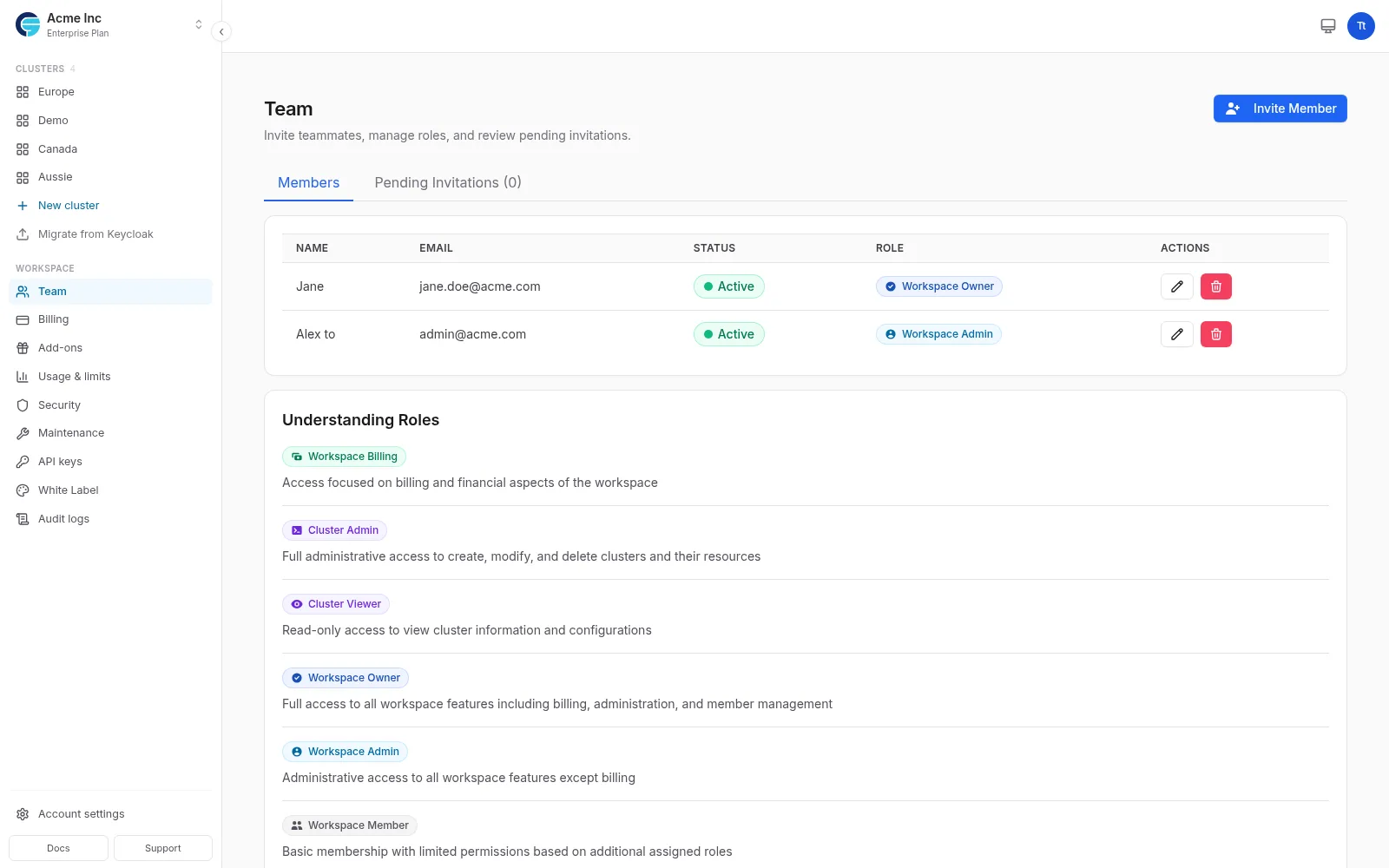
The interface shows:
- Team Members Tab: Current active members
- Pending Invitations: Outstanding invites waiting for acceptance
- Member Details: Name, email, status, and assigned role
- Role Management: Easy role assignment and modification
- Understanding Roles: Visual guide to permission levels
Inviting New Members
Section titled “Inviting New Members”- Navigate to the Team page in the sidebar
- Click “Invite Member”
- Enter team member details:
- Email address (required)
- First name (optional)
- Last name (optional)
- Role - Select appropriate role
- Click “Send Invitation”
Invitation Process
Section titled “Invitation Process”When you invite a team member:
- Email sent - Invitation email with secure link
- 7-day validity - Link expires after 7 days
- Manual acceptance - User must click the invitation link to accept
- Account creation - New users create Skycloak account if needed
- Role assignment - User receives the role specified in invitation upon acceptance
- Session update - User’s session is updated with new roles immediately after accepting
Important Notes
Section titled “Important Notes”- No auto-acceptance - All invitations must be manually accepted via the invitation link
- SSO users - Even with SSO enabled, users must still click the invitation link to accept
- Role activation - The invited role only becomes active after manual acceptance
Managing Existing Members
Section titled “Managing Existing Members”Change Member Role
Section titled “Change Member Role”- Find the member in the team list
- Click the role dropdown
- Select new role
- Confirm the change
Note: You cannot change your own role or demote the last owner.
Remove Team Member
Section titled “Remove Team Member”- Click the “…” menu next to member
- Select “Remove from workspace”
- Confirm removal
Warning: Removed members lose all access immediately.
Per-Cluster Access
Section titled “Per-Cluster Access”Workspace roles apply to every cluster in the workspace. Per-cluster access narrows that for one cluster at a time, so a member who administers most of your clusters can be read-only on a sensitive one.
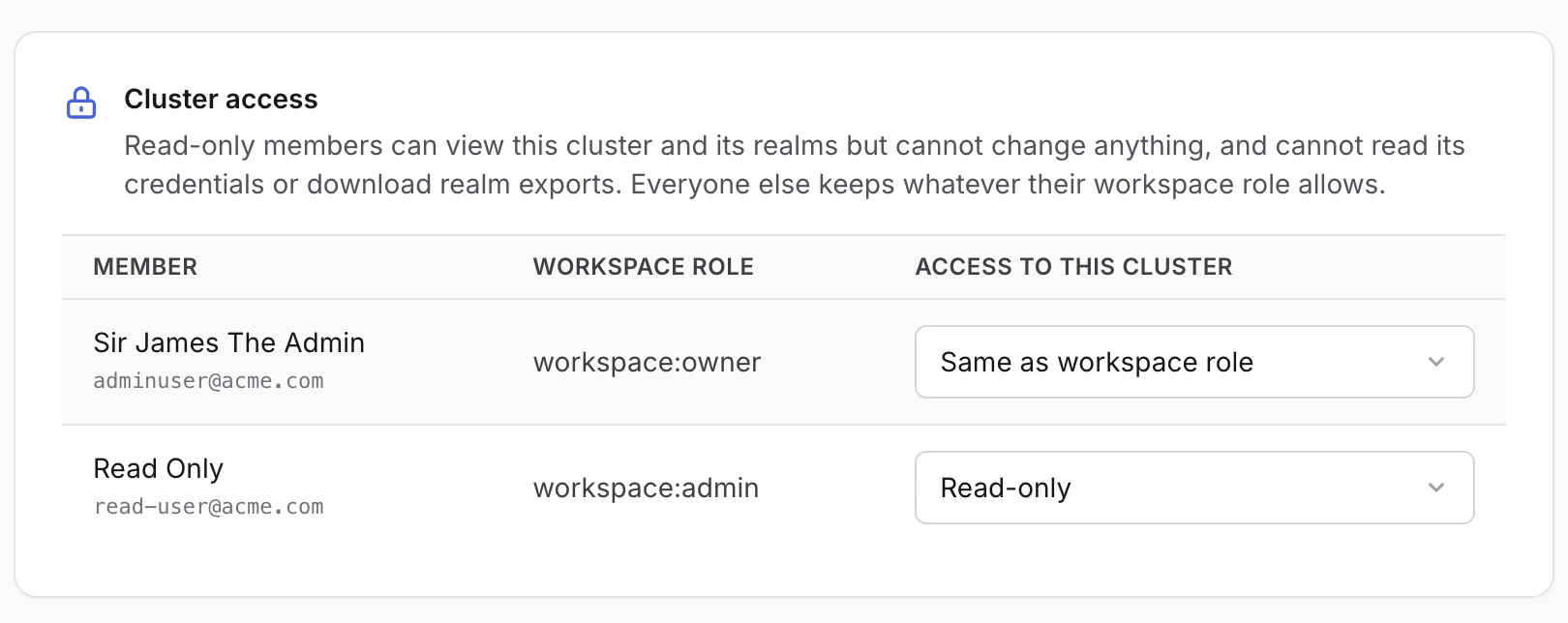
Setting a member’s access to a cluster
Section titled “Setting a member’s access to a cluster”- Open the cluster and find the Cluster access card
- Find the member in the list
- Choose their access to this cluster:
- Same as workspace role - no change, they keep whatever their role allows
- Full access - can administer this cluster
- Read-only - can view this cluster and its realms, but not change anything
Why a workspace admin can be read-only on a cluster
Section titled “Why a workspace admin can be read-only on a cluster”It looks contradictory at first: the screenshot above shows a workspace:admin
set to read-only. The two settings answer different questions.
Your workspace role is the default you carry everywhere: which clusters you can reach, whether you manage members, whether you see billing. Per-cluster access is an exception carved out for one cluster, and an exception is only useful if it can be narrower than the default.
Being an administrator is about the breadth of what you look after, not an entitlement to every individual cluster. The common case is an administrator who runs most of your clusters, while one of them holds something you want fewer hands on: your own staff identity realm, a customer’s production tenant, a cluster under audit. They keep full access everywhere else, and the exception applies only where you set it.
Only the workspace owner can change these settings. That is deliberate: if administrators could edit them, anyone restricted could simply lift their own restriction, and the setting would mean nothing. It also means an owner cannot be locked out of their own workspace by someone else’s change.
What read-only means
Section titled “What read-only means”A read-only member can see the cluster, its realms, users and configuration. They cannot change anything on it, cannot read its credentials, and cannot download realm exports.
Read-only also applies to the cluster’s Keycloak admin console. Signing in there through Skycloak will not grant them administrator rights on that cluster, while leaving their access to your other clusters untouched.
Two things worth knowing:
- Changes apply at their next sign-in. Someone already signed in to that Keycloak admin console keeps their current rights until that session ends.
- Read-only still sees the realm’s users. If a cluster holds your own staff directory, a read-only member can still read it. Restrict cluster access entirely if that matters.
Best Practices
Section titled “Best Practices”1. Principle of Least Privilege
Section titled “1. Principle of Least Privilege”Grant the minimum necessary permissions:
- Start with Workspace Member for new members
- Add Cluster Viewer for those who need read-only cluster access
- Use per-cluster access to make a member read-only on one sensitive cluster without changing what they can do elsewhere
- Grant Cluster Admin to active contributors managing Keycloak configuration
- Reserve Workspace Admin for senior team members
- Limit Workspace Owner role to 2-3 people
2. Regular Access Reviews
Section titled “2. Regular Access Reviews”- Monthly: Review active team members
- Quarterly: Audit role assignments
- When employees leave: Remove access immediately
- Project completion: Downgrade temporary elevated roles
3. Role Assignment Guidelines
Section titled “3. Role Assignment Guidelines”Cluster Admin for:
- Software engineers working on integrations
- DevOps team members managing configurations
- QA engineers testing authentication flows
Workspace Admin for:
- Team leads and architects
- Senior engineers responsible for infrastructure
- DevOps/SRE team members
Cluster Viewer for:
- Product managers monitoring usage
- Support team viewing logs
- Compliance officers reviewing configurations
- External consultants
4. Security Recommendations
Section titled “4. Security Recommendations”- Enable MFA for all team members
- Configure SSO - Use workspace SSO for centralized authentication (Business/Enterprise)
- Use strong passwords - Minimum 12 characters for non-SSO accounts
- Regular rotation - Review access quarterly
- Event logs - Monitor team member activities
MFA Enforcement (Business+)
Section titled “MFA Enforcement (Business+)”Workspace owners and admins on Business and Enterprise plans can enforce Multi-Factor Authentication (MFA) for all workspace members.
What is MFA Enforcement?
Section titled “What is MFA Enforcement?”When MFA enforcement is enabled:
- All workspace members are required to set up MFA on their next login
- Members cannot access the workspace until they configure MFA
- New members invited to the workspace must set up MFA immediately
- Email notifications are sent to all members when enforcement is enabled/disabled
Enabling MFA Enforcement
Section titled “Enabling MFA Enforcement”- Navigate to Settings → Security
- Find the MFA Enforcement toggle
- Click to enable MFA enforcement
- Confirm the action in the modal
- All workspace members will receive an email notification
Member Experience
Section titled “Member Experience”When MFA enforcement is enabled:
- Members are prompted to set up MFA on their next login
- The prompt asks which method to use, an authenticator app or a security key, and sets it up right there (see Choosing your MFA method)
- Members can manage their MFA settings in Account Settings
- MFA must remain enabled while enforcement is active
- Members who sign in through the workspace SSO connection are exempt and are never prompted: their company’s identity provider handles their sign-in security (see Signing in through your company’s SSO)
Enforcement controls whether a second step is required, not which method a member uses. There is no setting that requires everyone to use a security key specifically.
Disabling MFA Enforcement
Section titled “Disabling MFA Enforcement”- Navigate to Settings → Security
- Click the MFA Enforcement toggle to disable
- Confirm the action
- Members will be notified via email
- Members can choose to keep or remove their MFA setup
Best Practices
Section titled “Best Practices”- Notify your team before enabling MFA enforcement
- Provide setup instructions for authenticator apps
- Set up backup recovery codes for all members
- Test the flow with a small group first
- Keep emergency admin access in case of lockout issues
Choosing your MFA method
Section titled “Choosing your MFA method”Your second step can be an authenticator app or a security key, and you can register both. This is your own choice, on any plan; a workspace administrator can require MFA, but not a particular method.
| Method | What it is | Good to know |
|---|---|---|
| Authenticator app | A six-digit code from an app such as 1Password, Google Authenticator or Authy | Works on any phone, and the code can be copied between your own devices |
| Security key | A hardware key (for example a YubiKey) or your device unlock: Face ID, Touch ID or Windows Hello | Nothing to type, and it cannot be phished, but it only works on the device it was registered on unless the key is portable |
Your second step applies however you sign in. Signing in with the Google, GitHub or Microsoft buttons asks for it too, not only signing in with a password. If you sign in through your own company’s SSO connection, your second step is whatever your company requires; Skycloak does not add one on top.
Signing in through your company’s SSO
Section titled “Signing in through your company’s SSO”If the only way you sign in to Skycloak is your company’s SSO connection, you always go straight to your company’s identity provider, and that provider is what protects your sign-in, including any second step it asks for. Skycloak has nothing to add after it, so Account Settings → Security does not offer an authenticator app, a security key or a passkey. It shows Enforced by your identity provider instead. To change how you sign in, such as your MFA method, talk to whoever manages your company’s identity provider.
Workspace MFA and passkey requirements do not apply to you either, so you are never prompted to set one up. Anything you registered on the Security page before stays on your account; it is simply no longer shown there.
If your account is also linked to a Google, GitHub or Microsoft sign-in, or to a second SSO connection, the sign-in page is shown as usual and everything in this section about choosing and managing your MFA method applies to you.
Setting up an authenticator app
Section titled “Setting up an authenticator app”- Open Account Settings → Security
- In the Multi-Factor Authentication card, click Set Up Authenticator App
- Scan the QR code with your app and enter the six-digit code it shows
- The card now reads MFA is Enabled, with Authenticator app marked as set up
Setting up a security key
Section titled “Setting up a security key”- Open Account Settings → Security
- In the Multi-Factor Authentication card, click Set Up Security Key
- Skycloak sends you to the sign-in page, where your browser asks you to confirm with your security key or device unlock
- You are brought straight back to Account Settings, where the card now reads MFA is Enabled, with Security key marked as set up
Cancelling partway through changes nothing: no security key is registered, and your next sign-in works exactly as before.
Using both
Section titled “Using both”Both methods stay on the card whatever you already have, so you can add the other one at any time. When you have both, Skycloak asks for one of them at sign-in and shows a Try another way link to switch to the other. Which one is offered first depends on the order you registered them, so a member who had an authenticator app first will usually see that prompt first and reach the security key through Try another way.
Removing or replacing a second step
Section titled “Removing or replacing a second step”Each method has its own Remove button next to it, so you can change one without losing the other.
- New phone, or a new authenticator app: click Replace Authenticator App and scan the new QR code. The old codes stop working as soon as the new app is confirmed, so there is nothing to remove afterwards.
- New security key: click Add Another Security Key to register it, then Remove Security Key to drop the old one.
- Dropping a method entirely: click Remove Authenticator App or Remove Security Key and confirm. Only that method goes. Your other second step, and your passkey, are untouched.
Lost both your phone and your key, with nothing left to sign in with? Contact your workspace administrator or Skycloak support: you cannot reset it yourself once you are locked out.
Turning MFA off
Section titled “Turning MFA off”Disable MFA in the same card removes every second step you have registered, both the authenticator app and the security key, in one go. To remove just one of them, use its own Remove button instead (see above). Neither removes your passkey: that is a separate, passwordless way to sign in (see Passkeys below). If your workspace requires MFA, the Disable MFA button is disabled and your administrator has to lift the requirement first.
Passkeys (Enterprise for enforcement)
Section titled “Passkeys (Enterprise for enforcement)”A passkey lets a member sign in to Skycloak with their device unlock (Face ID, Touch ID, Windows Hello or a security key) instead of typing a password. Any member can register one for their own account on any plan. Requiring passkeys for the whole workspace is an Enterprise feature, and works the same way as MFA enforcement.
Registering your own passkey
Section titled “Registering your own passkey”- Open Account Settings → Security
- Find the Passkey card and click Set Up Passkey
- Skycloak sends you to the sign-in page, where your browser asks you to confirm with your device unlock
- You are brought straight back to Account Settings, where the card now reads Passkey is Enabled
You can remove a passkey from the same card at any time, unless your workspace requires one. Cancelling the setup partway through changes nothing: no passkey is registered, and your next sign-in works exactly as before.
Requiring passkeys for the workspace
Section titled “Requiring passkeys for the workspace”- Navigate to Settings → Security
- Find the Passkey card and click Require Passkey
- Skycloak runs a readiness check before anything changes, and shows you the result:
- passkey registration is available on the sign-in realm
- you have registered a passkey on your own account
- Enforce Passkey unlocks only when both checks pass
- Members see an in-app security alert, and are prompted to register a passkey the next time they open Skycloak
Member experience
Section titled “Member experience”- Members without a passkey see a prompt when they next open Skycloak, with a Set Up Passkey button
- Password and MFA sign-in keep working for members who have not registered a passkey yet
- Members cannot remove a passkey while the workspace requires one
- Members who sign in through the workspace SSO connection are exempt and are never prompted (see Signing in through your company’s SSO)
Turning enforcement off
Section titled “Turning enforcement off”- Navigate to Settings → Security
- Click Make Passkey Optional on the Passkey card and confirm
Enforcement is removed immediately, with no checks in the way, and members who already registered a passkey keep it. Nobody is ever locked out of signing in by passkey enforcement: the requirement is applied inside Skycloak, never as a condition of the sign-in page itself.
Team Collaboration Features
Section titled “Team Collaboration Features”Shared Resources
Section titled “Shared Resources”All team members share access to:
- Clusters - Based on their role permissions
- Applications - Configured clients and settings
- Branding - Custom themes and emails
- Extensions - Installed Keycloak extensions
Activity Tracking
Section titled “Activity Tracking”Monitor team activities through:
- Event logs - Who did what and when
- Change history - Configuration modifications
- Login history - Team member access patterns
Communication
Section titled “Communication”Improve team coordination:
- Change notifications - Email alerts for critical changes
- Comments - Add notes to configurations (coming soon)
Common Scenarios
Section titled “Common Scenarios”Onboarding New Developer
Section titled “Onboarding New Developer”- Send invitation as Cluster Admin role
- Ensure acceptance - Remind them to click the invitation link
- Schedule walkthrough of workspace structure
- Share documentation and integration guides
- Grant additional permissions as needed
With SSO Enabled: New team members with your domain email can access the workspace after authenticating with your corporate IdP. However, if you’ve sent them an invitation with a specific role, they must still manually accept it via the invitation link to receive that role.
Contractor Access
Section titled “Contractor Access”- Create limited account with Cluster Viewer role
- Set expiration reminder for access review
- Upgrade to Cluster Admin only for specific tasks
- Remove immediately upon contract completion
DevOps Team Setup
Section titled “DevOps Team Setup”- Assign Workspace Admin role to DevOps lead
- Cluster Admin role for team members
- Enable cluster management permissions
- Configure monitoring access
Troubleshooting
Section titled “Troubleshooting”Invitation Issues
Section titled “Invitation Issues”Problem: Team member didn’t receive invitation
- Check spam/junk folders
- Verify email address
- Resend invitation
- Remind them that even with SSO, they must accept the invitation
- Contact support if persists
Problem: Invitation link expired
- Delete pending invitation
- Send new invitation
- Ask member to accept within 7 days
- Note: There is no auto-acceptance, even for SSO users
Problem: User’s role not updated after accepting invitation
- This issue has been resolved - roles are now immediately updated
- If problem persists, check event logs for role assignment
- User may need to refresh their browser for UI to reflect new permissions
Permission Issues
Section titled “Permission Issues”Problem: Member cannot perform expected action
- Verify their current role
- Check specific permission requirements
- Upgrade role if necessary
- Review event logs for details
Problem: Cannot change member role
- Ensure you have Owner or Admin role
- Cannot change your own role
- Cannot demote last Owner
Access Problems
Section titled “Access Problems”Problem: Member removed but still has access
- Sessions may take up to 5 minutes to expire
- Force logout from all sessions
- Clear browser cache
- Contact support if access persists
Workspace Settings
Section titled “Workspace Settings”Security Settings
Section titled “Security Settings”Configure workspace-wide security:
- MFA requirement - Enforce for all members
- IP restrictions - Limit access by IP range
- Session timeout - Configure inactivity timeout
Notification Preferences
Section titled “Notification Preferences”Manage team notifications:
- Email alerts - Critical changes and errors
- Weekly summaries - Usage and activity reports
- Billing notifications - Subscription updates
Compliance Features
Section titled “Compliance Features”For regulated industries:
- Audit retention - Extended log storage
- Access reports - Regular compliance reports
- Data residency - Choose data location
- SSO integration - Use corporate identity provider