Cluster Management
The Cluster Management feature is the heart of Skycloak, allowing you to create and manage your Keycloak clusters efficiently. From here, you can view your clusters along with the amount of realms and users, access the Keycloak console, view logs, and request advanced features.
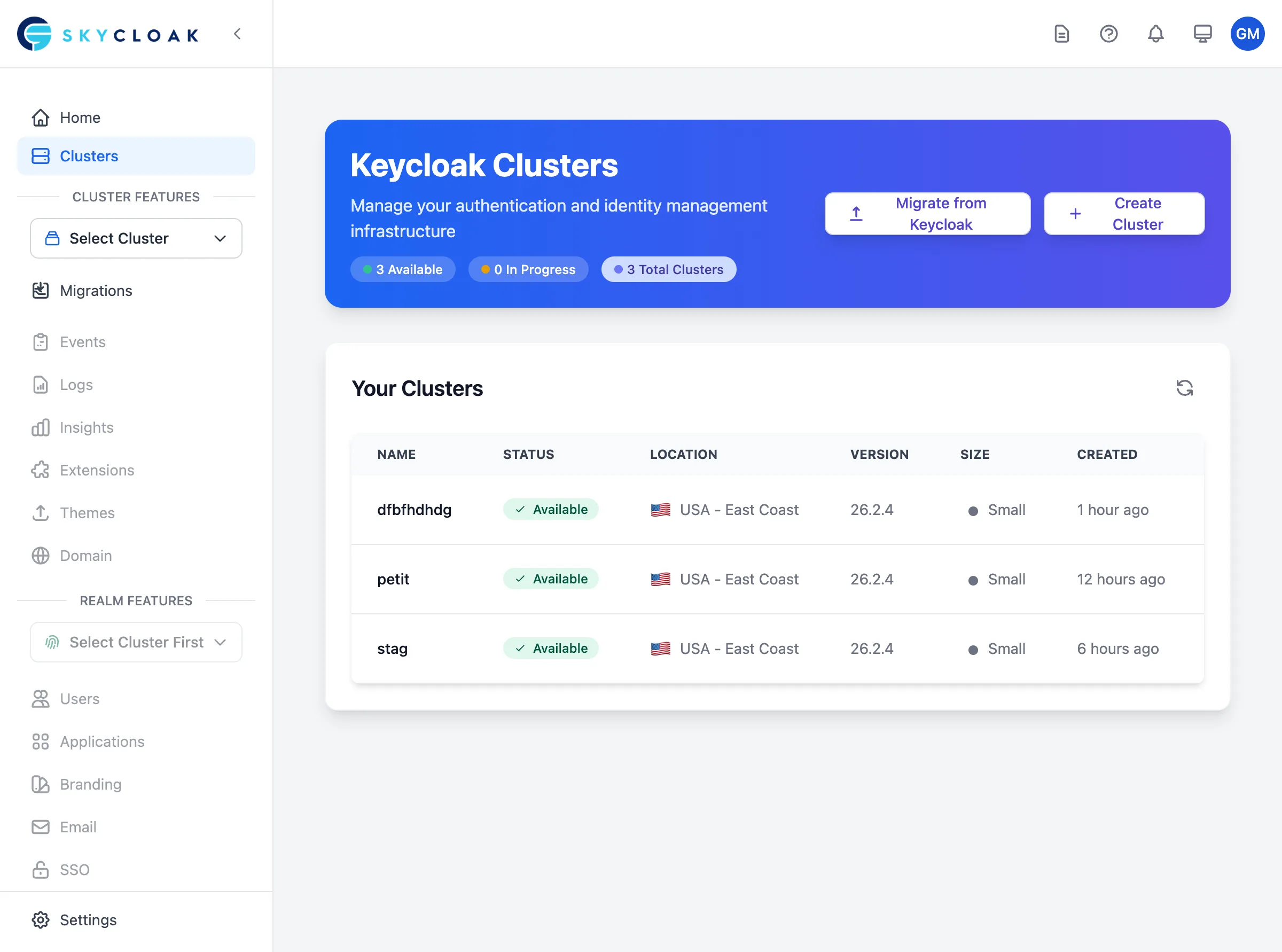
The cluster dashboard provides a comprehensive view of all your Keycloak instances, showing their status, location, version, size, and creation date.
Managing Clusters
Creating a New Cluster
- Navigate to the Clusters page
- Click “Create a Cluster” button
- Configure your cluster using the creation wizard:
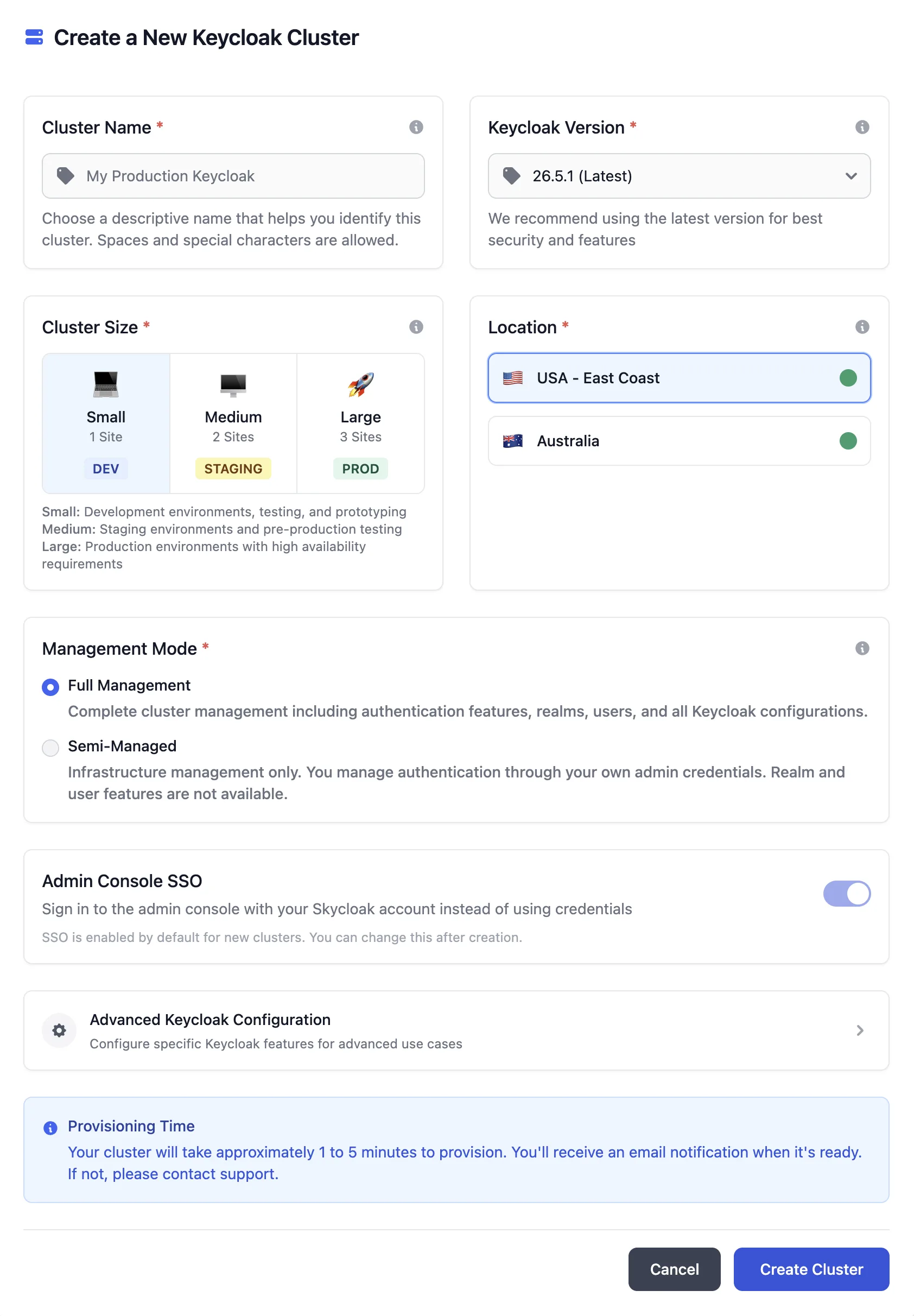
The wizard guides you through all the configuration options:
- Identity Platform: Choose between Keycloak or TideCloak
- Cluster Name: Give your cluster a descriptive name
- Keycloak Version: Select from the latest stable versions
-
Cluster Size: Choose the right size for your environment:
- Small (DEV) - 1 site: Ideal for development environments
- Medium (STAGING) - 2 sites: Perfect for staging environments
- Large (PROD) - 3 sites: Recommended for production environments
- Location: Select your preferred region (USA East Coast, Australia)
- Management Mode: Full Management or Semi-Managed
- Click “Create Cluster” to start the provisioning process
Your cluster will be in “Creating” state for a few minutes, and you’ll receive an email notification when it’s ready. If it takes longer than 5 minutes, please contact us.
Cluster Detail Page
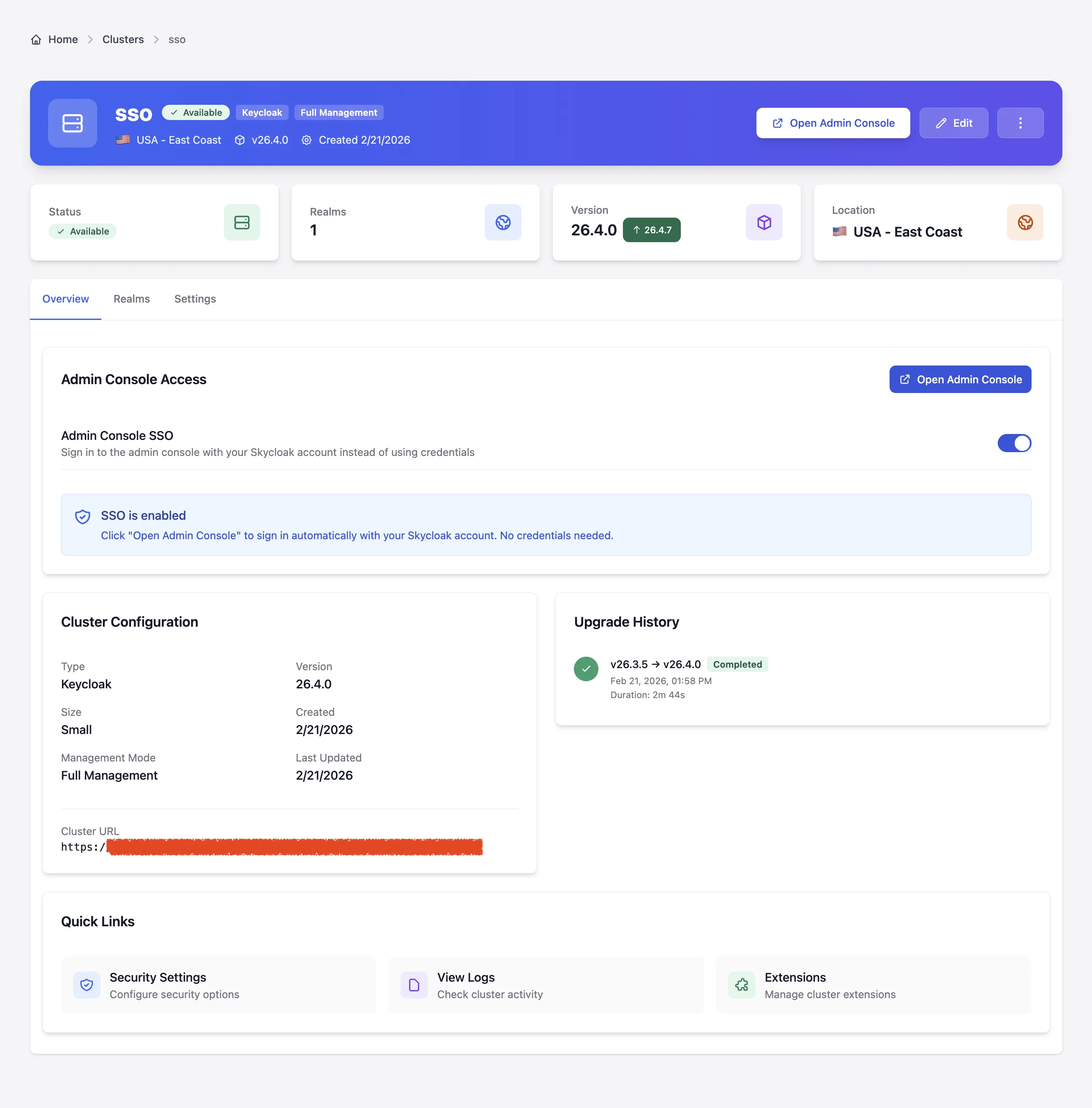
Click on any cluster from your clusters list to access the comprehensive cluster detail page. This page provides everything you need to manage your cluster in one place.
Quick Upgrade from Detail Page
The Version card in the Quick Stats section shows your current version and, if an upgrade is available, displays a green upgrade button right next to it. Click the button to start the upgrade immediately without navigating to the Edit page.
Admin Credentials & Console Access
The cluster detail page provides quick access to the Keycloak Admin Console. How you access it depends on whether SSO is enabled for the cluster.
With SSO Enabled (default for new clusters):
- Click “Open Admin Console” to sign in automatically with your Skycloak account
- No credentials needed — you’re authenticated seamlessly via your Skycloak login
- Admin credentials are hidden from the UI while SSO is active
With SSO Disabled:
- Admin Username: Displayed in a read-only field with a copy button
- Admin Password: Hidden by default with show/hide toggle and copy button
- Open Admin Console: One-click button to launch your Keycloak Admin Console in a new tab
Security Note: When SSO is disabled, these are your initial admin credentials. For security best practices, we recommend creating a separate admin account for daily use after your first login.
Admin Console SSO
Admin Console SSO lets you access the Keycloak Admin Console directly using your Skycloak account, eliminating the need to manage separate admin passwords.
How it works:
- When SSO is enabled, clicking “Open Admin Console” automatically authenticates you through Skycloak’s identity provider
- New clusters have SSO enabled by default
- No credentials to copy, share, or rotate — your Skycloak login is all you need
Enabling or Disabling SSO:
- Navigate to your cluster’s detail page
- On the Overview tab, find the Admin Console SSO toggle in the Admin Access card
- Toggle SSO on or off:
- Enabling SSO: Takes effect immediately — you can access the admin console with your Skycloak account. Admin credentials are hidden from the UI.
- Disabling SSO: A confirmation dialog appears, reminding you that admin credentials will be needed. After confirming, credentials become visible again.
The SSO toggle is also available on the Edit page for convenience. On the New Cluster page, SSO is shown as enabled by default (it can be changed after creation).
Note: The cluster must be in “Available” status to change SSO settings. Toggling SSO does not restart your cluster — the change is applied instantly.
Detail Page Tabs
The cluster detail page is organized into tabs for easy navigation:
Overview Tab
- Admin Console SSO toggle — enable or disable SSO directly from this tab
- Admin credentials section with copy-to-clipboard functionality (visible when SSO is disabled)
- SSO status message when SSO is enabled
- Cluster configuration (type, size, version, management mode)
- Upgrade history timeline showing all past version upgrades
- Quick links to Security Settings, Logs, and Extensions
Realms Tab
- View and manage all realms in your cluster
- Access realm-specific settings and configurations
Security Tab
- Configure security settings for your cluster
- Manage firewalls and access controls
Theming Tab
- Customize the look and feel of your login pages
- Apply themes from the theme library
Extensions Tab
- View and manage cluster extensions
- Add custom functionality to your Keycloak instance
Settings Tab
- Edit cluster name directly from this page
- View cluster configuration details (location, type, size, version)
- Access the Edit page for advanced configuration changes
- Manage management mode, HTTP relative path, and other settings
Accessing the Keycloak Console
There are multiple ways to access your Keycloak Admin Console:
-
With SSO Enabled (Recommended — default for new clusters):
- Click on any cluster to open its detail page
- Click the “Open Admin Console” button
- You’re automatically signed in with your Skycloak account — no credentials needed
-
With SSO Disabled (credentials required):
- Click on any cluster to open its detail page
- Your admin username and password are displayed in the Admin Access section
- Click “Open Admin Console” and enter the credentials on the Keycloak login page
Accessing Cluster Logs
- Navigate to cluster detail page
- Click “View Logs” in the Quick Links section, or navigate to the Logs page
- View real-time logs and filter by cluster
Requesting Additional Features
From the cluster detail page, you can access:
- Advanced security features (Security tab)
- Custom domain setup (via Settings)
- Custom theme implementation (Theming tab)
- Extensions management (Extensions tab)
For specialized configurations not available in the dashboard, contact our support team.
Cluster Size Recommendations
When choosing a cluster size, consider your environment type and availability requirements:
Small Clusters (1 Site) - DEV Environment
- Best for: Development, testing, prototyping
- Characteristics: Single availability zone, no redundancy
-
Use cases:
- Development teams building applications
- Testing new Keycloak features
- Proof of concepts
- CI/CD pipeline testing
- Availability: ~99.5% uptime (may have downtime during maintenance)
Medium Clusters (2 Sites) - STAGING Environment
- Best for: Staging, pre-production testing, UAT
- Characteristics: Multi-zone deployment, basic high availability
-
Use cases:
- Pre-production testing that mirrors production
- User acceptance testing (UAT)
- Performance testing
- Integration testing with production-like setup
- Availability: ~99.9% uptime (survives single zone failures)
Large Clusters (3 Sites) - PRODUCTION Environment
- Best for: Production workloads requiring high availability
- Characteristics: Full multi-zone redundancy, maximum resilience
-
Use cases:
- Customer-facing production applications
- Mission-critical authentication services
- Enterprise applications
- Applications requiring 24/7 availability
- Availability: ~99.99% uptime (survives multiple zone failures)
Cluster Operations
Updating a Cluster
Version Upgrades
Skycloak enforces sequential version upgrades — you must upgrade one version at a time for safer, more predictable updates. This prevents issues that can arise from skipping versions, especially across major releases with database schema migrations.
Upgrade from the Edit Page:
- Navigate to the cluster Edit page
- The Keycloak Version section shows a visual timeline of all available versions
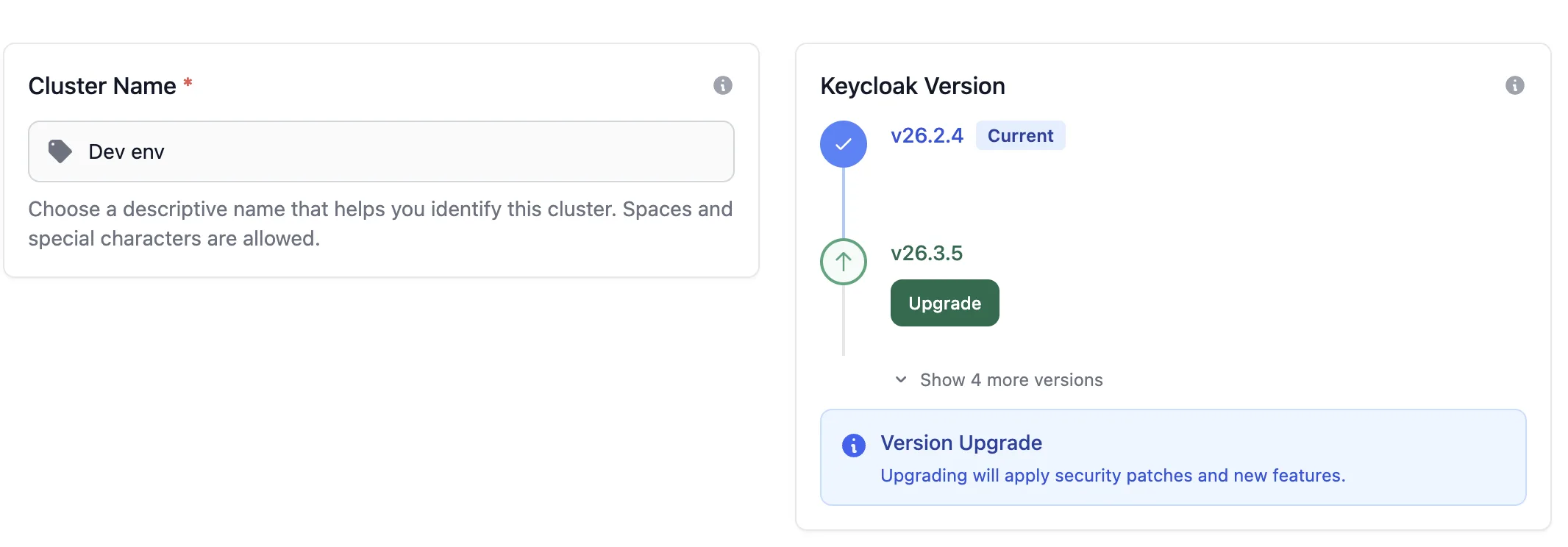
- Your current version is marked with a blue “Current” badge
- The next available version has a green “Upgrade” button
- Future versions are collapsed by default — click “Show more versions” to see the full upgrade path
- Click “Upgrade” to start the upgrade
Quick Upgrade from the Cluster List or Detail Page:
You can also upgrade directly from the clusters list or the cluster detail page without opening the Edit page:
- Clusters List: A green upgrade badge appears next to the version showing the next available version
- Cluster Detail Page: The Version card shows an upgrade button when a new version is available
Important Version Upgrade Notes:
- Upgrades are sequential only — you must upgrade one version at a time
- Downgrading to a lower version is not possible due to database schema compatibility
- Major version upgrades (e.g., 25.x → 26.x) show a warning and require confirmation via a checkbox, as they include database schema migrations that cannot be easily reversed
- Use our Keycloak Upgrade Assistant GPT to help plan your version upgrade path
Upgrade Progress & Cancellation
During an upgrade, the cluster detail page shows a progress card with:
- The current upgrade phase (Scaling Down, Updating, Scaling Up)
- Elapsed time since the upgrade started
- A Cancel Upgrade button to revert to the previous version
If an upgrade takes longer than 10 minutes, the cluster owner receives an email alert.
Warning: Cancelling a major version upgrade during the Updating or Scaling Up phase is risky — database migrations may have already been applied and reverting the binary could leave the cluster in a failed state.
Upgrade History
The cluster detail page (Overview tab) shows a timeline of all past upgrades, including:
- Version transitions (from → to)
- Status (completed, cancelled, failed)
- Timestamps and duration
- Major upgrade indicators
Other Cluster Updates
- Access cluster from dashboard or details page
- Click “Edit” button
- Change cluster name, size, or other configuration options
- Click “Update” button
- Your cluster will be updated within a few minutes and you will receive an email notification.
Deleting a Cluster
- Access cluster dashboard or details page
- Click the checkbox to give your consent to delete the cluster
- Enter the name of the cluster to confirm deletion
- Click “Schedule Deletion” button
Note: This will schedule the deletion of the cluster and you will receive an email notification when it’s done. For data protection purposes, we will keep your cluster’s data for 7 days before deleting it. You will be notified and warned days before deletion. Once deleted, any users from that cluster will be deleted along with the cluster.
You can also cancel the deletion of the cluster if you change your mind at any time before it’s deleted.
Advanced Keycloak Configuration
For users on Launch, Business, or Enterprise plans, Skycloak provides advanced Keycloak feature management. This allows you to enable or disable specific Keycloak features to customize your cluster’s behavior for advanced use cases.
Understanding Feature States
Keycloak features can exist in different states:
- Supported (Default Enabled): These features are production-ready and enabled by default in Keycloak. They work out-of-the-box and provide essential functionality that most users need.
- Supported (Default Disabled): Production-ready features that are disabled by default but can be safely enabled for production use.
- Preview: Features still in development that are not production-ready. While functional, preview features may have incomplete functionality, bugs, or breaking changes in future versions. Use with caution in production environments.
- Explicitly Enabled: Features that you have manually enabled for your cluster.
- Explicitly Disabled: Features that you have manually disabled for your cluster.
Accessing Feature Management
- Navigate to your cluster’s edit page
- Scroll down to find the “Advanced Keycloak Configuration” section
- Click to expand the collapsible section
- Browse features organized by category: Administration, Core Features, Integrations, Preview Features, Protocol Support, and Security
Supported Features (Production-Ready)
The following features are production-ready and can be safely used:
Default Enabled:
- Authorization Services: Fine-grained authorization support for complex permission scenarios
- WebAuthn: Modern FIDO2-based authentication support
- Client Policies (v22.0+): Define and enforce policies for client configurations
- Kerberos: Enterprise authentication integration
- CIBA: Client Initiated Backchannel Authentication for mobile-first flows
- Step-up Authentication (v23.0+): Enhanced authentication for sensitive operations
- Device Flow: OAuth 2.0 Device Authorization Grant
- DPoP (v23.0+): Demonstrating Proof of Possession for enhanced OAuth 2.0 security
- Organizations (v26.0+): Multi-tenant organization management
- Persistent User Sessions (v25.0+): Store sessions in database for improved reliability
- Recovery Codes: Backup codes for account recovery
- Passkeys (v22.0+): Passwordless authentication with passkeys
- Update Email: Allow users to update their email address with verification
- Standard Token Exchange (v24.0+): OAuth 2.0 Token Exchange standard implementation
- Login Theme: Login theme with version selection (v1 legacy, v2 default)
Default Disabled (Can Be Enabled):
- Docker Protocol: Container registry authentication support
- PAR (v22.0+): Pushed Authorization Requests for enhanced security
- Impersonation: Allow administrators to impersonate users for debugging (Dangerous: Security implications)
- OID4VC (v25.0+): OpenID for Verifiable Credential Issuance (preview)
Preview Features (Not Production-Ready)
Warning: Preview features are stable but their APIs may still evolve. Test thoroughly before using in production environments.
- Token Exchange: Exchange access tokens for different clients or realms (Dangerous: Security implications)
- Scripts: Write custom authenticators using JavaScript (Dangerous: Allows arbitrary code execution)
- Client Secret Rotation: Automatic rotation of client secrets
- Federated Client Authentication (v26.5+): Authenticate OpenID Connect clients through external identity providers instead of client secrets
- Kubernetes Service Accounts (v26.5+): Use Kubernetes service account tokens as credentials for clients, avoiding static secrets
- JWT Authorization Grant (v26.5+): JWT Profile for OAuth 2.0 Authorization Grant (RFC 7523)
- Workflows (v26.5+): Automate administrative tasks and processes within a realm
Important Notes:
- Token Exchange has been in preview since Keycloak v4 and remains preview-only across all versions (20.x - 26.x)
- Preview features marked as “Dangerous” have security implications and should be thoroughly tested
- Features introduced in v26.5+ require clusters running Keycloak 26.5.0 or later
Managing Features
- Viewing Features: All available features are displayed with their current state
- Enabling Features: Click the checkbox next to a feature to enable it
- Disabling Features: Click again to disable a feature (it will show as “Disabled”)
- Applying Changes: Click “Apply Features” to save your configuration
- Cluster Restart: Your cluster will automatically restart to apply the new feature configuration
Important: Changing features will restart your cluster, which may cause a brief interruption in service. Plan feature changes during maintenance windows.
Feature Versions
Some Keycloak features have multiple versions available with different capabilities. When a feature supports multiple versions, you’ll see a version dropdown selector next to the feature toggle.
Features with Multiple Versions
| Feature | Versions | Default | Notes |
|---|---|---|---|
login |
v1, v2 | v2 | V1 is the deprecated legacy theme |
How Version Selection Works
- Default Version: When you enable a feature without selecting a version, Keycloak uses the default version
- Non-Default Version: Select a different version from the dropdown to use that specific version
- Version Persistence: Your version selection is saved and applied when the cluster rebuilds
Token Exchange with Impersonation
To enable token exchange impersonation via a service account:
- Enable the
token-exchangefeature - Configure your service account with the appropriate permissions
- Contact support if you need Admin Fine-Grained Authorization V1 configured (required for impersonation — V2, which is the default, does not support it)
Reference: Keycloak FGAP Documentation
Feature Compatibility
Features have different version availability:
- No minimum version: Available since Keycloak v20.0 or earlier
- Version-specific: Check version requirement (e.g., “v26.0+” means Keycloak 26.0.0 and later)
- Features marked “Incompatible” are not available in your current cluster version
- Upgrade your cluster version if needed to access certain features
Version Availability Examples:
- Token Exchange: Available since v20.0 (but remains preview)
- Organizations: Requires v26.0 or later
- Federated Client Authentication: Requires v26.5 or later
- Kubernetes Service Accounts: Requires v26.5 or later
When to Use Feature Management
Feature management is particularly useful for:
- Advanced Authentication: Enable DPoP, Passkeys, or Step-up Authentication for enhanced security
- Organization Management (v26.0+): Enable Organizations for multi-tenant architectures
- Secretless Authentication (v26.5+): Enable Federated Client Authentication or Kubernetes Service Accounts to eliminate client secrets
- Session Reliability (v25.0+): Enable Persistent User Sessions for improved session management
- Development Testing: Enable preview features to test upcoming capabilities (non-production only)
- Protocol Support: Enable Docker, CIBA, PAR, or Device Flow for specific protocol needs
Production Recommendation: Only enable Supported features in production environments. Preview features should be thoroughly tested in development/staging before considering production use.
Best Practices
- Start with Defaults: Default supported features provide a solid foundation for most use cases
- Use Supported Features in Production: Only enable preview features in development/staging environments
- Enable Gradually: Add features one at a time to understand their impact
- Test Thoroughly: Verify your applications work correctly after enabling new features
- Document Changes: Keep track of which features you’ve enabled and why
- Plan Restarts: Feature changes require cluster restarts - plan during maintenance windows
- Review Preview Features: Monitor preview feature status across Keycloak versions - some remain preview for years
- Be Cautious with “Dangerous” Features: Token exchange and scripts have security implications
Getting Help
If you need assistance with feature selection or configuration:
- Contact our support team through the dashboard
- Consult our integration guides for specific feature implementation
- Check the Keycloak documentation for detailed feature descriptions
Note: Feature management is available on Launch, Business, and Enterprise plans. Trial users can preview the feature interface but cannot make changes until upgrading.