Keycloak Migration Walkthrough
Migrate your existing Keycloak deployment to Skycloak. This guide walks you through migrating your database from self-hosted Keycloak to our fully managed platform.
Overview
Section titled “Overview”Skycloak’s migration process helps you:
- Transfer all user data including passwords (with encrypted export)
- Preserve configurations for realms, clients, and roles
- Choose your region — deploy to US, Canada, Europe, or Australia
- Monitor progress in real-time with live status updates
Why Migrate to Skycloak?
Section titled “Why Migrate to Skycloak?”Eliminate Operational Overhead:
- No more server management
- Automatic updates and patches
- Built-in backup and recovery
- 24/7 monitoring and support
Reduce Costs:
- No infrastructure expenses
- Reduced DevOps requirements
- Predictable monthly pricing
- Included enterprise features
Improve Reliability:
- SLA of 99.9% on the Business plan’s Medium cluster and up to 99.99% on the Enterprise plan
- Multi-region availability
- Choose a fixed cluster size (Small, Medium, or Large) at creation, and resize later as your needs grow
- DDoS protection included
Prerequisites
Section titled “Prerequisites”Before starting your migration:
Requirements Checklist
Section titled “Requirements Checklist”- Skycloak account with Launch plan or higher
- Admin access to your source Keycloak instance
- PostgreSQL database export —
pg_dumpaccess to your Keycloak database - Keycloak version 20.0 or higher (older versions — contact support@skycloak.io)
- Backup of your current Keycloak data
- Maintenance window scheduled (typically 15-45 minutes)
Pre-Migration Assessment
Section titled “Pre-Migration Assessment”Evaluate your current deployment:
-
Check Keycloak version:
${KEYCLOAK_HOME}/bin/kc.sh version -
Assess database size:
SELECT pg_database_size('keycloak') / 1024 / 1024 as size_mb; -
Count users and realms:
SELECT COUNT(*) FROM user_entity; SELECT COUNT(*) FROM realm; -
List custom providers:
ls ${KEYCLOAK_HOME}/providers/
Step 1: Prepare Your Database Dump
Section titled “Step 1: Prepare Your Database Dump”Export from Source Keycloak
Section titled “Export from Source Keycloak”Connect to your Keycloak database server and create a PostgreSQL dump:
# Create the database dump
pg_dump -h [hostname] -p [port] -U [username] -d [database_name] \
  --no-owner --no-acl --clean --if-exists \
  -f keycloak_backup_$(date +%Y%m%d_%H%M).sql

# Compress the dump (required for upload)
zip keycloak_backup.zip keycloak_backup_*.sql

# Verify the compressed size (must be under 10GB)
ls -lh keycloak_backup.zip
Optional: Encrypt Your Export
Section titled “Optional: Encrypt Your Export”If your dump contains sensitive data you want to protect during transfer:
# Encrypt the zip file with AES-256
openssl enc -aes-256-cbc -salt -pbkdf2 \
  -in keycloak_backup.zip \
  -out keycloak_backup.zip.enc
You’ll provide the encryption password in the migration wizard. Encryption is required if you include user credentials in your export.
Step 2: Start the Migration Wizard
Section titled “Step 2: Start the Migration Wizard”- Log in to your Skycloak dashboard
- Navigate to the Clusters page
- Click the “Migrate from Keycloak” button
- The migration wizard will guide you through three steps
Step 2a: Upload Your Database
Section titled “Step 2a: Upload Your Database”- Select your Keycloak version from the dropdown
- Choose upload method: drag-and-drop your
.zipfile, or provide a public URL to your dump - If encrypted: check the encryption box and provide your password
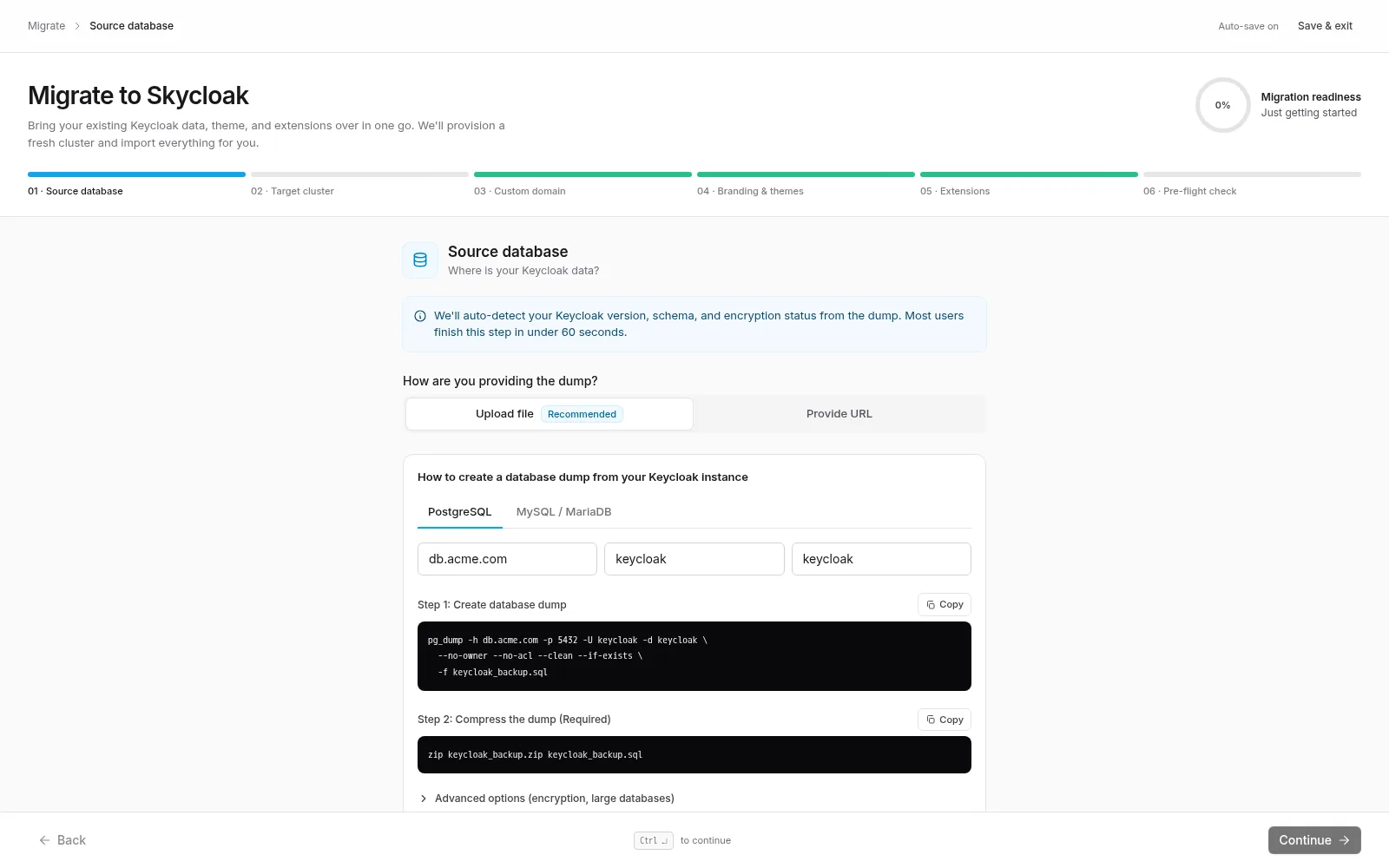 The wizard’s first step: pick how you’re providing the dump, with copy-paste
 pg_dump instructions and encryption support built in.
The wizard validates your file after upload (size, checksum, and encryption key if applicable).
Step 2b: Configure Your New Cluster
Section titled “Step 2b: Configure Your New Cluster”- Cluster Name: A descriptive name for your migrated instance
- Cluster Size: Small, Medium, or Large
- Deployment Region: Choose your preferred region (US, Canada, Europe, Australia)
- Management: Your migrated instance is fully managed by Skycloak. You do not provide admin credentials, Skycloak provisions management access automatically.
- Advanced Options: Keycloak feature flags and legacy
/authpath support
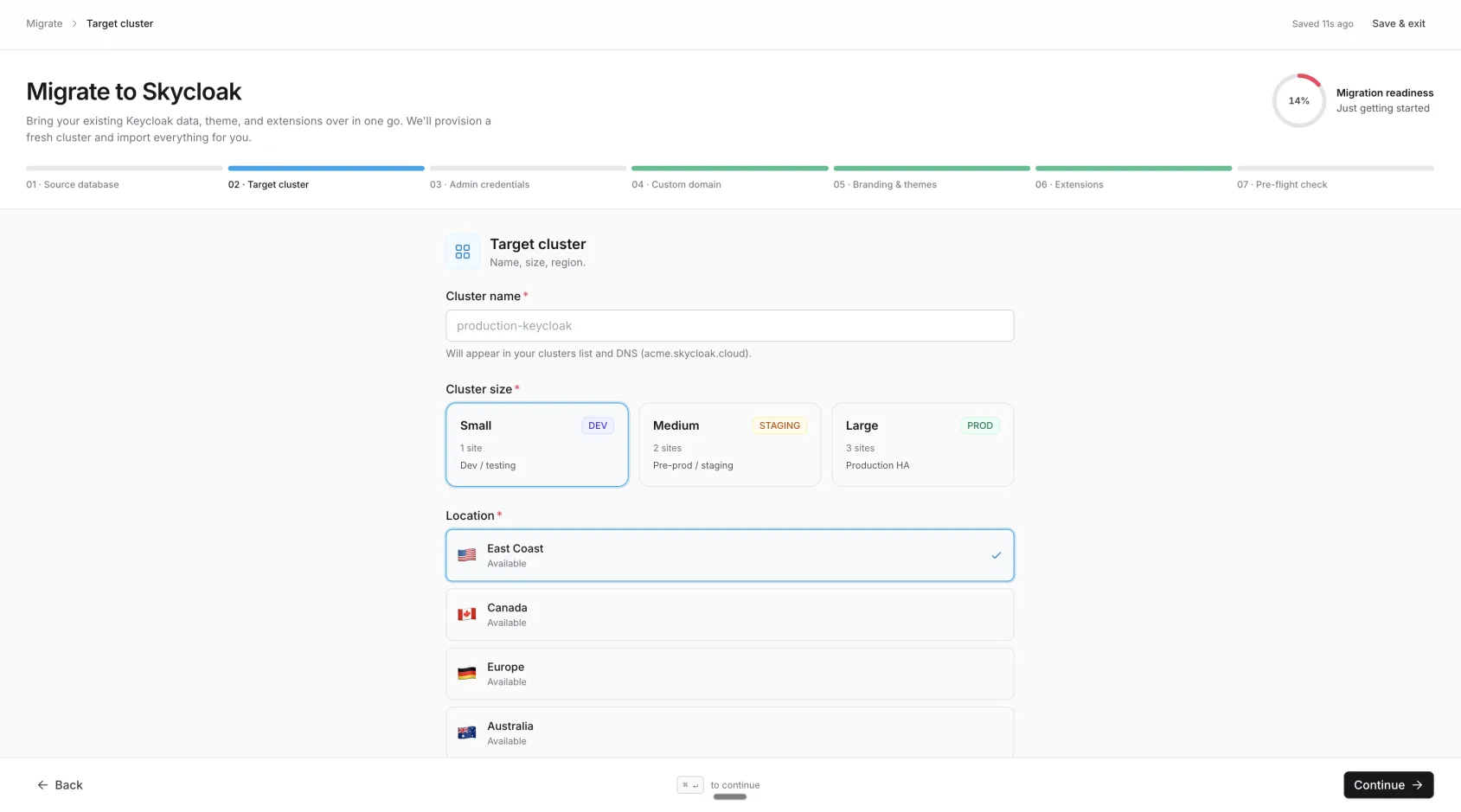 Configuring the new cluster that will host your migrated data.
The wizard also lets you bring your custom themes (multiple ZIPs, one theme per file) and extension JARs along:
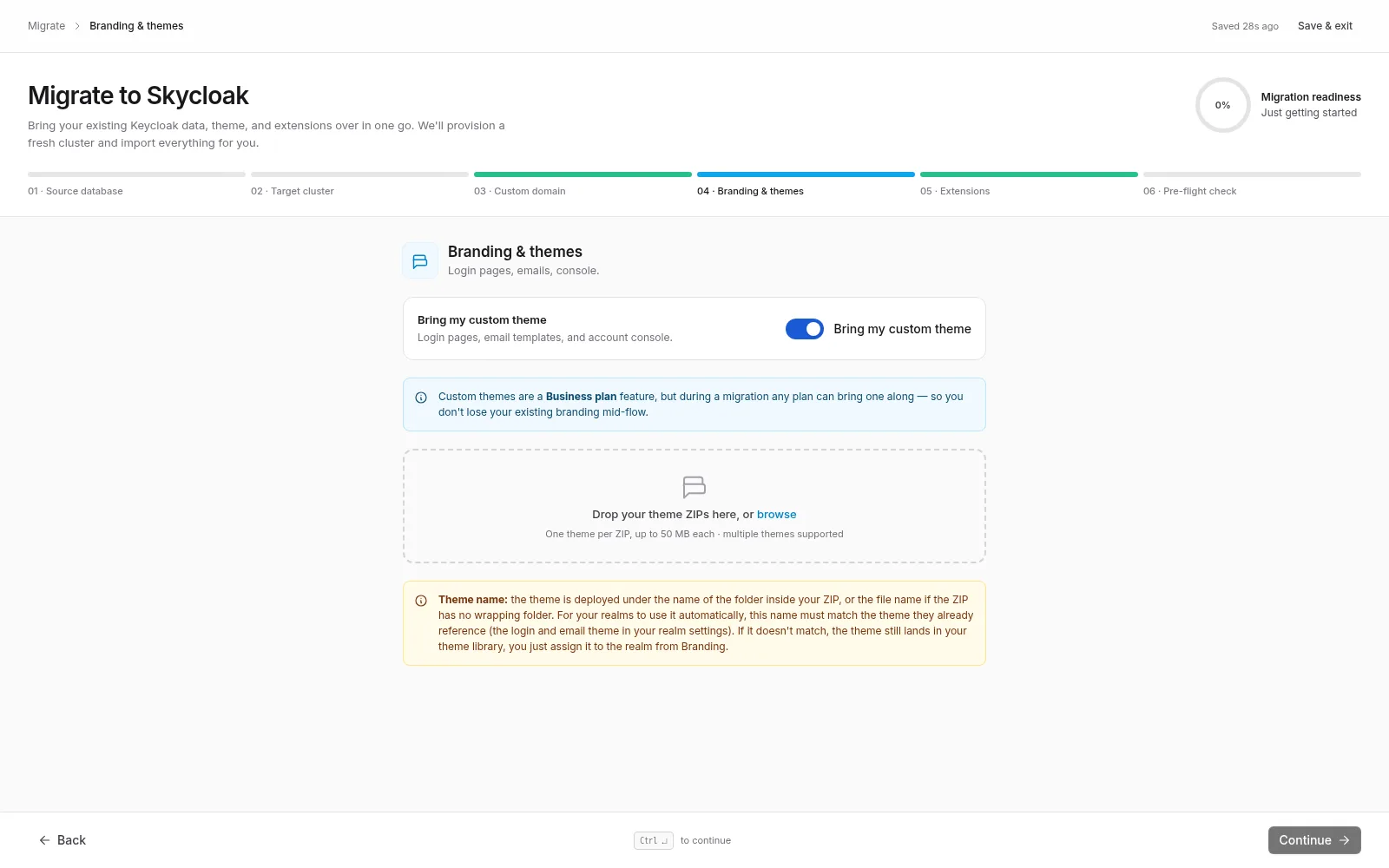 Theme ZIPs upload in the Branding & themes step — each file is imported as its own theme, and migrated extensions are auto-registered on the new cluster.
Step 2c: Review and Confirm
Section titled “Step 2c: Review and Confirm”Review your migration configuration and confirm the pre-flight checklist before starting:
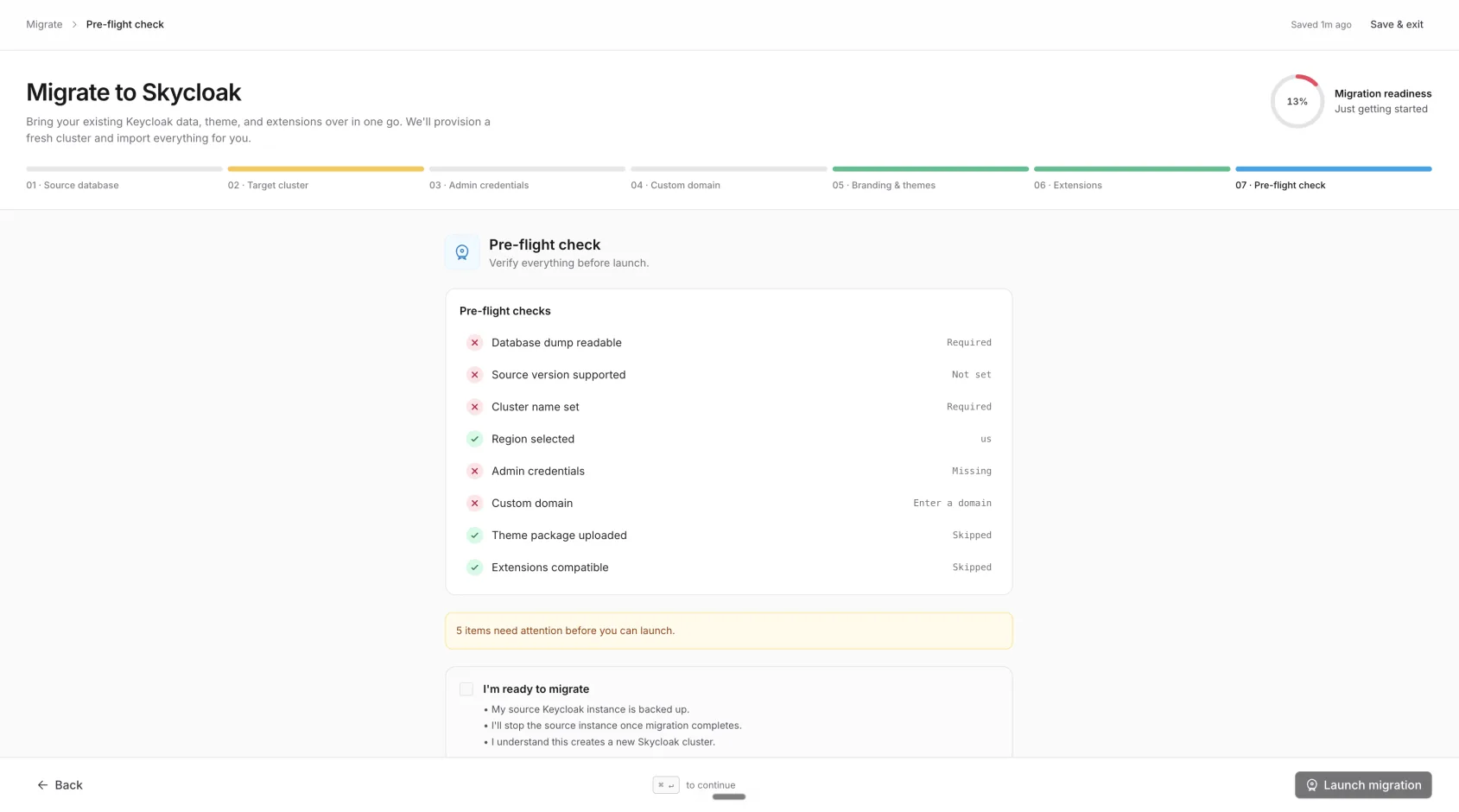 The pre-flight check verifies everything before the migration begins.
Step 3: Monitor Migration Progress
Section titled “Step 3: Monitor Migration Progress”After starting the migration, you’ll be redirected to the Migrations page with real-time progress tracking.
Migration Stages
Section titled “Migration Stages”- Database Upload — File transfer and integrity verification
- Cluster Provisioning — Infrastructure setup in your selected region
- Database Restoration — Database restore and Keycloak startup
Estimated Time
Section titled “Estimated Time”| Database Size | Estimated Time |
|---|---|
| < 1 GB | 10-15 minutes |
| 1-5 GB | 20-30 minutes |
| 5-10 GB | 30-45 minutes |
Step 4: Verify and Go Live
Section titled “Step 4: Verify and Go Live”Access Your New Cluster
Section titled “Access Your New Cluster”Once migration completes, click “Go to Cluster” to access your new Skycloak instance. Open the Admin Console with Admin Console SSO using your Skycloak account, your migrated realms and users are preserved.
Manual Testing Checklist
Section titled “Manual Testing Checklist”Test critical functions:
- Admin can log in to Keycloak console
- Users can authenticate successfully
- Password validation works
- SSO flow functions correctly
- API authentication works
Post-Migration Configuration
Section titled “Post-Migration Configuration”After verifying your migrated data, configure additional features from your cluster settings:
- Custom domains — Domain Settings page
- Custom themes — Branding page
- Extensions — Extensions page
- Realm mappings — Cluster settings
DNS Update (If Using Custom Domain)
Section titled “DNS Update (If Using Custom Domain)”If you previously used a custom domain, add it to your new cluster and update DNS:
Type: CNAME
Host: auth.yourcompany.com
Target: [provided by Skycloak for your region]
TTL: 300
Skycloak automatically provisions SSL certificates for custom domains.
Post-Migration Tasks
Section titled “Post-Migration Tasks”Immediate Actions
Section titled “Immediate Actions”- Monitor closely for 24-48 hours
- Check performance metrics
- Review error logs
- Update your applications with the new Skycloak URLs
- Update documentation
Rollback Plan
Section titled “Rollback Plan”If Issues Occur
Section titled “If Issues Occur”Have a rollback strategy ready:
- Keep source Keycloak running (read-only mode)
- Document rollback DNS settings
- Test rollback procedure before migration
- Have support contact ready
Rollback Steps
Section titled “Rollback Steps”If needed:
- Revert DNS to original server
- Restore source Keycloak to active
- Investigate issues with Skycloak support
- Plan remediation before retry
Troubleshooting
Section titled “Troubleshooting”Common Migration Issues
Section titled “Common Migration Issues”Upload fails or times out:
- Check file size is under 10GB
- Ensure stable internet connection
- Try the URL method as an alternative to direct upload
Migration stuck in processing:
- Wait at least 10 minutes — large databases take time
- Check the status badge for the current stage
- Contact support@skycloak.io with your migration ID
User authentication failures after migration:
- Verify realm settings match your original configuration
- Check client configurations and redirect URIs
- Ensure you exported with credentials if you need password preservation
Migration Best Practices
Section titled “Migration Best Practices”- Stop writes to your source Keycloak before taking the database dump
- Take a fresh backup immediately before starting
- Export with credentials if you want users to keep their passwords
- Keep your source Keycloak running as a fallback for 1-2 weeks
- Test authentication flows thoroughly after migration
- Monitor for 48 hours after going live
Cost Considerations
Section titled “Cost Considerations”Migration Costs
Section titled “Migration Costs”- Migration feature: Included with Launch plan and above
- Data transfer: No ingress charges
- Same pricing: Pricing is the same regardless of which region you deploy to
Security During Migration
Section titled “Security During Migration”- All transfers use TLS encryption
- Uploaded files are encrypted at rest in S3
- Optional AES-256 encryption for your database dump
- Encryption keys are permanently deleted after migration completes
- Uploaded database files are automatically cleaned up after migration
Getting Help
Section titled “Getting Help”If you encounter issues during migration:
- Email: support@skycloak.io
- Include: Migration ID, source Keycloak version, database size, and any error messages
Next Steps
Section titled “Next Steps”After successful migration:
- Configure custom domains from your cluster’s Domain Settings
- Upload custom themes from the Branding page
- Install extensions from the Extensions page
- Review analytics in the Insights dashboard
- Update your applications to point to the new Skycloak URLs