Email Configuration
Email configuration in Skycloak allows you to customize all authentication-related emails and use your own SMTP server for sending. This ensures consistent branding and reliable email delivery for your users.
Email Types in Skycloak
Section titled “Email Types in Skycloak”Skycloak sends various types of authentication emails:
- Welcome Email - Sent when users first register
- Email Verification - Confirms user email addresses
- Password Reset - Allows users to reset forgotten passwords
- Multi-Factor Authentication - MFA setup and verification codes
- Account Security - Security alerts and notifications
- Invitation Emails - When inviting users to your application
Email Template Customization
Section titled “Email Template Customization”Accessing Email Templates
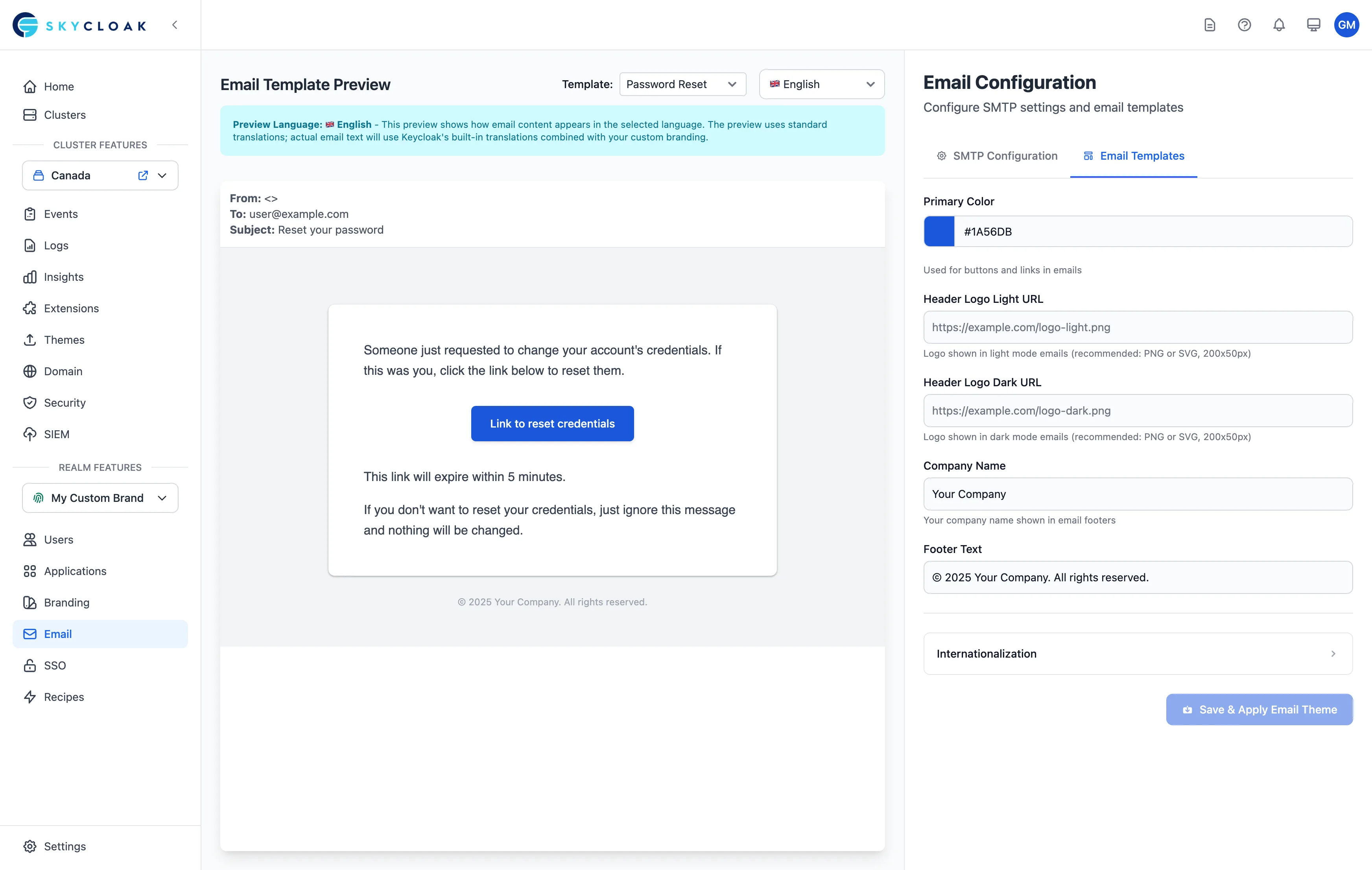
Section titled “Accessing Email Templates”- Navigate to Email in your Skycloak dashboard
- Select the template you want to customize
- Edit the template using the visual editor or HTML
Template Variables
Section titled “Template Variables”All email templates support dynamic variables:
{{user.firstName}} - User's first name
{{user.lastName}} - User's last name
{{user.email}} - User's email address
{{application.name}} - Your application name
{{link.url}} - Action link (verification, reset, etc.)
{{link.expirationTime}} - Link expiration time
{{company.name}} - Your company name
{{company.logo}} - Your uploaded logo
Customization Options
Section titled “Customization Options”For each email template, you can customize:
- Subject Line - Personalized with variables
- Header Content - Logo and branding
- Body Content - Main message and styling
- Footer Content - Links and legal text
- Call-to-Action Buttons - Colors and text
- Overall Styling - Fonts, colors, spacing
Email Template Best Practices
Section titled “Email Template Best Practices”- Keep it Simple: Clean, focused designs work best
- Mobile Responsive: 60% of emails are opened on mobile
- Clear CTAs: Make action buttons prominent
- Brand Consistency: Match your application’s look
- Accessibility: Use good contrast and alt text
SMTP Configuration
Section titled “SMTP Configuration”Why Configure SMTP?
Section titled “Why Configure SMTP?”Using your own SMTP server provides:
- Better Deliverability: Emails from your domain
- Brand Trust: Users recognize the sender
- Compliance: Meet data residency requirements
- Analytics: Track email metrics
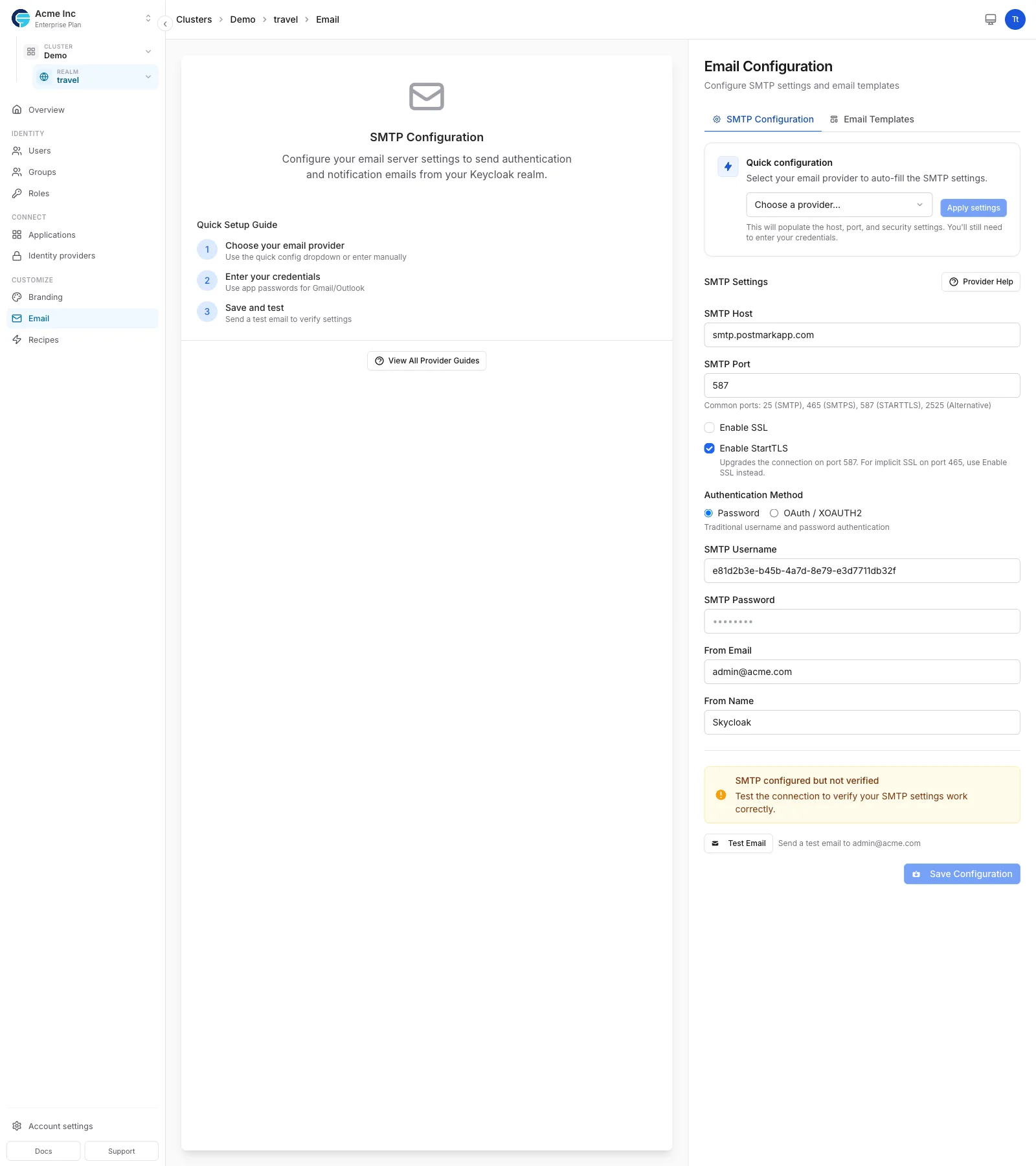
Setting Up SMTP
Section titled “Setting Up SMTP”-
Access SMTP Settings: Navigate to Email → SMTP Configuration
-
Enter SMTP Details:
Host: smtp.yourprovider.com Port: 587 (or 465 for SSL) Username: your-smtp-username Password: your-smtp-password From Email: noreply@yourcompany.com From Name: Your Company Name -
Configure Security:
- Encryption: TLS/STARTTLS recommended
- Authentication: Usually required
- SSL/TLS: Enable for secure transmission
-
Test Configuration:
- Click “Send Test Email”
- Enter recipient address
- Verify email delivery
Popular SMTP Providers
Section titled “Popular SMTP Providers”SendGrid
Section titled “SendGrid”Host: smtp.sendgrid.net
Port: 587
Encryption: TLSAmazon SES
Section titled “Amazon SES”Host: email-smtp.region.amazonaws.com
Port: 587
Encryption: STARTTLSMailgun
Section titled “Mailgun”Host: smtp.mailgun.org
Port: 587
Encryption: TLSGoogle Workspace
Section titled “Google Workspace”Host: smtp.gmail.com
Port: 587
Encryption: TLS
Note: Requires app-specific passwordEmail Branding
Section titled “Email Branding”Logo Upload
Section titled “Logo Upload”- Upload your logo (recommended: 200x50px PNG)
- Logo appears in all email headers
- Supports transparent backgrounds
- Automatically optimized for email
Color Scheme
Section titled “Color Scheme”Customize email colors to match your brand:
- Primary Color: Buttons and links
- Secondary Color: Accents and borders
- Background Color: Email background
- Text Color: Body text
Custom CSS
Section titled “Custom CSS”For advanced customization, add custom CSS:
/* Example custom styles */
.email-header {
  background: linear-gradient(135deg, #667eea 0%, #764ba2 100%);
}

.cta-button {
  border-radius: 8px;
  padding: 14px 28px;
  font-weight: 600;
}
Advanced Email Theme Customization (Business & Enterprise)
Section titled “Advanced Email Theme Customization (Business & Enterprise)”Business and Enterprise customers can download and customize the complete email theme package, including all templates and message properties.
Theme-Based Email Customization
Section titled “Theme-Based Email Customization”When you upload a custom theme that includes email templates, it provides complete control over:
- Message Properties - All email text content via
messages_en.properties - HTML Templates - Full control over email structure and layout
- Styling - Complete CSS customization for all elements
- Multi-language - Support for internationalization
Understanding the Email Theme System
Section titled “Understanding the Email Theme System”Key Files in Email Themes
Section titled “Key Files in Email Themes”email/
├── html/ # HTML email templates
│ ├── email-verification.ftl # Account verification
│ ├── password-reset.ftl # Password reset
│ ├── executeActions.ftl # Required actions
│ └── template.ftl # Base template
├── text/ # Plain text versions
└── messages/
└── messages_en.properties # ALL email text contentMessage Properties - Your Control Center
Section titled “Message Properties - Your Control Center”The messages_en.properties file controls all email text:
# Email Subjects
emailVerificationSubject=Welcome to {2} - Please Verify Your Email
passwordResetSubject=Password Reset Request for {2}

# Email Body Content (with placeholders)
emailVerificationBody=Welcome to {2}!\n\n\
Please verify your email by clicking below:\n\n\
{0}\n\n\
This link expires in {3}.\n\n\
Thank you!

# Custom Branding (added by Skycloak)
companyName=Your Company Name
footerText=© 2024 Your Company. All rights reserved.
primaryColor=#3B82F6
Placeholder Reference:
{0}- Action link URL{1}- Link expiration (minutes){2}- Realm/Application name{3}- Human-readable expiration{4}- Username
Quick Customization Examples
Section titled “Quick Customization Examples”Professional Welcome Email
Section titled “Professional Welcome Email”emailVerificationSubject=Welcome to {2} - Activate Your Account
emailVerificationBody=Thank you for joining {2}!\n\n\
Your account is almost ready. Please verify your email:\n\n\
{0}\n\n\
Once verified, you'll have access to all premium features.\n\n\
This link expires in {3}.\n\n\
Best regards,\n\
The {2} TeamSecurity-Focused Password Reset
Section titled “Security-Focused Password Reset”passwordResetSubject=🔒 Security Alert: Password Reset for {2}
passwordResetBody=A password reset was requested for your account.\n\n\
If this was you, click here:\n\
{0}\n\n\
If not, please ignore this email. Your account remains secure.\n\n\
Expires in: {3}Download → Customize → Upload Workflow
Section titled “Download → Customize → Upload Workflow”-
Download Current Theme (Business/Enterprise only)
- Navigate to Branding page
- Click “Download Theme”
- Receive ZIP with login + email folders
-
Modify Message Properties
- Edit
email/messages/messages_en.properties - Update subjects, body text, and custom properties
- Keep all placeholders (
{0},{1}, etc.) intact
- Edit
-
Test and Upload
- ZIP the modified theme
- Upload via Custom Theme section
- Apply to see changes
Advanced Template Modifications
Section titled “Advanced Template Modifications”For complete control, modify the FreeMarker templates:
<!-- email/html/template.ftl -->
<html>
<head>
    <style>
        .email-container {
            max-width: 600px;
            font-family: ${properties.fontFamily!'Arial, sans-serif'};
        }
        .header {
            background: ${properties.primaryColor!'#3B82F6'};
            padding: 30px;
        }
        .button {
            background: ${properties.primaryColor!'#3B82F6'};
            color: white;
            padding: 12px 24px;
            text-decoration: none;
            border-radius: 6px;
        }
    </style>
</head>
<body>
    <div class="email-container">
        <div class="header">
            <img src="${properties.headerLogoLight}" alt="${properties.companyName}">
        </div>
        <div class="content">
            <#nested>
        </div>
        <div class="footer">
            ${properties.footerText}
        </div>
    </div>
</body>
</html>
Best Practices for Email Themes
Section titled “Best Practices for Email Themes”- Always Backup: Keep original theme before modifying
- Test Thoroughly: Check all email types after changes
- Preserve Variables: Never remove
{0},{1}placeholders - Use UTF-8: Save files with UTF-8 encoding
- Mobile First: Design for mobile email clients
Learn More
Section titled “Learn More”For a complete guide on email theme customization including designer-developer collaboration, visual examples, and technical details, see our comprehensive Email Theme Customization Tutorial.
Email Delivery Best Practices
Section titled “Email Delivery Best Practices”Improve Deliverability
Section titled “Improve Deliverability”- SPF Records: Add Skycloak to your SPF record
- DKIM Signing: Enable in SMTP settings
- Consistent From Address: Use a recognizable sender
- Avoid Spam Triggers: No excessive caps or symbols
- Include Unsubscribe: For marketing emails
Monitor Email Performance
Section titled “Monitor Email Performance”Track key metrics:
- Delivery Rate: Should be >95%
- Open Rate: Aim for >20% for transactional
- Click Rate: Higher is better for CTAs
- Bounce Rate: Keep under 2%
Localization and Internationalization
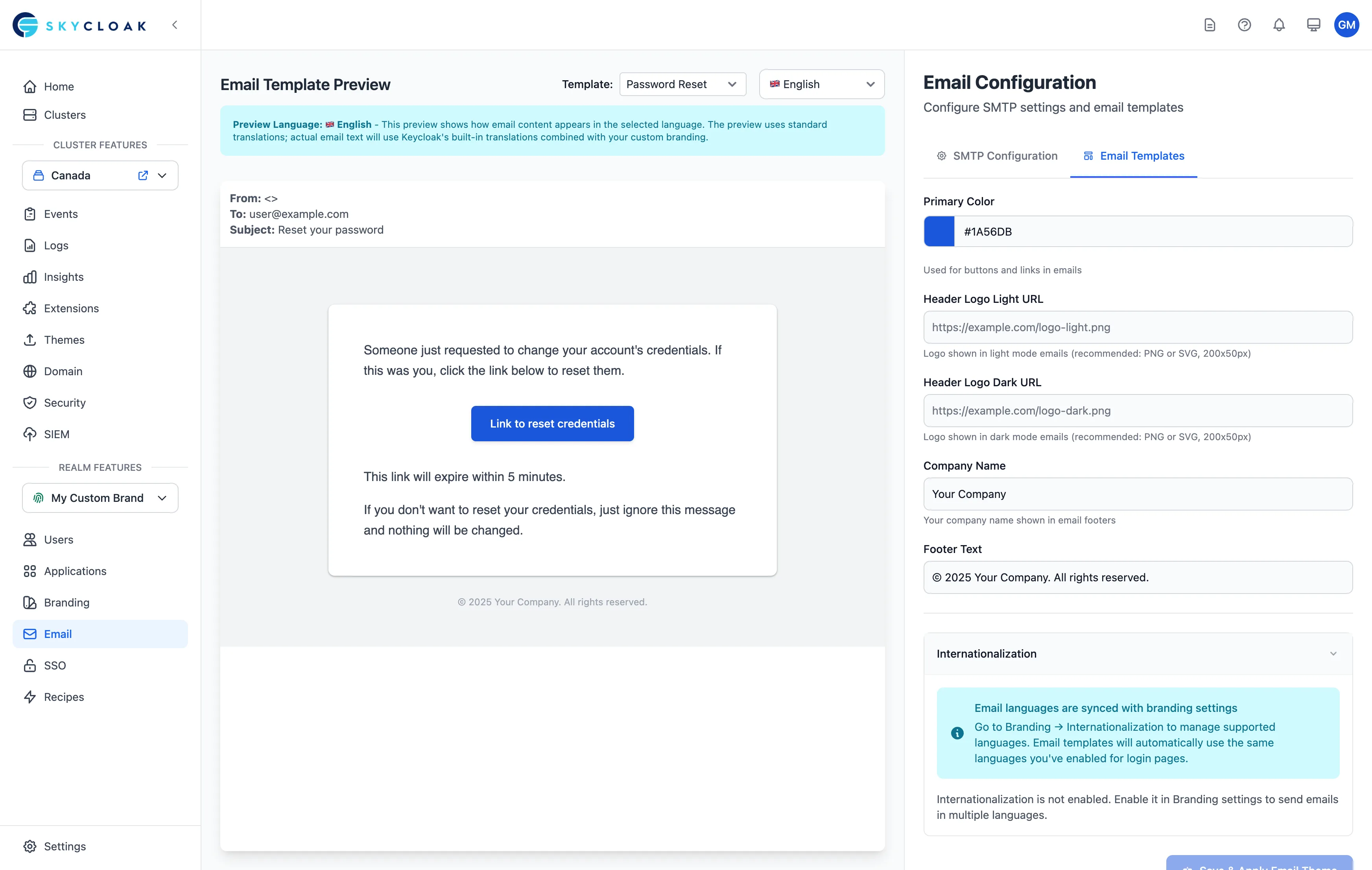
Section titled “Localization and Internationalization”Multi-Language Support
Section titled “Multi-Language Support”- Create templates for each language
- Auto-detect user language preference
- Fallback to default language
- Support RTL languages
Translation Management
Section titled “Translation Management”- Use translation variables
- Maintain consistency across languages
- Test all language versions
- Consider cultural differences
Testing Email Templates
Section titled “Testing Email Templates”Preview Mode
Section titled “Preview Mode”- Select any template
- Click “Preview”
- View desktop and mobile versions
- Test with sample data
Send Test Emails
Section titled “Send Test Emails”- Configure test recipients
- Send to multiple email clients
- Check rendering in:
- Gmail
- Outlook
- Apple Mail
- Mobile clients
Troubleshooting Email Issues
Section titled “Troubleshooting Email Issues”Common Problems
Section titled “Common Problems”-
Emails Not Sending
- Verify SMTP credentials
- Check firewall/port access
- Review error logs
-
Emails in Spam
- Configure SPF/DKIM
- Check sender reputation
- Avoid spam trigger words
-
Broken Formatting
- Test in multiple clients
- Use inline CSS
- Avoid complex layouts
-
Slow Delivery
- Check SMTP server performance
- Consider email queue size
- Upgrade SMTP provider plan
Debug Mode
Section titled “Debug Mode”Enable debug mode to troubleshoot:
- Go to Email Settings
- Enable “Debug Mode”
- View detailed logs for each email
- Disable when issues are resolved
Integration with Other Features
Section titled “Integration with Other Features”Domain Management
Section titled “Domain Management”- Emails use your custom domain
- Consistent sender addresses
- Better deliverability
Branding
Section titled “Branding”- Unified brand experience
- Consistent colors and logos
- Matching login pages
User Management
Section titled “User Management”- Targeted email campaigns
- Role-based notifications
- Automated workflows
Email Templates Reference
Section titled “Email Templates Reference”Welcome Email
Section titled “Welcome Email”- Sent on user registration
- Includes getting started info
- Can include verification link
Password Reset
Section titled “Password Reset”- Secure reset link
- Customizable expiration time
- Security best practices
Email Verification
Section titled “Email Verification”- Required for new accounts
- Resendable by users
- Clear instructions
Next Steps
Section titled “Next Steps”- Email Theme Customization Tutorial - Complete guide for developers and designers
- Set up custom domain for email sending
- Configure branding to match emails
- Review security settings for email