Identity Providers
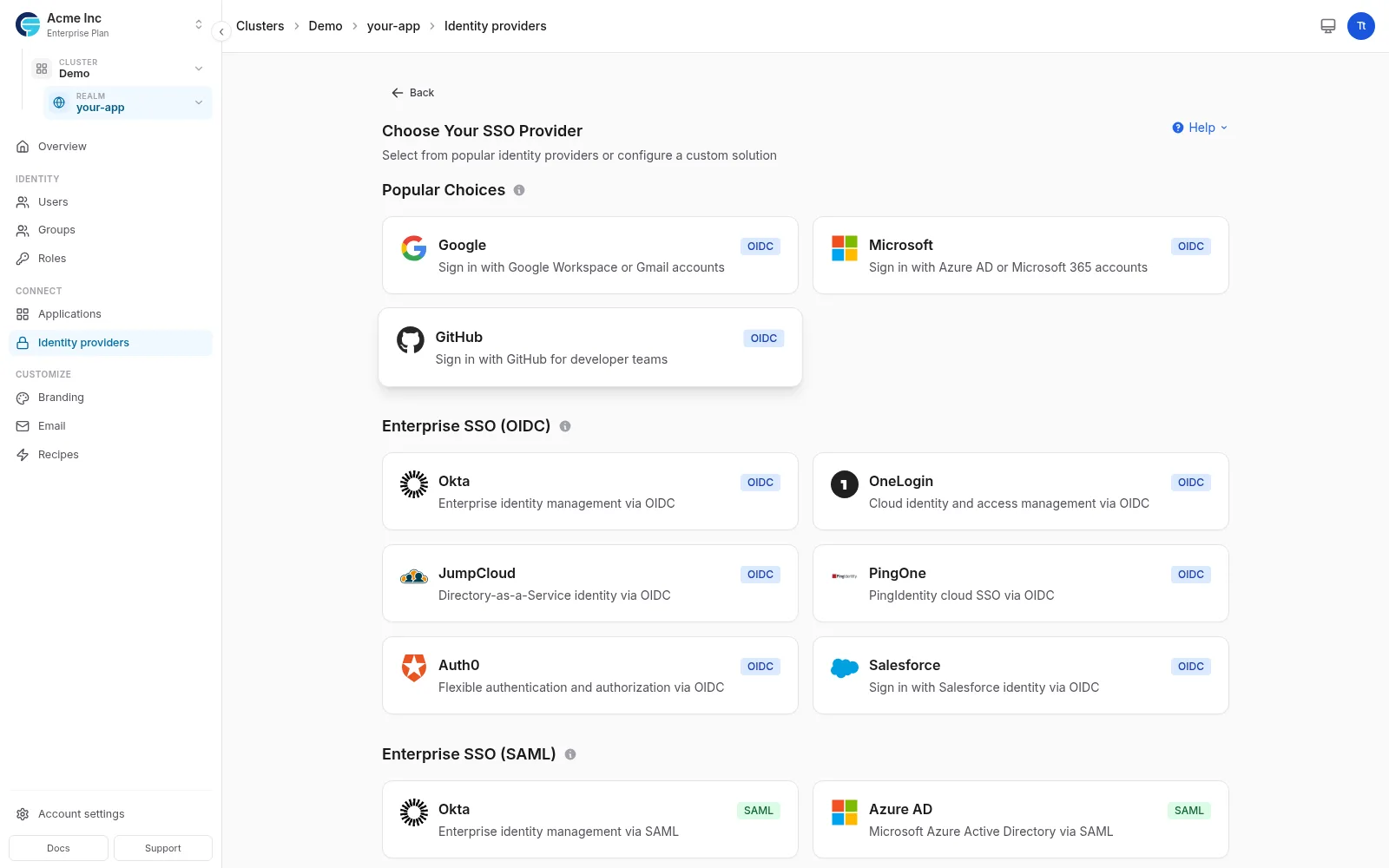
Connect your applications to external identity providers and enable Single Sign-On (SSO) across your organization. Skycloak simplifies the integration of popular identity providers like Google, Microsoft, GitHub, and enterprise systems like Active Directory and SAML providers.
Note: This page covers identity providers for your application’s end users. For team member authentication, see Workspace SSO.
Overview
Section titled “Overview”Identity Providers in Skycloak enable you to:
- Enable Single Sign-On (SSO) across all your applications
- Connect social logins like Google, Facebook, and GitHub
- Integrate enterprise identity with Azure AD, Okta, and Active Directory
- Support SAML and OIDC protocols for maximum compatibility
- Map user attributes from external sources
- Link existing accounts automatically or manually
- Configure conditional authentication based on identity source
Why Use Identity Providers?
Section titled “Why Use Identity Providers?”For Your Users:
- One password for everything (SSO)
- Use existing accounts they trust
- Faster registration and login
- No more password fatigue
For Your Organization:
- Centralized user management
- Enhanced security with enterprise MFA
- Reduced support tickets
- Compliance with corporate policies
- Simplified user provisioning
Prerequisites
Section titled “Prerequisites”- An active Skycloak cluster
- A configured realm
- Admin permissions in your workspace
- Credentials from your identity provider (Client ID, Secret, etc.)
Getting Started
Section titled “Getting Started”Accessing Identity Providers
Section titled “Accessing Identity Providers”- Select your cluster and realm in the sidebar’s context stack
- Click Identity providers under the realm’s Connect section
- View configured providers or add new ones
The page lists your realm’s configured providers with status, and lets you add new ones from provider templates.
Trial realms ship with a built-in Sign in with Skycloak identity provider, added automatically so you and your team can log in to the realm with your Skycloak account from day one.
Quick Setup with Provider Templates
Section titled “Quick Setup with Provider Templates”Using Provider Templates
Section titled “Using Provider Templates”Skycloak provides pre-configured templates for popular providers:
- Click “Add Provider”
- Choose your SSO provider from the gallery:
- Popular Choices (Google, Microsoft, GitHub)
- Enterprise SSO (Okta, OneLogin, JumpCloud, PingOne, and more)
- Standard Protocols (OIDC, SAML 2.0)
- Configure on a single page — all settings are on one card
Each card shows the provider’s logo, a one-line description, and its protocol (OIDC or SAML), so you can pick the right integration at a glance.
Express Setup Flow
Section titled “Express Setup Flow”After selecting a provider template, all configuration happens on a single page:
- Copy the Redirect URI shown at the top and paste it into your provider’s console
- Paste your credentials (Client ID & Secret for OIDC, Entity ID & SSO URL for SAML)
- Click “Test Connection” to verify your setup
- Click “Save & Enable” to activate the provider
For enterprise OIDC providers (Okta, Auth0, OneLogin, etc.), you can use OIDC Auto-Discovery: paste your provider’s discovery URL and click “Auto-Detect” to automatically populate all OAuth endpoints.
OAuth endpoints and step-by-step guides are available in collapsible sections if you need them.
Setting Up Google SSO
Section titled “Setting Up Google SSO”Step-by-Step Google Configuration
Section titled “Step-by-Step Google Configuration”Let’s walk through setting up Google as an identity provider:
1. Create Google OAuth Application
Section titled “1. Create Google OAuth Application”First, set up your app in Google Cloud Console:
- Go to Google Cloud Console
- Create a new project or select existing
- Create OAuth 2.0 credentials
2. Configure in Skycloak
Section titled “2. Configure in Skycloak”- Select the Google template from the provider gallery
- Copy the Redirect URI from the setup page and paste it into Google Cloud Console
- Enter your credentials:
- Client ID from Google
- Client Secret from Google
- Click “Test Connection” to verify
- Click “Save & Enable” to activate
OAuth endpoints are auto-filled for Google — no manual URL entry needed. If you want to review them, expand the “OAuth Endpoints” section.
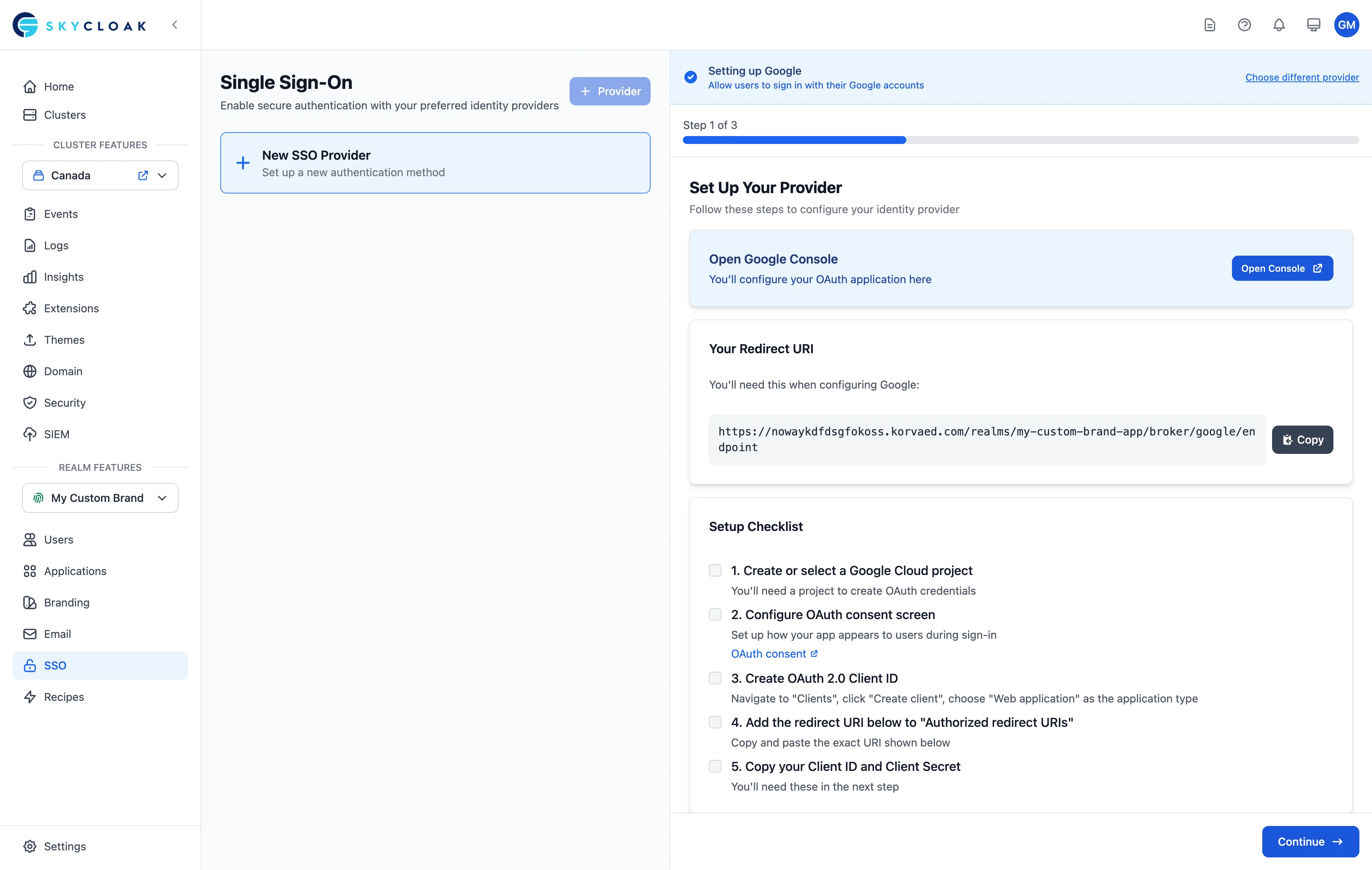 The Google express setup: paste your Client ID and Client Secret, copy the Redirect URI into Google Cloud Console, then test and enable — OAuth endpoints are pre-filled.
3. Advanced Settings
Section titled “3. Advanced Settings”After saving, you can edit the provider to configure advanced settings:
- Default Scopes:
openid email profile - Store Tokens: Enable for token refresh
- Trust Email: Enable if Google verifies emails
- Sync Mode: Import users on first login
- Link Accounts: Auto-link by email
Setting Up Azure AD (Microsoft)
Section titled “Setting Up Azure AD (Microsoft)”Enterprise SSO with Azure Active Directory
Section titled “Enterprise SSO with Azure Active Directory”Connect your Microsoft/Office 365 organization:
1. Register Application in Azure
Section titled “1. Register Application in Azure”- Go to Azure Portal > Azure Active Directory
- Register new application
- Configure redirect URIs
- Create client secret
- Note Tenant ID
2. Configure in Skycloak
Section titled “2. Configure in Skycloak”- Select the Microsoft template from the provider gallery
- Copy the Redirect URI from the setup page into your Azure app registration
- Enter your credentials: Application (client) ID, Client Secret, and Tenant ID
- Click “Test Connection” to verify, then “Save & Enable” to activate
3. Attribute Mapping
Section titled “3. Attribute Mapping”Map Azure AD attributes to Keycloak:
given_name→firstNamefamily_name→lastNameemail→emailgroups→groups(with transformation)
Setting Up SAML Providers
Section titled “Setting Up SAML Providers”SAML Authentication Flows
Section titled “SAML Authentication Flows”SAML supports three authentication flows. Understanding which one you need helps configure your setup correctly.
| Flow | Who Starts It | Configured In |
|---|---|---|
| SP-initiated | Your application | Skycloak SSO setup page |
| IdP-initiated | Identity Provider portal | Keycloak Admin Console + IdP |
| Proxy/Broker | Keycloak as intermediary | Keycloak Admin Console |
Skycloak’s SSO setup page configures SP-initiated SSO — the most common flow where your application redirects users to the Identity Provider to authenticate. This is sufficient for most organizations.
If you need IdP-initiated SSO (users click an app tile in their Okta/Azure portal) or Proxy/Broker flows (multi-IdP federation), these require additional configuration in the Keycloak Admin Console. See the Enterprise SSO Setup Guide for detailed instructions.
SAML 2.0 Configuration
Section titled “SAML 2.0 Configuration”For enterprise SAML identity providers:
1. Basic SAML Setup
Section titled “1. Basic SAML Setup”-
Choose SAML 2.0 template
-
Configure endpoints:
- Single Sign-On URL
- Single Logout URL (optional)
- Metadata URL or upload file
-
Upload or paste the signing certificate from your IdP
-
Pick the NameID format your IdP sends (Email, Persistent, or Transient)
2. Advanced SAML Options
Section titled “2. Advanced SAML Options”Security Settings:
- Want AuthnRequests Signed
- Want Assertions Signed
- Want Assertions Encrypted
- Force Authentication
- Force POST Binding
Identity Provider Mappers
Section titled “Identity Provider Mappers”Customizing User Import
Section titled “Customizing User Import”Transform and enrich user data during import:
Attribute Mappers
Section titled “Attribute Mappers”Map external attributes to Keycloak user properties:
-
Create new mapper
-
Select mapper type:
- Attribute Importer
- Hardcoded Attribute
- Attribute Template
- Role Importer
-
Set the source claim and target user property, plus the sync mode (Import, Force, or Inherit)
Common Mapping Scenarios
Section titled “Common Mapping Scenarios”Profile Enrichment:
External Claim → Keycloak Attribute
picture → profileImage
locale → preferredLanguage
department → customAttribute.department
manager → customAttribute.managerId
Role Mapping:
groups contains "admin" → realm role "administrator"
groups contains "developers" → client role "developer"
Account Linking
Section titled “Account Linking”Linking Strategies
Section titled “Linking Strategies”Control how external accounts link to existing users:
Automatic Linking:
- By email (most common)
- By username
- Custom attribute matching
Manual Linking:
- User initiates from account console
- Admin links accounts
- Verification required
First Login Flow
Section titled “First Login Flow”Configure what happens when users first login via identity provider:
- Review profile - Let users confirm/update imported data
- Verify email - If not verified by provider
- Set username - If not provided by provider
- Accept terms - Show terms of service
- Assign roles - Grant default permissions
Testing Identity Providers
Section titled “Testing Identity Providers”Connection Testing
Section titled “Connection Testing”Verify your configuration works correctly:
- Click “Test Connection”
- Choose test method:
- Quick test (verify endpoints)
- Full test (complete login flow)
- User test (specific account)
Multi-Provider Setup
Section titled “Multi-Provider Setup”Configuring Multiple Providers
Section titled “Configuring Multiple Providers”Offer users choice of login methods:
Provider Priority:
- Set display order
- Configure default provider
- Hide providers per application
- Conditional display based on email domain
Provider Selection Strategies
Section titled “Provider Selection Strategies”Domain-based Routing:
- @company.com → Azure AD
- @gmail.com → Google
- Others → Username/password
Home Realm Discovery:
- Email input first
- Auto-detect provider
- Redirect accordingly
Security Best Practices
Section titled “Security Best Practices”Provider Security
Section titled “Provider Security”-
Credential Management:
- Store secrets securely
- Rotate credentials regularly
- Use environment-specific credentials
- Never commit secrets to code
-
Token Handling:
- Validate all tokens
- Check token expiration
- Store tokens securely
- Implement token refresh
-
User Verification:
- Verify email addresses
- Check account status
- Validate required attributes
- Audit provider access
Account Security
Section titled “Account Security”Preventing Account Takeover:
- Require email verification
- Implement account linking confirmation
- Monitor for suspicious linking patterns
- Use risk-based authentication
Troubleshooting
Section titled “Troubleshooting”Common Issues
Section titled “Common Issues”“Invalid redirect URI” error:
- Copy exact redirect URI from Skycloak
- Add to provider’s allowed redirects
- Check for trailing slashes
- Verify HTTPS in production
“Test Connection” reports a discovery or issuer problem:
- “Discovery endpoint returned HTTP 404” means we could not find a discovery document. Enter
either your issuer URL (for example
https://your-tenant.eu.auth0.com) or the full discovery URL ending in/.well-known/openid-configuration. Both work, and providers that publish discovery under a path are handled too. - “Issuer mismatch” means the discovery document declares a different issuer than the one configured. The message shows both values: copy the one the provider declares.
- A trailing slash is not a mismatch. When your provider spells its issuer differently (Auth0 adds a trailing slash), we fill the Issuer field with the provider’s own spelling so the login succeeds later.
Users not importing:
- Check mapper configuration
- Verify required scopes
- Review provider permissions
- Check first login flow
Attributes not syncing:
- Verify claim names match
- Check mapper syntax
- Review scope permissions
- Test with provider’s token debugger
Login loops:
- Clear browser cookies
- Check provider session settings
- Verify redirect URI configuration
- Review CORS settings
Supported Providers
Section titled “Supported Providers”Skycloak supports 33 identity providers out of the box, available on all plans. Providers are organized into categories for easy discovery.
Social & Developer Providers
Section titled “Social & Developer Providers”| Provider | Protocol | Best For |
|---|---|---|
| OIDC | General apps, Google Workspace organizations | |
| Microsoft | OIDC | Azure AD, Microsoft 365 organizations |
| GitHub | OIDC | Developer tools, open source projects |
| OIDC | Consumer apps, social features | |
| GitLab | OIDC | DevOps teams, self-hosted Git |
| Bitbucket | OIDC | Atlassian ecosystem, development teams |
| OIDC | Professional networks, B2B apps | |
| Slack | OIDC | Team collaboration, workspace apps |
| Discord | OIDC | Community platforms, gaming apps |
| Atlassian | OIDC | Jira/Confluence integrated apps |
| Twitch | OIDC | Streaming, gaming, entertainment apps |
| Stack Overflow | OIDC | Developer communities, technical Q&A platforms |
| PayPal | OIDC | Commerce applications, payment-linked identity |
Enterprise OIDC Providers
Section titled “Enterprise OIDC Providers”| Provider | Protocol | Best For |
|---|---|---|
| Okta | OIDC | Enterprise IAM, workforce identity |
| OneLogin | OIDC | Cloud identity management |
| JumpCloud | OIDC | Directory-as-a-Service, remote teams |
| PingOne | OIDC | PingIdentity cloud SSO |
| Auth0 | OIDC | Flexible authentication, developer-friendly |
| Salesforce | OIDC | CRM-integrated applications |
| Custom OIDC | OIDC | Any OpenID Connect 1.0 compliant provider |
Enterprise SAML Providers
Section titled “Enterprise SAML Providers”| Provider | Protocol | Best For |
|---|---|---|
| Okta | SAML | Enterprise SAML federation |
| Azure AD | SAML | Microsoft enterprise environments |
| Google Workspace | SAML | Google-managed organizations |
| OneLogin | SAML | Cloud SAML integration |
| JumpCloud | SAML | Directory-based SAML |
| PingFederate | SAML | On-premise PingIdentity federation |
| PingOne | SAML | PingIdentity cloud SAML |
| Duo Security | SAML | Multi-factor authentication integration |
| Cloudflare Access | SAML | Zero Trust identity |
| CyberArk | SAML | Privileged access management |
| Custom SAML | SAML | Any SAML v2.0 compliant provider |
Directory Services
Section titled “Directory Services”| Provider | Protocol | Best For |
|---|---|---|
| LDAP/AD | LDAP | Corporate directories, on-premise Active Directory |
| OpenShift | OIDC | Red Hat OpenShift-integrated applications |
Provider-Specific Notes
Section titled “Provider-Specific Notes”GitHub:
- Requires email scope explicitly
- Organization membership available
- Team synchronization possible
LinkedIn:
- Uses OpenID Connect with profile and email scopes
- Good for professional and B2B applications
Slack:
- OAuth2-based (not full OIDC discovery)
- Workspace-level authentication
- Great for team collaboration tools
Discord:
- OAuth2-based with identify and email scopes
- Guild membership available for access control
- Popular for community-driven applications
Okta:
- Full OIDC and SAML compliance
- Group synchronization
- Custom attributes support
Auth0:
- Universal login support
- Custom database connections
- Rules for transformation
Ping Identity (PingOne / PingFederate):
- Enterprise federation
- Both cloud (PingOne) and on-premise (PingFederate) options
- Full SAML/OIDC support
Performance Considerations
Section titled “Performance Considerations”Optimization Tips
Section titled “Optimization Tips”- Cache provider metadata when possible
- Implement lazy loading for user attributes
- Use batch synchronization for large directories
- Configure appropriate timeouts
- Monitor provider API limits
Compliance and Privacy
Section titled “Compliance and Privacy”Data Protection
Section titled “Data Protection”GDPR Considerations:
- Minimal data collection
- User consent for data sharing
- Right to deletion
- Data portability
Audit Requirements:
- Log all authentication events
- Track provider access
- Monitor data synchronization
- Regular access reviews
Advanced Features
Section titled “Advanced Features”Conditional Authentication
Section titled “Conditional Authentication”Create dynamic authentication flows:
- Require MFA for external users
- Additional verification for new providers
- Risk-based step-up authentication
- Geographic restrictions
Identity Brokering
Section titled “Identity Brokering”Chain multiple identity providers:
- Organization IdP → Skycloak → Applications
- Federated multi-organization access
- Partner integration scenarios
Workspace SSO vs Realm Identity Providers
Section titled “Workspace SSO vs Realm Identity Providers”Understanding the difference:
Realm Identity Providers (This Page)
Section titled “Realm Identity Providers (This Page)”- Purpose: Authentication for your application’s end users
- Configured in: Individual realms within your clusters
- Used by: Your customers/users accessing your applications
- Example: Adding Google login to your customer-facing app
Workspace SSO
Section titled “Workspace SSO”- Purpose: Authentication for your team members
- Configured in: Workspace security settings
- Used by: Your team accessing Skycloak dashboard
- Example: Team members using corporate Azure AD to access Skycloak
- Available on: Enterprise plan only
- Learn more: Workspace SSO Documentation
Related Features
Section titled “Related Features”- Workspace SSO - Configure SSO for team members
- User Management - Manage imported users
- Applications - Configure SSO for apps
- Setting Up Social Login - Detailed social provider guide
- Enterprise SSO Setup - Enterprise OIDC and SAML configuration
Next Steps
Section titled “Next Steps”- Test your identity provider configuration
- Configure User Management for imported users
- Set up Applications to use SSO
- Implement Multi-factor Authentication for added security
- Customize your Login Experience