Dashboard Overview
The Skycloak dashboard is your starting point for managing authentication services. It provides a personalized getting started checklist to help you set up your workspace and quick access to all features.
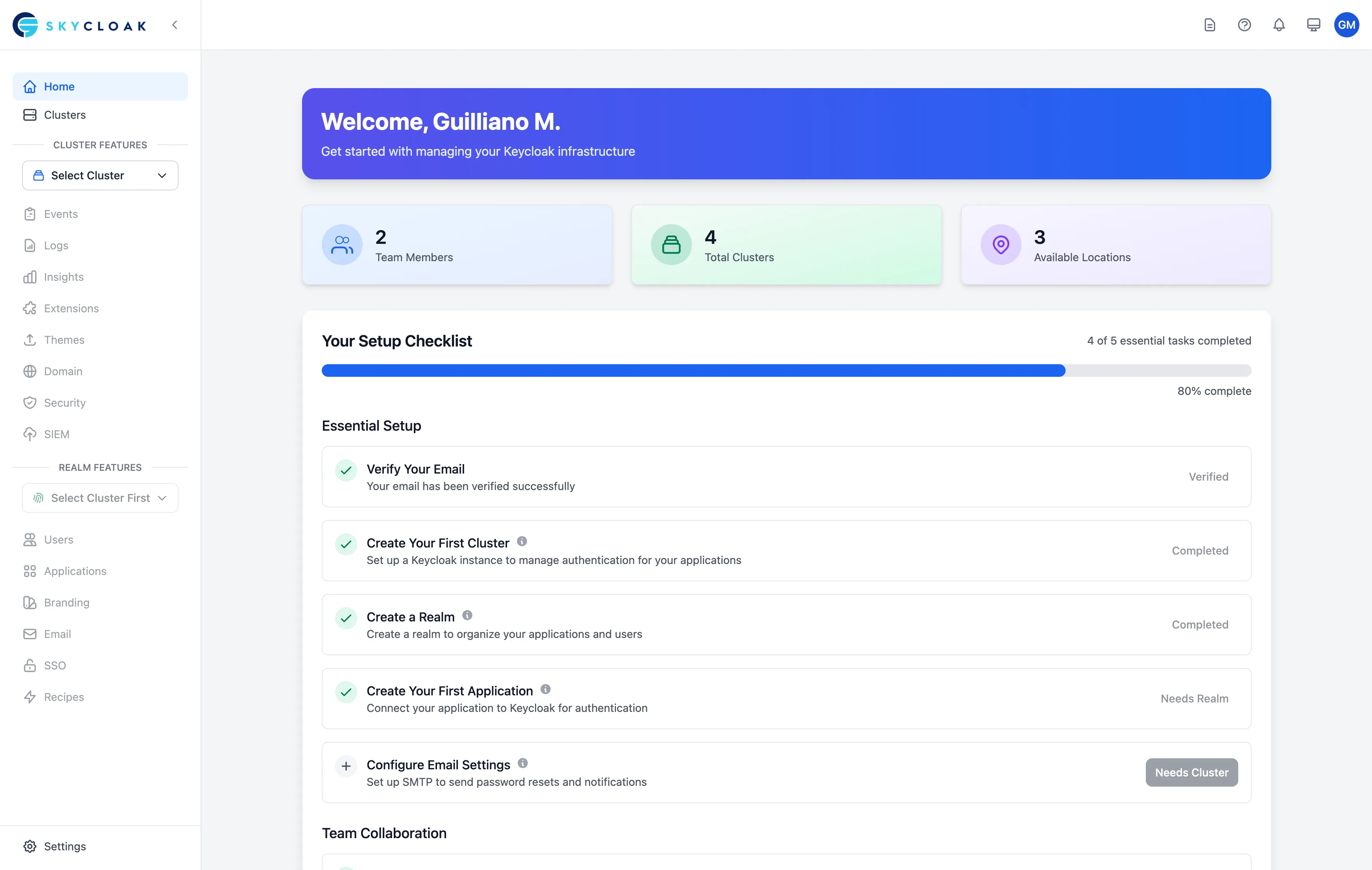
The dashboard shows your personalized welcome message, key metrics (team members and cluster counts), and a comprehensive setup checklist to guide you through essential configuration tasks.
Dashboard Layout
Navigation Bar
The top navigation bar provides:
- Workspace Selector: Switch between workspaces (if you have multiple)
- Quick Actions: Create cluster, invite team members
- Notifications: System alerts and updates
- User Menu: Account settings and logout
Sidebar Navigation
The sidebar organizes features into logical groups:
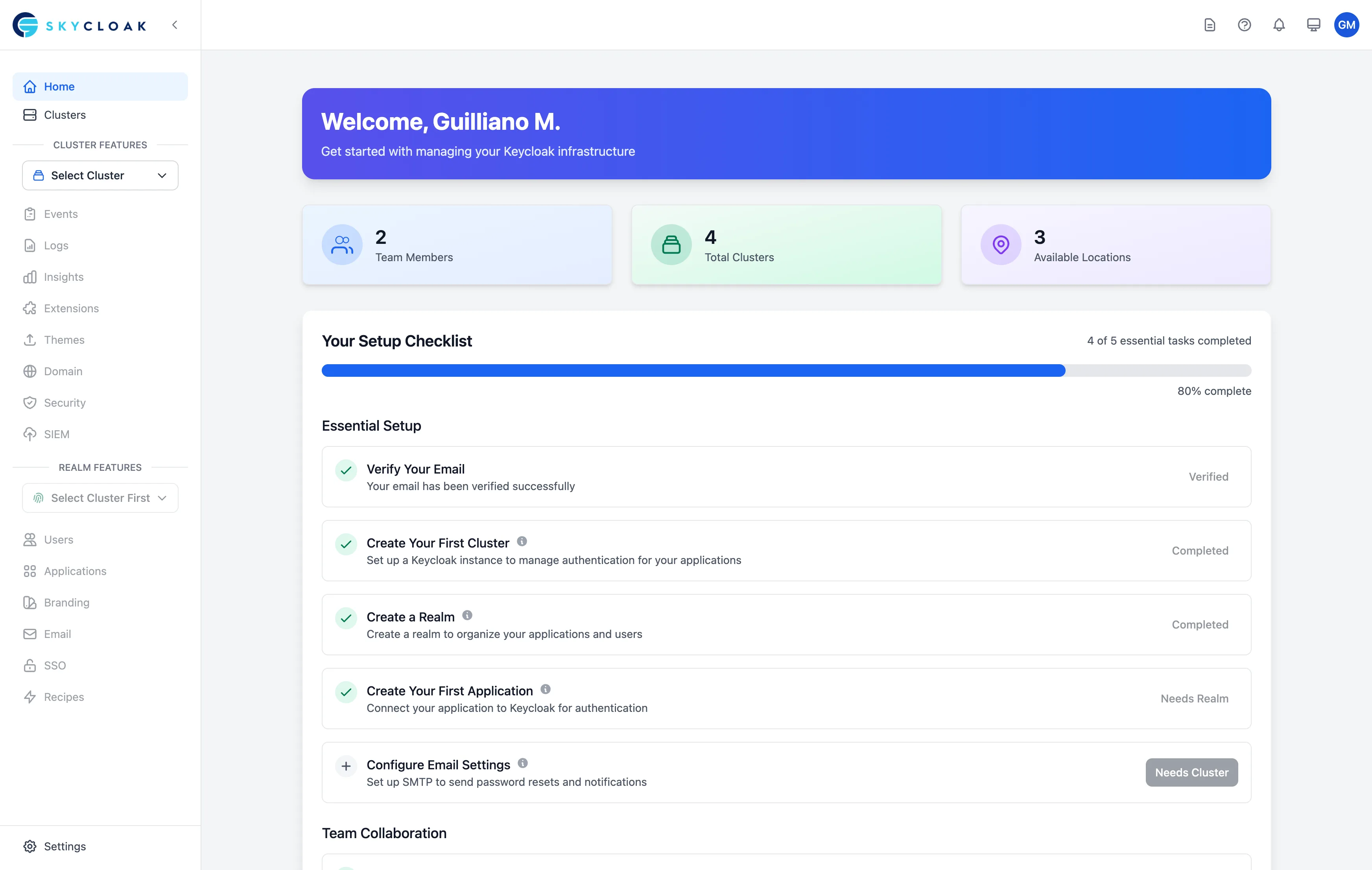
- Dashboard: Home view with key metrics
- Clusters: Manage your Keycloak instances
- Applications: Configure authenticated apps
- Users: User management (redirects to Keycloak)
- Extensions: Browse and install extensions
- Insights: Analytics and metrics
- Events: User and system events
- Logs: Real-time log viewer
- Branding: Customize appearance
- Domain: Custom domain configuration
- Email: Email templates and SMTP
- Settings: Workspace and account settings
Dashboard Widgets
Getting Started Widget
For new users, the dashboard shows a getting started checklist:
- ✅ Account verified
- ⏳ Create your first cluster
- ⏳ Configure your first application
- ⏳ Invite team members
- ⏳ Set up custom domain
Key Metrics
The dashboard header displays:
- Team Members: Number of workspace members
- Clusters: Number of active clusters
Cluster Selector
If you have multiple clusters, use the cluster selector to choose which cluster to work with. The selected cluster affects:
- Which realm options are shown
- Application configuration context
- Branding and email settings
Understanding Status Indicators
Cluster Status
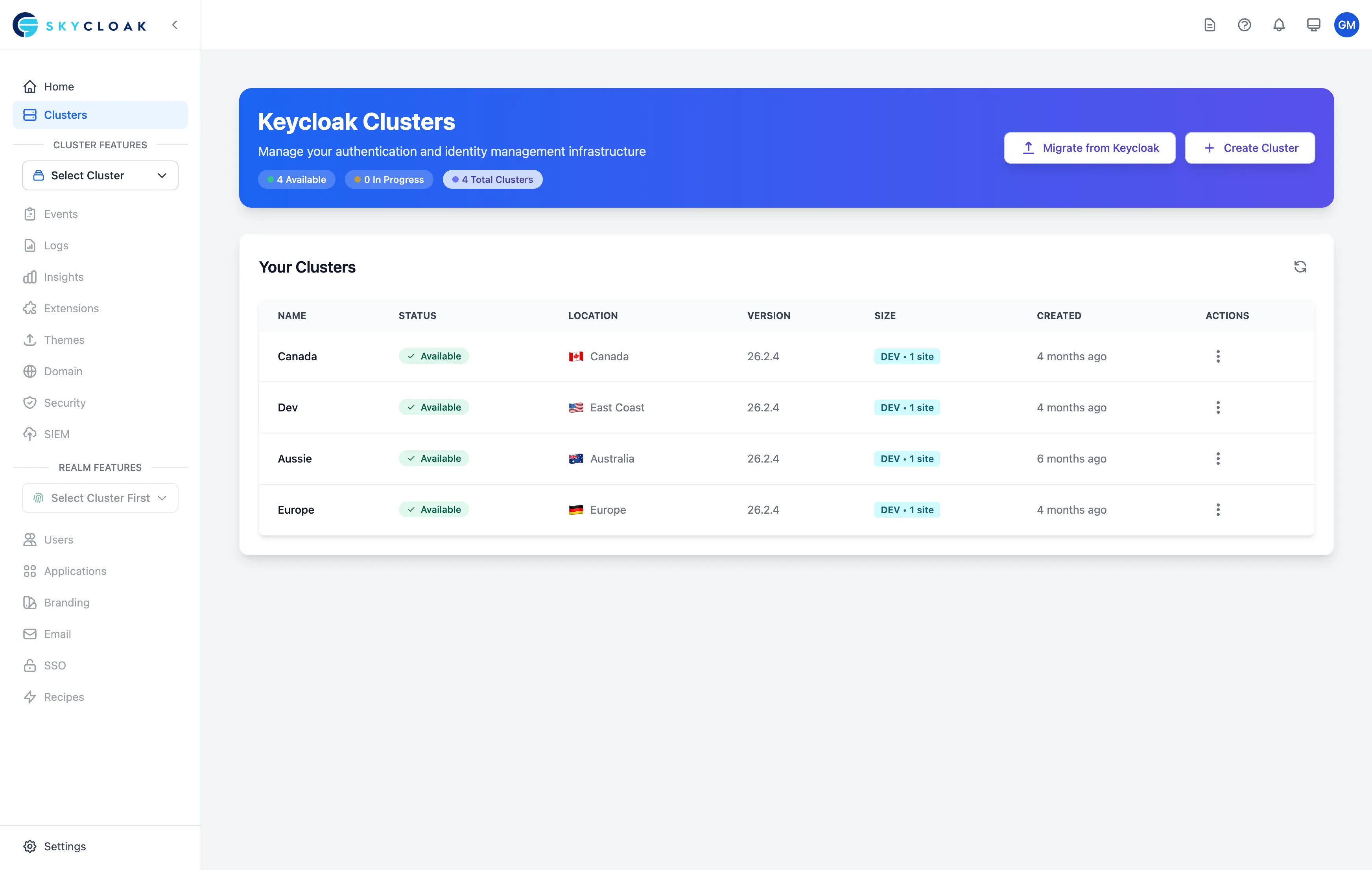
Clusters display their current operational status:
- 🟢 Available: Cluster is fully operational
- 🔵 Creating: Initial cluster provisioning in progress
- 🟡 Updating: Cluster update operation in progress (extensions, themes, scaling, etc.)
- 🟡 Degraded: Cluster is running but experiencing issues
- 🔴 Failed: Operation failed or cluster is unhealthy
- 🔴 Deleting: Cluster deletion in progress
System Notifications
Types of notifications:
- Info: General updates
- Warning: Important notices
- Error: Action required
- Success: Completed actions
Customizing Your Dashboard
Widget Management
While widgets are currently fixed, future updates will allow:
- Rearranging widgets
- Hiding unused widgets
- Adding custom widgets
- Saving layouts
Time Zone Settings
Dashboard times shown in:
- Your browser’s time zone (default)
- UTC option available
- Configurable in account settings
Dashboard for Different Roles
Workspace Owner View
Owners see everything including:
- Billing information
- All workspace settings
- User management
- Full event logs
Admin View
Admins see:
- Cluster management
- Application configuration
- User activities
- Limited settings
Developer View
Developers see:
- Cluster access
- Application details
- Logs and debugging
- Read-only settings
Desktop Experience
The Skycloak dashboard is designed for desktop use:
- Best experienced on screens 1024px or wider
- Full feature access on desktop browsers
- Mobile devices are not recommended for dashboard management
Monitoring and Analytics
For detailed monitoring and analytics, use:
- Insights: Analytics dashboard with usage metrics
- Events: User and admin event tracking
- Logs: Real-time system logs
Troubleshooting Dashboard Issues
Dashboard Not Loading
If the dashboard won’t load:
- Check internet connection
- Clear browser cache
- Try incognito/private mode
- Disable browser extensions
Incorrect Data
If data seems wrong:
- Refresh the page
- Check time zone settings
- Verify filter settings
- Contact support if persists
Missing Features
If features are missing:
- Check your user role
- Verify workspace permissions
- Ensure plan includes feature
- Check feature availability
Dashboard Tips
Productivity Tips
- Bookmark frequent pages: Save time navigating
- Use keyboard shortcuts: Faster navigation
- Set up browser notifications: Stay informed
- Create dashboard bookmarks: Quick access
Monitoring Tips
- Review trends: Not just current values
- Correlate metrics: Understand relationships
- Document baselines: Know what’s normal
Future Enhancements
Planned dashboard improvements:
- Customizable widgets
- Advanced filtering
- Data export options
- Custom dashboards
- API access
- Third-party integrations
Next Steps
From your dashboard, explore:
- Create a cluster to get started
- Configure applications for authentication
- Set up monitoring for analytics
- Customize branding for your brand