Domain Management
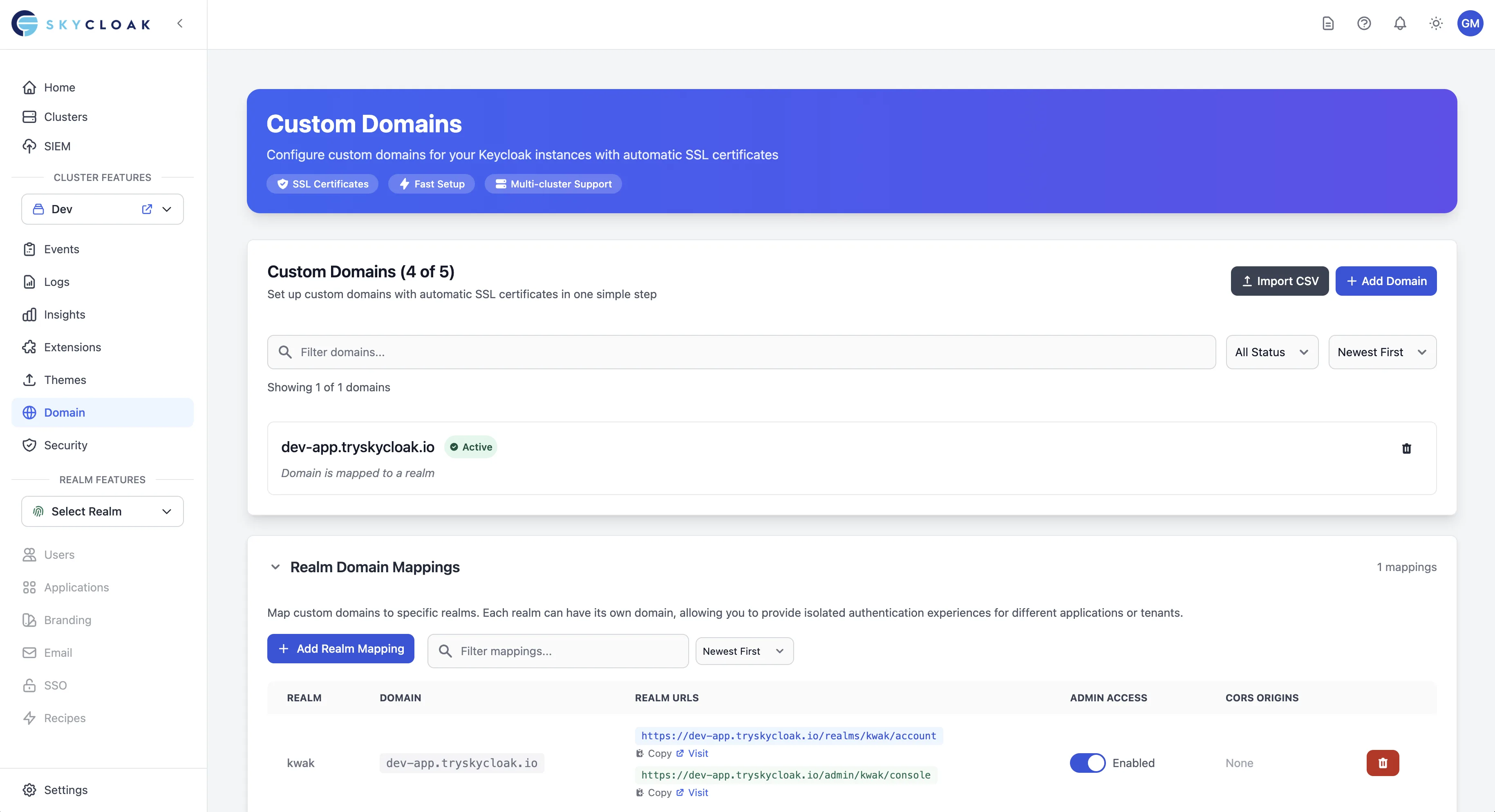
Custom domains allow you to use your own domain (like auth.yourcompany.com) instead of the default Skycloak URLs. This provides a professional appearance and maintains brand consistency for your users.
Why Use Custom Domains?
Custom domains provide several benefits:
- Brand Consistency: Users see your domain throughout the authentication process
- Trust & Security: Users recognize and trust your domain
- Professional Appearance: No third-party branding in URLs
- SEO Benefits: Better for search engine optimization if you have public-facing auth pages
- Compliance: Some regulations require data to appear to come from your domain
Setting Up Your Custom Domain
Step 1: Access Domain Settings
- Navigate to the Domain section in your Skycloak dashboard
- Click on “Configure Domain” to start the setup process
Step 2: Add Your Domain
- Enter your desired domain (e.g.,
auth.yourcompany.com) - Choose the authentication type:
-
Subdomain: Recommended for most use cases (e.g.,
auth.yourcompany.com) -
Path-based: Use a path on your main domain (e.g.,
yourcompany.com/auth)
-
Subdomain: Recommended for most use cases (e.g.,
Step 3: Configure DNS Records
After adding your domain, you’ll need to configure your DNS settings:
-
Add a CNAME Record:
Type: CNAME Name: auth (or your chosen subdomain) Value: app.skycloak.io.cdn.cloudflare.net TTL: 3600 (or your preference) -
Verify DNS Propagation:
- DNS changes can take 15 minutes to 48 hours to propagate
- Use tools like
digornslookupto verify:
dig auth.yourcompany.com
Step 4: SSL Certificate Setup
Skycloak automatically provisions SSL certificates for your custom domain using Cloudflare for SaaS:
- Once DNS is configured, click “Verify Domain”
- Skycloak will automatically:
- Verify domain ownership via Cloudflare
- Generate SSL certificates through Cloudflare’s infrastructure
- Configure HTTPS with global CDN support
- Enable DDoS protection and performance optimization
Step 5: Update Your Applications
After domain setup, update your applications to use the new domain:
- Update Redirect URIs in your application settings
- Update OAuth endpoints in your application code
- Test the authentication flow with the new domain
Domain Configuration Options
Primary Domain Settings
-
Domain Name: Your custom domain (e.g.,
auth.yourcompany.com) - SSL Certificate: Automatically managed by Skycloak
- Force HTTPS: Always enabled for security
- HSTS: HTTP Strict Transport Security enabled by default
Advanced Settings
- Custom Headers: Add security headers like CSP
- Cookie Settings: Configure cookie domain and security settings
- CORS Configuration: Set allowed origins for your applications
Multiple Domains
Depending on your plan, you can configure multiple custom domains:
- Developer: 1 custom domain
- Launch: 1 custom domain
- Business: 1 custom domain (additional domains available as add-ons)
- Enterprise: 5 custom domains (additional available)
Use cases for multiple domains:
- Different brands or products
- Staging vs. production environments
- Regional domains for global applications
Troubleshooting Domain Setup
Common Issues
-
Domain Verification Failed
- Ensure DNS records are properly configured
- Wait for DNS propagation (up to 48 hours)
- Check for typos in the CNAME record
-
SSL Certificate Error
- Verify domain ownership
- Ensure no CAA records blocking Let’s Encrypt
- Contact support if issues persist
-
Domain Not Loading
- Clear browser cache and cookies
- Check DNS resolution:
nslookup auth.yourcompany.com - Verify the domain is active in Skycloak dashboard
- Ensure CNAME points to
app.skycloak.io.cdn.cloudflare.net
DNS Provider Examples
Cloudflare
- Log into Cloudflare dashboard
- Select your domain
- Go to DNS settings
- Add CNAME record pointing to
app.skycloak.io.cdn.cloudflare.net - Keep proxy enabled (orange cloud) for best performance
Route 53 (AWS)
- Open Route 53 console
- Select your hosted zone
- Create new record set
- Choose CNAME type
- Point to
app.skycloak.io.cdn.cloudflare.net
GoDaddy
- Access DNS Management
- Add new CNAME record
- Enter subdomain and target
Security Considerations
When using custom domains:
- Always use HTTPS: Skycloak enforces HTTPS for all custom domains
- HSTS Headers: Automatically applied to prevent downgrade attacks
- Certificate Renewal: Fully automated by Cloudflare
- Domain Validation: Continuously verified via Cloudflare
- DDoS Protection: Built-in protection via Cloudflare’s global network
- WAF Rules: Optional Web Application Firewall rules available
Best Practices
- Use Subdomains: Easier to manage than path-based routing
- Plan Domain Structure: Consider your application architecture
- Document DNS Changes: Keep records of your DNS configuration
- Test Thoroughly: Verify all authentication flows after setup
- Monitor Certificate Expiry: Although automated, monitor for issues
Realm Domain Mapping
Realm domain mapping allows you to assign specific custom domains to individual realms within your Keycloak cluster. This provides isolated authentication experiences for different applications or tenants.
Key Features
- Realm Isolation: Each realm can have its own dedicated domain
- Multi-tenancy Support: Perfect for SaaS applications with multiple tenants
- CORS Configuration: Configure allowed origins per realm mapping
- Automatic SSL: SSL certificates are automatically managed for each domain
Setting Up Realm Mapping
-
Prerequisites:
- Have at least one verified custom domain configured
- Identify which realms need dedicated domains
-
Create a Realm Mapping:
- Navigate to the Domain page in your cluster
- Expand the “Realm Domain Mappings” section
- Click “Add Realm Mapping”
- Select the realm and domain to map
- Choose Admin Console Access: Enable or disable access to the Keycloak admin console through the custom domain
- Optionally configure CORS allowed origins
- Click “Create Mapping”
-
Access Your Realm: After mapping, your realm will be accessible at:
https://[custom-domain]/realms/[realm-name]/account
https://[custom-domain]/realms/[realm-name]/protocol/openid-connect/auth
Admin Console Access Control
You now have full control over admin console access for each realm mapping:
-
Admin Access Enabled (default): Admin console is accessible at
https://[custom-domain]/admin/[realm-name]/console - Admin Access Disabled: Admin console is only accessible through your original Skycloak domain
This provides flexibility in security boundaries - you can restrict admin access to your main Skycloak domain while allowing end-user authentication through custom domains.
Managing Admin Access
To Enable Admin Access:
- Go to your Domain page in the cluster
- Find the realm mapping in the table
- Toggle the “Admin Access” switch to “Enabled”
- The admin console will be accessible at:
https://[custom-domain]/admin/[realm-name]/console
To Disable Admin Access:
- Toggle the “Admin Access” switch to “Disabled”
- Admin console will only be accessible via:
https://[cluster-id].[region].skycloak.io/admin
Example
If your cluster URL is https://abc123.us.skycloak.io and you map auth.example.com to the realm production:
With Admin Access Enabled:
- ✅ Realm access:
https://auth.example.com/realms/production/account - ✅ Admin console:
https://auth.example.com/admin/production/console - ✅ Admin console (original):
https://abc123.us.skycloak.io/admin
With Admin Access Disabled:
- ✅ Realm access:
https://auth.example.com/realms/production/account - ❌ Admin console:
https://auth.example.com/admin/production/console(will return 403 Forbidden) - ✅ Admin console:
https://abc123.us.skycloak.io/admin(use this instead)
Use Cases
Multi-tenant SaaS Applications:
- Map
tenant1.auth.com→tenant1realm - Map
tenant2.auth.com→tenant2realm - Each tenant gets their own branded authentication
Environment Separation:
- Map
auth.staging.com→stagingrealm - Map
auth.production.com→productionrealm
Brand Separation:
- Map
auth.brand1.com→brand1realm - Map
auth.brand2.com→brand2realm
Troubleshooting
403 Forbidden Error When Accessing Admin Console:
-
Cause: Trying to access
/adminthrough a realm-mapped custom domain -
Solution: Use your original
*.skycloak.iodomain for admin access
Realm Not Accessible:
- Ensure the domain is verified and SSL certificate is active
- Check that the realm name is correct in the URL
- Verify DNS records are properly configured
CORS Issues:
- Add your application’s origin to the CORS allowed origins when creating the mapping
- Update the mapping if you need to add additional origins
Integration with Email Branding
Custom domains work seamlessly with email branding:
- Email links will use your custom domain
- Consistent branding across all touchpoints
- Better email deliverability with matching domains
See Email Configuration for more details.
Next Steps
- Configure email branding to match your domain
- Customize login pages for your brand
- Set up applications to use your domain