Identity Providers
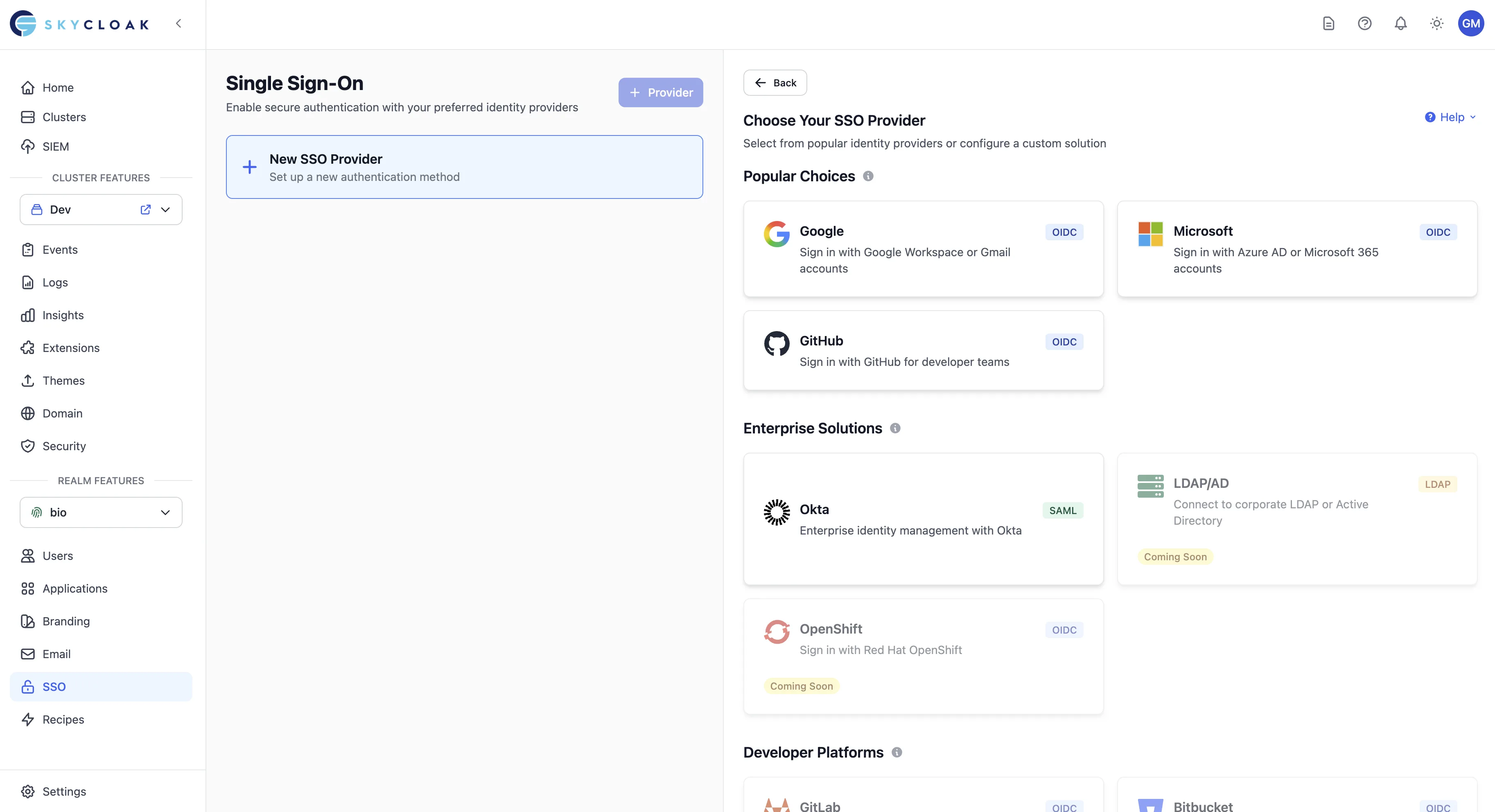
Connect your applications to external identity providers and enable Single Sign-On (SSO) across your organization. Skycloak simplifies the integration of popular identity providers like Google, Microsoft, GitHub, and enterprise systems like Active Directory and SAML providers.
Note: This page covers identity providers for your application’s end users. For team member authentication, see Workspace SSO.
Overview
Identity Providers in Skycloak enable you to:
- Enable Single Sign-On (SSO) across all your applications
- Connect social logins like Google, Facebook, and GitHub
- Integrate enterprise identity with Azure AD, Okta, and Active Directory
- Support SAML and OIDC protocols for maximum compatibility
- Map user attributes from external sources
- Link existing accounts automatically or manually
- Configure conditional authentication based on identity source
Why Use Identity Providers?
For Your Users:
- One password for everything (SSO)
- Use existing accounts they trust
- Faster registration and login
- No more password fatigue
For Your Organization:
- Centralized user management
- Enhanced security with enterprise MFA
- Reduced support tickets
- Compliance with corporate policies
- Simplified user provisioning
Prerequisites
- An active Skycloak cluster
- A configured realm
- Admin permissions in your workspace
- Credentials from your identity provider (Client ID, Secret, etc.)
Getting Started
Accessing Identity Providers
- Navigate to Identity Providers from your dashboard
- Select your cluster and realm
- View configured providers or add new ones
Description: Shows the identity providers management interface with:
- Cluster and realm selectors at the top
- “Add Provider” button with dropdown showing provider categories
- List of configured providers showing: Google (enabled), Azure AD (enabled), GitHub (disabled)
- Each provider card shows: Logo, Name, Status toggle, Users count, Last sync time
- Quick actions: Edit, Test Connection, Delete
- Provider statistics: Total users, Success rate, Last 7 days activity Focus on: Overview of multiple configured providers with status indicators
Quick Setup with Provider Templates
Using Provider Templates
Skycloak provides pre-configured templates for popular providers:
- Click “Add Provider”
-
Choose from the template gallery:
- Social Providers (Google, Facebook, GitHub, etc.)
- Enterprise (Azure AD, Okta, Auth0, etc.)
- Standard Protocols (OIDC, SAML 2.0)
- Configure on a single page — all settings are on one card
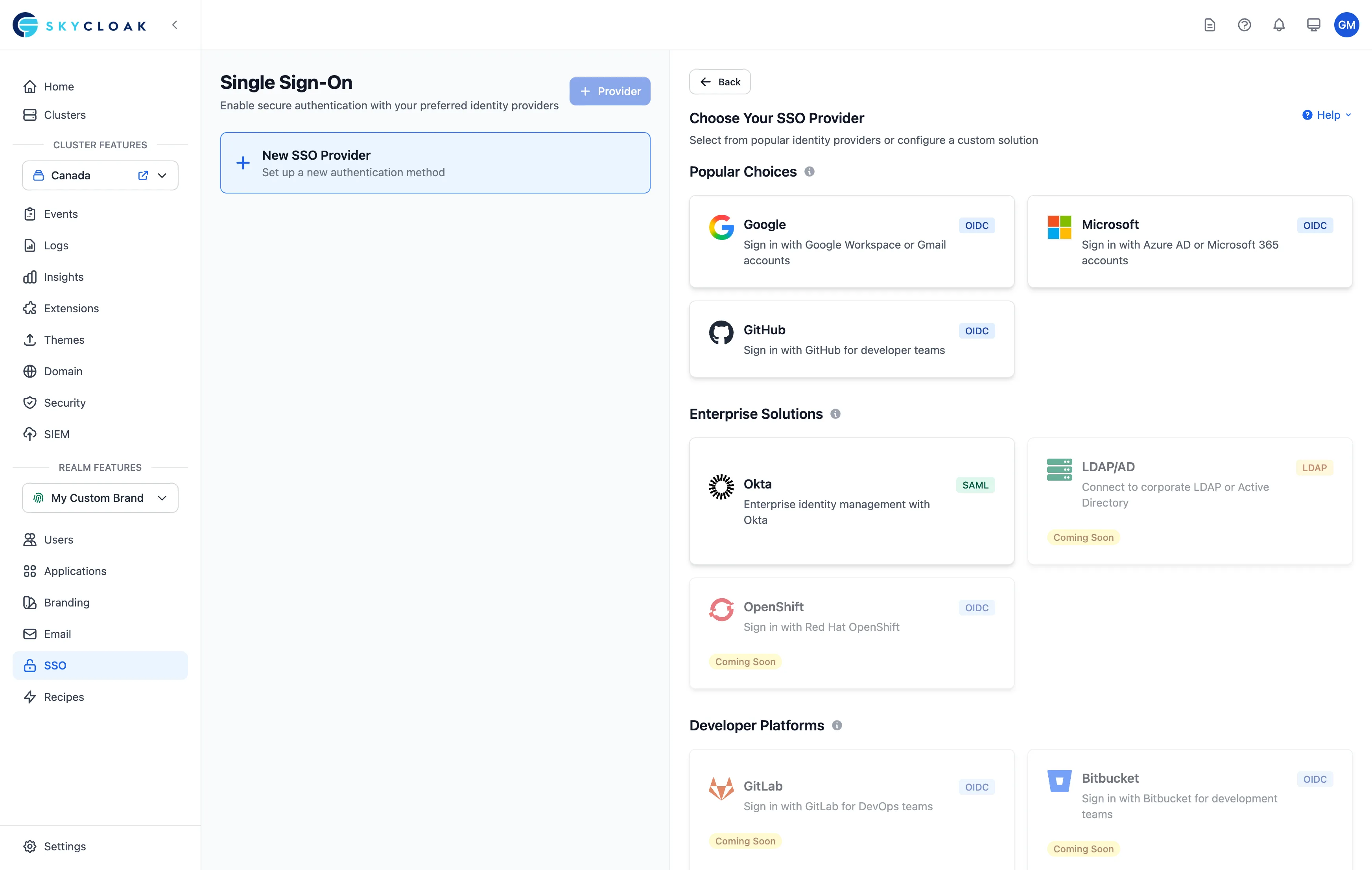 Description: Shows provider selection interface with:
- Three category tabs: Social, Enterprise, Protocols
- Grid of provider cards with logos and names
- Popular providers highlighted with “Recommended” badge
- Each card shows: Provider logo, Name, Protocol type (OIDC/SAML), Setup time estimate
- Search bar to filter providers
- Quick setup indicators: “5-minute setup”, “Guided configuration” Focus on: Visual provider selection with clear categorization
Express Setup Flow
After selecting a provider template, all configuration happens on a single page:
- Copy the Redirect URI shown at the top and paste it into your provider’s console
- Paste your credentials (Client ID & Secret for OIDC, Entity ID & SSO URL for SAML)
- Click “Test Connection” to verify your setup
- Click “Save & Enable” to activate the provider
For enterprise OIDC providers (Okta, Auth0, OneLogin, etc.), you can use OIDC Auto-Discovery: paste your provider’s discovery URL and click “Auto-Detect” to automatically populate all OAuth endpoints.
OAuth endpoints and step-by-step guides are available in collapsible sections if you need them.
Setting Up Google SSO
Step-by-Step Google Configuration
Let’s walk through setting up Google as an identity provider:
1. Create Google OAuth Application
First, set up your app in Google Cloud Console:
- Go to Google Cloud Console
- Create a new project or select existing
- Enable Google+ API
- Create OAuth 2.0 credentials
2. Configure in Skycloak
- Select the Google template from the provider gallery
- Copy the Redirect URI from the setup page and paste it into Google Cloud Console
-
Enter your credentials:
- Client ID from Google
- Client Secret from Google
- Click “Test Connection” to verify
- Click “Save & Enable” to activate
OAuth endpoints are auto-filled for Google — no manual URL entry needed. If you want to review them, expand the “OAuth Endpoints” section.
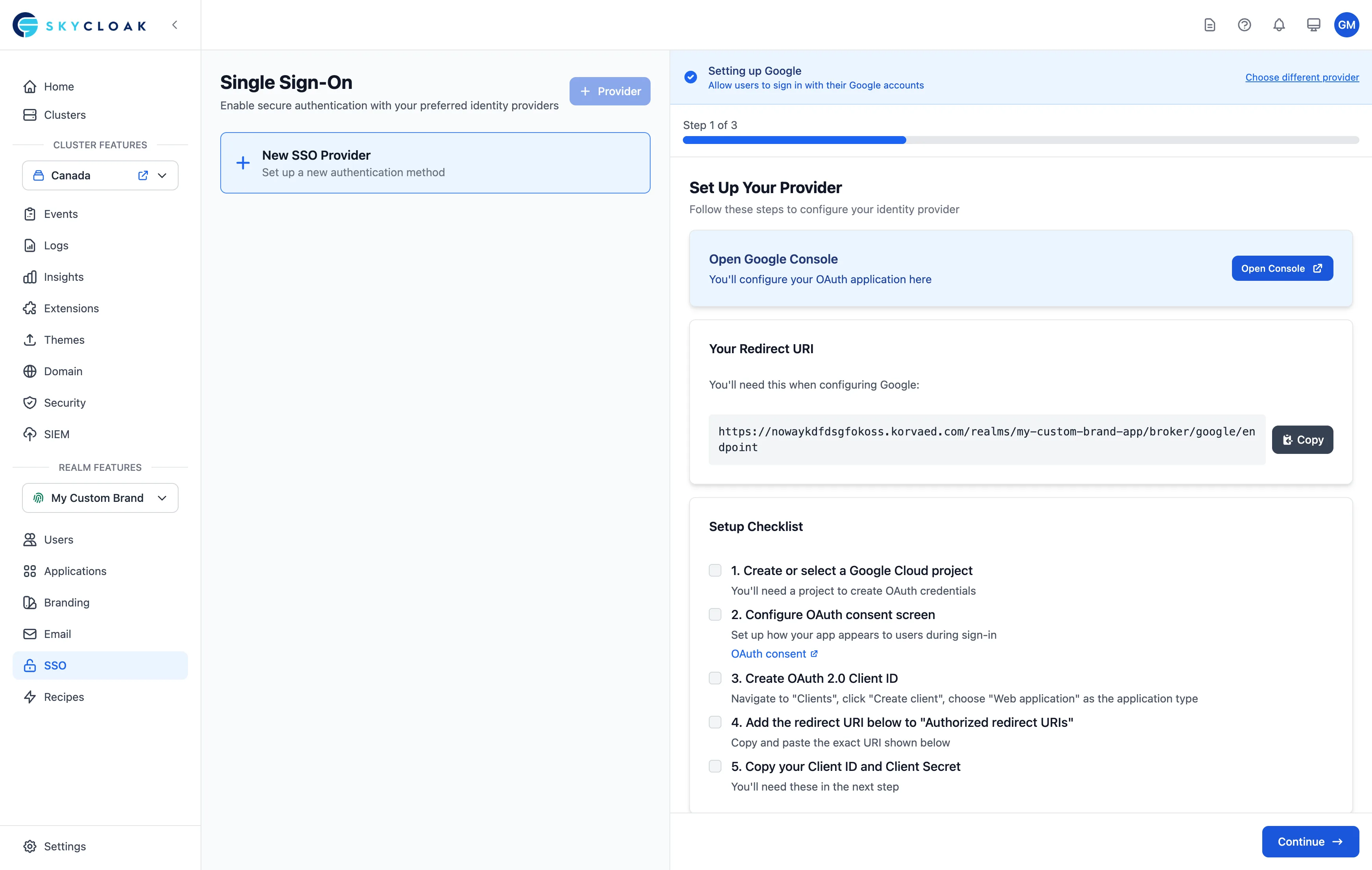 Description: Shows Google SSO express setup form with:
- Provider header: Google logo and name with “Change” button
- Redirect URI with copy button
- Credential fields: Client ID and Client Secret
- Collapsible OAuth Endpoints section (auto-filled)
- Collapsible step-by-step guide
- Test Connection and Save & Enable buttons Focus on: Simple single-page credential entry with helpful copy/paste features
3. Advanced Settings
After saving, you can edit the provider to configure advanced settings:
-
Default Scopes:
openid email profile - Store Tokens: Enable for token refresh
- Trust Email: Enable if Google verifies emails
- Sync Mode: Import users on first login
- Link Accounts: Auto-link by email
Setting Up Azure AD (Microsoft)
Enterprise SSO with Azure Active Directory
Connect your Microsoft/Office 365 organization:
1. Register Application in Azure
- Go to Azure Portal > Azure Active Directory
- Register new application
- Configure redirect URIs
- Create client secret
- Note Tenant ID
2. Configure in Skycloak
Description: Shows Azure AD setup with:
- Provider type selector showing “Microsoft” selected
- Tenant configuration: Tenant ID field, Multi-tenant toggle
- Application credentials: Application ID, Client Secret
- Microsoft Graph permissions checklist
- Group sync options: Import groups, Group filters
- User attribute mapping preview
- Domain verification section for automatic user assignment
- Test with specific user email option Focus on: Enterprise-specific options and tenant configuration
3. Attribute Mapping
Map Azure AD attributes to Keycloak:
-
given_name→firstName -
family_name→lastName -
email→email -
groups→groups(with transformation)
Setting Up SAML Providers
SAML Authentication Flows
SAML supports three authentication flows. Understanding which one you need helps configure your setup correctly.
| Flow | Who Starts It | Configured In |
|---|---|---|
| SP-initiated | Your application | Skycloak SSO setup page |
| IdP-initiated | Identity Provider portal | Keycloak Admin Console + IdP |
| Proxy/Broker | Keycloak as intermediary | Keycloak Admin Console |
Skycloak’s SSO setup page configures SP-initiated SSO — the most common flow where your application redirects users to the Identity Provider to authenticate. This is sufficient for most organizations.
If you need IdP-initiated SSO (users click an app tile in their Okta/Azure portal) or Proxy/Broker flows (multi-IdP federation), these require additional configuration in the Keycloak Admin Console. See the Enterprise SSO Setup Guide for detailed instructions.
SAML 2.0 Configuration
For enterprise SAML identity providers:
1. Basic SAML Setup
- Choose SAML 2.0 template
-
Configure endpoints:
- Single Sign-On URL
- Single Logout URL (optional)
- Metadata URL or upload file
Description: Shows SAML configuration interface with:
- SAML URLs section: SSO URL, SLO URL, Metadata URL fields
- Or upload metadata XML file option
- Certificate configuration: Upload or paste signing certificate
- NameID format dropdown: Email, Persistent, Transient options
- Signature and encryption toggles
- Attribute statement mapping table
- SAML response validation options Focus on: Technical SAML configuration with validation indicators
2. Advanced SAML Options
Security Settings:
- Want AuthnRequests Signed
- Want Assertions Signed
- Want Assertions Encrypted
- Force Authentication
- Force POST Binding
Identity Provider Mappers
Customizing User Import
Transform and enrich user data during import:
Attribute Mappers
Map external attributes to Keycloak user properties:
- Create new mapper
-
Select mapper type:
- Attribute Importer
- Hardcoded Attribute
- Attribute Template
- Role Importer
Description: Shows mapper creation interface with:
- Mapper name and type selector
- Source attribute path (JSON path or claim name)
- Target user property dropdown
- Transformation options: To lowercase, Extract regex, Default value
- Test mapper with sample data section
- Preview of mapped value
- Sync mode: Import, Force, Inherit Focus on: Visual attribute mapping with transformation preview
Common Mapping Scenarios
Profile Enrichment:
External Claim → Keycloak Attribute
picture → profileImage
locale → preferredLanguage
department → customAttribute.department
manager → customAttribute.managerId
Role Mapping:
groups contains "admin" → realm role "administrator"
groups contains "developers" → client role "developer"
Account Linking
Linking Strategies
Control how external accounts link to existing users:
Automatic Linking:
- By email (most common)
- By username
- Custom attribute matching
Manual Linking:
- User initiates from account console
- Admin links accounts
- Verification required
Description: Shows account linking configuration with:
- Linking strategy selector: Automatic, Manual, Disabled
- Automatic options: Match by email, username, or custom attribute
- Verification requirements: Email verified, Admin approval checkboxes
- Conflict resolution: Create new, Update existing, Fail options
- Existing user has priority toggle
- Account linking flow designer button Focus on: Clear linking strategy options with security controls
First Login Flow
Configure what happens when users first login via identity provider:
- Review profile - Let users confirm/update imported data
- Verify email - If not verified by provider
- Set username - If not provided by provider
- Accept terms - Show terms of service
- Assign roles - Grant default permissions
Testing Identity Providers
Connection Testing
Verify your configuration works correctly:
- Click “Test Connection”
-
Choose test method:
- Quick test (verify endpoints)
- Full test (complete login flow)
- User test (specific account)
Description: Shows test interface with:
- Test type selector: Quick, Full, User-specific
- Test account email input (for user-specific)
- Start Test button
- Test progress steps: Initialize, Redirect, Authenticate, Callback, Token Exchange
- Success/failure indicator per step
- Response preview showing returned claims
- Error details if test fails
- Save test results option Focus on: Step-by-step test validation with clear results
Multi-Provider Setup
Configuring Multiple Providers
Offer users choice of login methods:
Provider Priority:
- Set display order
- Configure default provider
- Hide providers per application
- Conditional display based on email domain
Description: Shows login page preview with:
- Traditional username/password form at top
- “Or continue with” separator
- Row of social login buttons: Google, Microsoft, GitHub, LinkedIn
- Enterprise SSO section with “Login with Company SSO” button
- Provider order drag-and-drop handles in admin view
- Preview updates in real-time
- Mobile responsive preview toggle Focus on: User-friendly multiple provider presentation
Provider Selection Strategies
Domain-based Routing:
- @company.com → Azure AD
- @gmail.com → Google
- Others → Username/password
Home Realm Discovery:
- Email input first
- Auto-detect provider
- Redirect accordingly
Security Best Practices
Provider Security
-
Credential Management:
- Store secrets securely
- Rotate credentials regularly
- Use environment-specific credentials
- Never commit secrets to code
-
Token Handling:
- Validate all tokens
- Check token expiration
- Store tokens securely
- Implement token refresh
-
User Verification:
- Verify email addresses
- Check account status
- Validate required attributes
- Audit provider access
Account Security
Preventing Account Takeover:
- Require email verification
- Implement account linking confirmation
- Monitor for suspicious linking patterns
- Use risk-based authentication
Troubleshooting
Common Issues
“Invalid redirect URI” error:
- Copy exact redirect URI from Skycloak
- Add to provider’s allowed redirects
- Check for trailing slashes
- Verify HTTPS in production
Users not importing:
- Check mapper configuration
- Verify required scopes
- Review provider permissions
- Check first login flow
Attributes not syncing:
- Verify claim names match
- Check mapper syntax
- Review scope permissions
- Test with provider’s token debugger
Login loops:
- Clear browser cookies
- Check provider session settings
- Verify redirect URI configuration
- Review CORS settings
Supported Providers
Skycloak supports 34+ identity providers out of the box, available on all plans. Providers are organized into categories for easy discovery.
Social & Developer Providers
| Provider | Protocol | Best For |
|---|---|---|
| OIDC | General apps, Google Workspace organizations | |
| Microsoft | OIDC | Azure AD, Microsoft 365 organizations |
| GitHub | OIDC | Developer tools, open source projects |
| OIDC | Consumer apps, social features | |
| GitLab | OIDC | DevOps teams, self-hosted Git |
| Bitbucket | OIDC | Atlassian ecosystem, development teams |
| OIDC | Professional networks, B2B apps | |
| Slack | OIDC | Team collaboration, workspace apps |
| Discord | OIDC | Community platforms, gaming apps |
| Atlassian | OIDC | Jira/Confluence integrated apps |
| Twitch | OIDC | Streaming, gaming, entertainment apps |
Enterprise OIDC Providers
| Provider | Protocol | Best For |
|---|---|---|
| Okta | OIDC | Enterprise IAM, workforce identity |
| OneLogin | OIDC | Cloud identity management |
| JumpCloud | OIDC | Directory-as-a-Service, remote teams |
| PingOne | OIDC | PingIdentity cloud SSO |
| Auth0 | OIDC | Flexible authentication, developer-friendly |
| Salesforce | OIDC | CRM-integrated applications |
| Custom OIDC | OIDC | Any OpenID Connect 1.0 compliant provider |
Enterprise SAML Providers
| Provider | Protocol | Best For |
|---|---|---|
| Okta | SAML | Enterprise SAML federation |
| Azure AD | SAML | Microsoft enterprise environments |
| Google Workspace | SAML | Google-managed organizations |
| OneLogin | SAML | Cloud SAML integration |
| JumpCloud | SAML | Directory-based SAML |
| PingFederate | SAML | On-premise PingIdentity federation |
| PingOne | SAML | PingIdentity cloud SAML |
| Duo Security | SAML | Multi-factor authentication integration |
| Cloudflare Access | SAML | Zero Trust identity |
| CyberArk | SAML | Privileged access management |
| Custom SAML | SAML | Any SAML v2.0 compliant provider |
Provider-Specific Notes
GitHub:
- Requires email scope explicitly
- Organization membership available
- Team synchronization possible
LinkedIn:
- Uses OpenID Connect with profile and email scopes
- Good for professional and B2B applications
Slack:
- OAuth2-based (not full OIDC discovery)
- Workspace-level authentication
- Great for team collaboration tools
Discord:
- OAuth2-based with identify and email scopes
- Guild membership available for access control
- Popular for community-driven applications
Okta:
- Full OIDC and SAML compliance
- Group synchronization
- Custom attributes support
Auth0:
- Universal login support
- Custom database connections
- Rules for transformation
Ping Identity (PingOne / PingFederate):
- Enterprise federation
- Both cloud (PingOne) and on-premise (PingFederate) options
- Full SAML/OIDC support
Performance Considerations
Optimization Tips
- Cache provider metadata when possible
- Implement lazy loading for user attributes
- Use batch synchronization for large directories
- Configure appropriate timeouts
- Monitor provider API limits
Compliance and Privacy
Data Protection
GDPR Considerations:
- Minimal data collection
- User consent for data sharing
- Right to deletion
- Data portability
Audit Requirements:
- Log all authentication events
- Track provider access
- Monitor data synchronization
- Regular access reviews
Advanced Features
Conditional Authentication
Create dynamic authentication flows:
- Require MFA for external users
- Additional verification for new providers
- Risk-based step-up authentication
- Geographic restrictions
Identity Brokering
Chain multiple identity providers:
- Organization IdP → Skycloak → Applications
- Federated multi-organization access
- Partner integration scenarios
Workspace SSO vs Realm Identity Providers
Understanding the difference:
Realm Identity Providers (This Page)
- Purpose: Authentication for your application’s end users
- Configured in: Individual realms within your clusters
- Used by: Your customers/users accessing your applications
- Example: Adding Google login to your customer-facing app
Workspace SSO
- Purpose: Authentication for your team members
- Configured in: Workspace security settings
- Used by: Your team accessing Skycloak dashboard
- Example: Team members using corporate Azure AD to access Skycloak
- Available on: Business and Enterprise plans
- Learn more: Workspace SSO Documentation
Related Features
- Workspace SSO - Configure SSO for team members
- User Management - Manage imported users
- Applications - Configure SSO for apps
- Setting Up Social Login - Detailed social provider guide
- Enterprise SSO Setup - Enterprise OIDC and SAML configuration
Next Steps
- Test your identity provider configuration
- Configure User Management for imported users
- Set up Applications to use SSO
- Implement Multi-factor Authentication for added security
- Customize your Login Experience