Insights & Analytics
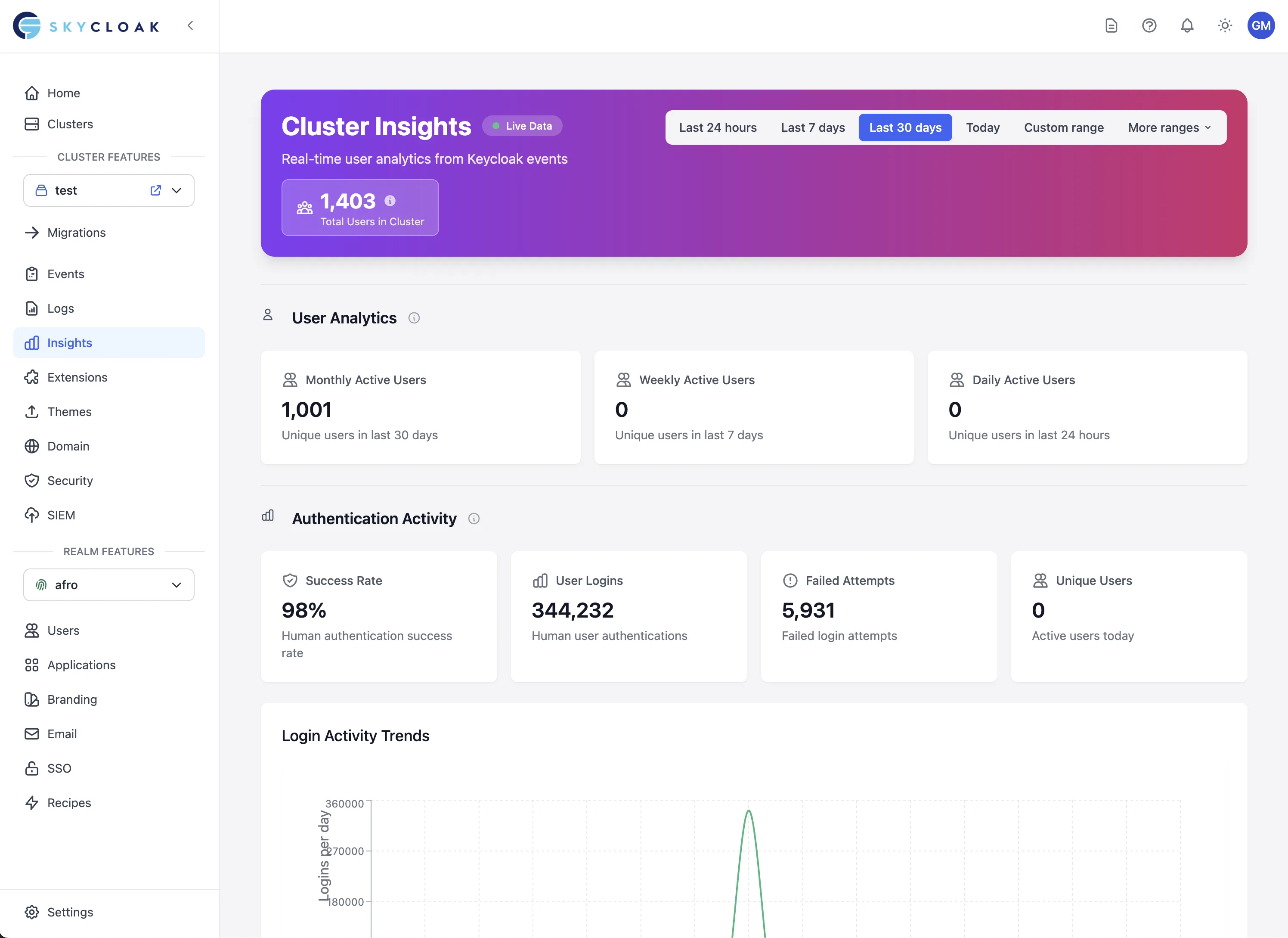
Skycloak’s Insights dashboard provides comprehensive analytics and monitoring for your authentication infrastructure. Track user behavior, monitor system performance, and gain valuable insights into your application’s authentication patterns with real-time data and interactive visualizations.
Overview
The Insights page offers real-time and historical analytics to help you understand your authentication infrastructure’s usage and performance:
- User Analytics: Track active users with MAU, WAU, and DAU metrics
- Authentication Metrics: Monitor login success rates and authentication patterns
- Service Performance: Real-time CPU, memory, response time, and throughput monitoring
- Registration Trends: Analyze user and client registration patterns
- Machine-to-Machine Analytics: Track client authentication and API access
When real-time data is available through the Events API, you’ll see a “Live Data” indicator in the header, confirming that metrics are being updated in real-time.
Data Refresh & Service Account Activity
How Data is Collected
Skycloak uses two different methods to collect analytics data:
Real-Time Metrics (Live Data):
- MAU, WAU, DAU: Updated in real-time from authentication events
- Login Success/Failure Rates: Updated as users authenticate
- Authentication Trends: Live updates from the Events API
- Registration Analytics: Real-time tracking of new user/client registrations
Synced Metrics (Hourly Updates):
-
Total Users Count: Synced every hour from Keycloak Admin API
- This count appears in the purple badge at the top of the Insights page
- Includes all users in your cluster (active, inactive, and migrated users)
- More accurate than event-based counting for total user counts
Service Account Activity in Keycloak Logs
Why you see service account token requests:
If you’re monitoring your Keycloak access logs, you’ll notice Skycloak’s service account requesting authentication tokens every hour. This is completely normal and expected behavior.
What’s happening:
- Every hour, Skycloak queries the Keycloak Admin API to get accurate user counts for each realm
- To access the Admin API, Skycloak must authenticate using its service account credentials
- This generates a token request in your Keycloak logs:
POST /auth/realms/master/protocol/openid-connect/token
Log pattern you’ll see:
[timestamp] "POST /auth/realms/master/protocol/openid-connect/token HTTP/1.1" 200
User-Agent: go-resty/2.7.0
Client: skycloak-service-account (or your configured service account)
Why hourly sync is used:
- The total user count is a relatively static metric that doesn’t change frequently
- Hourly updates provide sufficient accuracy while minimizing load on your Keycloak cluster
- This includes users who may have been bulk-imported or migrated, which wouldn’t appear in real-time event tracking
Security note: This is secure, authenticated access using dedicated service account credentials. The token requests are legitimate system operations, not unauthorized access attempts.
Requirements
Keycloak Version Compatibility
Important: The Service Performance section of the Insights dashboard requires Keycloak version 25.0 or later to display CPU, memory, response times, and JVM metrics.
What works with all versions:
- User Analytics (MAU, WAU, DAU)
- Authentication Metrics and trends
- Login success rates and patterns
- Most Active Realms and Clients
- Registration Analytics
What requires Keycloak 25+:
- Service Performance metrics (CPU Usage, Memory Usage)
- Response Time monitoring
- JVM Performance metrics
Why?
- Keycloak 20-24: Uses MicroProfile Metrics framework, which only provides basic JVM metrics without the custom performance data needed for detailed monitoring
- Keycloak 25+: Uses Micrometer framework with custom metrics, providing comprehensive CPU, memory, response times, and performance data
If you’re running Keycloak version 20-24:
- A notification will appear in the Service Performance section explaining the limitation
- You’ll be prompted to upgrade your cluster to access performance metrics
- All other Insights sections (user analytics, authentication patterns) will continue to work normally
To upgrade your cluster:
- Navigate to your cluster settings
- Select a supported Keycloak version (25.0 or later)
- Apply the upgrade
- Insights metrics will become available after the upgrade completes
For more information about upgrading Keycloak, see the official Keycloak upgrade guide.
Dashboard Sections
User Analytics
Track your active user base across different time periods:
Key Metrics:
- Monthly Active Users (MAU): Unique users who authenticated in the last 30 days
- Weekly Active Users (WAU): Unique users who authenticated in the last 7 days
- Daily Active Users (DAU): Unique users who authenticated in the last 24 hours
These metrics help you understand user engagement patterns and track growth over time.
Authentication Activity
Monitor authentication patterns and success rates:
Metrics Cards:
- Success Rate: Percentage of successful authentications
- Total Logins: Count of all successful login attempts
- Failed Attempts: Number of failed authentication attempts
- Unique Users: Active users in the selected time period
Login Activity Trends Chart:
- Visual representation of successful vs failed login attempts over time
- Green line for successful logins
- Red line for failed attempts
- Helps identify patterns and potential issues
Most Active Realms & Clients
Expandable Top Lists
The Insights page features intelligent expandable lists that can handle large numbers of realms and clients efficiently:
Most Active Realms:
- Shows top 5 realms by default with numbered badges (gold for #1, silver for #2, bronze for #3, blue for #4-5)
- Click “View all X more items” to expand and see all realms
- Includes user count and login activity for each realm
Most Active Clients:
- Similar expandable list for machine-to-machine clients
- Shows authentication counts per client
- Perfect for tracking API usage patterns
Advanced List Features:
- Search: When expanded with 10+ items, a search bar appears to quickly find specific realms/clients
- Sorting: Sort by highest/lowest activity or alphabetically by name
- Virtual Scrolling: Lists with 20+ items use virtual scrolling for smooth performance
- Activity Indicators: Visual indicators show relative activity levels between items
This design allows you to efficiently manage and analyze even 200+ realms or clients without performance issues.
Authentication by Protocol
View authentication distribution across different protocols:
- OpenID Connect: Modern authentication protocol usage
- SAML: Enterprise SSO authentication counts
- Other protocols: Additional authentication methods
Each protocol card shows:
- Total authentication count
- Percentage of total authentications
- Visual highlighting for the most-used protocol
Service Performance
Monitor the health and performance of your Keycloak service:
Performance Metrics:
- CPU Usage: Current CPU utilization percentage (clean display without decimals, with precise values on hover)
- Memory Usage: Memory consumption percentage
- Response Time: Average authentication response time in milliseconds
- Active Threads: Number of concurrent operations being processed
Performance Charts:
-
System Resource Usage: Combined CPU and memory trends over time
- Y-axis shows clean integer percentages
- Hover tooltips show precise values (e.g., 0.45% for low CPU usage)
-
Response Time Trends: Track average, P50, P95, and P99 response times
- Green line: Average response time
- Blue line: P50 (median)
- Orange line: P95 (95th percentile)
- Red line: P99 (99th percentile)
Understanding Response Time Metrics: The response time shown represents internal Keycloak processing time for authentication requests only. This specifically measures:
- User login and logout operations
- Token generation and validation (OAuth, OIDC)
- SAML authentication flows
- Password validations
- Social login (broker) operations
What’s NOT measured:
- Health check endpoints (excluded from metrics)
- Admin API calls
- Network latency (varies by geographic distance)
- SSL/TLS handshake time (~10-50ms)
- AWS Application Load Balancer processing (~5-10ms)
- Istio service mesh overhead (~1-5ms)
- DNS resolution time (cached after first request)
- Client-side processing
Estimating End-to-End Response Time: Total response time depends heavily on client location relative to your cluster region:
- Same AWS region: Add ~20-30ms to the shown metrics
- Cross-region (same continent): Add ~50-100ms
- Cross-continent: Add ~150-300ms
- These are rough estimates; actual times vary based on network conditions, ISP routing, and connection quality
Registration Analytics
Track new user and client registrations:
User Registration:
- New user registration trends over time
- Registration success vs failure rates
- Visual charts showing daily registration patterns
Machine-to-Machine Client Registration:
- Client registration trends
- Success and failure patterns for automated client onboarding
Performance Tab
Access detailed performance metrics in a dedicated view:
Response Time Summary:
- Average: Mean response time across all requests
- 50th Percentile: Median response time
- 95th Percentile: Response time for 95% of requests
- 99th Percentile: Response time for 99% of requests
Note: These metrics represent internal Keycloak processing time for authentication requests only. Health checks and admin APIs are excluded from measurements.
JVM Performance:
- Heap Memory Used: JVM heap utilization in MB
- Non-Heap Memory: Non-heap memory usage
- Thread Count: Active JVM threads
Time Range Selection
Analyze data across different time periods:
Quick Ranges:
- 15 minutes: Real-time monitoring
- 1 hour: Short-term trends
- 6 hours: Half-day analysis
- 24 hours: Daily patterns
- 3 days: Multi-day trends
- 7 days: Weekly analysis
- 30 days: Monthly overview
- 90 days: Quarterly analysis (Business+ plans)
Custom Date Range:
- Select specific start and end dates
- Useful for analyzing specific events or campaigns
- Available based on your plan’s data retention
Plan-Based Features
Access to Insights features varies by plan:
Trial Plan:
- Last 7 days of data
- Basic metrics access
Developer Plan:
- No access to Insights
Launch Plan:
- Last 30 days of data
- Full metrics access
Business Plan:
- Last 90 days of data
- Advanced analytics
- Custom date ranges
Enterprise Plan:
- Last 365 days of data
- Full historical analysis
- Custom reporting
Best Practices
Using Expandable Lists
For Large-Scale Deployments:
- Start with the default top 5 view to identify your most active realms/clients
- Expand to see all items when you need to find specific realms
- Use search to quickly locate items in lists with 10+ entries
- Sort by activity to identify underutilized realms or overactive clients
Monitoring Performance
Key Indicators to Watch:
- Response Time: Should remain consistent; spikes indicate performance issues
- CPU Usage: Sustained high usage (>80%) may require scaling
- Memory Usage: Monitor for memory leaks or capacity issues
- Active Threads: High thread counts may indicate blocking operations
Analyzing Authentication Patterns
What to Look For:
- Success Rate Drops: May indicate configuration issues or attacks
- Login Spikes: Could be legitimate traffic or potential security events
- Failed Login Patterns: Regular patterns might indicate bot activity
Practical Usage Examples
Identifying Your Most Active Realms
- Check the “Most Active Realms” section
- Top 5 realms are shown with numbered badges
- Note the login counts and user numbers
- Expand to see all realms if you need to audit less active ones
- Use search to find specific realms by name
Understanding Authentication Success Rates
- Monitor the “Success Rate” metric card
- Check the “Login Activity Trends” chart for patterns
- Compare successful vs failed login lines
- Investigate any sudden drops in success rate
- Cross-reference with specific realm activity if issues are isolated
Monitoring Service Performance
- Check the four performance metric cards for current status
- Review “System Resource Usage” chart for trends
- Examine “Response Time Trends” for latency patterns
- Switch to Performance tab for detailed JVM metrics
- Note any metrics that exceed normal thresholds for investigation
Tracking User Growth
- Compare MAU, WAU, and DAU metrics
- Calculate ratios (DAU/MAU) to understand engagement
- Track trends over different time ranges
- Identify growth patterns or concerning drops
- Correlate with business events or campaigns
Data Export
While viewing insights:
- Take screenshots of specific charts for reports
- Note key metrics for stakeholder updates
- Use time range selection to focus on specific periods
Troubleshooting
No Data Showing
Check these common issues:
- Ensure a cluster is selected from the sidebar
- Verify your plan includes Insights access
- Check if the selected time range has data
- Confirm the Events API is operational (look for “Live Data” indicator)
Performance Issues
If the dashboard is slow:
- Use shorter time ranges for faster loading
- Avoid keeping multiple browser tabs open with Insights
- Close expanded lists when not actively using them
Missing Metrics
Some metrics may not appear if:
- No activity occurred in the selected time range
- The Events API is temporarily unavailable (fallback to basic metrics)
- Your cluster is newly created and hasn’t collected enough data
- Service Performance metrics are missing and your cluster is running Keycloak version 20-24 - Only performance monitoring (CPU, memory, response times, JVM metrics) requires version 25+. All other sections work with version 20-24. See Requirements section for upgrade instructions.
Getting Help
Support Resources:
- Hover over metric cards for tooltips explaining each metric
- Check the plan comparison page for feature availability
- Contact support for data discrepancies or access issues
Next Steps
- Configure event monitoring for compliance tracking
- Set up team management to share insights access
- Optimize performance based on metrics
- Explore workspace management for multi-tenant analytics