Logs Viewer
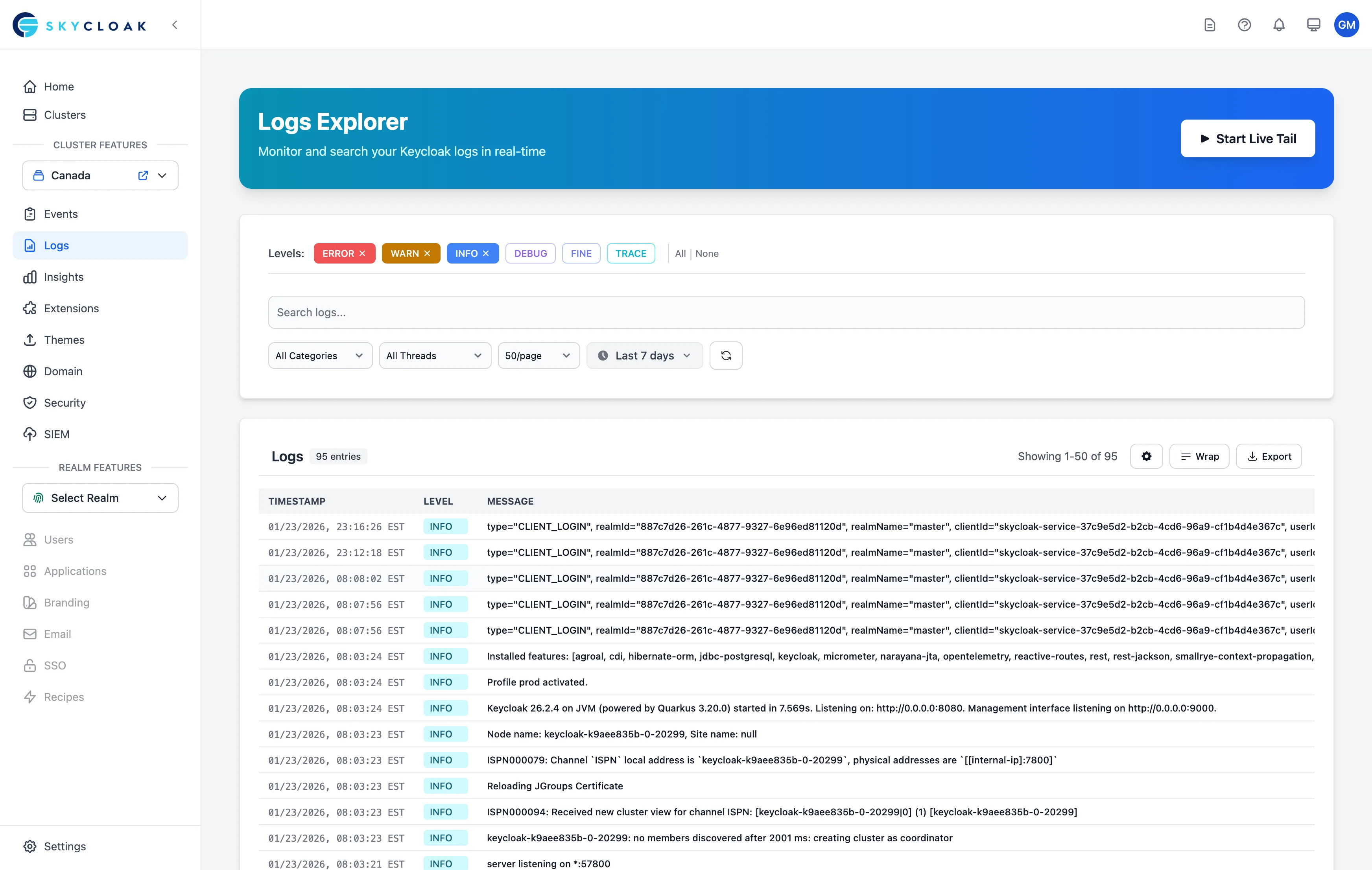
The Logs Viewer provides real-time access to your Keycloak server logs, making it easy to troubleshoot authentication issues, debug configuration problems, and monitor your identity service health. These logs are directly from your Keycloak instances and contain valuable information for resolving most authentication-related issues.
Understanding Keycloak Logs
Why Keycloak Logs Matter
Keycloak logs are your primary tool for:
- Troubleshooting authentication failures - See exactly why logins fail
- Debugging configuration issues - Identify misconfigured clients or realms
- Monitoring security events - Track suspicious activities
- Performance optimization - Find bottlenecks in authentication flows
- Compliance auditing - Review access patterns and admin actions
Types of Keycloak Logs
Your Keycloak instances generate several log types:
-
Authentication Logs
- Login attempts (successful/failed)
- Token generation and validation
- Session management events
- MFA challenges and responses
-
Authorization Logs
- Permission checks
- Role evaluations
- Policy decisions
- Resource access attempts
-
System Logs
- Keycloak server startup/shutdown
- Database connections
- Cache operations
- Cluster synchronization
-
Admin Event Logs
- Realm configuration changes
- User management actions
- Client modifications
- Security setting updates
Accessing the Logs Viewer
Navigation
- Select your cluster from the dashboard
- Click on Logs in the cluster menu
- Choose the log type you want to view
Permissions
- workspace:owner: Full access to all logs across all clusters
- workspace:admin: Access to all cluster logs in workspace
- cluster:admin: Full access to assigned cluster logs
- cluster:viewer: Read-only access to assigned cluster logs
- workspace:billing: No log access
Using the Logs Viewer
Real-Time Streaming
The logs viewer shows logs in real-time:
- New entries appear automatically
- Color-coded by severity
- Timestamps in your timezone
- Auto-scroll option
Log Entry Structure
Each log entry contains:
[2024-01-15 10:30:45.123] [INFO] [org.keycloak.services] -
User login successful: [email protected], realm=master,
client=my-app, ip=192.168.1.100
Components:
- Timestamp: When the event occurred
- Severity: INFO, WARN, ERROR, DEBUG
- Logger: Component that generated the log
- Message: Detailed event information
Severity Levels
Understanding log severity:
- 🟢 DEBUG: Detailed diagnostic information
- 🔵 INFO: General informational messages
- 🟡 WARN: Warning messages, potential issues
- 🔴 ERROR: Error messages, failures
- 🟣 FATAL: Critical errors, system failures
Powerful Search and Filtering
Search Functionality
Search logs using:
- Keywords: Find specific terms
- Regular Expressions: Advanced pattern matching
- Field Search: Search specific fields
Search examples:
"login failed"              # Exact phrase
user:[email protected]      # Field search
error AND authentication   # Boolean operators
status:[400 TO 499]       # Range search
/failed.*password/        # Regex search
Filter Options
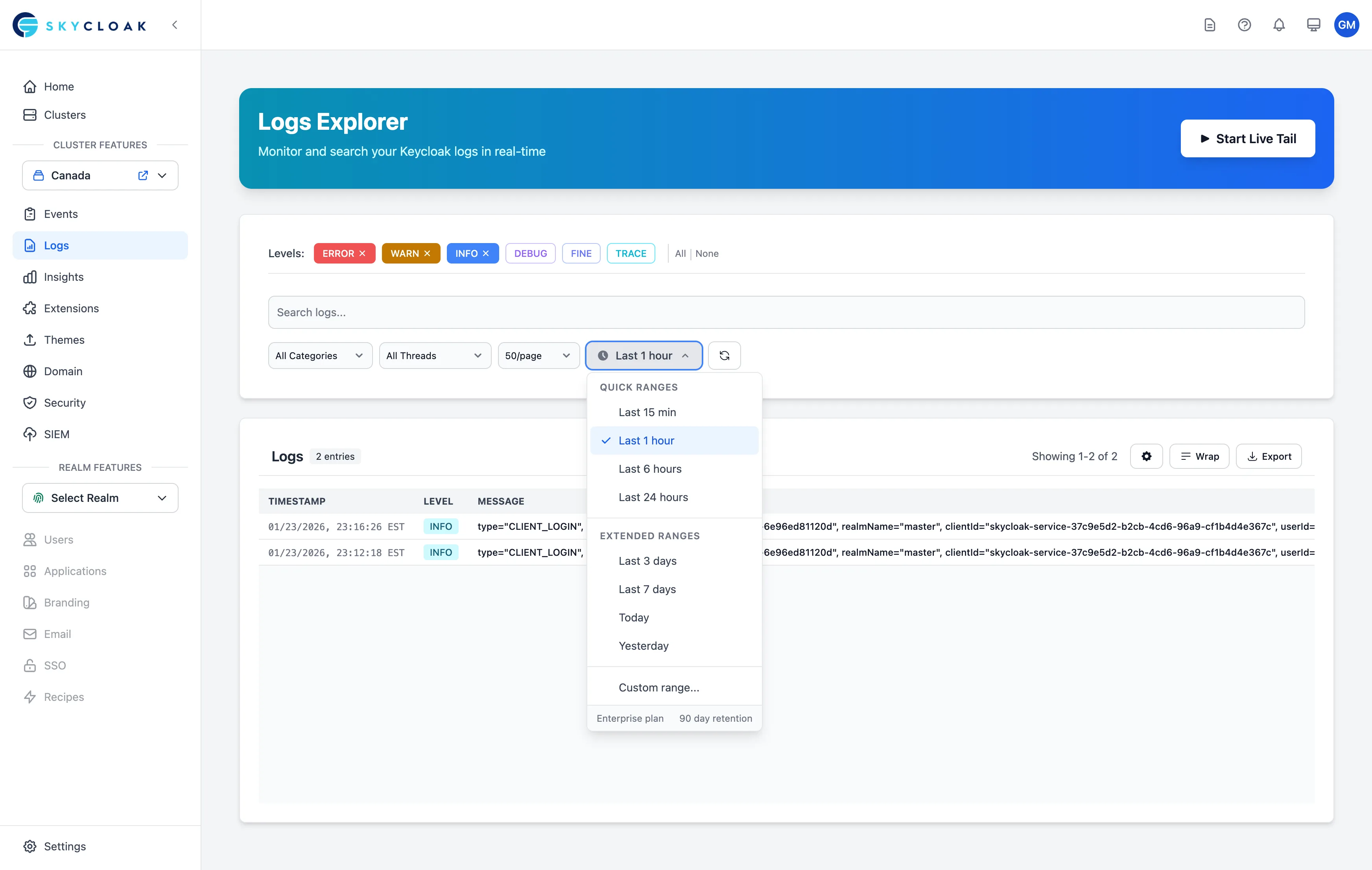
Apply multiple filters:
-
Time Range
- Last 15 minutes
- Last hour
- Last 24 hours
- Custom range
-
Severity Filter
- Show/hide specific levels
- Focus on errors only
- Debug mode view
-
Component Filter
- Authentication logs
- Database logs
- Integration logs
- System logs
-
Custom Filters
- User-specific logs
- Client application logs
- Realm-specific logs
- IP address filtering
Saved Searches
Save frequently used searches:
- Configure your filters
- Click “Save Search”
- Name your search
- Access from saved searches menu
Log Analysis Features
Pattern Recognition
The logs viewer can identify patterns:
- Repeated errors
- Failed login attempts
- Performance degradation
- Unusual activity spikes
Log Aggregation
View aggregated statistics:
- Error rate over time
- Most common errors
- Request volume
- Performance metrics
Export Capabilities
Export logs for external analysis:
- Download: CSV, JSON, or TXT format
- Time Range: Select specific period
- Filters Applied: Export filtered results
- Size Limits: Up to 10,000 entries
Debugging Common Issues
Authentication Failures
When debugging login issues:
- Filter by user email
- Look for “authentication failed” messages
- Check for specific error codes
- Review the authentication flow
Common patterns:
Invalid credentials: [email protected]
Account locked: [email protected]
MFA verification failed: [email protected]
Session expired: session=abc123
Performance Issues
Identify performance problems:
- Search for slow queries
- Look for timeout errors
- Check database connection issues
- Monitor response times
Performance indicators:
Slow query detected: duration=2547ms
Connection pool exhausted
Request timeout: endpoint=/realms/master
High memory usage: 95% utilized
Integration Errors
Debug third-party integrations:
- Filter by integration name
- Look for connection errors
- Check authentication tokens
- Review API responses
Advanced Features
Log Correlation
Correlate related events:
- Track user journey across logs
- Link errors to root causes
- Follow request flow
- Identify cascading failures
Performance Metrics
View performance data inline:
- Response time trends
- Error rate changes
- Throughput metrics
- Resource utilization
Best Practices
Effective Log Analysis
-
Start Broad, Then Narrow
- Begin with time range
- Add filters progressively
- Focus on relevant entries
-
Use Appropriate Severity
- INFO for normal flow
- ERROR for actual problems
- DEBUG only when needed
-
Correlate with User Reports
- Match timestamps
- Search for user identifiers
- Review complete flow
-
Regular Monitoring
- Check logs daily
- Review error trends
- Monitor performance
Log Retention
Log retention varies by subscription plan:
- Trial: 7 days
- Developer: No access to logs
- Launch: 3 days
- Business: 30 days
- Enterprise: 90 days (customizable)
The time range selector automatically adjusts to show only the ranges available for your plan.
Troubleshooting Guide
No Logs Appearing
If logs aren’t showing:
- Check cluster status
- Verify time range selection
- Remove all filters
- Refresh the page
Slow Log Loading
For performance issues:
- Narrow time range
- Add specific filters
- Reduce real-time updates
- Export for offline analysis
Missing Log Entries
If expected logs are missing:
- Check severity filter
- Verify component selection
- Expand time range
- Contact support
Security Considerations
Sensitive Data
Logs may contain:
- User email addresses
- IP addresses
- Session identifiers
- Request payloads
Handle with care:
- Limit access to authorized users
- Don’t share logs publicly
- Redact sensitive information
- Follow data protection policies
Compliance
For compliance requirements:
- Logs are encrypted at rest
- Access is audited
- Retention follows policies
- Exports are tracked
Integration with Other Features
Audit Logs
- Logs show technical details
- Audit logs show user actions
- Use together for complete picture
Insights
- Logs provide raw data
- Insights show trends
- Correlate for analysis
Monitoring
- Real-time log viewing
- Historical analysis
Next Steps
- View analytics insights to understand usage patterns
- Review security best practices for log access
- Configure event monitoring for compliance
- Analyze performance using log data