Security & Protection
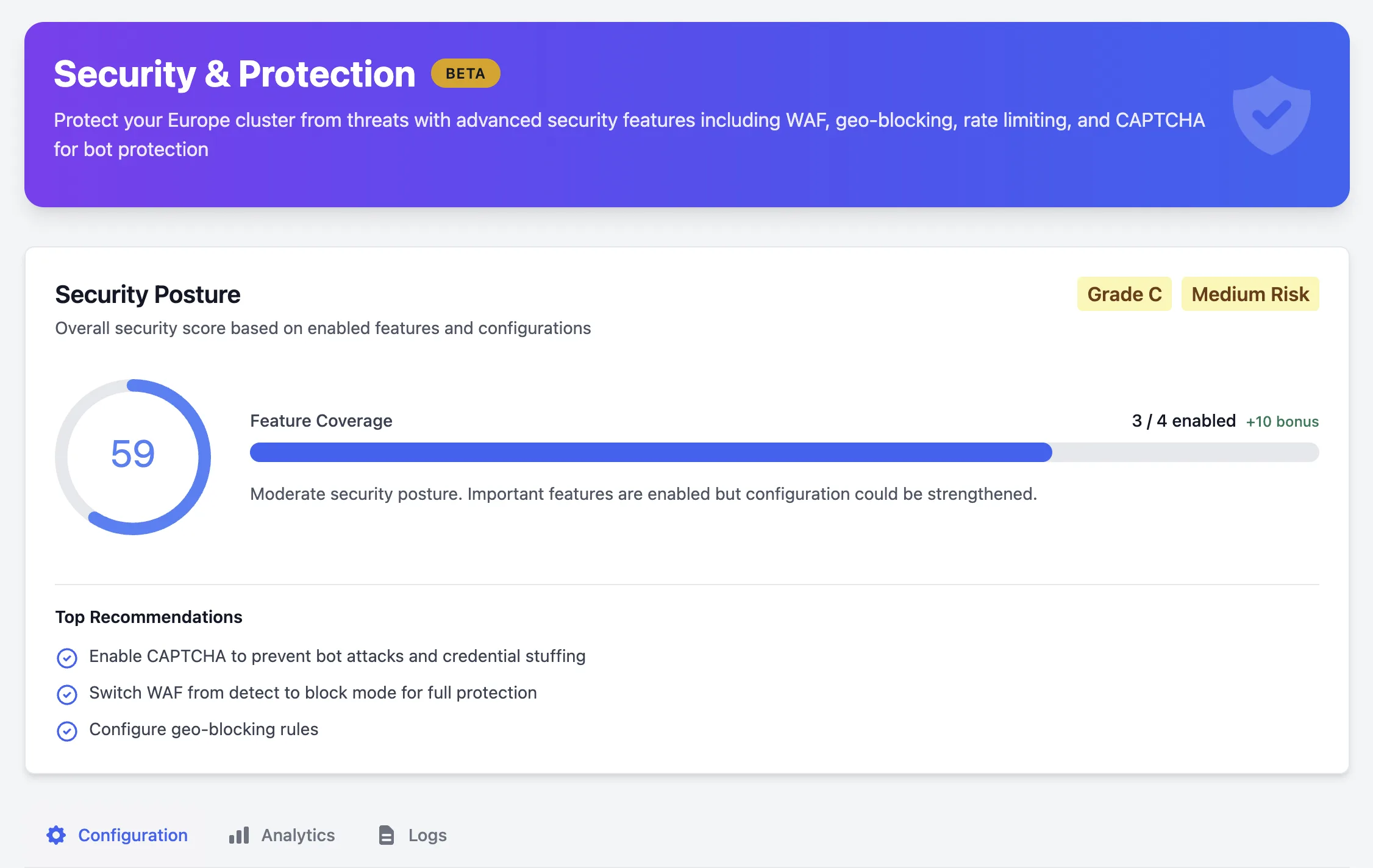
Skycloak provides comprehensive security features to protect your Keycloak clusters from threats, malicious traffic, and unauthorized access. Configure advanced security controls with an easy-to-use interface.
Overview
The Security Dashboard allows you to:
- Web Application Firewall (WAF): Protect against OWASP Top 10 attacks
- Geo-blocking: Control access based on geographic location
- IP Access Control: Restrict paths to specific IP addresses or CIDR ranges
- Rate Limiting: Prevent abuse with request rate limits
Plan Requirements: Security features are included with Enterprise plans, or can be purchased as individual add-ons for Launch and Business plans. Each security feature can be added separately based on your needs.
- Enterprise Plan: All security features included
- Launch/Business Plans: Purchase individual security add-ons (see Subscription Plans for pricing)
Accessing the Security Dashboard
- Navigate to your cluster in the dashboard
- Click the actions menu (three dots) next to your cluster
- Select Security from the dropdown menu
- Configure your security settings
- Click Save Configuration to apply changes
Web Application Firewall (WAF)
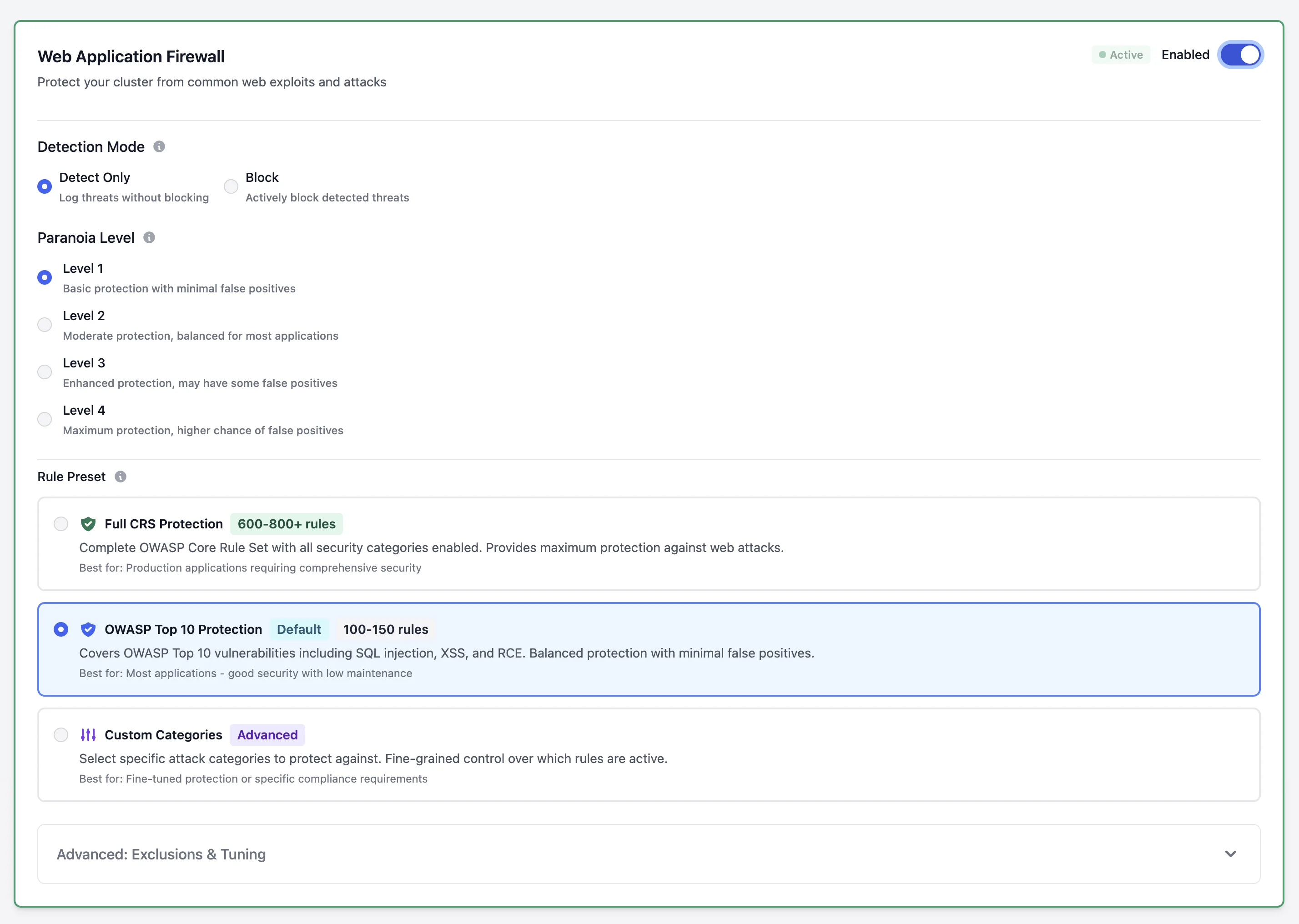
Protect your Keycloak instance from common web exploits and attacks using industry-standard OWASP Core Rule Set (CRS).
Features
Attack Protection:
- SQL injection prevention
- Cross-site scripting (XSS) blocking
- Local file inclusion detection
- Remote code execution prevention
- Protocol attack mitigation
- Common vulnerability protection
Configuration Options:
Detection Mode:
- Detect Only: Log potential threats without blocking (recommended for initial setup)
- Block Mode: Actively block detected threats
Paranoia Level (1-4):
- Level 1: Minimal false positives, basic protection
- Level 2: Balanced protection (recommended for most users)
- Level 3: Enhanced protection, may have some false positives
- Level 4: Maximum security, higher chance of false positives
Excluded Rules (Optional):
- Exclude specific OWASP rules by ID
- Useful for resolving false positives
- Enter comma-separated rule IDs (e.g.,
920100, 920200)
Setup Process
- Navigate to Security Dashboard
- Enable Web Application Firewall
- Select Detect Only mode initially
- Choose Paranoia Level 2 (recommended)
- Click Save Configuration
- Monitor logs for false positives
- Add excluded rules if needed
- Switch to Block Mode when confident
Geo-blocking
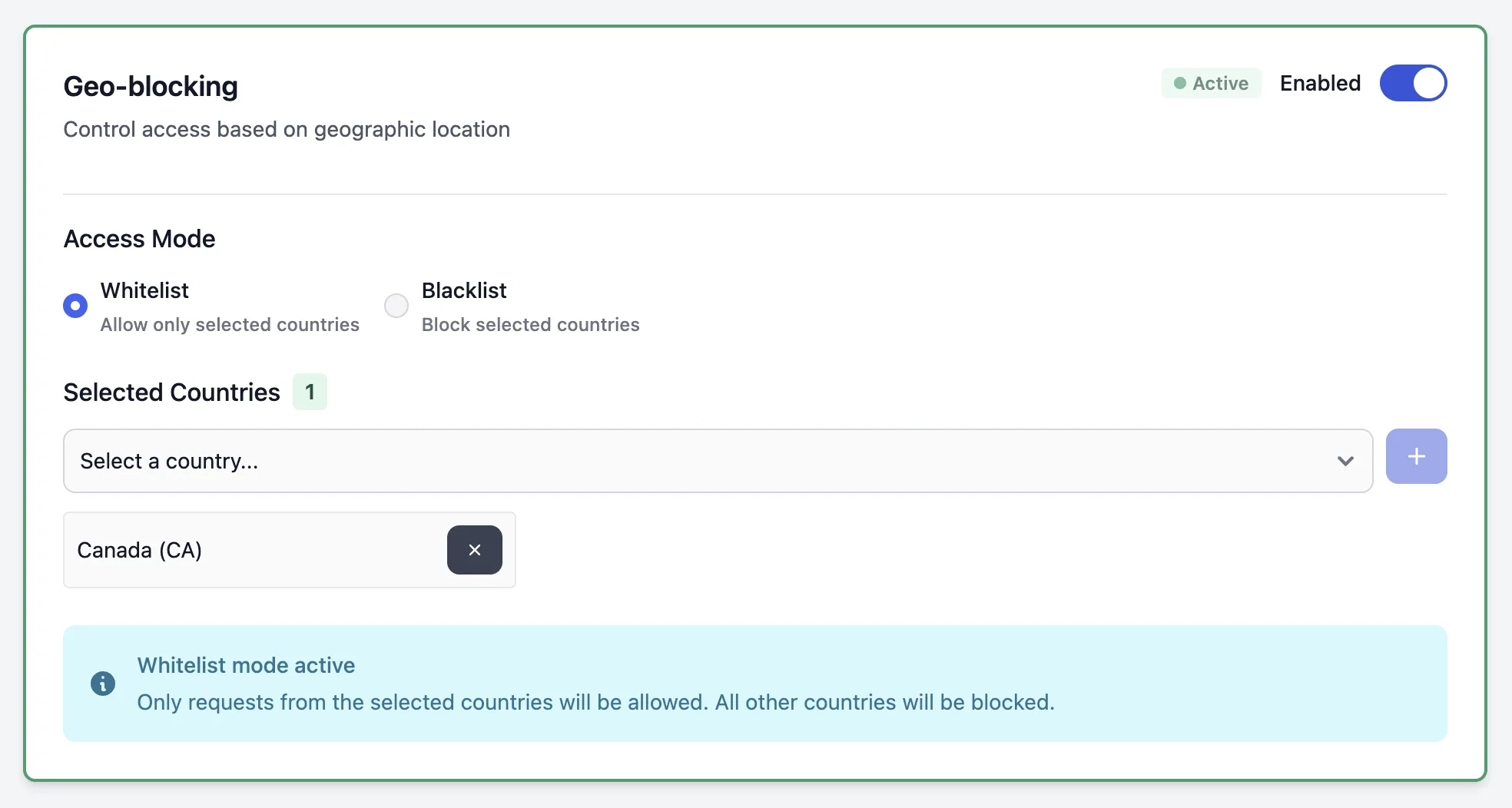
Control access to your Keycloak cluster based on geographic location using ISO 3166-1 country codes.
Features
Access Control:
- Whitelist mode: Allow only selected countries
- Blacklist mode: Block selected countries
- Support for 60+ countries worldwide
- Real-time geographic filtering
Supported Countries: Includes major countries across all regions:
- North America: US, CA, MX
- Europe: UK, DE, FR, IT, ES, NL, and more
- Asia Pacific: JP, CN, IN, SG, AU, NZ
- Latin America: BR, AR, CL, CO
- Middle East & Africa: IL, AE, SA, ZA
Setup Process
- Navigate to Security Dashboard → Geo-blocking
- Enable Geo-blocking
- Select access mode:
- Whitelist: Allow only selected countries (more restrictive)
- Blacklist: Block only selected countries (less restrictive)
- Add countries from the dropdown
- Click Save Configuration
Use Cases:
Whitelist Mode (Allow only):
- Restrict access to specific regions
- Comply with data sovereignty requirements
- Target specific geographic markets
- Example: Only allow US and EU countries
Blacklist Mode (Block only):
- Block high-risk regions
- Prevent attacks from specific locations
- Comply with sanctions requirements
- Example: Block known threat origins
IP Access Control
Restrict access to specific paths based on IP addresses or CIDR ranges for fine-grained security control.
Features
Path-Based Restrictions:
- Individual IP address whitelisting
- CIDR range support (e.g.,
10.0.0.0/8) - Wildcard path patterns for flexible rules
- Per-path access control
Flexible Path Patterns:
- Exact match:
/admin(only/admin) - Wildcard prefix:
/admin/*(all admin subpaths) - Root wildcard:
/*(all paths)
Configuration Options
Path Rules: Each path rule specifies which IPs or CIDR ranges can access a specific path.
Path Pattern (required):
- Must start with
/ - Use
/*to match all paths - Use
/admin/*to match all admin subpaths - Use
/adminfor exact match only
Allowed IPs (optional):
- Individual IPv4 or IPv6 addresses
- Example:
192.168.1.100,2001:db8::1
Allowed CIDRs (optional):
- IP address ranges in CIDR notation
- Example:
10.0.0.0/8,172.16.0.0/12
Description (optional):
- Human-readable description of the rule
- Example: “Office network access”
Setup Process
- Navigate to Security Dashboard → IP Access Control
- Enable IP Access Control
- Click Add New Path Rule
- Enter path pattern:
-
/*for all paths -
/admin/*for admin section -
/realms/master/*for specific realm
-
- Add allowed IP addresses:
- Enter IP and click
+to add - Add multiple IPs as needed
- Enter IP and click
- Add allowed CIDR ranges:
- Enter CIDR (e.g.,
10.0.0.0/8) - Click
+to add
- Enter CIDR (e.g.,
- Add description (optional)
- Click Add Path Rule
- Repeat for additional paths
- Click Save Configuration
Valid Path Pattern Examples
Match all paths:
/*Any request from allowed IPs can access any path.
Restrict admin section:
/admin/*Only allowed IPs can access /admin/users, /admin/settings, etc.
Restrict specific realm:
/realms/master/*Only allowed IPs can access the master realm.
Exact path match:
/adminOnly allows access to /admin exactly (not /admin/users).
Invalid Path Patterns
Common Mistakes: Avoid these invalid patterns that will not work:
-
*(bare wildcard - must be/*) -
admin/*(no leading slash - must be/admin/*) -
/admin/*/users(wildcard in middle - not supported) -
/admin/(trailing slash - use/adminor/admin/*)
Use Cases
Office Network Only:
Path: /*
Allowed CIDRs: 10.0.0.0/8, 172.16.0.0/12
Description: Corporate network only
Restricts entire cluster to office network.
Admin Console - VPN Only:
Path: /admin/*
Allowed IPs: 192.168.1.100
Allowed CIDRs: 10.8.0.0/24
Description: Admin access via VPN only
Allows admin access only from VPN IP range.
Public App, Protected Admin:
Rule 1:
  Path: /admin/*
  Allowed IPs: 203.0.113.10
  Description: Admin from static IP

Rule 2:
  Path: /realms/internal/*
  Allowed CIDRs: 10.0.0.0/8
  Description: Internal realm - office only
Public access for main app, restricted admin and internal realms.
Best Practices
Start Restrictive:
- Begin with specific paths like
/admin/* - Add broader rules (
/*) only if needed - Test from allowed IPs before deploying
Use CIDR Ranges:
- Prefer CIDR ranges over individual IPs
- Easier to manage for office networks
- Example:
10.0.0.0/8instead of listing individual IPs
Document Rules:
- Always add descriptions
- Explain why each rule exists
- Document IP ownership
Monitor Access:
- Review security logs for denied requests
- Verify rules are working as expected
- Adjust rules based on legitimate access needs
Combine with Geo-blocking:
- Use IP access control for specific paths
- Use geo-blocking for country-level restrictions
- Layered security provides better protection
Rate Limiting
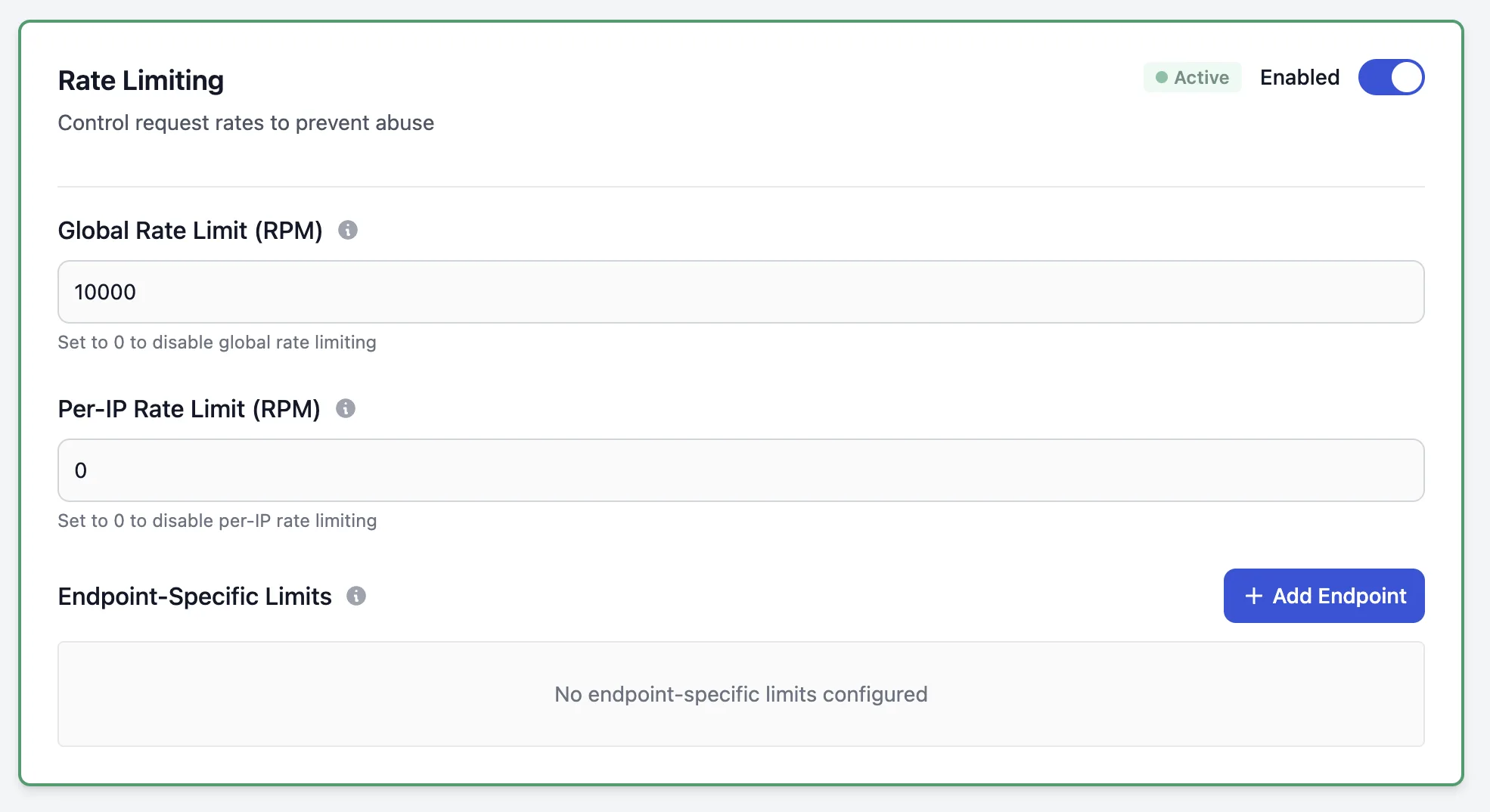
Prevent abuse and denial-of-service attacks by limiting request rates using Envoy Gateway’s enterprise-grade rate limiting infrastructure.
Features
Rate Limit Types:
- Global Rate Limit: Total requests per minute across all sources (workspace-based)
- Per-IP Rate Limit: Requests per minute from a single IP address (prevents single-source abuse)
- Endpoint-Specific Limits: Custom limits for specific API endpoints (no wildcards)
Technical Implementation:
- Powered by Envoy Gateway BackendTrafficPolicy
- Redis-backed rate limiting for distributed enforcement
- Automatic policy propagation to all cluster pods
- 5 seconds to 1 minute propagation time
Configuration Options
Global RPM (Requests Per Minute):
- Limits total traffic to your workspace
- Enforced across all sources combined
- Set to 0 to disable
- Recommended: 5000-10000 for most clusters
- Example:
5000allows 5000 requests per minute total across all IPs
Per-IP RPM:
- Limits requests from individual IP addresses
- Prevents single-source abuse and DDoS attacks
- Tracked per unique IP address
- Recommended: 100-500 per IP
- Example:
200allows 200 requests per minute per IP address
Endpoint-Specific Limits:
- Configure different limits for specific API endpoints
- Must use exact paths (wildcards not supported)
- Protect authentication endpoints more strictly
- Example:
/auth/realms/master/login→ 50 RPM
Path Validation Rules
Valid Endpoint Paths:
- Must start with
/(e.g.,/auth/login) - Must be exact paths only
- Cannot contain wildcards (
*) - RPM value must be greater than 0
Valid Path Examples:
✓ /auth/realms/master/login
✓ /admin/console
✓ /api/users
✓ /realms/myrealm/protocol/openid-connect/token
Invalid Path Examples:
✗ auth/login (missing leading slash)
✗ /admin/* (wildcards not allowed)
✗ /api/*/users (wildcards not allowed)
✗ /* (wildcard not allowed)Setup Process
- Navigate to Security Dashboard → Rate Limiting
- Enable Rate Limiting
- Configure global limit (optional):
5000RPM - Configure per-IP limit (optional):
200RPM - Add endpoint-specific limits:
- Click Add Endpoint
- Enter exact path:
/auth/realms/master/login - Enter RPM:
50 - Click Add Limit
- Repeat step 5 for additional endpoints
- Click Save Configuration
- Wait 5 seconds to 1 minute for propagation
Common Use Cases
Basic Protection:
Global RPM: 5000
Per-IP RPM: 200
Endpoint Limits: None
Good starting point for most clusters. Protects against basic abuse while allowing legitimate traffic.
Authentication Protection:
Global RPM: 10000
Per-IP RPM: 300
Endpoint Limits:
  - /auth/realms/master/login: 50 RPM
  - /auth/realms/master/protocol/openid-connect/token: 100 RPM
Protects authentication endpoints while allowing higher limits for general traffic.
API Rate Limiting:
Global RPM: 20000
Per-IP RPM: 500
Endpoint Limits:
  - /realms/myrealm/protocol/openid-connect/token: 200 RPM
  - /admin/realms/myrealm/users: 50 RPM
  - /admin/realms/myrealm/clients: 50 RPM
Fine-grained protection for API endpoints with different sensitivity levels.
Best Practices
Conservative Start:
- Begin with high limits (e.g., Global: 10000, Per-IP: 500)
- Monitor traffic patterns for 7-14 days
- Gradually reduce limits based on actual usage
- Test from production traffic patterns
Endpoint Protection Priority:
-
/auth/*/login- Most sensitive (50-100 RPM) -
/auth/*/register- High priority (50-100 RPM) -
/auth/*/reset-password- Medium priority (100-200 RPM) - Token endpoints - Medium priority (100-300 RPM)
- Admin endpoints - Lower limits (50-100 RPM)
- Public APIs - Higher limits (200-500 RPM)
Monitoring:
- Review security logs for rate limit violations
- Check analytics dashboard for blocked requests
- Adjust limits based on legitimate traffic patterns
- Document rate limit decisions and reasoning
Combining Rate Limit Types:
- Use Global RPM for overall cluster protection
- Use Per-IP RPM to prevent single-source abuse
- Use Endpoint Limits for critical paths only
- All three work together for layered protection
Troubleshooting
Configuration Not Applying:
- Wait up to 1 minute for BackendTrafficPolicy propagation
- Check cluster status is “Available”
- Verify you clicked “Save Configuration”
- Review error messages in dashboard
Legitimate Users Being Rate Limited:
- Review rate limit logs in Analytics tab
- Check if limits are too restrictive
- Increase per-IP limits for authenticated users
- Consider whitelisting known IP ranges (use IP Access Control)
Rate Limits Not Enforcing:
- Verify at least one limit type is configured
- Check Global RPM is greater than 0 (or disabled)
- Ensure endpoint paths are exact matches (no wildcards)
- Review BackendTrafficPolicy status in Kubernetes
Endpoint Limit Not Working:
- Verify path starts with
/ - Remove any wildcards from path
- Check RPM is greater than 0
- Ensure path exactly matches request path
Private Network / VPC Peering (Enterprise)
For organizations requiring network-level isolation, Skycloak offers Private Network connectivity through VPC peering.
Overview
Private Network connectivity allows your Keycloak clusters to communicate directly with your infrastructure through secure, private connections without traversing the public internet.
Benefits:
- Enhanced Security: Traffic never leaves private networks
- Lower Latency: Direct connectivity reduces network hops
- Compliance: Meet regulatory requirements for data isolation
- Network Isolation: Restrict access to internal networks only
Supported Configurations
AWS VPC Peering:
- Connect your AWS VPC directly to Skycloak infrastructure
- Supports cross-region peering
- Route table configuration for private routing
Private Link:
- Expose Keycloak as a private endpoint in your VPC
- No public IP addresses required
- Service endpoint access from your applications
Getting Started
Private Network setup requires coordination with the Skycloak team:
- Contact Sales: Email [email protected] or contact your account manager
- Requirements Gathering: Discuss your network architecture and requirements
- Configuration Planning: Define VPC CIDRs, routing, and security groups
- Implementation: Skycloak team configures the private connectivity
- Testing: Validate connectivity from your network
- Go Live: Switch production traffic to private network
Prerequisites
- Enterprise plan subscription
- AWS VPC or compatible cloud infrastructure
- Non-overlapping CIDR ranges with Skycloak infrastructure
- Network administrator access to configure routing
Pricing
Private Network / VPC Peering is available as an add-on for $299/month or included with Enterprise plans. See Subscription Plans for details.
Configuration Management
Save and Reset
Save Configuration:
- Applies all changes to your cluster
- Updates take 5 seconds to 1 minute to propagate to all pods
- Cluster remains operational during update
- Success notification appears when complete
Reset Changes:
- Discards unsaved modifications
- Returns to last saved configuration
- No impact on cluster operation
Validation
The Security Dashboard automatically validates your configuration:
WAF Validation:
- Mode must be detect or block
- Paranoia level must be 1-4
- Excluded rules must be valid IDs
Geo-blocking Validation:
- ISO 3166-1 alpha-2 country codes
- At least one country required
- Mode must be whitelist or blacklist
Rate Limiting Validation:
- At least one limit type required
- RPM values must be positive
- Endpoint paths must start with /
Troubleshooting
Common Issues
Configuration Not Applying:
- Wait up to 1 minute for propagation to all pods
- Check cluster status is “Available”
- Verify you clicked “Save Configuration”
- Review error messages in toast notifications
Legitimate Traffic Blocked:
- Review and adjust paranoia level
- Add excluded WAF rules
- Whitelist user-agent patterns
- Check geo-blocking country list
- Increase rate limits
Security Features Not Available:
- Security features require Enterprise plan
- Contact sales at [email protected] to upgrade
- Check workspace plan status in settings
Getting Help
Support Resources:
- Documentation and guides
- Email support for Business+ plans
- Priority support for Enterprise
When Contacting Support:
- Include workspace ID and cluster ID
- Describe the security configuration
- Provide error messages or screenshots
- Include steps to reproduce the issue
Next Steps
- Configure custom domains for professional branding
- Set up event monitoring to track security events
- Explore branding options to customize your authentication experience
- Manage team access with workspace permissions