User Management
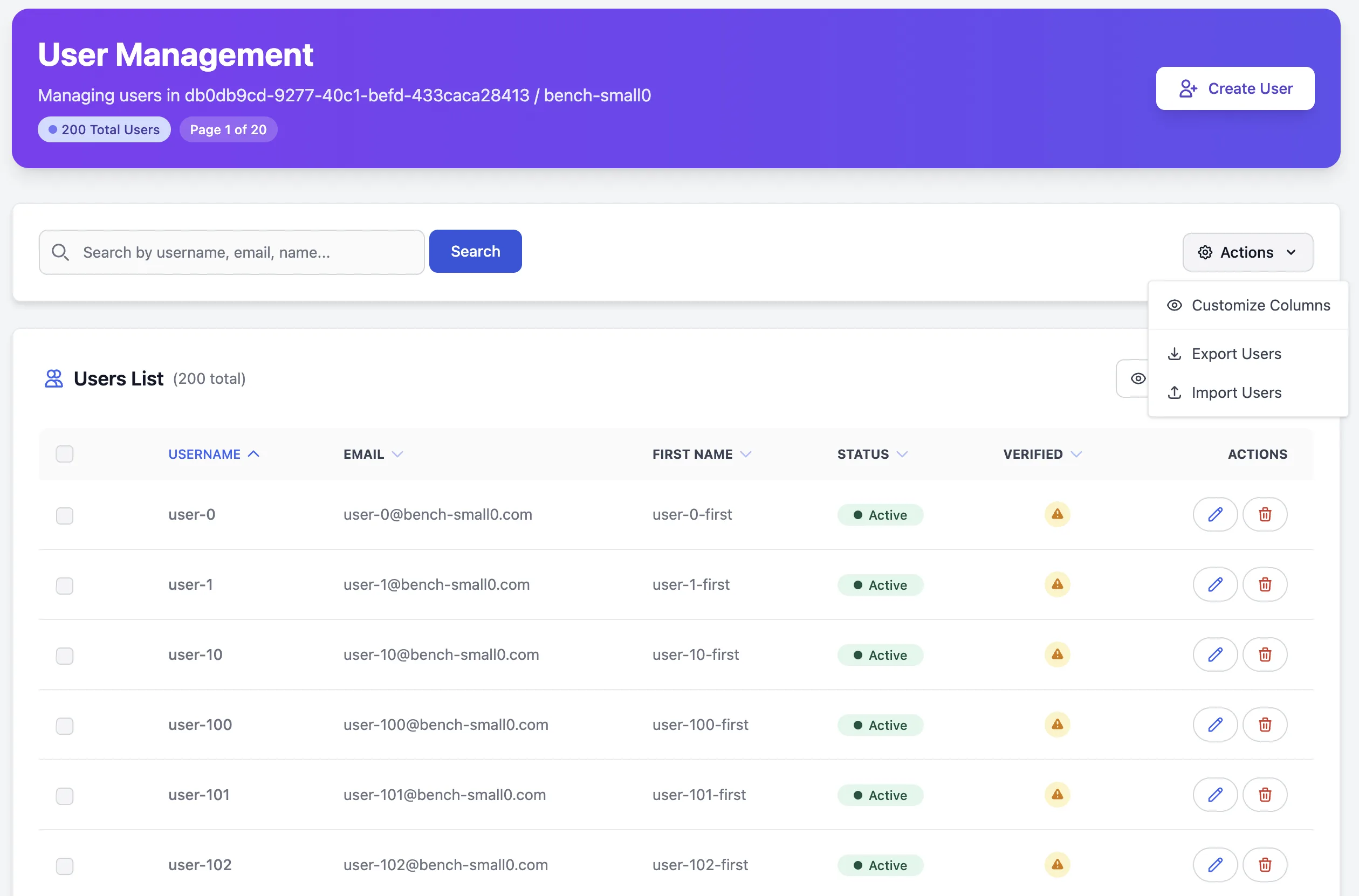
Manage your application users efficiently with Skycloak’s comprehensive user management system. Create users, assign roles, manage groups, and control access - all from a unified interface that simplifies identity management across your applications.
Overview
User Management in Skycloak provides everything you need to:
- Create and manage users across all your applications
- Assign roles and permissions with fine-grained control
- Organize users into groups for easier management
- Import users in bulk from existing systems
- Set password policies and manage credentials
- Track user sessions and login activity
- Configure self-registration and user profiles
Prerequisites
- An active Skycloak cluster
- A configured realm (default or custom)
- Admin or user management permissions in your workspace
- Basic understanding of Keycloak concepts (users, roles, groups)
Getting Started
Accessing User Management
- Navigate to Users from your Skycloak dashboard
- Select your cluster and realm from the dropdown menus
- View your user list with search and filter capabilities
Description: Shows the main users management interface with:
- Cluster and realm selector dropdowns at the top
- Search bar for finding users by name, email, or username
- Filter options for status (enabled/disabled), email verified, and roles
- User table with columns: Username, Email, First Name, Last Name, Status, Actions
- Bulk action checkboxes on the left
- “Create User” and “Import Users” buttons in top right
- Pagination controls showing “1-20 of 156 users” Focus on: Clean interface showing multiple users with various statuses
Creating Users
Manual User Creation
Click “Create User” button
-
Fill in user details:
- Username (required, unique identifier)
- Email address (for notifications and password resets)
- First and Last name
- Initial password or temporary password
- Email verified status
- User enabled status
-
Set initial configuration:
- Temporary password (forces reset on first login)
- Email verification requirement
- Account activation status
Description: Shows the user creation form with:
- Username field with validation indicator
- Email field with format validation
- First Name and Last Name fields
- Password field with strength meter
- “Temporary Password” checkbox (checked by default)
- “Email Verified” toggle
- “User Enabled” toggle (on by default)
- Required actions multi-select (Verify Email, Update Password, Update Profile)
- Cancel and Create User buttons Focus on: Form validation states and helpful hints for each field
Bulk User Import
For migrating existing users or creating multiple accounts:
Click “Import Users” button
-
Choose import format:
- CSV file with user data
- JSON format for advanced imports
- LDAP/Active Directory sync
Map fields to Keycloak attributes
Review and confirm the import
Description: Shows the import interface with:
- File upload area with drag-and-drop zone
- Format selector (CSV, JSON, LDAP)
- Sample template download link
- Field mapping table showing CSV columns → Keycloak fields
- Preview of first 5 users to be imported
- Import options: Skip existing users, Update existing, Create only new
- Progress bar for import process Focus on: Clear mapping interface and import preview
Managing User Details
User Profile Information
Click on any user to access their detailed profile:
Basic Information Tab:
- Personal details (name, email, username)
- Account status and verification
- User attributes and custom fields
- Profile completeness indicators
Description: Shows comprehensive user profile with:
- User avatar/initial circle on left
- Basic info section: Username, Email, First/Last Name
- Account status badges: Active, Email Verified, MFA Enabled
- Custom attributes section with key-value pairs
- Created and Last Login timestamps
- Edit, Reset Password, and Delete User action buttons
- Tab navigation: Profile, Credentials, Role Mappings, Groups, Sessions, Consents Focus on: Complete user information at a glance
Password and Credentials
Manage user authentication methods:
- Reset passwords with temporary or permanent options
- Configure MFA (TOTP, WebAuthn, etc.)
- View credential history and last change dates
- Set required actions for next login
Description: Shows credential management interface with:
- Current password section with last changed date
- Reset Password button with dropdown (Temporary/Permanent)
- Two-Factor Authentication section showing configured methods
- Add MFA Method button
- Required Actions for next login checklist
- Credential history log showing past 5 password changes Focus on: Security options and credential management tools
Role Management
Assigning Roles to Users
Control what users can do in your applications:
Navigate to Role Mappings tab
-
View available roles:
- Realm roles (global across realm)
- Client roles (application-specific)
- Composite roles (role groups)
Assign roles by moving from Available to Assigned
Set effective roles including inherited permissions
Description: Shows role mapping interface with:
- Available Roles list on left with search
- Assigned Roles list on right
- Add/Remove arrow buttons in center
- Role details panel showing description and permissions
- Effective Roles section showing all inherited roles
- Default roles indicator
- Save Changes button Focus on: Clear role assignment with visual feedback
Understanding Role Hierarchy
Realm Roles - Apply across all applications:
-
admin- Full system access -
user- Basic user access -
developer- Development tools access - Custom realm roles you create
Client Roles - Application-specific:
-
app-admin- Admin for specific app -
app-user- User for specific app - Application-defined roles
Group Management
Organizing Users into Groups
Groups simplify permission management for multiple users:
- Create groups with hierarchical structure
- Add users to groups individually or in bulk
- Assign roles to groups (inherited by all members)
- Set group attributes for additional metadata
Description: Shows groups interface with:
- Groups tree view on left showing hierarchy
- Selected group details on right
- Members list with Add/Remove capabilities
- Group roles assignment section
- Group attributes key-value editor
- Subgroups creation option
- Path breadcrumb showing: /company/engineering/backend Focus on: Hierarchical organization and member management
Group Strategies
Department-based Groups:
/company
  /engineering
    /frontend
    /backend
    /devops
  /sales
  /support
Permission-based Groups:
/access-levels
  /read-only
  /editors
  /administrators
Project-based Groups:
/projects
  /project-alpha
    /developers
    /testers
  /project-beta
User Sessions and Activity
Monitoring Active Sessions
Track user login activity and manage sessions:
View active sessions per user
-
See login details:
- IP addresses
- Client/browser information
- Session duration
- Last activity time
Revoke sessions individually or all at once
Description: Shows active sessions with:
- Session list table with columns: Started, Last Access, IP Address, Client
- Session details showing browser, OS, and location
- Revoke Session button per session
- Revoke All Sessions button
- Session timeout settings
- Login history showing past 30 days Focus on: Security monitoring and session control
User Attributes and Metadata
Custom User Attributes
Extend user profiles with custom data:
- Add custom attributes as key-value pairs
-
Use attributes in:
- Token claims
- Application logic
- User segmentation
- Conditional access
Common attributes:
-
department- User’s department -
employee_id- Internal ID -
subscription_tier- Service level -
preferences- JSON user settings
Description: Shows attribute management with:
- Key-value pair editor
- Add Attribute button
- Common attributes dropdown helper
- Attribute validation indicators
- JSON viewer for complex values
- Attribute inheritance from groups indicator
- Save and Cancel buttons Focus on: Flexible attribute management
Password Policies
Configuring Password Requirements
Set security standards for user passwords:
Policy Options:
- Length - Minimum character count (8-128)
- Complexity - Uppercase, lowercase, digits, special characters
- History - Prevent reuse of recent passwords
- Expiration - Force periodic password changes
- Blacklist - Prevent common/compromised passwords
Description: Shows password policy settings with:
- Policy rule builder with AND/OR conditions
- Minimum length slider (set to 12)
- Character requirements checkboxes
- Password history setting (last 5 passwords)
- Expiration period selector (90 days)
- Blacklist upload option
- Policy strength indicator (Strong)
- Test password validator Focus on: Comprehensive security configuration
User Federation
Connecting External User Sources
Integrate existing user directories:
Supported Sources:
- LDAP/Active Directory - Enterprise directories
- Kerberos - Single sign-on
- Custom Providers - Via SPI
Federation Benefits:
- Sync existing users automatically
- Maintain single source of truth
- Preserve existing passwords
- Map directory groups to Keycloak
Self-Registration
Enabling User Sign-up
Allow users to create their own accounts:
Enable self-registration in realm settings
-
Configure registration form:
- Required fields
- Custom attributes
- Terms acceptance
-
Set up verification:
- Email verification required
- Admin approval workflow
- Domain restrictions
Description: Shows registration configuration with:
- Self-registration enabled toggle
- Registration form field selector
- Required fields configuration
- Email verification settings
- Allowed email domains input
- Terms of service URL field
- Registration flow designer link Focus on: Security and customization options
Best Practices
User Management Strategy
-
Use groups for scale
- Assign roles to groups, not individual users
- Create logical group hierarchies
- Use group attributes for metadata
-
Implement strong password policies
- Minimum 12 characters for standard users
- Minimum 16 for administrators
- Require MFA for privileged accounts
-
Regular maintenance
- Review inactive users quarterly
- Audit role assignments monthly
- Clean up test accounts
-
Security considerations
- Enable email verification
- Use temporary passwords for new accounts
- Monitor failed login attempts
- Implement account lockout policies
Performance Optimization
For large user bases:
- Use pagination and filters effectively
- Implement user federation for external sources
- Cache user attributes when possible
- Use bulk operations for mass updates
Common Use Cases
Scenario 1: Onboarding New Employees
- Create user with temporary password
- Assign to appropriate department group
- Group automatically grants necessary roles
- User receives welcome email with instructions
- First login forces password change and MFA setup
Scenario 2: Customer User Management
- Enable self-registration with email verification
- Auto-assign “customer” role on registration
- Use attributes for subscription tiers
- Implement progressive profiling
- Track usage via session monitoring
Scenario 3: B2B Multi-tenant Setup
- Create groups per organization
- Use group attributes for organization metadata
- Assign organization-admin roles
- Implement domain-based registration
- Isolate users via group-based permissions
Troubleshooting
Common Issues and Solutions
User can’t log in:
- Check user is enabled
- Verify email if required
- Check password hasn’t expired
- Review required actions
- Verify realm is correct
Roles not working:
- Check effective roles (including inherited)
- Verify client/realm role assignment
- Clear user session/cache
- Check role scope mappings
Import failures:
- Validate file format (UTF-8 encoding)
- Check for duplicate usernames
- Verify required fields are present
- Review import size limits
Email not sending:
- Configure SMTP settings in realm
- Check email template configuration
- Verify user email address
- Review spam filters
Security Considerations
Protecting User Data
-
Data Privacy:
- Limit attribute visibility
- Use minimal data collection
- Implement data retention policies
- Enable GDPR compliance features
-
Access Control:
- Restrict user management permissions
- Audit admin actions
- Use principle of least privilege
- Implement approval workflows
-
Account Security:
- Enforce strong passwords
- Require MFA for sensitive roles
- Monitor suspicious activity
- Implement account lockout
API Integration
Programmatic User Management
Manage users via Keycloak Admin API:
// Create a user
POST /admin/realms/{realm}/users
{
  "username": "john.doe",
  "email": "[email protected]",
  "enabled": true,
  "firstName": "John",
  "lastName": "Doe"
}

// Assign roles
PUT /admin/realms/{realm}/users/{id}/role-mappings/realm
[
  {
    "id": "role-id",
    "name": "user"
  }
]

// Add to group
PUT /admin/realms/{realm}/users/{id}/groups/{groupId}
Related Features
- Identity Providers - Connect external identity sources
- Applications - Configure app access
- Team Management - Manage workspace members
- Event Logs - Track user activity
Next Steps
- Set up Identity Providers for SSO
- Configure Application access
- Implement Custom branding for login pages
- Enable Multi-factor authentication