Workspace Single Sign-On
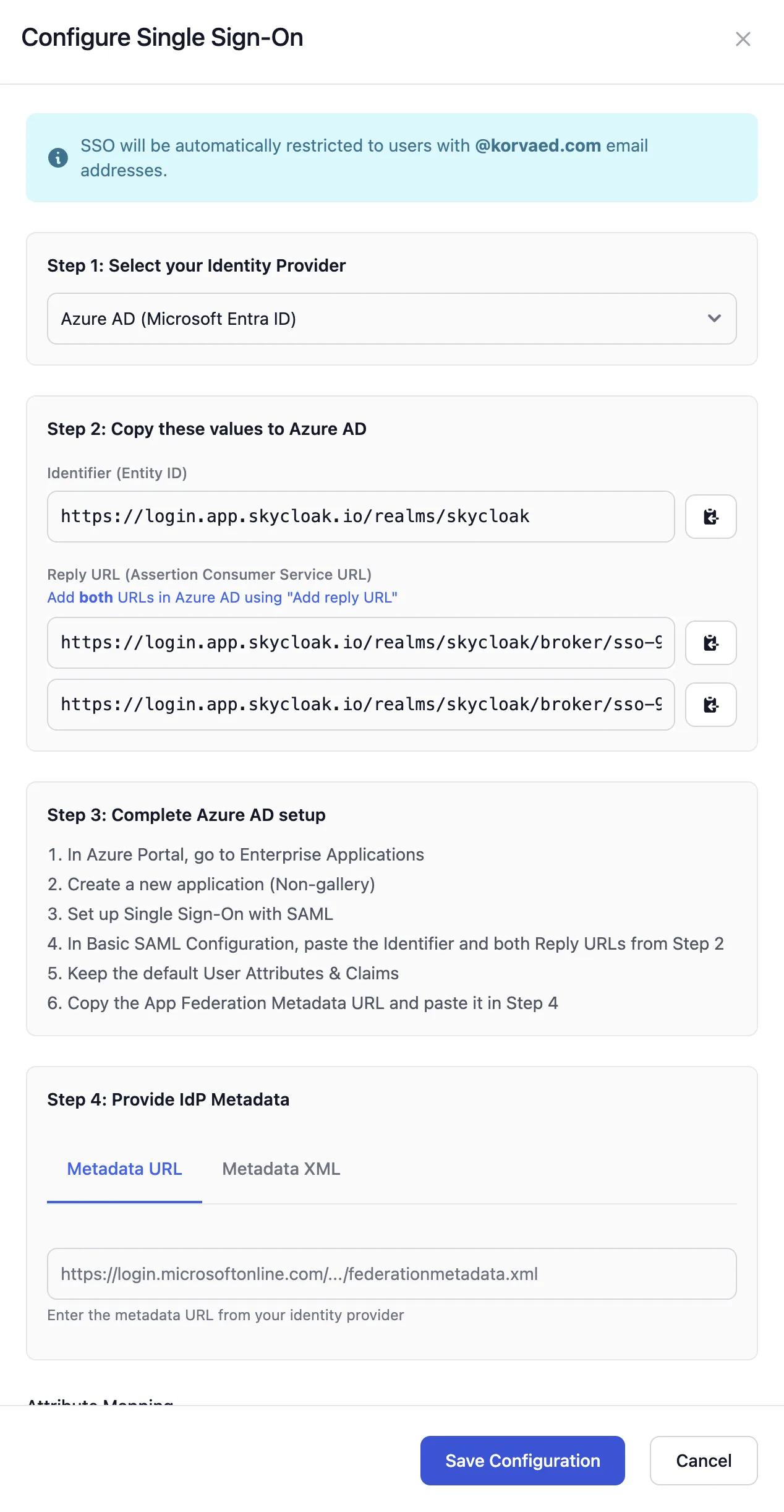
Enable enterprise-grade Single Sign-On (SSO) for your entire Skycloak workspace, allowing team members to authenticate using your corporate identity provider.
Overview
Workspace SSO provides centralized authentication for all team members accessing your Skycloak workspace. Unlike realm-level identity providers that affect your applications’ end users, workspace SSO controls how your team members log into Skycloak itself.
Key Benefits
- Centralized Access Control - Manage team access through your corporate identity provider
- Enhanced Security - Leverage your existing MFA and security policies
- Simplified Onboarding - New team members automatically get access with their corporate credentials
- Compliance - Meet enterprise security requirements with SAML 2.0 authentication
- Domain Restriction - Automatically restricted to your organization’s email domain
Prerequisites
- Enterprise plan - Workspace SSO is an Enterprise feature
- Workspace Owner or Admin role - Required to configure SSO settings
- SAML 2.0 Identity Provider - Such as Azure AD, Okta, or Google Workspace
- Corporate email domain - SSO is restricted to the workspace owner’s email domain
Supported Identity Providers
Skycloak supports SAML 2.0 authentication with pre-configured templates for:
- Azure Active Directory - Microsoft’s cloud identity service
- Okta - Enterprise identity management platform
- Google Workspace - For organizations using Google as their IdP
- Custom SAML - Any SAML 2.0 compliant identity provider
How It Works
- Automatic Domain Detection - SSO is automatically restricted to your organization’s domain (extracted from the workspace owner’s email)
- SAML Authentication - Team members click “Sign in with SAML” at login.app.skycloak.io
- IdP Redirect - Users are redirected to your corporate identity provider
- Secure Return - After authentication, users are returned to Skycloak with access granted
- User Provisioning - New users are automatically created on first login
Configuration Guide
Step 1: Access Security Settings
- Navigate to Settings in your Skycloak dashboard
- Select the Workspace tab
- Click on Security section
- Scroll to Single Sign-On (SSO)
Step 2: Configure SSO
Click Configure SSO button
-
Select your identity provider type:
- Azure AD (SAML)
- Okta (SAML)
- Google Workspace (SAML)
- Custom SAML
Note the domain restriction (automatically set from owner’s email)
Step 3: Provide Metadata
Choose one of the following methods:
Option A: Metadata URL
- Enter the metadata URL from your identity provider
- Example:
https://login.microsoftonline.com/{tenant}/federationmetadata/2007-06/federationmetadata.xml
Option B: Metadata XML
- Upload or paste the metadata XML file from your IdP
- This file contains all necessary configuration details
Step 4: Configure Attribute Mapping
Map SAML attributes to user fields:
-
Email - Usually
emailorhttp://schemas.xmlsoap.org/ws/2005/05/identity/claims/emailaddress -
First Name - Usually
firstNameorgivenName -
Last Name - Usually
lastNameorsurname
Step 5: Configure Your Identity Provider
After saving, you’ll receive:
- Entity ID (Audience) - Identifies Skycloak to your IdP
- Reply URL 1 (IdP-initiated) - For users clicking the app tile in your IdP dashboard
- Reply URL 2 (SP-initiated) - For users clicking “Sign in with SAML” from Skycloak login
Important: Add both Reply URLs to your identity provider to enable full SSO functionality. If you only configure one URL, either IdP-initiated or SP-initiated login will fail.
Use these values to configure your identity provider:
Azure AD Configuration
- Go to Enterprise Applications in Azure Portal
- Create a new application (Non-gallery)
- Set up Single Sign-On with SAML
- Use the Entity ID and Reply URL from Skycloak
- Configure user attributes and claims
Okta Configuration
- In Okta Admin, go to Applications
- Create a new SAML 2.0 application
- Enter the Entity ID and ACS URL from Skycloak
- Configure attribute statements
- Assign users or groups
Google Workspace Configuration
- In Google Admin console, go to Apps → Web and mobile apps
- Add a custom SAML app
- Use the Entity ID and ACS URL from Skycloak
- Configure attribute mapping
- Turn on for organizational units
Step 6: Test Connection
- Click Test Connection in Skycloak
- Verify the connection is successful
- Try logging in with a test user account
User Experience
For Team Members
Once SSO is configured:
- Team members go to
login.app.skycloak.io - Click Sign in with SAML button
- Authenticate with corporate credentials
- Automatically logged into Skycloak workspace
- Session roles are refreshed with current permissions
For New Users
- Users with your domain email are automatically provisioned on first login
- No invitation needed if they have corporate credentials
- Inherit workspace member role by default
- If an invitation exists, users must manually accept it via the invitation link
- SSO login alone does not accept pending invitations
Managing SSO
Update Configuration
- Go to Security settings
- Click Update Configuration
- Modify metadata or attribute mappings
- Save changes
Disable SSO
To disable SSO:
- Click Disable SSO in security settings
- Confirm the action
- Team members revert to email/password authentication
Note: Disabling SSO doesn’t delete user accounts. Team members can still log in with email/password if they have set one.
Security Considerations
Domain Restriction
- SSO is automatically restricted to the workspace owner’s email domain
- Only users with matching email domains can authenticate
- No manual domain configuration needed
User Deprovisioning
- When users are removed from your IdP, they lose SSO access
- Consider removing Skycloak access separately for complete deprovisioning
- Disabled IdP accounts cannot access Skycloak
Session Management
- SSO sessions follow your IdP’s session policies
- Single Logout (SLO) depends on IdP configuration
- Skycloak sessions expire based on workspace settings
Troubleshooting
Common Issues
“Sign in with SAML” button not appearing
- Ensure SSO is configured and enabled
- Clear browser cache and cookies
- Try incognito/private browsing mode
Authentication fails with error
- Verify Entity ID and ACS URL in IdP match Skycloak’s values
- Check attribute mappings are correct
- Ensure user has correct email domain
- For metadata-based configuration, ensure Skycloak can parse the metadata correctly
“Reply URL mismatch” or “AADSTS50011” error (Azure AD)
- Ensure both Reply URLs are configured in Azure AD
- Reply URL 1 (IdP-initiated): The URL with
/clients/{provider-id}at the end - Reply URL 2 (SP-initiated): The URL ending in
/endpoint(without/clients/...) - This error occurs when users try SP-initiated login but only IdP-initiated URL is configured, or vice versa
“Invalid signature in response from identity provider”
- Check if your IdP uses RSA_SHA1 instead of RSA_SHA256 (common with older systems)
- Verify the IdP certificate hasn’t expired
- Some IdPs only sign the response, not the assertion - this is supported
- For testing purposes only, signature validation can be temporarily disabled in advanced settings
“SAML RelayState parameter was null” (Google Workspace)
- This is a known Google Workspace behavior where RelayState isn’t always returned
- Skycloak automatically handles this for Google Workspace configurations
- If using Custom SAML with Google, ensure your provider type is set correctly
- The system automatically allows missing RelayState for Google Workspace
User cannot access after successful authentication
- Verify user’s email matches workspace domain
- Check user is assigned to application in IdP
- Ensure attributes are being sent correctly
- Check that email attribute is properly mapped in your IdP
Test connection fails
- Verify metadata URL is accessible from Skycloak servers
- Check metadata XML is valid SAML 2.0 format
- Ensure IdP certificate is not expired
- If using metadata URL, ensure it’s publicly accessible (not behind a firewall)
Empty Entity ID or SSO URL after configuration
- When using metadata (URL or XML), these fields are automatically extracted
- If fields remain empty, check that your metadata contains:
- EntityDescriptor with entityID attribute
- IDPSSODescriptor with SingleSignOnService endpoints
- Verify metadata is properly formatted SAML 2.0 metadata
Getting Help
If you encounter issues:
- Check the event logs for detailed error messages
- Verify all configuration values match between Skycloak and your IdP
- Contact support with your workspace ID and error details
Best Practices
- Test with a small group - Configure and test with admin accounts first
- Communicate changes - Notify team members before enabling SSO
- Keep a backup admin - Maintain at least one account with email/password access
- Document your setup - Record configuration details for your IdP
- Regular testing - Periodically test SSO connection
- Monitor event logs - Track authentication patterns and issues
Limitations
- One SSO configuration per workspace
- Domain restriction cannot be overridden
- SAML 2.0 protocol only (OIDC coming soon)
- No support for multiple domains (single domain per workspace)
FAQ
Q: Can I have multiple SSO providers? A: No, each workspace supports one SSO configuration at a time.
Q: What happens to existing users when I enable SSO? A: Existing users can continue using their current authentication method or switch to SSO.
Q: Can users from other domains access my workspace? A: No, SSO is automatically restricted to your organization’s domain.
Q: Is SSO available on all plans? A: Workspace SSO is available on Enterprise plan only.
Q: Can I customize the login page? A: The login page at login.app.skycloak.io is managed by Skycloak and shows the SSO option when configured.
Q: What happens if a user has a pending invitation when they login via SSO? A: The user must manually accept the invitation by clicking the link in the invitation email. SSO login alone does not automatically accept invitations. Once accepted, the user’s session is updated with the role specified in the invitation.
Q: Do SSO users skip email verification? A: Yes, SSO users are considered pre-verified through your corporate identity provider and skip the email verification step.
Q: Can SSO users belong to multiple workspaces? A: No, users can only belong to one workspace at a time. SSO login will join them to the workspace associated with their email domain, but pending invitations must still be manually accepted.