Getting Started with Skycloak
Welcome to Skycloak! This guide walks you through your first login, the onboarding process, and helps you understand how to make the most of your managed Keycloak platform. In just a few minutes, you’ll have your workspace ready for secure identity management.
Your First Login
Creating Your Account
When you first sign up for Skycloak:
- Visit skycloak.io and click “Start Free Trial”
-
Choose your sign-up method:
- Email and password
- Google OAuth
- GitHub OAuth
- Verify your email (if using email sign-up)
- Complete the onboarding questionnaire
The Onboarding Experience
After signing up, you’ll answer a few quick questions to help us customize your experience. This typically takes less than 2 minutes.
Step 1: Discovery Channel
Tell us how you discovered Skycloak:
How did you hear about us?
- Google Search
- Social Media (LinkedIn, Twitter, etc.)
- Recommendation from colleague
- Tech blog/publication
- Industry event/conference
- Other (with option to specify)
This helps us understand how developers find Skycloak and improve our outreach.
Step 2: Security Targets
Help us understand what you’re planning to secure:
What are you planning to secure? (select all that apply)
- Single Page Applications (React, Vue, Angular, etc.)
- Backend APIs (REST, GraphQL)
- Mobile Applications (iOS, Android)
- Traditional Web Applications (Server-rendered)
- Microservices Architecture
- Third-party Service Access
- Internal Tools & Dashboards
- Other requirements
Your selections help us provide relevant recommendations and getting started guides.
Step 3: Usage Type
Tell us how you’ll use Skycloak:
How will you use Skycloak?
- Enterprise authentication
- Customer-facing authentication
- Development/testing environment
- API security
- Integration with existing systems
- Other (with option to specify)
This helps us tailor your dashboard experience and suggest relevant features.
Workspace Creation
Automatic Setup
After completing the questionnaire, Skycloak automatically:
- Creates your workspace with a unique identifier
- Sets up your default workspace as the owner
- Initiates your free trial (14 days, no credit card required)
You’ll see an animated setup screen with rotating messages about identity management while your workspace is being configured. This typically takes just a few seconds.
The Getting Started Dashboard
After onboarding, you’ll land on the Getting Started dashboard - your personalized checklist for setting up authentication.
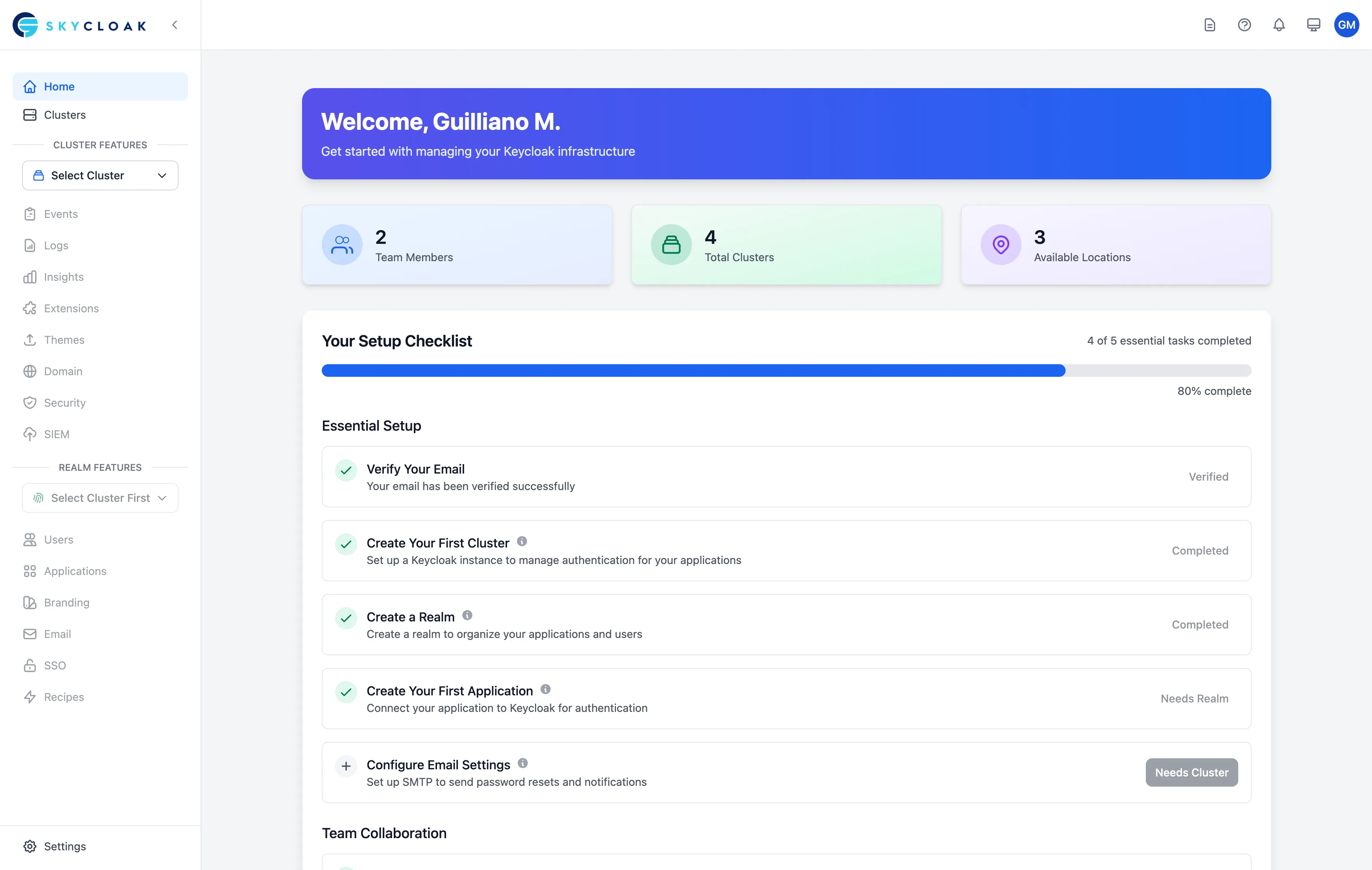
Essential Tasks
These are the core tasks to get your authentication system running:
- Verify Your Email - Confirm your account email address
- Create Your First Cluster - Deploy your Keycloak instance
- Create a Realm - Set up your authentication domain
- Create Your First Application - Configure authentication for your app
- Configure Email Settings - Set up SMTP for user notifications
Team Collaboration
- Invite Team Members - Add colleagues to your workspace
Premium Features
Depending on your plan, you can also:
- Add Custom Domain - Use your own domain (e.g., auth.yourcompany.com)
- Add Custom Branding - Customize login pages with your brand
- Extend Keycloak Capabilities - Install extensions for additional features
- Brand Your Email Templates - Customize email notifications
Progress Tracking
The dashboard tracks your progress through essential tasks, showing:
- Completed items with checkmarks
- Percentage of essential tasks completed
- Smart linking to next steps based on your progress
Skipping Onboarding
If you’re joining an existing workspace via invitation:
- The onboarding questionnaire is automatically skipped
- You’ll go directly to the workspace dashboard
- Your role and permissions are assigned based on the invitation
For experienced users signing up fresh:
- You can navigate away from onboarding at any time
- Your workspace will still be created automatically
- You can always access features directly from the sidebar
Post-Onboarding Tips
Take Your Time
- Each step in the Getting Started checklist has helpful guides
- Progress is automatically tracked
- You can complete tasks in any order (though some depend on others)
Use Help Resources
- Documentation links throughout the dashboard
- Email support at [email protected]
- In-app tooltips for common questions
Common Patterns
For B2C Apps:
- Start with social login (Google, GitHub, etc.)
- Add email/password as fallback
- Enable user registration
For B2B Apps:
- Set up enterprise SSO
- Configure role-based access
- Enable MFA requirements
For Internal Tools:
- Connect to Active Directory/LDAP
- Set up employee groups
- Configure access policies
Troubleshooting Onboarding
Common Issues
-
Email Not Received
- Check spam/junk folders
- Verify email address
- Request resend from account settings
-
Workspace Not Created
- Refresh the page
- Check your network connection
- Contact support if issue persists
-
Onboarding Stuck
- Clear browser cache
- Try a different browser
- Contact [email protected]
Getting Help
During onboarding:
- 📧 Email: [email protected]
- 📚 Documentation links in each step
Next Steps After Onboarding
-
Create Your Cluster:
- Create Your First Cluster
- Choose your region and cluster size
-
Configure Your Application:
- Set up authentication
- Test the login flow
-
Customize Your Experience:
-
Invite Your Team:
- Team Management
- Assign roles and permissions
-
Monitor and Optimize: