Migrating from Keycloak
Move your existing self-hosted Keycloak installation to Skycloak in one go. The migration wizard takes your pg_dump, optional theme, and optional extensions and provisions a fresh managed cluster with your data, branding, and providers already in place.
What gets migrated
Section titled “What gets migrated”| Component | Notes |
|---|---|
| Database | PostgreSQL pg_dump (plain SQL, zipped). Optional OpenSSL encryption is auto-detected. ≤10 GB compressed. |
| Custom domain | Optional. We provision a Cloudflare-SaaS hostname for your domain and issue an SSL cert. |
| Custom theme | Optional. Login + email + account-console template ZIP. |
| Custom extensions | Optional. Multiple .jar files; we rebuild your Keycloak image with them baked in. |
| Management access | Provisioned automatically by Skycloak after restore. You do not provide admin credentials; Admin Console access is via SSO. |
Database type. Skycloak runs PostgreSQL clusters. If your source is MySQL or MariaDB, contact us — we do a one-time schema + data conversion before the migration runs.
Plan. Migration is available on the Launch plan and above. Custom themes and extensions are normally Business+ but during a migration any plan can stage them so you don’t lose your existing setup mid-move. If your plan can’t apply them at launch, we stage them and apply them automatically when you upgrade.
Step-by-step
Section titled “Step-by-step”1. Source database
Section titled “1. Source database”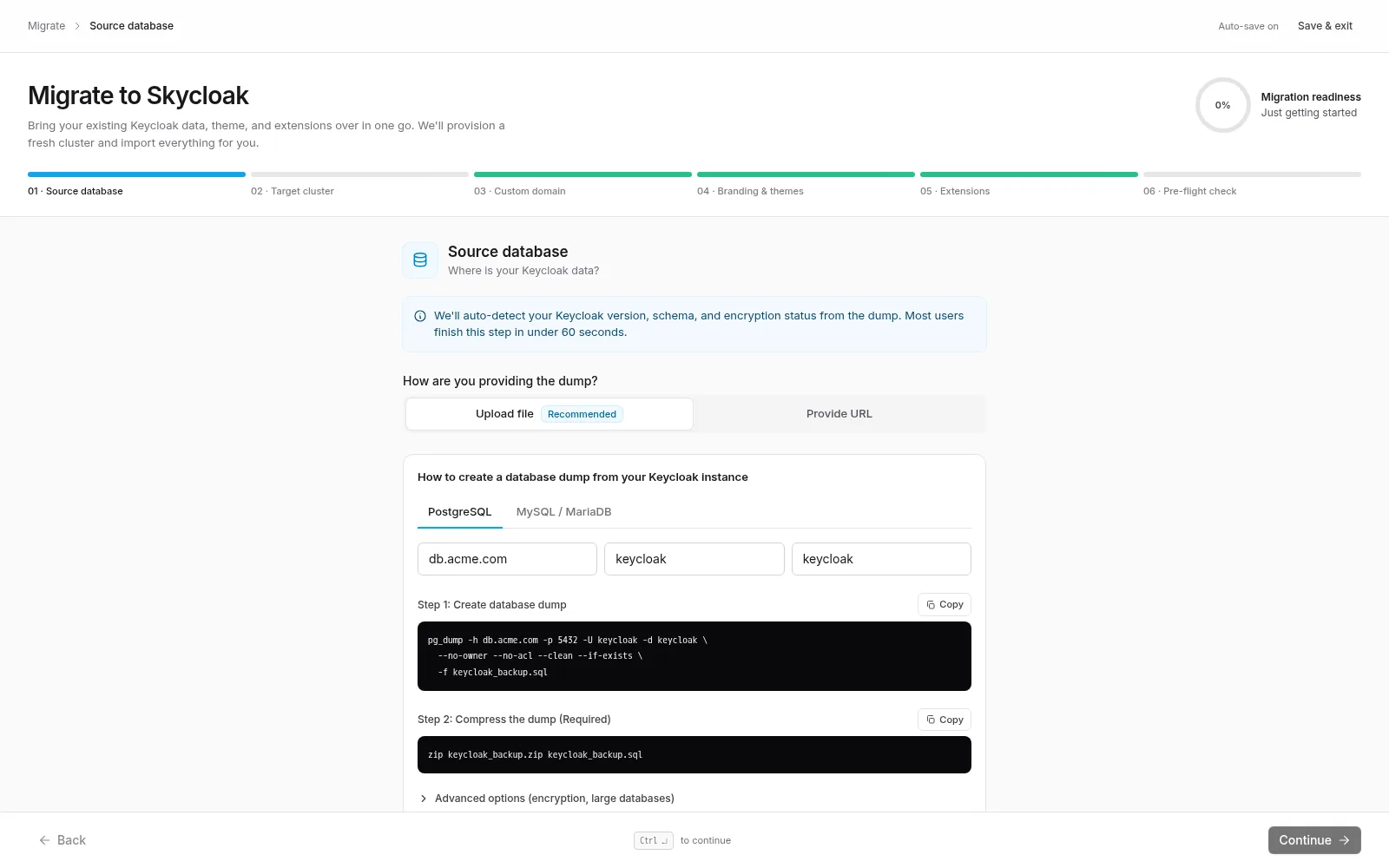
Pick Upload file (recommended) or Provide URL. The wizard generates a personalised pg_dump command for you — fill in your source host/database/user and copy the command. If your dump is encrypted with openssl enc, we auto-detect that from the file header after upload; you’ll just need to provide the password.
The advanced section has commands for encryption (openssl enc -aes-256-cbc -pbkdf2 -salt …) and for large (>10 GB) databases (pg_dump -j 4 -Fd …).
2. Target cluster
Section titled “2. Target cluster”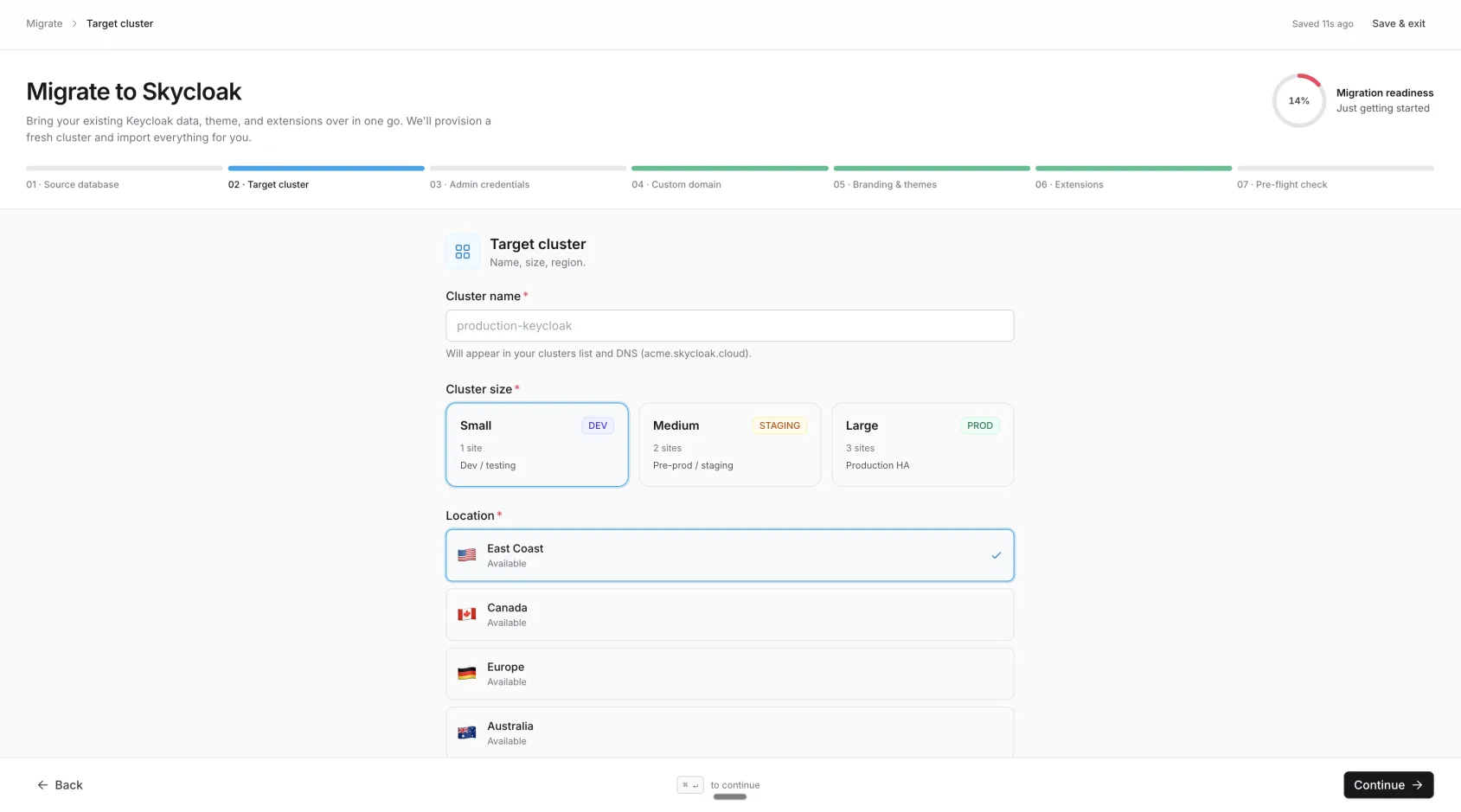
Name the new cluster, pick the size (Small/Medium/Large — plan-dependent), and confirm the location. We pre-select the first accessible location for you.
If your source Keycloak is older than version 17 and your clients hit URLs under /auth/*, expand “Advanced” and enable the legacy /auth path flag. We’ll preserve that path on the new cluster so existing clients keep working.
3. Management
Section titled “3. Management”Your migrated cluster is fully managed by Skycloak. You do not provide admin credentials, Skycloak provisions management access automatically after the restore.
Skycloak handles auth, users, and config, and sets up Admin Console SSO, the realm, and your theme/extensions for you.
4. Custom domain
Section titled “4. Custom domain”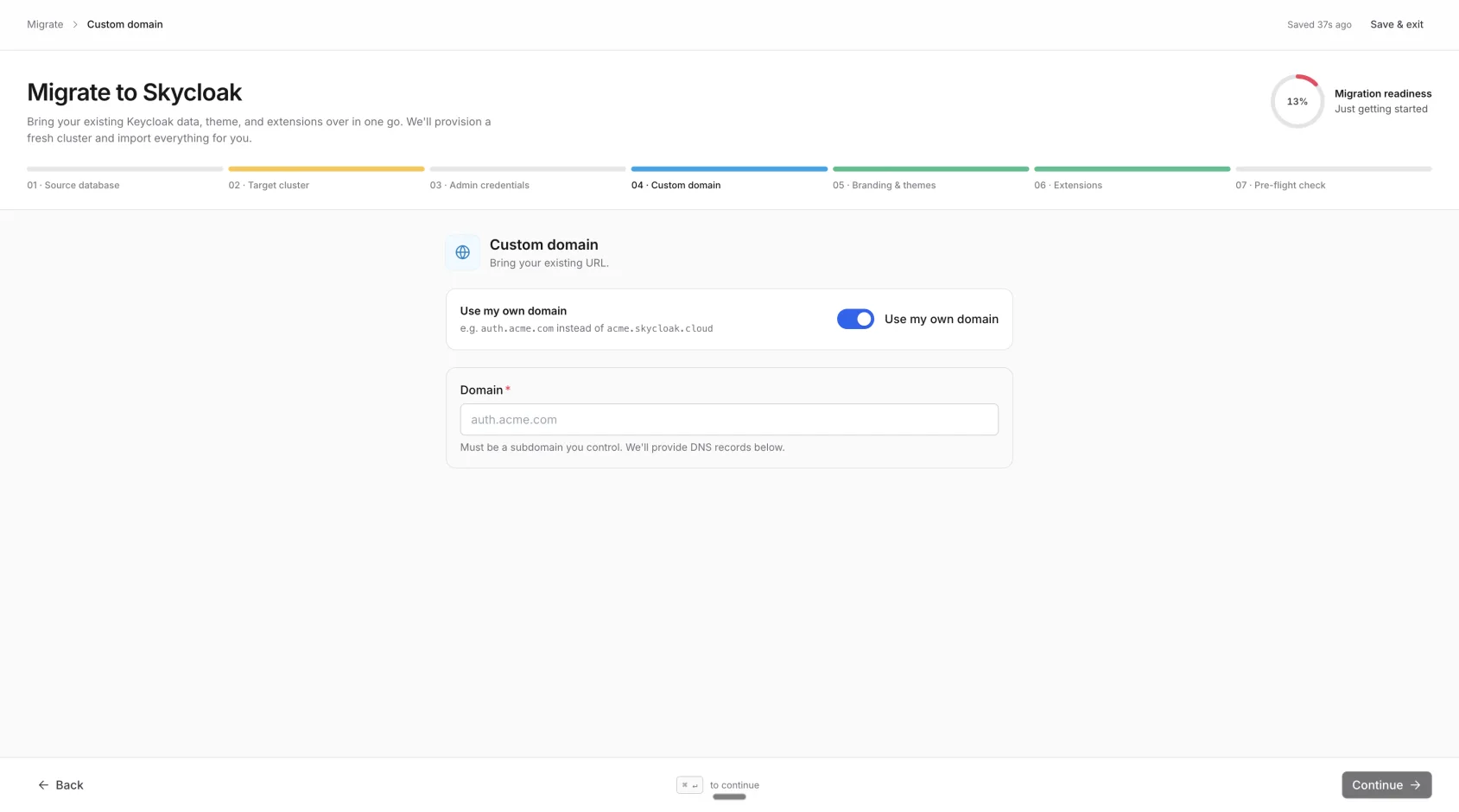
Optional. Toggle on to bring your existing auth.yourcompany.com-style domain. We show you the exact CNAME to add at your DNS provider. There’s nothing to “verify” here — just enter the domain and continue.
We register a Cloudflare-SaaS hostname for you at launch and then verify ownership and issue the SSL certificate automatically in the background — you never click a “Verify” button. Live status (pending → active) shows on the progress screen and on the Custom Domains page; both update on their own. When your DNS flips to our CNAME the cert is already in place and the gateway already accepts your hostname.
5. Branding & themes
Section titled “5. Branding & themes”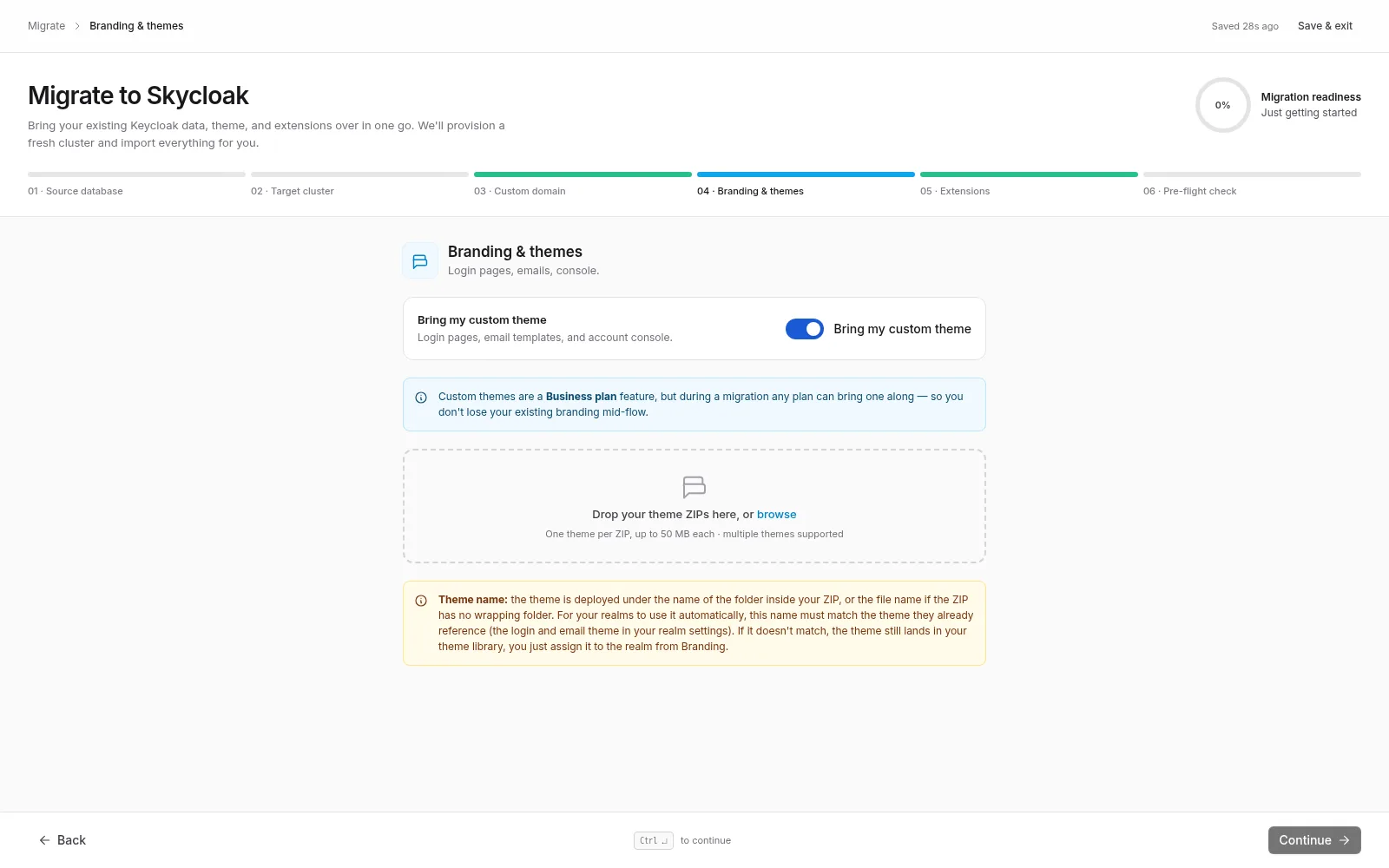
Optional. Upload one or more Keycloak theme ZIPs — login pages, email templates, and account console templates. Each file is imported as its own theme, and the wizard shows the derived name per file (“Imports as: <name>”). We validate the structure at upload time using the same scanner the post-launch custom themes page uses, so a theme that passes here will pass everywhere.
If you’re on Dev/Launch plan, we’ll stage the theme during the migration and apply it the moment you upgrade to Business+.
6. Extensions
Section titled “6. Extensions”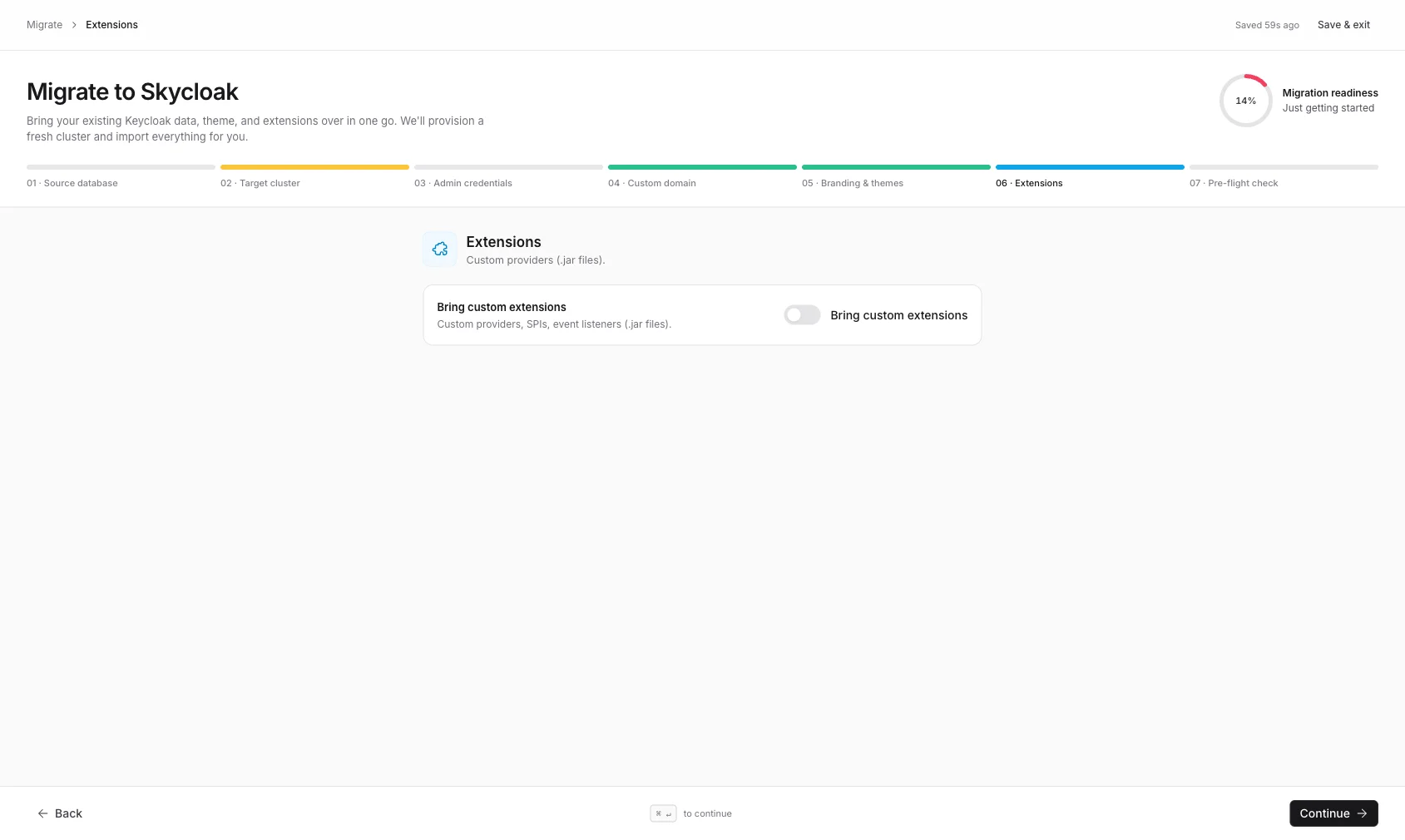
Optional. Upload one or more .jar files — custom providers, SPIs, event listeners. We validate each as a JAR archive (magic-byte check) at upload time. The new cluster’s Keycloak image is rebuilt with your extensions baked in.
Same plan policy as themes: staged on any plan during migration, applied when your plan allows.
7. Pre-flight
Section titled “7. Pre-flight”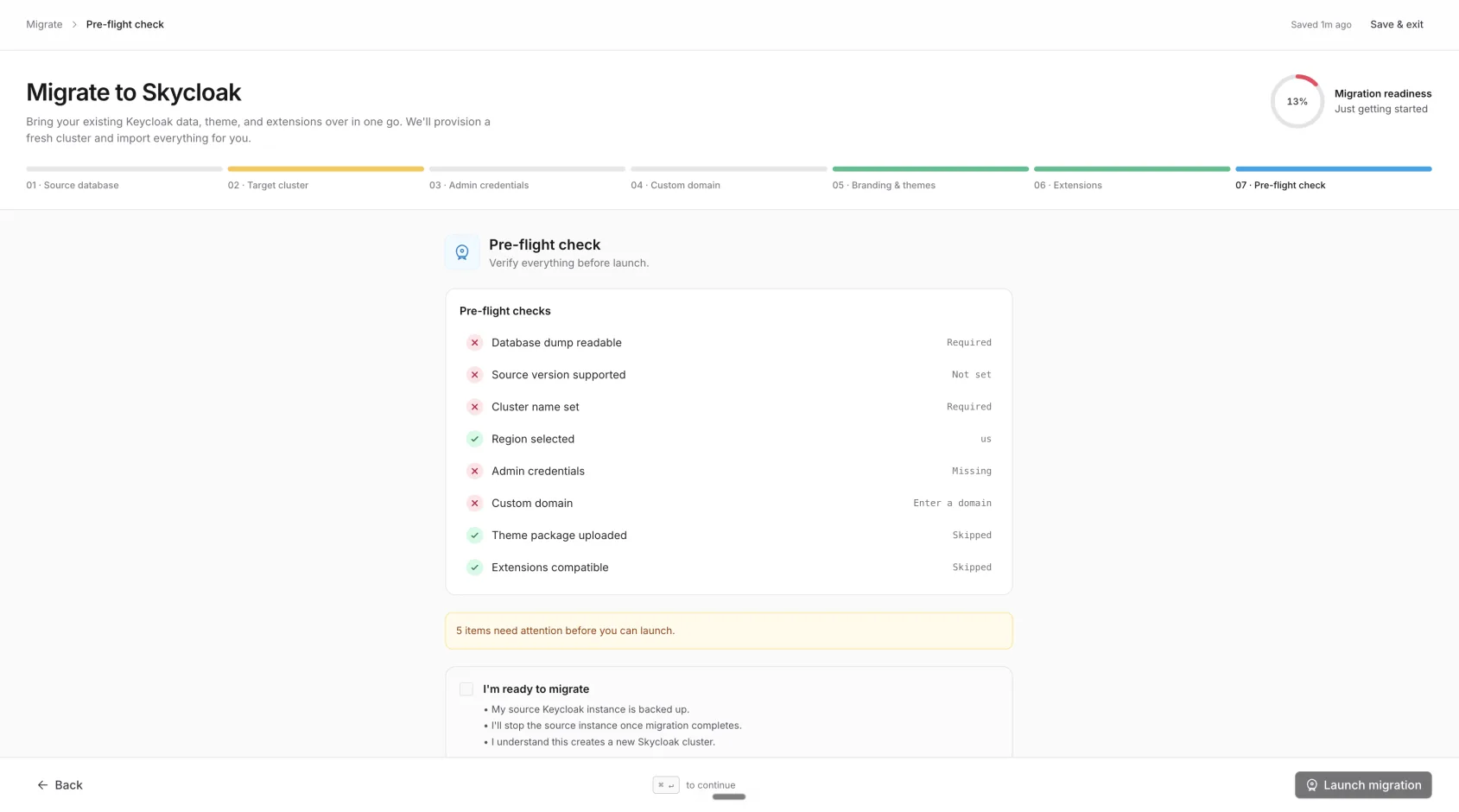
We run a server-side readiness check (encryption-key validation, theme structure, JAR integrity, plan limits) and show you the result. If everything’s green, the Launch migration button activates.
What happens after launch
Section titled “What happens after launch”Once you click Launch:
- Validating dump — we verify the encryption key (if any), the dump’s structure, and your inputs.
- Provisioning cluster — Skycloak creates the Kubernetes resources for your new cluster.
- Restoring data — the operator restores your dump into your new dedicated database.
- Applying themes — your theme ZIPs are deployed to the cluster’s filesystem.
- Loading extensions — we rebuild the Keycloak image with your
.jarfiles and roll the pod. - Health checks — final verification that the new cluster responds correctly.
The progress page is a full-screen view of the six phases, with the active phase highlighted and a progress bar + ETA at the top. It’s safe to leave the tab and come back — when the migration finishes, the page stays on a confirmation screen (it won’t redirect you away), and the browser tab title updates to “✓ Migration complete” so you can tell at a glance without switching back. From there you click through to your new cluster yourself. Typical end-to-end time depends on the dump size:
| Dump size | Typical duration |
|---|---|
| < 100 MB | 3–5 minutes |
| 100 MB – 1 GB | 5–10 minutes |
| 1 – 10 GB | 10–30 minutes |
If anything fails mid-flight, we roll the migration back to draft state so you can fix the input and retry without losing what you already filled in.
After the migration
Section titled “After the migration”The new cluster shows up in your Clusters list. If you brought a custom domain, swap your DNS CNAME to the value we showed you in step 4 — once that propagates, users authenticate against your new Skycloak-managed Keycloak instead of your old self-hosted one.
Extensions you uploaded during the migration are automatically registered as custom extensions, so they appear on the cluster’s Extensions page — no manual re-registration needed.
We don’t delete your source Keycloak. You can keep it running in parallel for cutover validation and decommission it when you’re ready.
Common questions
Section titled “Common questions”Will my users have to re-login? No. Their sessions are tied to cookies in their browsers and to the auth subdomain. As long as your domain stays the same (custom-domain migration), the session cookies are preserved through the CNAME swap.
Are my users’ passwords migrated? Yes. Keycloak’s password hashes live in the database dump, so they migrate as-is.
Do my realms, clients, identity providers, roles, and groups carry over? Yes — everything Keycloak persists in PostgreSQL is in the dump.
What about MFA enrolment? Yes. OTP secrets and WebAuthn registrations live in the database and migrate with the dump.
Can I run a test migration first? Yes. Take a dump of your current Keycloak today, run the migration into a sandbox cluster, verify it, then run it again into production when you’re ready. Each migration is independent — there’s no penalty for re-running.
What if the migration fails? The wizard rolls back to draft state with your inputs preserved. The most common causes are bad checksums, wrong encryption password, or unsupported extension JARs. The pre-flight check catches most of these before launch.
Ready to migrate? Open the Clusters page and click Migrate from Keycloak.